
 React
React iOS
iOS Android
 Flutter
 JavaScript
 Unity
Unity ESP32
ESP32 Platform
 Vision Agents
Telnyx Integration
This guide walks through integrating Stream SIP Interconnect with Telnyx using SIP Connections and Call Control.
Prerequisites
- A configured SIP trunk in Stream with credentials copied (see Inbound Trunk).
- A Telnyx account.
Steps
1. Create a Telnyx account
Go to Telnyx sign-up and create an account if you don't have one already.
2. Buy a phone number
Purchase a phone number from the Telnyx Mission Control Portal under Numbers > Buy Numbers.
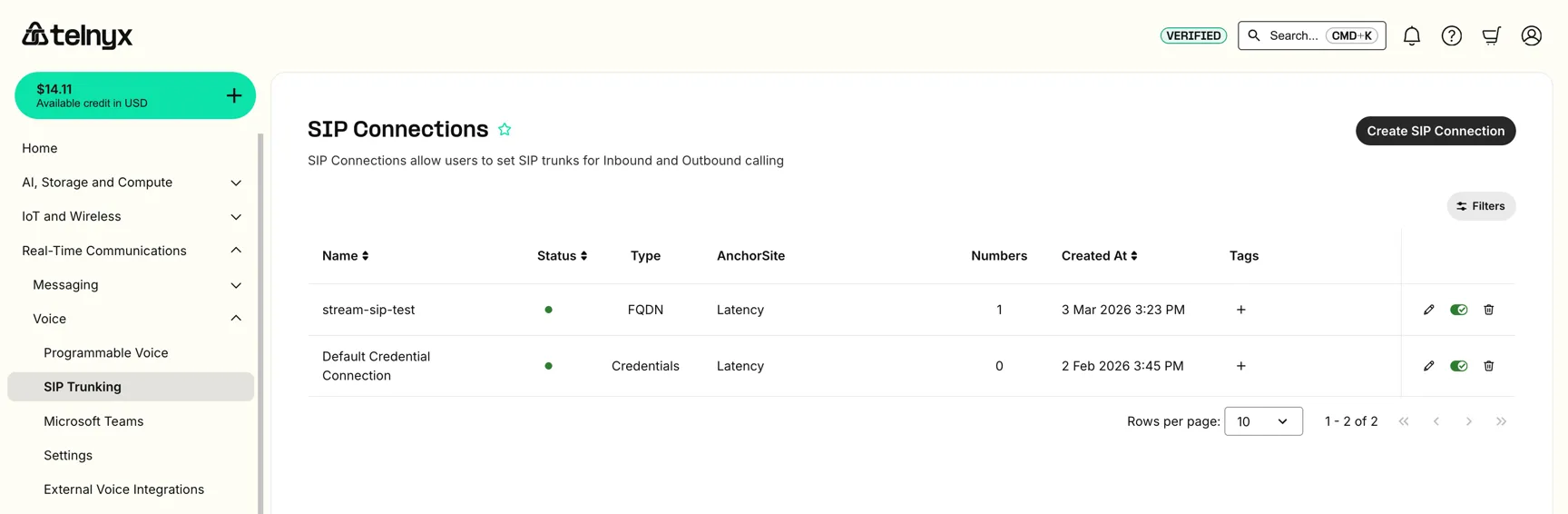
3. Create a SIP Connection
In the Telnyx Mission Control Portal, navigate to Voice > SIP Trunking and click Create SIP Connection. Set the connection type to FQDN.
4. Add FQDN credentials
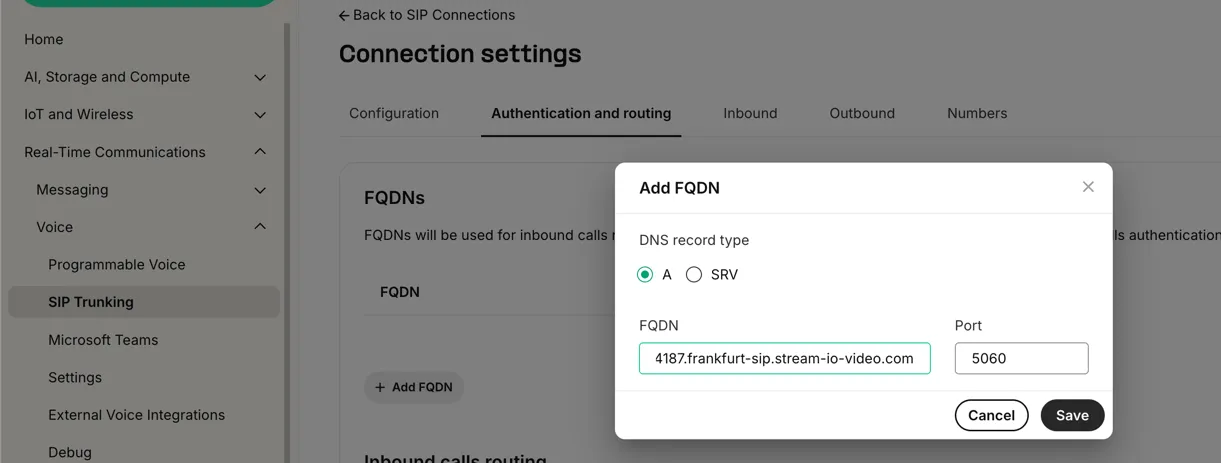
Once the connection is created, go to Authentication and routing tab. Under FQDNs, click Add FQDN and enter the FQDN and port from your Stream inbound trunk configuration (found in the GetStream dashboard):
- DNS record type: A
- FQDN: Your Stream SIP bridge address (e.g.,
4187.frankfurt-sip.stream-io-video.com) - Port:
5060
5. Configure inbound settings
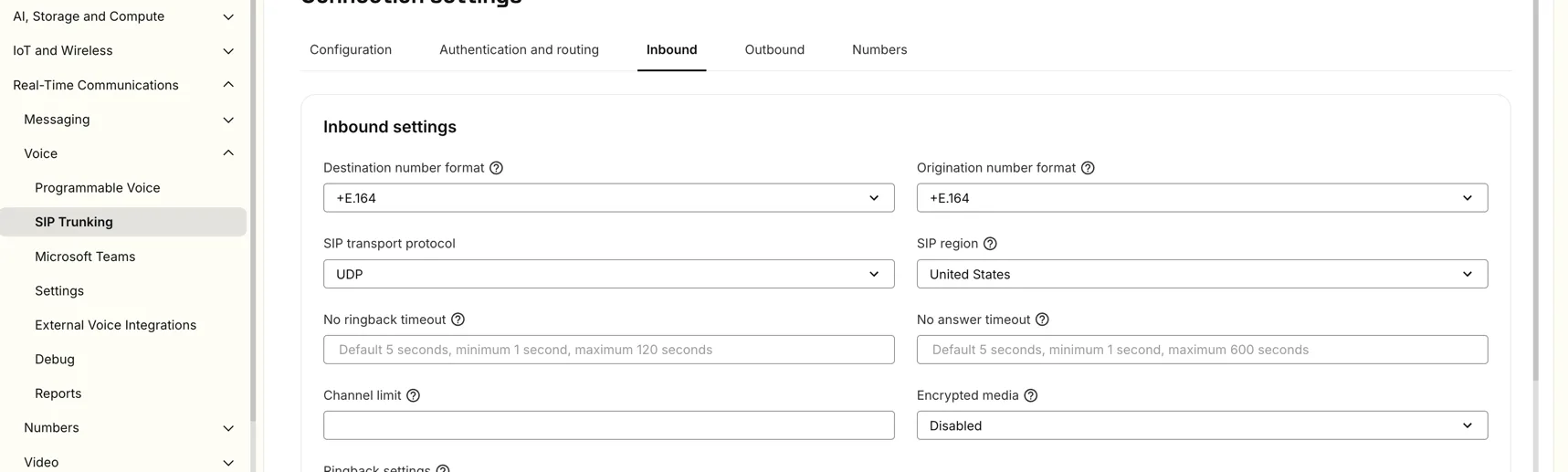
Navigate to the Inbound tab and set the following number formats:
- Destination number format:
+E.164 - Origination number format:
+E.164
6. Assign the phone number
Associate your purchased phone number with the SIP Connection you created. Go to the Numbers tab and assign the number.
7. Test the connection
Place a call to your Telnyx number and verify the call appears in the Stream dashboard. You can monitor and join the call from the Dashboard.