React
React iOS
iOS Android
 Flutter
 JavaScript
 Unity
Unity ESP32
ESP32 Platform
 Vision Agents
// default
CallContent(
call = call,
pictureInPictureConfiguration = PictureInPictureConfiguration(enable = true, autoEnterEnabled = false)
)Picture in Picture
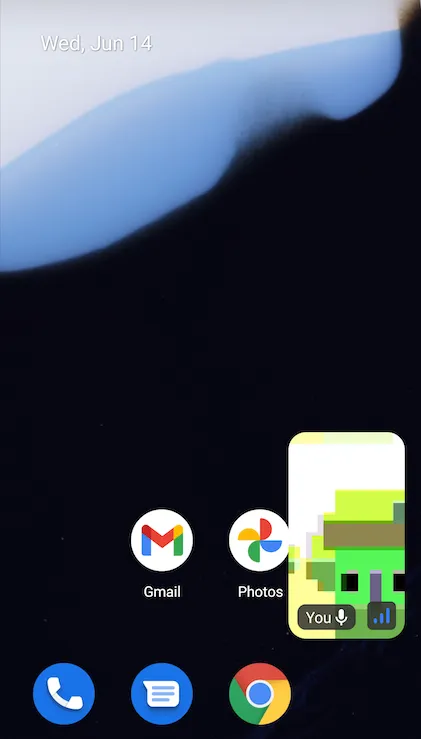
Picture in picture (PIP) keeps the call running and visible while you navigate to other apps.
Enable Picture-in-Picture
The CallContent UI component allows you to specify the PIP layout.
enable: Indicates whether Picture-in-Picture mode should be enabled for this call.autoEnterEnabled: Its boolean value will be passed toandroid.app.PictureInPictureParams.Builder.setAutoEnterEnabledwhen configuring the PiP parameters. It should be set tofalsefor Android 16 (API level 35). The default value automatically adjusts for Android 16.
You can either specify your own or use the default. Here's a tiny custom PIP content example:
CallContent(
    call = call,
    pictureInPictureContent = { call ->
        val otherParticipant by call.state.sortedParticipants.collectAsState(emptyList())

        VideoRenderer(
            modifier = Modifier.aspectRatio(ScreenShareAspectRatio, false),
            video = otherParticipant.video,
        )
    }
)
AndroidManifest Changes
If you want to enable PIP mode for your Activity, you should follow the guide below, which is only applicable when you're writing your own activity.
First, start by enabling support for PIP in your AndroidManifest.xml:
<activity android:name="VideoActivity"
          android:supportsPictureInPicture="true"
          android:configChanges="screenSize|smallestScreenSize|screenLayout|orientation"
        ..
        />
Now, you've set up all required properties to enable picture-in-picture mode.
After running the code above and pressing the back or home button, you'll see the call will be still alive in the background like the one below: