








CallKit Integration
Introduction
CallKit allows us to have system-level phone integration on iOS. With that, we can use CallKit to present native incoming call screens, even when the app is closed. CallKit integration also enables the calls made through third-party apps be displayed in the phone's recent call list in the Phone app.
The StreamVideo SDK is compatible with CallKit, enabling a complete calling experience for your users.
Make sure you created APNs provider and configured push notification manager as described in this section.
Set the minimum iOS deployment target
The stream_video_push_notification package requires iOS 14.0 or higher. New Flutter projects default to iOS 13.0, which will cause a build error.
Update your ios/Podfile:
platform :ios, '14.0'You must also update IPHONEOS_DEPLOYMENT_TARGET in ios/Runner.xcodeproj/project.pbxproj for all three build configurations (Debug, Release, Profile):
IPHONEOS_DEPLOYMENT_TARGET = 14.0;If this is not changed, the build will fail with: "Compiling for iOS 13.0, but module 'stream_video_push_notification' has a minimum deployment target of iOS 14".
Add camera and microphone permissions
Add these permissions to Info.plist in order to support video calling:
<key>NSCameraUsageDescription</key>
<string>$(PRODUCT_NAME) needs access to your camera for video calls.</string>
<key>NSMicrophoneUsageDescription</key>
<string>$(PRODUCT_NAME) needs access to your microphone for voice and video calls.</string>
Enable background modes capabilities
To maintain connectivity, handle incoming calls, and manage ongoing calls when the app is not in the foreground, you can enable iOS background modes. These modes ensure your app remains responsive to call events without being suspended by the system.
Enabling Background Modes in Xcode
- Open your app's project in Xcode.
- Select your app's target.
- Navigate to the Signing & Capabilities tab.
- In the Background Modes section, enable the following options:
- "Voice over IP"
- "Remote notifications"
- "Background processing"
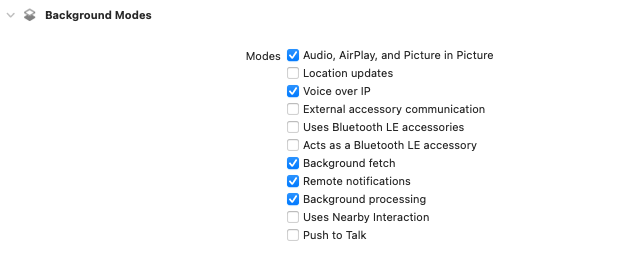
Adding Background Modes to Info.plist
Alternatively, you can directly configure the necessary background modes in your app's Info.plist file by adding the following keys:
<key>BGTaskSchedulerPermittedIdentifiers</key>
<array>
	 <string>$(PRODUCT_BUNDLE_IDENTIFIER)</string>
</array>
<key>UIBackgroundModes</key>
<array>
	<string>audio</string>
	<string>processing</string>
	<string>remote-notification</string>
	<string>voip</string>
</array>
Ensure Push Notification Capabilities
To properly receive VoIP and remote push notifications, you need to enable the Push Notifications capability in Xcode:
- Open your app's project in Xcode.
- Select your app's target.
- Navigate to the Signing & Capabilities tab.
- Click the + Capability button.
- Search for Push Notifications and add it.
Make sure your app has Push Notification Capabilities set in Signing & Capabilities.
Adding the Push Notifications capability in Xcode automatically creates an entitlements file with the required aps-environment key. Without this entitlement, iOS will silently refuse to deliver VoIP and regular push notifications.
Handling Ringing events (common for iOS and Android)
Ringing events are exposed by the stream_video_push_notification package to handle incoming calls on both iOS and Android. It is important to handle these events to ensure a seamless calling experience regardless of which provider is used for push.
In a high-level widget in your app, add this code to listen to Ringing events:
import 'package:rxdart/rxdart.dart';

final _compositeSubscription = CompositeSubscription();

@override
void initState() {
  ...
  _observeRingingEvents()
}

void _observeRingingEvents() {
  final streamVideo = StreamVideo.instance;

  // You can use our helper method to observe core Ringing events
  // It will handled call accepted, declined and ended events
  _compositeSubscription.add(
      streamVideo.observeCoreRingingEvents(
        onCallAccepted: (callToJoin) {
            // Replace with navigation flow of your choice
            Navigator.push(
              context,
              MaterialPageRoute(builder: (context) => CallScreen()),
            );
        },
      ),
    );

  // Or you can handle them by yourself, and/or add additional events such as handling mute events from CallKit (iOS)
  // _compositeSubscription.add(streamVideo.onRingingEvent<ActionCallToggleMute>(_onCallToggleMute));
}

@override
void dispose() {
  // ...
  _compositeSubscription.cancelAll();
}
If you need to manage the ringing flow call, you can use the StreamVideo.pushNotificationManager. As an example, let's
say you want to end all calls, you can end them this way:
StreamVideo.instance.pushNotificationManager?.endAllCalls();When CallKit refuses to display a call
reportNewIncomingCall can fail, in which case iOS never shows the call and the user never sees it. The most common reason is that Do Not Disturb or a Focus mode filtered it out, or the caller is on the user's block list.
The SDK reports this as an ActionCallIncomingFailed ringing event and takes no further action:
_compositeSubscription.add(
  streamVideo.onRingingEvent<ActionCallIncomingFailed>((event) {
    switch (event.reason) {
      case IncomingCallFailureReason.filteredByDoNotDisturb:
      case IncomingCallFailureReason.filteredByBlockList:
        // The user was never shown this call and cannot answer it. Rejecting is
        // one option, but see the warning below before you do.
        break;
      case IncomingCallFailureReason.unentitled:
        // Missing VoIP entitlement — a build or provisioning problem.
        break;
      case IncomingCallFailureReason.callUuidAlreadyExists:
        // A call with this UUID is already on screen. Do not end it.
        break;
      case IncomingCallFailureReason.unknown:
        break;
    }
  }),
);Deciding what to do here is left to you on purpose. Rejecting the call is a user-level action, not a device-level one: it ends the ring on every device the user is being called on, so a phone that quietly filtered the call under Do Not Disturb would silence the tablet in their hand.
Reporting how a call ended to Recents
CallKit lists every call it displayed in the system Recents, and the reason a call ended decides how it is listed. Report it with reportCallEnded — for example to have an unanswered call show up as a missed call:
await StreamVideo.instance.pushNotificationManager?.reportCallEnded(
  uuid,
  reason: CallEndedReason.unanswered,
);
CallEndedReason mirrors CXCallEndedReason: failed, remoteEnded, unanswered, answeredElsewhere and declinedElsewhere. This has no effect on Android.
Add native code to the iOS project
In your iOS project, add the following imports to your AppDelegate.swift:
import UIKit
import Flutter
import stream_video_push_notification
In the same file, add an extra line to your AppDelegate class which registers the app for push notifications:
override func application(
    _ application: UIApplication,
    didFinishLaunchingWithOptions launchOptions: [UIApplication.LaunchOptionsKey: Any]?
) -> Bool {
    GeneratedPluginRegistrant.register(with: self)

    // Register for push notifications.
    StreamVideoPKDelegateManager.shared.registerForPushNotifications()

    return super.application(application, didFinishLaunchingWithOptions: launchOptions)
}
You should now be able to receive a ringing call on iOS.
To test this:
- Create a ringing call on another device (as describe in previous section).
- Add the ID of a user logged into the iOS device to the
memberIdsarray in thecall.getOrCreate(ringing: true, memberIds: [{ID}])method. - You should see the CallKit ringing notification on the iOS device.
If you encounter any issues, refer to the Troubleshooting section for solutions to common mistakes.