








Blocked Audio
Browsers block audio autoplay until the user interacts with the page. When this happens for a remote participant, the SDK exposes the blocked state so you can prompt the user to resume playback with call.resumeAudio() (which must be called from a user gesture such as a click, tap, or keypress).
Blocked audio overlay
The default ParticipantViewUI shows a blocked-audio overlay when the browser prevents audio autoplay for a remote participant. Clicking the overlay calls call.resumeAudio() from a user gesture. A custom AudioBlockedNotification is rendered only when this blocked-audio state is active for the participant tile.
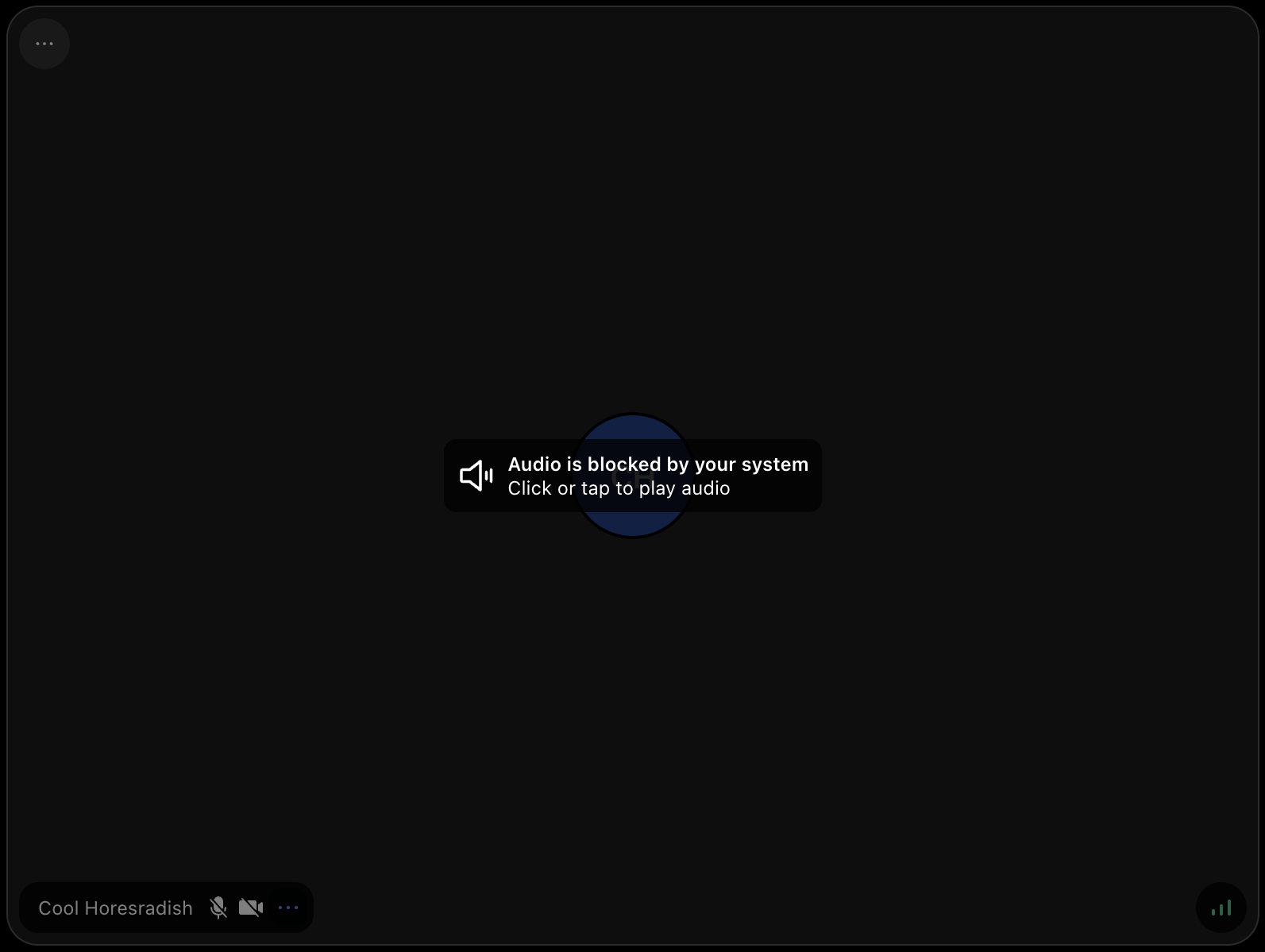
You can customize only this overlay while keeping the rest of the default participant UI:
import { DefaultParticipantViewUI, useCall } from "@stream-io/video-react-sdk";

const CustomAudioBlockedNotification = () => {
  const call = useCall();

  return (
    <button type="button" onClick={() => call?.resumeAudio()}>
      Play audio
    </button>
  );
};

const CustomParticipantViewUI = () => (
  <DefaultParticipantViewUI
    AudioBlockedNotification={CustomAudioBlockedNotification}
  />
);
You can also disable the default overlay:
const CustomParticipantViewUI = () => (
  <DefaultParticipantViewUI AudioBlockedNotification={null} />
);
If you replace ParticipantViewUI completely, add your own affordance for this state when your app can join calls without a user gesture. Use useAutoplayBlockedSessionIds() to identify participants with blocked audio and call call.resumeAudio() from a click or tap handler.