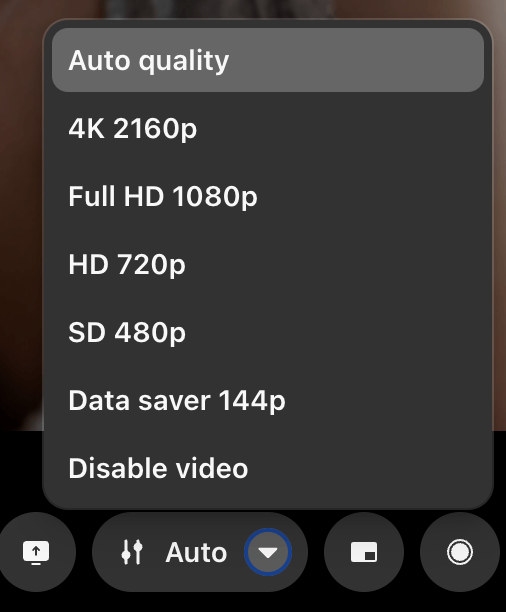


Manual Video Quality Selection
Override automatic video quality selection to manually request higher resolution for better quality, lower resolution to save bandwidth, or disable video for audio-only mode.
Best Practices
- Use
useIncomingVideoSettingshook to get current quality state. - Provide "auto" option to let SDK optimize quality based on element size.
- Use
setPreferredIncomingVideoResolutionfor specific resolution,setIncomingVideoEnabled(false)to disable. - For per-participant quality, pass session IDs as second parameter to
setPreferredIncomingVideoResolution.
Actual quality depends on source video and network conditions. Manual selection specifies your preference; the SDK selects the closest available resolution.
Prerequisites
If you haven't already bootstrapped a video calling application (our Video Calling Tutorial is a great place to start!), here's a very simple application that we'll use as a starting point:
import {
  Call,
  SpeakerLayout,
  StreamCall,
  StreamTheme,
  StreamVideo,
  StreamVideoClient,
} from "@stream-io/video-react-sdk";
import "@stream-io/video-react-sdk/dist/css/styles.css";

const client = new StreamVideoClient({
  apiKey: "REPLACE_WITH_API_KEY",
  user: { id: "REPALCE_WITH_USER_ID", name: "Jane Doe" },
  token: "REPLACE_WITH_TOKEN",
});

export const App = () => {
  const [call, setCall] = useState<Call>();
  useEffect(() => {
    const newCall = client.call("appointment", callId);
    newCall
      .join({ create: true })
      .then(() => setCall(newCall))
      .catch(() => console.error("Failed to join the call"));

    return () => {
      newCall.leave().catch(() => console.error("Failed to leave the call"));
      setCall(undefined);
    };
  }, []);

  if (!call) {
    return <>Loading...</>;
  }

  return (
    <StreamTheme>
      <StreamVideo client={client}>
        <StreamCall call={call}>
          <SpeakerLayout />
        </StreamCall>
      </StreamVideo>
    </StreamTheme>
  );
};
Getting and Setting Incoming Video Settings
To get the current incoming video quality settings, we will use the useIncomingVideoSettings call state hook. Most importantly, it returns the following two values:
enabled- a boolean flag indicating whether incoming video is enabled.preferredResolution- if video is enabled, an object of the shape{ width: number; height: number }containing the current preferred resolution of the incoming video.
To modify the current setting, the following two methods are available on the Call object:
setIncomingVideoEnabled- enables or disables incoming video, clearing any preferred resolution.setPreferredIncomingVideoResolution- sets the preference for the incoming video resolution, enabling video if it was previously disabled.
To combine these two settings into a single control, we'll need to do some mapping:
import type { Call } from "@stream-io/video-react-sdk";

const incomingVideoSettings = ["auto", "1080p", "720p", "480p", "off"] as const;
type IncomingVideoSetting = (typeof incomingVideoSettings)[number];
type VideoDimension = { width: number; height: number };

const applyIncomingVideoSetting = (
  call: Call,
  setting: IncomingVideoSetting,
) => {
  if (setting === "auto") {
    call.setIncomingVideoEnabled(true);
  } else if (setting === "off") {
    call.setIncomingVideoEnabled(false);
  } else {
    call.setPreferredIncomingVideoResolution(
      incomingVideoSettingToResolution(setting),
    );
  }
};

const incomingVideoSettingToResolution = (
  setting: Exclude<IncomingVideoSetting, "auto" | "off">,
): VideoDimension => {
  switch (setting) {
    case "1080p":
      return { width: 1920, height: 1080 };
    case "720p":
      return { width: 1280, height: 720 };
    case "480p":
      return { width: 640, height: 480 };
  }
};

const incomingVideoResolutionToSetting = (
  resolution: VideoDimension,
): IncomingVideoSetting => {
  switch (true) {
    case resolution.height >= 1080:
      return "1080p";
    case resolution.height >= 720:
      return "720p";
    case resolution.height >= 480:
      return "480p";
    default:
      return "auto";
  }
};
It's also possible to set a preferred resolution per call participant. There's an optional second parameter to the setPreferredIncomingVideoResolution, accepting an array of participant session ids:
import { useCallStateHooks } from "@stream-io/video-react-sdk";

const { useParticipants } = useCallStateHooks();
const participants = useParticipants();
const [dominantParticipant] = participants;

call.setPreferredIncomingVideoResolution(
  incomingVideoSettingToResolution("1080p"),
  [dominantParticipant.sessionId],
);
However, in this cookbook we assume that the preferences apply to all call participants.
Building Incoming Video Quality Selector
Now we're ready to build a UI control to display and change the incoming video quality.
import type { FormEvent } from "react";
import { useCallStateHooks } from "@stream-io/video-react-sdk";

const IncomingVideoQualitySelector = () => {
  const call = useCall();
  const { useIncomingVideoSettings } = useCallStateHooks();
  const { enabled, preferredResolution } = useIncomingVideoSettings();
  let currentSetting: IncomingVideoSetting;

  if (!preferredResolution) {
    currentSetting = enabled ? "auto" : "off";
  } else {
    currentSetting = incomingVideoResolutionToSetting(preferredResolution);
  }

  const handleChange = (event: FormEvent<HTMLSelectElement>) => {
    if (call) {
      const setting = event.currentTarget.value as IncomingVideoSetting;
      applyIncomingVideoSetting(call, setting);
    }
  };

  return (
    <div className="quality-selector">
      <select
        className="quality-selector-dropdown"
        value={currentSetting}
        onChange={handleChange}
      >
        {incomingVideoSettings.map((setting) => (
          <option key={setting} value={setting}>
            {setting}
          </option>
        ))}
      </select>
    </div>
  );
};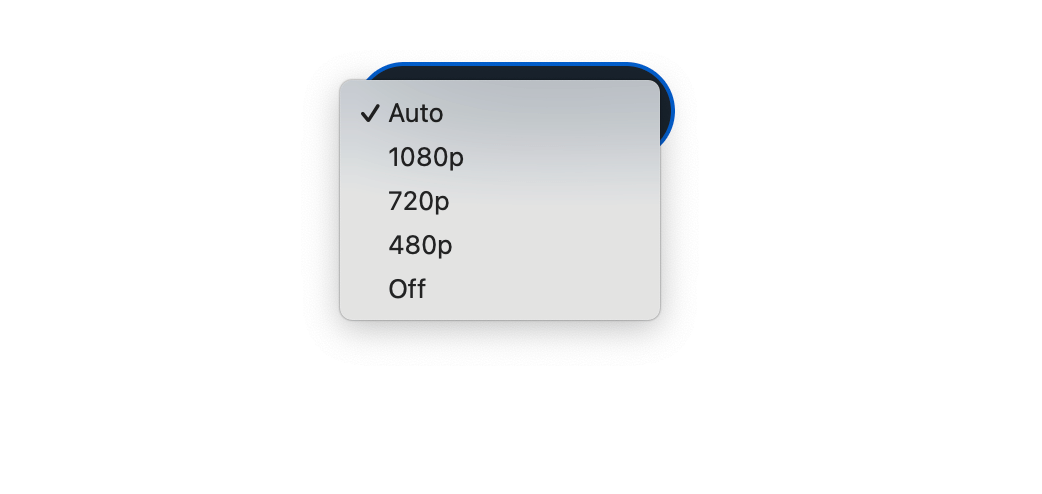
And now by adding this component inside of the StreamCall, we have a video quality selector in the call UI:
<StreamVideo client={client}>
  <StreamCall call={call}>
    <IncomingVideoQualitySelector />
    <SpeakerLayout />
  </StreamCall>
</StreamVideo>