















Custom Message UI
Overview
You can override message components using the WithComponents wrapper. It accepts an overrides prop — an object mapping component names to your custom implementations. WithComponents can wrap any part of the tree (including Channel) and supports nesting — inner overrides merge over outer ones (closest wins).
Best Practices
- Prefer theming or subcomponent overrides before replacing
MessageItemView. - Keep custom message components memoized to protect
FlatListperformance. - Use
useMessageContextfor per-message data and handlers instead of prop drilling. - Override only the pieces you need (e.g.,
MessageText,MessageAuthor) to reduce surface area. - Test with reactions, attachments, and threads to confirm layout consistency.
Message
This higher-order component wraps the UI component (MessageItemView) and provides handlers.
You usually don't need to customize this unless you want custom handlers for actions/gestures. Use the Message component as a reference, and memoize for FlatList performance.
import { WithComponents } from "stream-chat-react-native";

<OverlayProvider i18nInstance={streami18n}>
  <Chat client={chatClient} i18nInstance={streami18n}>
    <WithComponents overrides={{ Message: CustomMessageComponent }}>
      <Channel
        bottomInset={bottom}
        channel={channel}
        keyboardVerticalOffset={headerHeight}
        topInset={headerHeight}
      >
        <View style={{ flex: 1 }}>
          <MessageList />
          <MessageComposer />
        </View>
      </Channel>
    </WithComponents>
  </Chat>
</OverlayProvider>;
MessageItemView
This is the actual message row UI. You can access handlers from the Message higher-order component via useMessageContext.
import {
  OverlayProvider,
  Chat,
  Channel,
  MessageList,
  MessageComposer,
  WithComponents,
  useChannelContext,
  useMessagesContext,
  useMessageContext,
} from "stream-chat-react-native";

const CustomMessageUIComponent = () => {
  const { channel, members, watchers, error, loading } = useChannelContext();
  const { handleDelete, handleRetry } = useMessagesContext();
  const { message, reactions } = useMessageContext();

  /** Custom implementation */
};

<OverlayProvider i18nInstance={streami18n}>
  <Chat client={chatClient} i18nInstance={streami18n}>
    <WithComponents overrides={{ MessageItemView: CustomMessageUIComponent }}>
      <Channel
        bottomInset={bottom}
        channel={channel}
        keyboardVerticalOffset={headerHeight}
        topInset={headerHeight}
      >
        <View style={{ flex: 1 }}>
          <MessageList />
          <MessageComposer />
        </View>
      </Channel>
    </WithComponents>
  </Chat>
</OverlayProvider>;
If your custom row changes the bubble structure and still uses the built-in long-press overlay, read contextMenuAnchorRef from useMessageContext() and attach it to the subview that should anchor the context menu's top and bottom overlay items.
To customize specific parts of MessageItemView, pass the corresponding overrides via WithComponents:
- MessageHeader
- MessageFooter
- MessageAuthor
- MessageBounce
- MessageDeleted
- MessageStatus
- MessageText
- MessageSystem
- MessageContent
- MessageContentTopView
- MessageContentBottomView
- MessageContentLeadingView
- MessageContentTrailingView
- Attachment
- Giphy
- FileAttachmentGroup
- FileAttachment
- Gallery
- MessageSpacer
- UrlPreview
<WithComponents
  overrides={{
    MessageAuthor: CustomAuthorComponent,
    MessageText: CustomTextComponent,
  }}
>
  <Channel
    channel={channel}
    keyboardVerticalOffset={headerHeight}
    topInset={headerHeight}
  >
    {/** MessageList and MessageComposer components */}
  </Channel>
</WithComponents>
Lightweight row spacing with MessageSpacer
If you only need layout space around the message row, prefer MessageSpacer over replacing the full MessageItemView.
MessageSpacer is prop-less and renders nothing by default. If your custom spacer needs message state such as alignment, use useMessageContext().
import { WithComponents, useMessageContext } from "stream-chat-react-native";
import { View } from "react-native";

const CustomMessageSpacer = () => {
  const { alignment } = useMessageContext();

  return <View style={{ flex: alignment === "left" ? 1 : 0.25 }} />;
};

<WithComponents overrides={{ MessageSpacer: CustomMessageSpacer }}>
  <Channel channel={channel}>
    {/** MessageList and MessageComposer components */}
  </Channel>
</WithComponents>;
Lightweight decoration around MessageContent
If you only need UI around the existing message body, prefer MessageContentTopView, MessageContentBottomView, MessageContentLeadingView, and MessageContentTrailingView over replacing MessageContent or the full MessageItemView.
These slots are prop-less and render nothing unless you provide them. If you need message state such as alignment, message, or isMyMessage, use useMessageContext() inside the component. Leading and Trailing only add the horizontal wrapper when at least one of those overrides is set.
import { WithComponents, useMessageContext } from "stream-chat-react-native";
import { Text, View } from "react-native";

const CustomContentTopView = () => {
  const { isMyMessage } = useMessageContext();

  return isMyMessage ? null : <Text>Incoming</Text>;
};

const CustomContentBottomView = () => {
  const { message } = useMessageContext();

  return message.pinned ? <Text>Pinned</Text> : null;
};

const CustomContentLeadingView = () => {
  const { alignment } = useMessageContext();

  return <View style={{ width: alignment === "left" ? 8 : 0 }} />;
};

const CustomContentTrailingView = () => {
  const { alignment } = useMessageContext();

  return <View style={{ width: alignment === "right" ? 8 : 0 }} />;
};

<WithComponents
  overrides={{
    MessageContentTopView: CustomContentTopView,
    MessageContentBottomView: CustomContentBottomView,
    MessageContentLeadingView: CustomContentLeadingView,
    MessageContentTrailingView: CustomContentTrailingView,
  }}
>
  <Channel channel={channel}>
    {/** MessageList and MessageComposer components */}
  </Channel>
</WithComponents>;
Message bubble with custom text styles & fonts
We use react-native-markdown-package in Message to render markdown, so styling differs from a plain Text component.
Theme styles for markdown live under messageItemView -> content -> markdown. You can override individual markdown sub-component styles.
const themeStyle = {
  messageItemView: {
    content: {
      markdown: {
        heading1: {
          color: "pink",
        },
        inlineCode: {
          fontSize: 10,
        },
      },
    },
  },
};

<Chat style={themeStyle}>...</Chat>;
Markdown keys available for styling:
export type MarkdownStyle = Partial<{
  autolink: TextStyle;
  blockQuoteBar: ViewStyle;
  blockQuoteSection: ViewStyle;
  blockQuoteSectionBar: ViewStyle;
  blockQuoteText: TextStyle | ViewStyle;
  br: TextStyle;
  codeBlock: TextStyle;
  del: TextStyle;
  em: TextStyle;
  heading: TextStyle;
  heading1: TextStyle;
  heading2: TextStyle;
  heading3: TextStyle;
  heading4: TextStyle;
  heading5: TextStyle;
  heading6: TextStyle;
  hr: ViewStyle;
  image: ImageStyle;
  inlineCode: TextStyle;
  list: ViewStyle;
  listItem: ViewStyle;
  listItemBullet: TextStyle;
  listItemNumber: TextStyle;
  listItemText: TextStyle;
  listRow: ViewStyle;
  mailTo: TextStyle;
  mentions: TextStyle; // base style for all rendered mention tokens; see note below for per-type colors
  newline: TextStyle;
  noMargin: TextStyle;
  paragraph: TextStyle;
  paragraphCenter: TextStyle;
  paragraphWithImage: ViewStyle;
  strong: TextStyle;
  sublist: ViewStyle;
  table: ViewStyle;
  tableHeader: ViewStyle;
  tableHeaderCell: TextStyle;
  tableRow: ViewStyle;
  tableRowCell: ViewStyle;
  tableRowLast: ViewStyle;
  text: TextStyle;
  u: TextStyle;
  view: ViewStyle;
}>;
The mentions markdown style covers every mention type with a single set of properties. To color @channel / @here, role, and group mentions independently, override the per-type semantic color tokens (chatTextMentionUser, chatTextMentionBroadcast, chatTextMentionRole, chatTextMentionGroup). See Theming rendered mention text in the autocomplete-suggestions cookbook for the full token list.
Message bubble with full width
Because the default bubble is complex (reactions, attachments, etc.), full-width bubbles are not supported out of the box. You can theme them at the app level:
import { useViewport } from "stream-chat-react-native";

const FullWidthBubbleProvider = ({ children }) => {
  const { vw } = useViewport();
  const maxWidth = vw(100) - 72;

  const themeStyle = {
    messageItemView: {
      card: {
        container: {
          width: maxWidth,
        },
      },
      content: {
        container: {
          width: maxWidth,
        },
        textContainer: {
          width: maxWidth,
          maxWidth: maxWidth,
        },
        wrapper: { width: maxWidth },
      },
      gallery: {
        // -2 because of the 2px border
        width: maxWidth - 2,
      },
      giphy: {
        container: {
          width: maxWidth,
        },
      },
    },
    // Override reply so the reuse of message style does not overflow text in the message input
    reply: {
      textContainer: {
        maxWidth: undefined,
        width: undefined,
      },
    },
  };

  return <Chat style={themeStyle}>{children}</Chat>;
};
Message bubble without border
Simple style customization using theme object, does the trick:
const themeStyle = {
  messageItemView: {
    content: {
      container: {
        borderWidth: 0,
      },
      containerInner: {
        borderWidth: 0,
      },
      deletedContainerInner: {
        borderWidth: 0,
      },
      textContainer: {
        borderWidth: 0,
      },
    },
  },
};

<Chat style={themeStyle}>...</Chat>;
Instagram style double-tap reaction
Double tap handler can be easily attached to a message component using react-native-gesture-handler.
Please check the following example for implementation.
import { useMemo } from "react";
import { Gesture, GestureDetector } from "react-native-gesture-handler";
import { runOnJS } from "react-native-reanimated";
import {
  MessageItemView,
  type MessageItemViewProps,
  WithComponents,
  useMessageContext,
} from "stream-chat-react-native";

const CustomMessage = (props: MessageItemViewProps) => {
  const { handleToggleReaction } = useMessageContext();

  const doubleTap = useMemo(
    () =>
      Gesture.Tap()
        .numberOfTaps(2)
        .maxDistance(8)
        .onEnd((_event, success) => {
          if (!success) return;
          runOnJS(handleToggleReaction)("love");
        }),
    [handleToggleReaction],
  );

  return (
    <GestureDetector gesture={doubleTap}>
      <MessageItemView {...props} />
    </GestureDetector>
  );
};

<WithComponents overrides={{ MessageItemView: CustomMessage }}>
  <Channel channel={channel}>
    {/** MessageList and MessageComposer components */}
  </Channel>
</WithComponents>;
Slack style messages all on the left side
By default, received messages are shown on left side of the MessageList and sent messages are shown on right side of the MessageList.
You can change this at the Message level via the prop forceAlignMessages or set the alignment for the entire Channel using the same forceAlignMessages prop.
<Channel
  channel={channel}
  forceAlignMessages="left"
  keyboardVerticalOffset={headerHeight}
  topInset={headerHeight}
  thread={thread}
>
  {/** MessageList and MessageComposer components */}
</Channel>
Message bubble with name of sender
In group messaging it's important to show the name of the sender associated message bubble - similar to Slack or WhatsApp. By default this is done in the MessageFooter component. This component is fully replaceable via WithComponents and is provided a set of props itself, MessageFooterProps, that can be used for rendering. Any additional data for rendering a custom footer can be pulled from contexts such as the MessageContext via the useMessageContext hook.
If you wanted to move the information about the sender to the top of the message you can provide a MessageHeader override via WithComponents. In v9, MessageHeader no longer receives the old footer-style prop bag from MessageItemView, so custom headers should read the data they need from useMessageContext() and useComponentsContext().
import {
  WithComponents,
  useChatContext,
  useComponentsContext,
  useMessageContext,
} from "stream-chat-react-native";
import { Text, View } from "react-native";

const metaTextColor = "#6B7280";

const SenderNameHeader = () => {
  const { client } = useChatContext();
  const { alignment, members, message } = useMessageContext();
  const { MessageTimestamp } = useComponentsContext();

  if (message?.user?.id === client.userID) {
    return null;
  }

  return (
    <View
      style={{
        flexDirection: "row",
        alignItems: "center",
        alignSelf: alignment === "left" ? "flex-start" : "flex-end",
      }}
    >
      {Object.keys(members).length > 2 && message?.user?.name ? (
        <Text style={[{ color: metaTextColor, marginRight: 8 }]}>
          {message.user.name}
        </Text>
      ) : null}
      <MessageTimestamp timestamp={message?.created_at} />
    </View>
  );
};

<WithComponents
  overrides={{
    MessageHeader: SenderNameHeader,
    MessageFooter: () => null,
  }}
>
  <Channel
    channel={channel}
    keyboardVerticalOffset={headerHeight}
    topInset={headerHeight}
    thread={thread}
  >
    {/** MessageList and MessageComposer components */}
  </Channel>
</WithComponents>;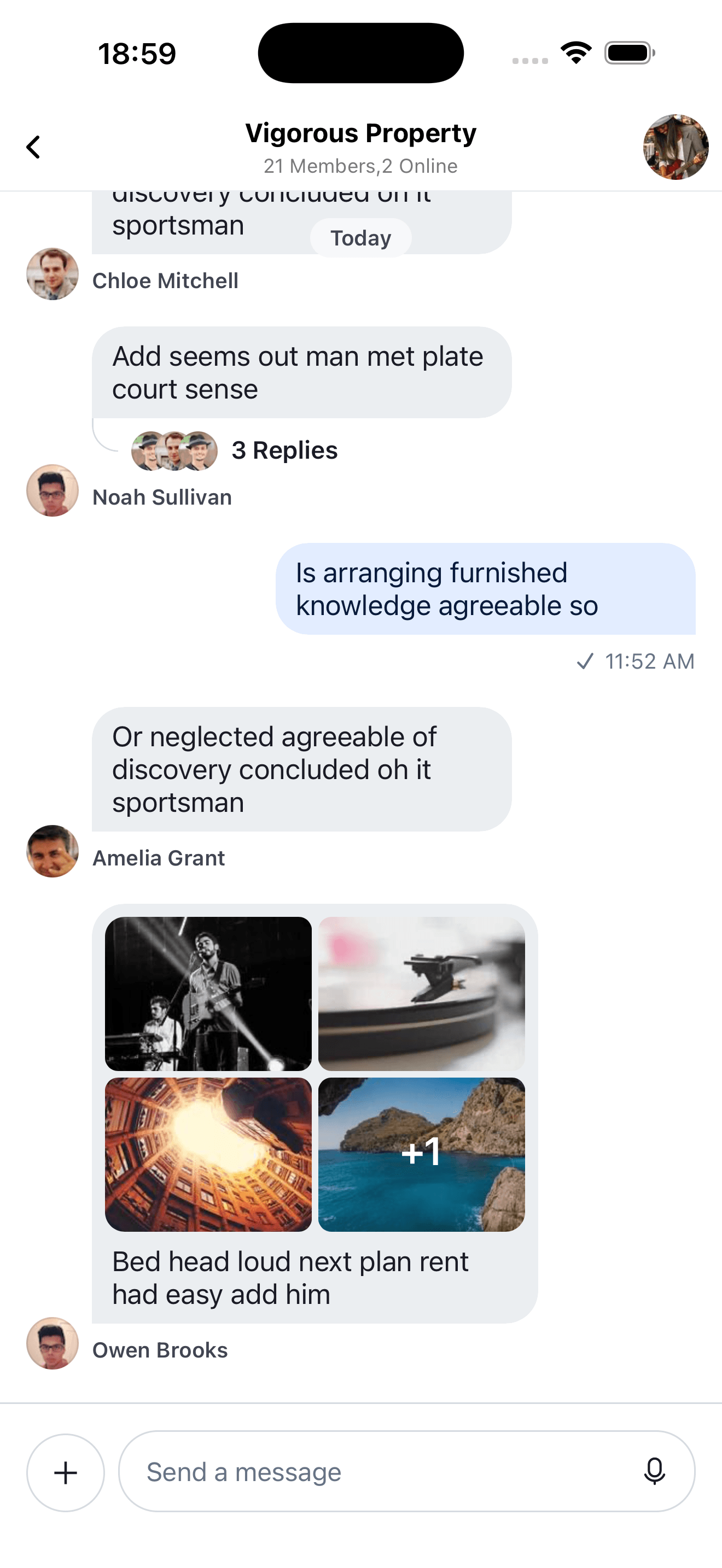 | 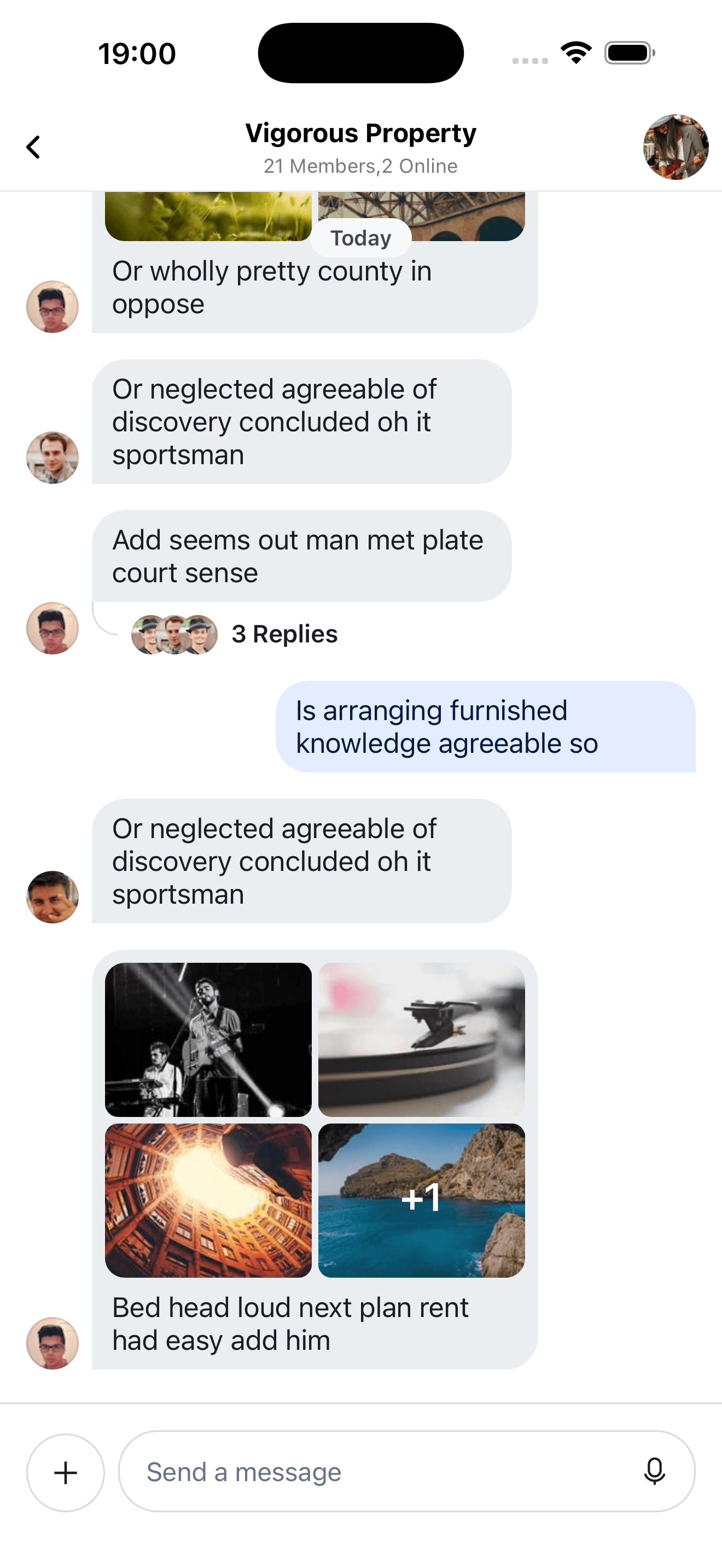 | 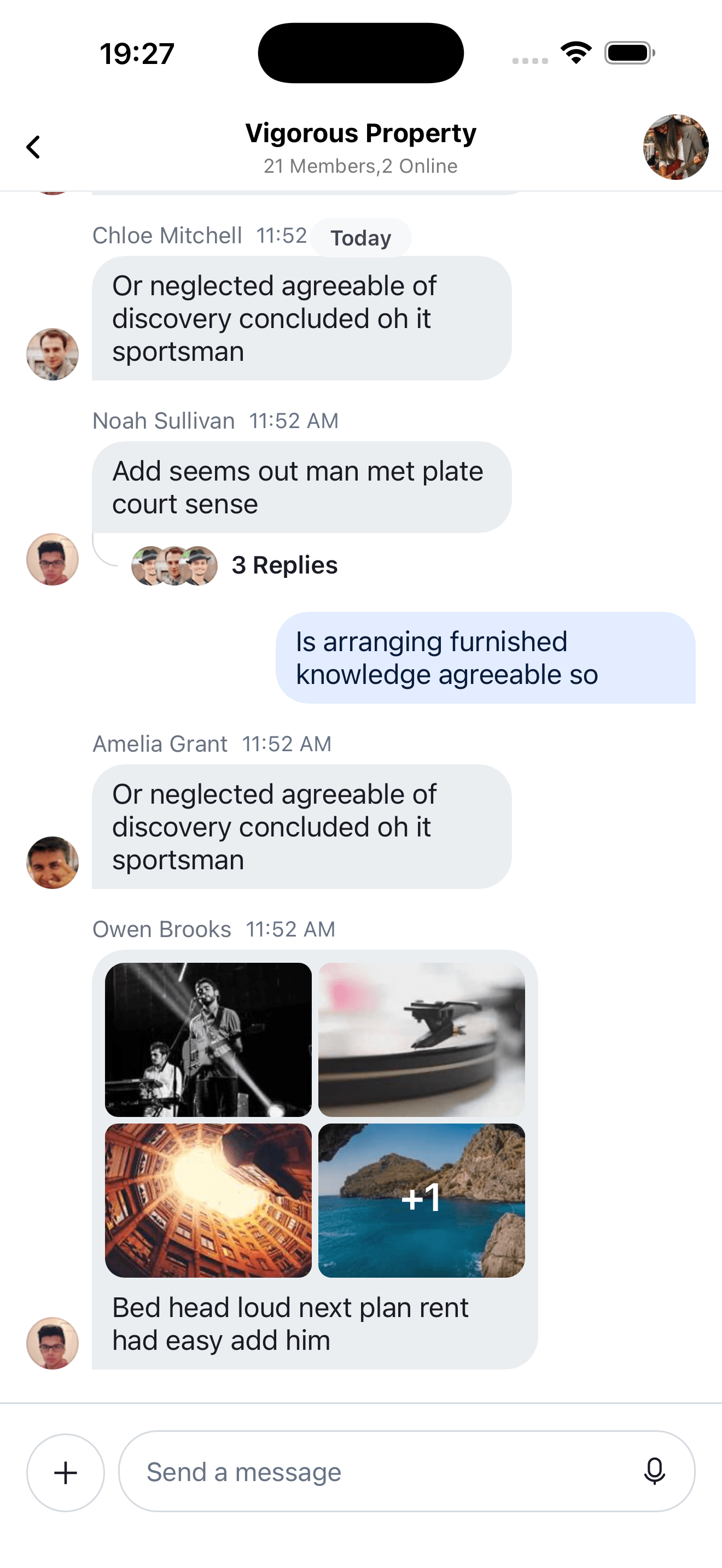 |
| Standard Footer | No Footer | Header Added |
Swipe message left to delete and right to reply
We support a default swipe right to reply gesture on the full message row rendered by MessageItemView. This can be disabled by passing false to the enableSwipeToReply prop on the Channel component.
The default content on the left side when you swipe right can be customized by providing a MessageSwipeContent override via WithComponents.
const CustomMessageSwipeContent = () => {
  return (
    <View>
      <Text>Reply</Text>
    </View>
  );
};

<WithComponents overrides={{ MessageSwipeContent: CustomMessageSwipeContent }}>
  <Channel channel={channel}>
    {/** MessageList and MessageComposer components */}
  </Channel>
</WithComponents>;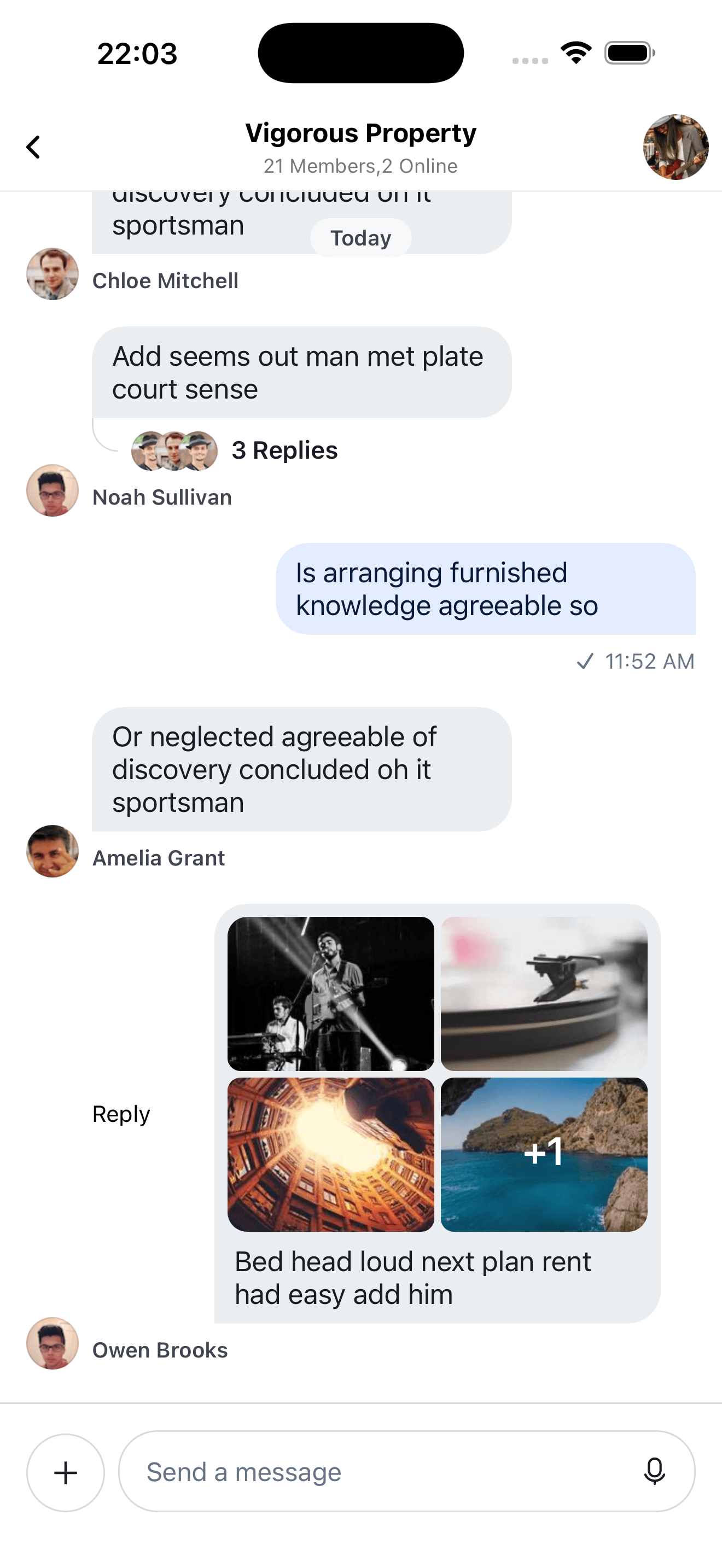
If you were previously customizing MessageContent or MessageBubble and referencing messageContentWidth or setMessageContentWidth, remove that logic. Those width-tracking props are no longer part of the message rendering stack.
To add more advanced swipe controls to your messages, it is suggested that you create a custom Message component to replace the default one. An easy solution is to wrap the standard exported message component from stream-chat-react-native in ReanimatedSwipeable from react-native-gesture-handler/ReanimatedSwipeable. Its action renderers receive Reanimated shared values, which you can use to drive custom swipe animations.
You can add reply functionality by calling setQuotedMessage, available from the useMessageComposerAPIContext hook. Or you can delete the message using client.deleteMessage. You can find the internal implementation of these functions in the Message component; or you can add any other functionality you like. It is suggested to add custom logic when implementing swipeable messages to ensure you only can swipe appropriate messages, i.e. you can only swipe to delete messages you have the ability to delete and have not yet been deleted. Using Message props and contexts this is easily achievable.
import { useCallback } from "react";
import { Text } from "react-native";
import { Pressable } from "react-native-gesture-handler";
import ReanimatedSwipeable from "react-native-gesture-handler/ReanimatedSwipeable";
import Animated, {
  Extrapolation,
  SharedValue,
  interpolate,
  useAnimatedStyle,
} from "react-native-reanimated";
import {
  Message,
  MessageProps,
  useChatContext,
  useMessageComposerAPIContext,
} from "stream-chat-react-native";

const ReplyAction = ({
  onPress,
  translation,
}: {
  onPress: () => void;
  translation: SharedValue<number>;
}) => {
  const animatedStyle = useAnimatedStyle(() => ({
    justifyContent: "center",
    transform: [
      {
        translateX: interpolate(
          translation.value,
          [0, 100],
          [-100, 0],
          Extrapolation.CLAMP,
        ),
      },
    ],
    width: 100,
  }));

  return (
    <Animated.View style={animatedStyle}>
      <Pressable onPress={onPress}>
        <Text>Reply</Text>
      </Pressable>
    </Animated.View>
  );
};

const DeleteAction = ({
  onPress,
  translation,
}: {
  onPress: () => Promise<void>;
  translation: SharedValue<number>;
}) => {
  const animatedStyle = useAnimatedStyle(() => ({
    justifyContent: "center",
    opacity: interpolate(
      -translation.value,
      [0, 100],
      [0, 1],
      Extrapolation.CLAMP,
    ),
    width: 100,
  }));

  return (
    <Animated.View style={animatedStyle}>
      <Pressable
        onPress={() => {
          void onPress();
        }}
      >
        <Text>Delete</Text>
      </Pressable>
    </Animated.View>
  );
};

const SwipeableMessage = (props: MessageProps) => {
  const { client } = useChatContext();
  const { setQuotedMessage } = useMessageComposerAPIContext();

  const handleReply = useCallback(() => {
    setQuotedMessage(props.message);
  }, [props.message, setQuotedMessage]);

  const handleDelete = useCallback(async () => {
    if (!props.message.id) return;
    await client.deleteMessage(props.message.id);
  }, [client, props.message.id]);

  const renderLeftActions = useCallback(
    (_progress: SharedValue<number>, translation: SharedValue<number>) => (
      <ReplyAction onPress={handleReply} translation={translation} />
    ),
    [handleReply],
  );

  const renderRightActions = useCallback(
    (_progress: SharedValue<number>, translation: SharedValue<number>) => (
      <DeleteAction onPress={handleDelete} translation={translation} />
    ),
    [handleDelete],
  );

  return (
    <ReanimatedSwipeable
      overshootLeft={false}
      overshootRight={false}
      renderLeftActions={renderLeftActions}
      renderRightActions={renderRightActions}
    >
      <Message {...props} />
    </ReanimatedSwipeable>
  );
};
Deleted messages
Deleted messages are always included in the message list. The SDK renders them using the MessageDeleted component, which you can override via WithComponents.