















Custom Attachments
How to build a custom attachment
Attachments are a property on the message object:
const messageObject = {
  id: "12312jh3b1jh2b312",
  text: "This is my test message!",
  attachments: [
    {
      type: "image",
      thumb_url: "",
    },
    {
      type: "file",
      asset_url: "",
    },
  ],
};
Attachment rendering depends on message.attachments[index].type. Built-in views:
- attachment type
audio- AudioAttachment - attachment type
video- renders a VideoThumbnail in the Gallery. - attachment type
image- Gallery (single or multiple images) - attachment type
giphy- Giphy - attachment type
file- FileAttachment - attachment with URL - URLPreview
- compact URL preview - URLPreviewCompact
Best Practices
- Keep custom attachment
typevalues unique and stable so renderers stay deterministic. - Pass custom attachment renderers via
WithComponentsto avoid forking the message list. - Include enough metadata on the attachment object to render without extra network calls.
- Fall back to the default
UnsupportedAttachmentrenderer for unknown types to avoid blank messages. - Validate attachment payloads before sending to prevent malformed renders for other clients.
 |  |  | 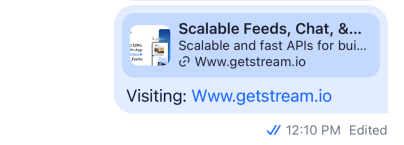 |
| Gallery | Giphy | UrlPreview | URLPreviewCompact |
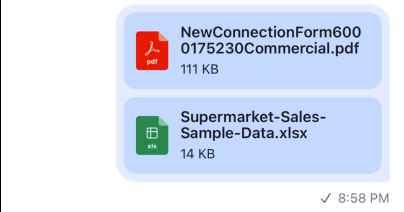 |  | 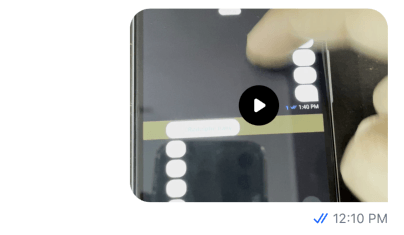 |  |
| FileAttachment | AudioAttachment | VideoThumbnail | UnsupportedAttachment |
Default components handle these types in MessageList. You can override them using WithComponents, for example:
import { WithComponents } from 'stream-chat-react-native';

const CustomGiphy = ({ attachment, onPressIn }) => {
  console.log(attachment.type);
  console.log(attachment.actions)
  console.log(attachment.image_url)
  console.log(attachment.thumb_url)
  console.log(attachment.title)
  console.log(attachment.type)

  return (/** Your custom UI */)
}

const CustomGallery = ({ images, onPressIn }) => {
  console.log(images);

  return (/** Your custom UI */)
}

const CustomFileAttachment = ({ attachment }) => {
  console.log(attachment.mime_type);
  console.log(attachment.title);
  console.log(attachment.file_size);
  console.log(attachment.actions);

  return (/** Your custom UI */)
}

const CustomUrlPreview = () => {
  console.log(text);
  console.log(thumb_url);
  console.log(title);

  return (/** Your custom UI */)
}

// Provide these custom components via WithComponents.
<WithComponents overrides={{
  Gallery: CustomGallery,
  Giphy: CustomGiphy,
  FileAttachment: CustomFileAttachment,
  UrlPreview: CustomUrlPreview,
}}>
  <Channel channel={channel}>
    {/* The underlying components */}
  </Channel>
</WithComponents>
You can also use a custom type. Attachments whose type the SDK doesn't recognize are routed to the UnsupportedAttachment component by default, which you can override.
import { WithComponents } from 'stream-chat-react-native';

const CustomAttachmentComponent = ({ attachment }) => {
  console.log(attachment.type);
  console.log(attachment);

  return (/** Your custom UI */)
}

<WithComponents overrides={{ UnsupportedAttachment: CustomAttachmentComponent }}>
  <Channel channel={channel}>
    {/* The underlying components */}
  </Channel>
</WithComponents>
Handling Custom Properties On Attachment
Default UI components and context providers from the SDK are memoized for performance purpose, and will not trigger re-renders upon updates to custom properties on attachment.
Eg: Suppose we add a customField property to the attachment object and use it the UI in custom UnsupportedAttachment component.
import { WithComponents } from "stream-chat-react-native";

const CustomUnsupportedAttachment = ({ attachment }) => {
  return (
    <View>
      <Text>{attachment.customField}</Text>
    </View>
  );
};

<WithComponents
  overrides={{ UnsupportedAttachment: CustomUnsupportedAttachment }}
>
  <Channel channel={channel}>{/* The underlying components */}</Channel>
</WithComponents>;
In this example, if you try to update customField on particular attachment from backend (or anywhere), you will not see it updated on UI until you refresh the chat.
The reason being, the default memoization logic only checks for fixed set of properties on attachment, and doesn't check for custom properties.
This can be solved by providing a function which checks for changes in custom properties which you may have been defined on attachment.
import { Channel, WithComponents } from "stream-chat-react-native";

const isAttachmentEqualHandler = (prevAttachment, nextAttachment) => {
  const attachmentEqual =
    prevAttachment.customField === nextAttachment.customField;
  if (!attachmentEqual) return false;
  return true;
};

const CustomUnsupportedAttachment = ({ attachment }) => {
  return (
    <View>
      <Text>{attachment.customField}</Text>
    </View>
  );
};

<WithComponents
  overrides={{ UnsupportedAttachment: CustomUnsupportedAttachment }}
>
  <Channel channel={channel} isAttachmentEqual={isAttachmentEqualHandler}>
    {/* The underlying components */}
  </Channel>
</WithComponents>;