
 React
React iOS
iOS Android
 Flutter
 Angular
 JavaScript
 Unity
Unity Unreal
 Node
Node Python
 Ruby
Ruby PHP
PHP Java
Java .NET
.NET Go
Go REST
REST# Install and set up the app module
yarn add @react-native-firebase/app
# Install the messaging module
yarn add @react-native-firebase/messagingPush Notifications
The easiest way to add push notifications is Firebase. Use React Native Firebase and Notifee for customization and interaction events.
Best Practices
- Ensure users are channel members before expecting pushes.
- Register and refresh device tokens after
connectUser. - Store and rotate push tokens to avoid duplicates and stale registrations.
- Test foreground, background, and killed states on both platforms.
- Keep push payload templates aligned with in-app navigation needs.
Prerequisites
Before starting, read the Push Notification documentation and the push delivery rules.
Push notifications require membership. Watching a channel isn't enough.
Firebase Project Setup
Set up a Firebase project:
- Create a Firebase project for your apps.
- Register your Android app and iOS app with the Firebase project.
- Upload your APNs authentication key to your Firebase project.
App setup
Set up your apps with Firebase:
Install React Native Firebase and its messaging module
Setup your Android app with credentials and configure Firebase.
Add the Push Notifications Capability for your iOS app.
Expo
If you use the Bare workflow, follow the steps above.
React Native Firebase isn’t available in Expo Go. Use expo-dev-client and config plugins. See the Expo install docs.
Get Google Service Account Credentials
Firebase projects support Google service accounts. Stream uses these credentials to call Firebase server APIs.
These credentials are the private key file for your service account in the Firebase console. To generate a private key file for your service account:
- In the Firebase console, open
Settings > Service Accounts. - Click
Generate New Private Key, then confirm by clickingGenerate Key. - Securely store the JSON file containing the key.
Upload this JSON file to Stream as described below.
Upload Firebase Credentials
You can upload the JSON via the dashboard or the app settings API.
Using Dashboard
- Go to Chat Overview page on Stream Dashboard
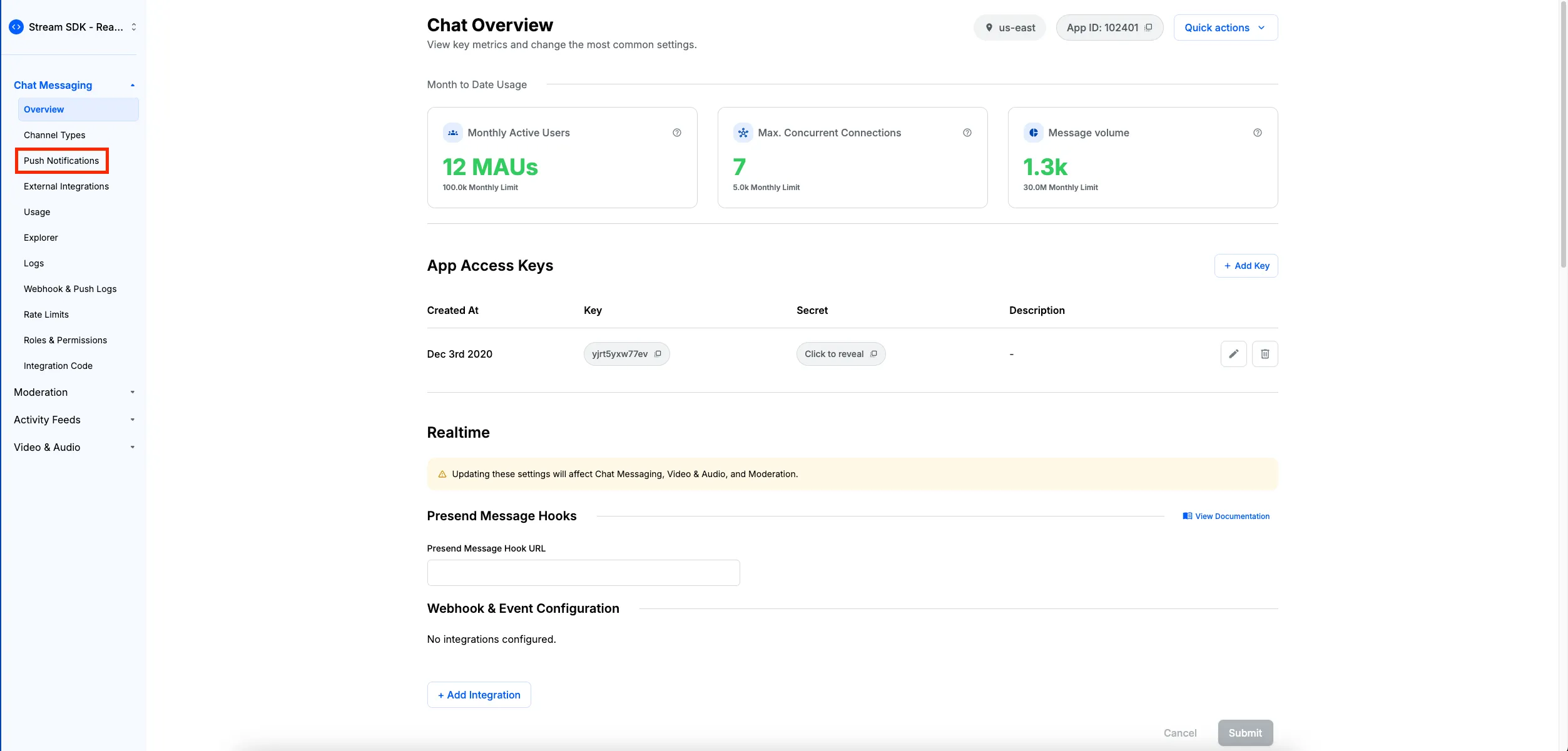
- Enable Firebase Notification toggle on Chat Overview
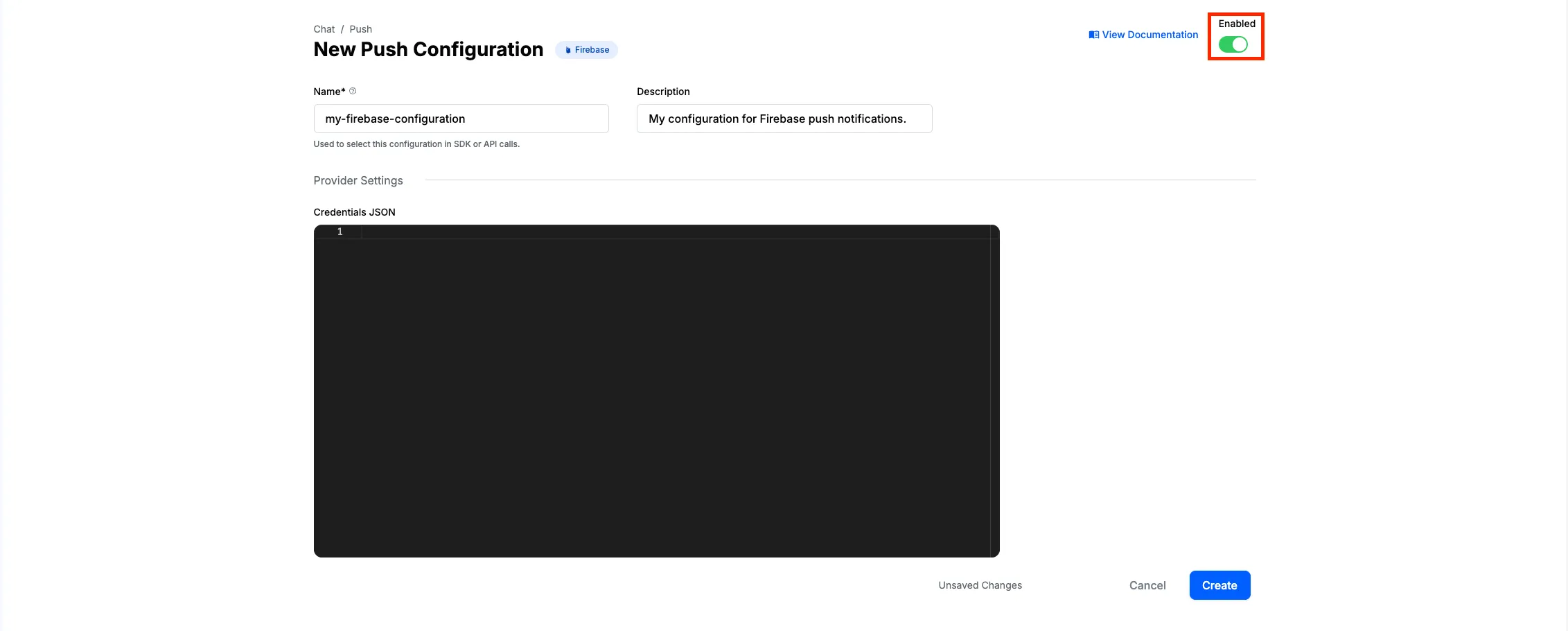
- Enter your Firebase Credentials in input box below the toggle and press the "Save" or "Create" button (depending on whether you're updating an existing push configuration or adding a new one)
Using API
You can also enable Firebase notifications and upload credentials via API, as shown here.
Registering a device with Stream
After configuring Firebase in the dashboard, register the device with Stream using the Firebase device token.
client.addDevice requires a user token, so call it after client.connectUser.
// Request Push Notification permission from device.
const requestPermission = async () => {
  // Request permission for Android 13 and above
  if (Platform.OS === 'android' && Platform.Version >= 33) {
    await PermissionsAndroid.request(PermissionsAndroid.PERMISSIONS.POST_NOTIFICATIONS);
    return;
  }
  const authStatus = await messaging().requestPermission();
  const enabled =
    authStatus === messaging.AuthorizationStatus.AUTHORIZED || authStatus === messaging.AuthorizationStatus.PROVISIONAL;

  if (enabled) {
    console.log('Authorization status:', authStatus);
  }
};

const App = () => {
  const [isReady, setIsReady] = useState(false);
  const unsubscribeTokenRefreshListenerRef = useRef<() => void>();

  useEffect(() => {
    // Register FCM token with stream chat server.
    const registerPushToken = async () => {
      if(!client) {
        return;
      }
      // unsubscribe any previous listener
      unsubscribeTokenRefreshListenerRef.current?.();
      const token = await messaging().getToken();
      const push_provider = 'firebase';
      const push_provider_name = 'MyRNAppFirebasePush'; // name an alias for your push provider (optional)
      client.addDevice(token, push_provider, USER_ID, push_provider_name);
      await AsyncStorage.setItem('@current_push_token', token);

      const removeOldToken = async () => {
        const oldToken = await AsyncStorage.getItem('@current_push_token');
        if (oldToken !== null) {
          await client.removeDevice(oldToken);
          await AsyncStorage.removeItem('@current_push_token');
        }
      };

      unsubscribeTokenRefreshListenerRef.current = messaging().onTokenRefresh(async newToken => {
        await Promise.all([
          removeOldToken(),
          client.addDevice(newToken, push_provider, USER_ID, push_provider_name),
          AsyncStorage.setItem('@current_push_token', newToken),
        ]);
      });
    };

    const init = async () => {
      await requestPermission();
      await client.connectUser({ id: USER_ID }, USER_TOKEN);
      await registerPushToken();

      setIsReady(true);
    };

    init();

    return async () => {
      await client?.disconnectUser();
      unsubscribeTokenRefreshListenerRef.current?.();
    };
  }, []);

  if (!isReady) {
    return null;
  }

  return (
    <View style={styles.container}>
      <Chat client={client}>{/* Child components of Chat go here */}</Chat>
    </View>
  );
};

const styles = StyleSheet.create({
  container: {
    flex: 1,
    alignItems: 'center',
    justifyContent: 'center',
  },
});
The Push Notification Message Payload
When a message meets the requirements, Stream sends a notification to Firebase. Delivery timing depends on battery and device state.
The payload depends on your push payload template configured in the Dashboard. The notification field is handled by Firebase to display the message; data is for your app. The device state and payload contents determine whether a notification is shown. By default, iOS includes notification and data, while Android includes only data. Example iOS payload:
{
  "data": {
    "sender": "stream.chat",
    "type": "message.new",
    "version": "v2",
    "id": "d152f6c1-8c8c-476d-bfd6-59c15c20548a",
    "channel_type": "messaging",
    "channel_id": "company-chat",
    "cid": "messaging:company-chat"
  },
  // the notification field is present only on iOS by default and not on Android
  "notification": {
    "title": "Message from user",
    "body": "Hello"
  }
  // other fields..
}
If you migrated from push v1 to v2, the v1 template is copied into the v2 notification field, so Firebase may also display Android notifications automatically.
Receiving Notifications When On Background Or Quit State
iOS
On iOS, the notification field is handled by Firebase and shown when the app is backgrounded or quit.
Android
On Android, use setBackgroundMessageHandler to handle background notifications.
This handler is Android-only. For iOS, you must send data-only payloads.
Register the handler early (outside app logic), then display the notification in the handler:
// index.js
import { AppRegistry } from "react-native";
import messaging from "@react-native-firebase/messaging";
import { StreamChat } from "stream-chat";

export const extractNotificationConfig = (
  remoteMessage: FirebaseMessagingTypes.RemoteMessage,
) => {
  const { stream, ...rest } = remoteMessage.data ?? {};
  const data = {
    ...rest,
    ...((stream as unknown as Record<string, string> | undefined) ?? {}), // extract and merge stream object if present
  };
  const notification = remoteMessage.notification ?? {};
  const body = (data.body ?? notification.body ?? "") as string;
  const title = (data.title ?? notification.title) as string;

  return { data, body, title };
};

messaging().setBackgroundMessageHandler(async (remoteMessage) => {
  // create the android channel to send the notification to
  const channelId = await notifee.createChannel({
    id: "chat-messages",
    name: "Chat Messages",
  });

  // display the notification
  const { data, body, title } = extractNotificationConfig(remoteMessage);
  await notifee.displayNotification({
    title,
    body,
    data,
    android: {
      channelId,
      // add a press action to open the app on press
      pressAction: {
        id: "default",
      },
    },
  });
});

function App() {
  // Your application
}

AppRegistry.registerComponent("app", App);
Listen To User Interactions For Background Notifications
Pressing a notification opens the app by default. If you want to deep-link, detect whether the app was opened from a notification. iOS and Android use different handlers.
On iOS, the React Native Firebase API provides:
messaging().getInitialNotification: When the application is opened from a quit state.messaging().onNotificationOpenedApp: When the application is running, but in the background.
On Android, the Notifee library provides:
notifee.getInitialNotification: When the application is opened from a quit state.notifee.onBackgroundEvent: When the application is running but in the background.
Handle these during app setup. Example with React Navigation:
import React, { useEffect, useState } from 'react';
import messaging from '@react-native-firebase/messaging';
import notifee, { EventType } from '@notifee/react-native';
import { NavigationContainer, NavigationContainerRef } from '@react-navigation/native';
import { createStackNavigator } from '@react-navigation/stack';

const Stack = createStackNavigator();
const navigationContainerRef = React.createRef<NavigationContainerRef>();

notifee.onBackgroundEvent(async ({ detail, type }) => {
  if (type === EventType.PRESS) {
    // user press on notification detected while app was on background on Android
    const channelId = detail.notification?.data?.channel_id;
    if (channelId) {
       navigationContainerRef.current?.navigate('ChannelScreen', { channelId });
    }
    await Promise.resolve();
  }
});

function App() {
  const [initialChannelId, setInitialChannelId] = useState<string>();
  useEffect(() => {
    const unsubscribeOnNotificationOpen = messaging().onNotificationOpenedApp((remoteMessage) => {
      // Notification caused app to open from background state on iOS
      const channelId = remoteMessage.data?.channel_id;
      // The navigation logic, to navigate to relevant channel screen.
      if (channelId) {
        navigationContainerRef.current?.navigate('ChannelScreen', { channelId });
      }
    });

    notifee.getInitialNotification().then(initialNotification => {
      if (initialNotification) {
        // Notification caused app to open from quit state on Android
        const channelId = initialNotification.notification.data?.channel_id;
        // Start the app with the relevant channel screen.
        setInitialChannelId(channelId);
      }
    });

    messaging()
      .getInitialNotification()
      .then(remoteMessage => {
        if (remoteMessage) {
          // Notification caused app to open from quit state on iOS
          const channelId = remoteMessage.data?.channel_id;
          // Start the app with the relevant channel screen.
          setInitialChannelId(channelId);
        }
    });

    return () => {
      unsubscribeOnNotificationOpen();
    };
  }, []);

  return (
    <NavigationContainer ref={navigationContainerRef}>
      <Stack.Navigator initialRouteName={initialChannelId ? "ChannelScreen" : "Home"}>
        <Stack.Screen name='Home' component={HomeScreen} />
        <Stack.Screen name='ChannelListScreen' component={ChannelListScreen} />
        <Stack.Screen name='ChannelScreen'
          component={ChannelScreen}
          initialParams={initialChannelId ? { channelId: initialChannelId } : undefined}
        />
      </Stack.Navigator>
    </NavigationContainer>
  );
}
Customizing The Delivered Payload
See the JavaScript SDK documentation for available variables and template syntax. Common customizations:
The methods to customize the push template are server-side only.
Add Notification Field In Android Payload
To include a notification payload on Android, add keys to notification_template:
const client = StreamChat.getInstance("api_key", "api_secret");
const notification_template = `{
    "title": "New message from {{ sender.name }}",
    "body": "{{ truncate message.text 2000 }}",
    "click_action": "OPEN_ACTIVITY_1",
    "sound": "default"
}`;

client.updateAppSettings({
  firebase_config: {
    notification_template,
  },
});
This aligns Android with iOS by using the same payload, so you may not need Notifee. The click_action key must be added to your launcher activity in AndroidManifest.xml:
<activity
  android:name=".MainActivity"
  android:label="@string/app_name"
  android:configChanges="keyboard|keyboardHidden|orientation|screenLayout|screenSize|smallestScreenSize|uiMode"
  android:launchMode="singleTask"
  android:windowSoftInputMode="adjustResize"
  android:exported="true">
  <intent-filter>
      <action android:name="android.intent.action.MAIN" />
      <category android:name="android.intent.category.LAUNCHER" />
  </intent-filter>
  <intent-filter>
      <action android:name="OPEN_ACTIVITY_1" />
      <category android:name="android.intent.category.DEFAULT" />
  </intent-filter>
</activity>
Also handle the Android background press with Notifee’s ACTION_PRESS:
notifee.onBackgroundEvent(async ({ detail, type }) => {
  if (type === EventType.ACTION_PRESS) {
    // user press on notification detected while app was on background on Android
    const channelId = detail.notification?.data?.channel_id;
    if (channelId) {
      navigationContainerRef.current?.navigate("ChannelScreen", { channelId });
    }
    await Promise.resolve();
  }
});
notification_template is a JSON object with Android-specific push keys. See AndroidNotification for supported fields.
We don’t recommend this: adding notification_template can show notifications in the foreground on Android, while iOS won’t. Most chat apps suppress foreground notifications. If you want them on both platforms, see display-notification-in-foreground.
Show badge number on the iOS app
To show unread count on the app badge, add badge to apn_template:
const client = StreamChat.getInstance("api_key", "api_secret");

const apn_template = `{
  "aps" : {
    "alert": {
      "title": "{{ sender.name }} @ {{ channel.name }}",
      "body": "{{ truncate message.text 2000 }}"
    },
    "badge": {{ unread_count }},
    "mutable-content": 1,
    "category": "stream.chat"
  },
}`;

client.updateAppSettings({
  firebase_config: {
    apn_template,
  },
});
Clear the badge when the app opens:
function App() {
  useEffect(() => {
    const clearBadge = async () => {
      await notifee.setBadgeCount(0);
    };
    clearBadge();
  }, []);
  // Rest of your application
}
Make iOS Payload Data Only
If the iOS payload is data-only, use setBackgroundMessageHandler and Notifee to display notifications. Example:
const client = StreamChat.getInstance("api_key", "api_secret");

const apn_template = `{
  "aps": {
    "content-available": 1
  }
}`;

client.updateAppSettings({
  firebase_config: {
    apn_template,
  },
});
apn_template is a JSON object with iOS push keys. See Payload Key Reference for supported fields.
The content-available key marks a silent background update. iOS treats these as low priority, so delivery may be throttled.
Display Notification In Foreground
Firebase displays notification on iOS when the app is backgrounded. On Android, use setBackgroundMessageHandler for background notifications.
If you want foreground notifications, listen with onMessage and display a notification. This handler can access React state.
Most chat apps don’t show foreground push notifications, so you may skip this.
import messaging from "@react-native-firebase/messaging";
import notifee from "@notifee/react-native";

useEffect(() => {
  // add listener to notifications received when on foreground
  const unsubscribeOnMessage = messaging().onMessage(async (remoteMessage) => {
    const message = await chatClient.getMessage(remoteMessage.data.id);

    // create the android channel to send the notification to
    const channelId = await notifee.createChannel({
      id: "chat-messages",
      name: "Chat Messages",
    });

    // display the notification
    const { stream, ...rest } = remoteMessage.data ?? {};
    const data = {
      ...rest,
      ...((stream as unknown as Record<string, string> | undefined) ?? {}), // extract and merge stream object if present
    };
    await notifee.displayNotification({
      title: "New message from " + message.message.user.name,
      body: message.message.text,
      data,
      android: {
        channelId,
        pressAction: {
          id: "default",
        },
      },
    });
  });

  // add listener to user interactions on foreground notifications
  const unsubscribeForegroundEvent = notifee.onForegroundEvent(
    ({ detail, type }) => {
      if (type === EventType.PRESS) {
        // user has pressed notification
        const channelId = detail.notification?.data?.channel_id;
        // The navigation logic, to navigate to relevant channel screen.
        if (channelId) {
          navigationContainerRef.current?.navigate("ChannelScreen", {
            channelId,
          });
        }
      }
    },
  );

  return () => {
    unsubscribeOnMessage();
    unsubscribeForegroundEvent();
  };
}, []);
Troubleshooting
- If you have enabled offline support and have installed the
@op-engineering/op-sqlitelibrary, please refer to this troubleshooting guide - You can check the "Webhook & Push Logs" section in the Dashboard to see if Notifications were sent by Stream. Please see the Common Issues & FAQ to diagnose the various cases in which the Stream Chat API may not send the notifications.
- Android devices can restrict your app while it's in the background to preserve battery life. This can prevent trigger notifications from being displayed. The Notifee documentation explains it in detail.
- Additionally, suppose Stream Chat API has sent the notifications but was not displayed on the device. In that case, you can check the diagnostics steps for Android and iOS in the Firebase cloud messaging documentation.
- If you are still having trouble with Push Notifications, please contact support@getstream.io.
On this page:
- Best Practices
- Prerequisites
- Firebase Project Setup
- App setup
- Get Google Service Account Credentials
- Upload Firebase Credentials
- Registering a device with Stream
- The Push Notification Message Payload
- Receiving Notifications When On Background Or Quit State
- Customizing The Delivered Payload
- Display Notification In Foreground
- Troubleshooting