
 React
React iOS
iOS Android
 Flutter
 Angular
 JavaScript
 Unity
Unity Unreal
 Node
Node Python
 Ruby
Ruby PHP
PHP Java
Java .NET
.NET Go
Go REST
REST<Channel MessageStatus={() => null}>
<MessageList />
</Channel>Message Status Indicators
The SDK provides built-in message status indicators so users can see message delivery states.
Best Practices
- Enable read and delivery events per channel type before relying on indicators.
- Use
MessageStatusoverrides to hide indicators in low-signal contexts. - Distinguish delivered vs. read clearly to avoid user confusion.
- Avoid showing your own user in read/delivered lists.
- Keep status UI lightweight to prevent re-render churn on busy channels.
Message status indicators
This cookbook shows how to use and customize those indicators.
Status indicators states
Possible states:
- sending: The message is pending to be sent to the server. It shows a timer icon.
- received: The message has been received by the server successfully. It is shown as a gray checkmark.
- delivered: The message has been delivered to at least one of the channel members devices. It is shown as double gray checkmark.
- read: The message has been read by at least one of the channel members. It is shown as double blue checkmark.
The delivered state is only available since version 8.8.0 and it needs to be enabled in the Dashboard for each channel type by enabling the Delivery Events flag/switch.
The read_events flag needs to be enabled in the Dashboard for each channel type by enabling the Read Events flag/switch.
| Pending | Sent | Delivered | Read | Read by many |
|---|---|---|---|---|
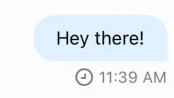 | 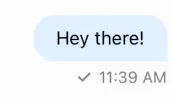 | 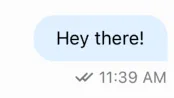 | 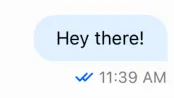 | 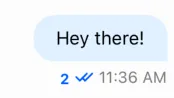 |
Basic Customization
Hide status indicators
To hide indicators, override MessageStatus on Channel and return null.
Show all read and delivered members
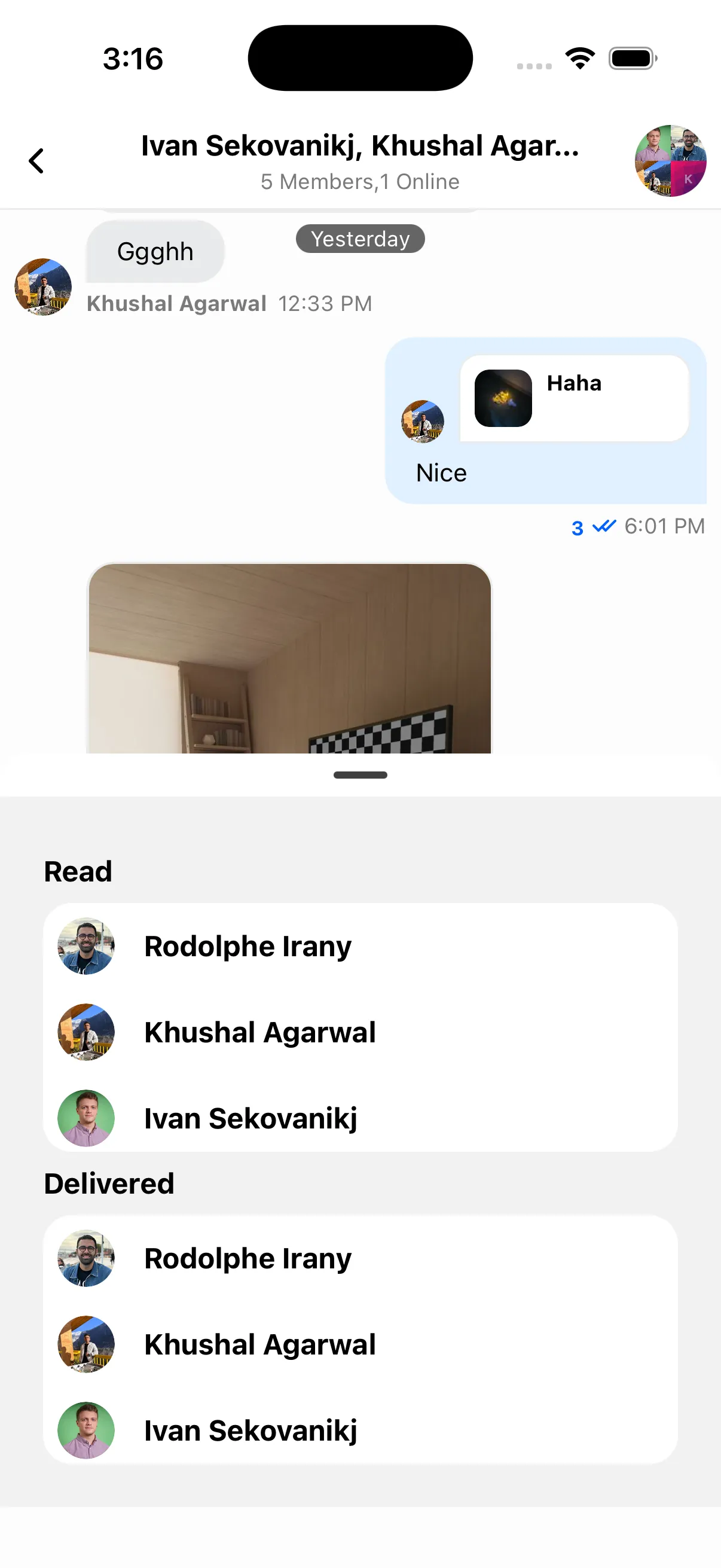
Example: a custom bottom sheet showing who has read vs. only received.
- First, create the bottom sheet component that will be used to show the members that have read the message and the ones that were delivered but not read yet.
import React, { useMemo } from "react";
import BottomSheet, { BottomSheetFlatList } from "@gorhom/bottom-sheet";
import { BottomSheetView } from "@gorhom/bottom-sheet";
import {
  Avatar,
  useChatContext,
  useMessageDeliveredData,
  useMessageReadData,
  useTheme,
} from "stream-chat-react-native";
import { LocalMessage, UserResponse } from "stream-chat";
import { StyleSheet, Text, View } from "react-native";

const renderUserItem = ({ item }: { item: UserResponse }) => (
  <View style={styles.userItem}>
    <Avatar image={item.image} name={item.name ?? item.id} size={32} />
    <Text style={styles.userName}>{item.name ?? item.id}</Text>
  </View>
);

const renderEmptyText = ({ text }: { text: string }) => (
  <Text style={styles.emptyText}>{text}</Text>
);

export const MessageInfoBottomSheet = ({
  message,
  ref,
}: {
  message?: LocalMessage;
  ref: React.RefObject<BottomSheet | null>;
}) => {
  const {
    theme: { colors },
  } = useTheme();
  const { client } = useChatContext();
  const deliveredStatus = useMessageDeliveredData({ message });
  const readStatus = useMessageReadData({ message });

  const otherDeliveredToUsers = useMemo(() => {
    return deliveredStatus.filter(
      (user: UserResponse) => user.id !== client?.user?.id,
    );
  }, [deliveredStatus, client?.user?.id]);

  const otherReadUsers = useMemo(() => {
    return readStatus.filter(
      (user: UserResponse) => user.id !== client?.user?.id,
    );
  }, [readStatus, client?.user?.id]);

  return (
    <BottomSheet enablePanDownToClose ref={ref} index={-1} snapPoints={["50%"]}>
      <BottomSheetView
        style={[styles.container, { backgroundColor: colors.white_smoke }]}
      >
        <Text style={styles.title}>Read</Text>
        <BottomSheetFlatList
          data={otherReadUsers}
          renderItem={renderUserItem}
          keyExtractor={(item) => item.id}
          style={styles.flatList}
          ListEmptyComponent={renderEmptyText({
            text: "No one has read this message.",
          })}
        />
        <Text style={styles.title}>Delivered</Text>
        <BottomSheetFlatList
          data={otherDeliveredToUsers}
          renderItem={renderUserItem}
          keyExtractor={(item) => item.id}
          style={styles.flatList}
          ListEmptyComponent={renderEmptyText({
            text: "The message was not delivered to anyone.",
          })}
        />
      </BottomSheetView>
    </BottomSheet>
  );
};

const styles = StyleSheet.create({
  container: {
    flex: 1,
    padding: 24,
    justifyContent: "center",
    height: "100%",
  },
  title: {
    fontSize: 16,
    fontWeight: "bold",
    marginVertical: 8,
  },
  flatList: {
    borderRadius: 16,
  },
  userItem: {
    flexDirection: "row",
    alignItems: "center",
    padding: 8,
    backgroundColor: "white",
  },
  userName: {
    fontSize: 16,
    fontWeight: "bold",
    marginLeft: 16,
  },
  emptyText: {
    fontSize: 16,
    marginVertical: 16,
    textAlign: "center",
  },
});- Open this bottom sheet via a custom message action (see Custom Message Actions).
Mark as Delivered on Background push notification on Android
This example shows how to mark a message as delivered on Android background push notifications.
Use setBackgroundMessageHandler to mark messages as delivered in the background.
Example:
import {
  FirebaseMessagingTypes,
  setBackgroundMessageHandler,
} from '@react-native-firebase/messaging';

const displayNotification = async (
  remoteMessage: FirebaseMessagingTypes.RemoteMessage,
  channelId: string,
) => {
  const { stream, ...rest } = remoteMessage.data ?? {};
  const data = {
    ...rest,
    ...((stream as unknown as Record<string, string> | undefined) ?? {}), // extract and merge stream object if present
  };
  if (data.body && data.title) {
    await notifee.displayNotification({
      android: {
        channelId,
        pressAction: {
          id: 'default',
        },
      },
      body: data.body as string,
      title: data.title as string,
      data,
    });
  }
};

setBackgroundMessageHandler(messaging, async (remoteMessage) => {
  try {
    const loginConfig = // get the login config from the storage
    if (!loginConfig) {
      return;
    }
    const chatClient = StreamChat.getInstance(loginConfig.apiKey);
    await chatClient._setToken(
      { id: loginConfig.userId },
      loginConfig.userToken,
    );

    const notification = remoteMessage.data;

    const deliverMessageConfirmation = [
      {
        cid: notification?.cid,
        id: notification?.id,
      },
    ];

    await chatClient?.markChannelsDelivered({
      latest_delivered_messages:
        deliverMessageConfirmation as DeliveredMessageConfirmation[],
    });
    // create the android channel to send the notification to
    const channelId = await notifee.createChannel({
      id: "chat-messages",
      name: "Chat Messages",
    });
    // display the notification
    await displayNotification(remoteMessage, channelId);
  } catch (error) {
    console.error(error);
  }
});
Now, import the bootstrapBackgroundMessageHandler.ts file in the index.ts on the top of the file before the App component.
import "./bootstrapBackgroundMessageHandler";Now, you can test the above by sending a push notification to the app.
On this page: