
 React
React iOS
iOS Android
 Flutter
 Angular
 JavaScript
 Unity
Unity Unreal
 Node
Node Python
 Ruby
Ruby PHP
PHP Java
Java .NET
.NET Go
Go REST
RESTimport {
Channel,
MessageInput,
MessageList,
ThemeProvider,
} from "stream-chat-react-native";
import { ImageBackground } from "react-native";
export const theme = {
messageList: {
container: {
backgroundColor: "transparent",
},
},
};
const IMAGE_URI =
"https://images.unsplash.com/photo-1549125764-91425ca48850?ixlib=rb-1.2.1&ixid=MnwxMjA3fDB8MHxleHBsb3JlLWZlZWR8NjF8fHxlbnwwfHx8fA%3D%3D&auto=format&fit=crop&w=800&q=60";
const ChannelScreen = ({ channel }) => (
<ThemeProvider style={theme}>
<Channel channel={channel}>
<ImageBackground
style={{ flex: 1 }}
source={{
uri: IMAGE_URI,
}}
>
<MessageList />
<MessageInput />
</ImageBackground>
</Channel>
</ThemeProvider>
);Custom Channel Background
Basic Custom Background
For a static background, wrap MessageList and MessageInput with ImageBackground.
Best Practices
- Keep message list backgrounds transparent so wallpapers show through without overlay artifacts.
- Ensure text contrast remains accessible against bright or busy images.
- Cache or preload background images to avoid layout jank when entering a channel.
- Persist per-channel settings so returning users see consistent visuals.
- Provide a safe default background when user-selected assets fail to load.
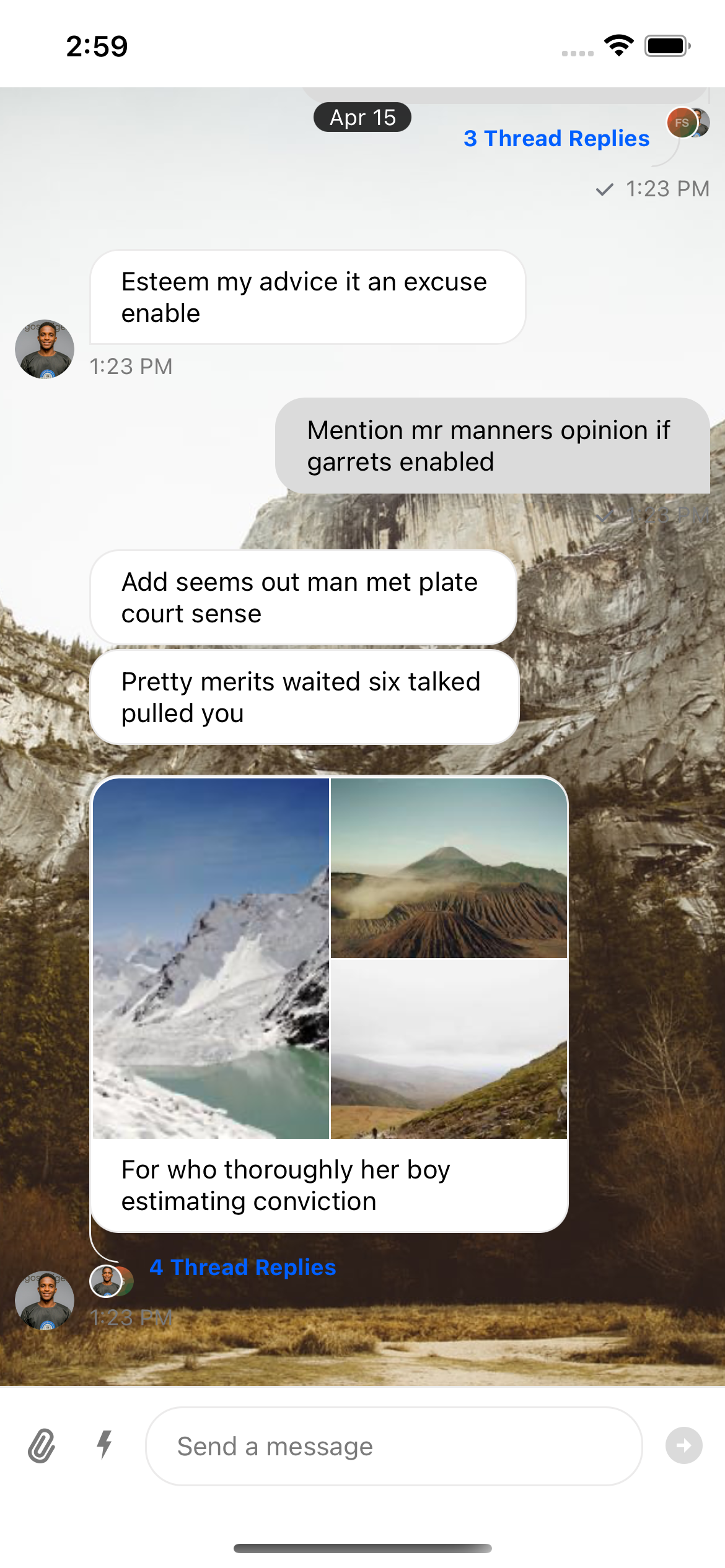
Also adjust the theme so the list background is transparent.
Custom Background With Selection Screen
Next, add a button that opens a screen where the user selects a background image per channel.
|
|
| Chat screen with customize background button | Wallpaper overview screen with background image options |


Store and manage channel preferences
To persist preferences (currently just the background URI), store data using react-native-mmkv, a key-value storage framework. Follow the installation steps before continuing.
Start by creating ChannelBackgroundView. It renders the background by reading from the key-value store. Store an object to keep it extensible (for example, add dimming or background color later).
import type { ViewProps } from "react-native";
import { useMMKVObject } from "react-native-mmkv";

type ChannelPreferences = {
  imageUri: string;
};

const DEFAULT_BACKGROUND_URI = "https://i.redd.it/3jfjc53fsyb61.jpg";

const ChannelBackgroundView = ({
  channelId,
  ...props
}: {
  channelId: string;
} & ViewProps) => {
  const [channelPreferences] = useMMKVObject<ChannelPreferences>(channelId);
  const uri = channelPreferences?.imageUri || DEFAULT_BACKGROUND_URI;

  return <ImageBackground {...props} source={{ uri }} />;
};
Use it in ChannelScreen: replace the static ImageBackground with ChannelBackgroundView and pass channelId.
const ChannelScreen = ({ channel }) => {
  return (
    <ThemeProvider style={theme}>
      <Channel channel={channel}>
        <ChannelBackgroundView channelId={channel?.id} style={{ flex: 1 }}>
          <MessageList />
          <MessageInput />
        </ChannelBackgroundView>
      </Channel>
    </ThemeProvider>
  );
};
Wallpaper overview screen
Add a screen where the user selects a wallpaper from a predefined list.
import { StackNavigationProp } from "@react-navigation/stack";
import { RouteProp } from "@react-navigation/native";
import { useMMKVObject } from "react-native-mmkv";
import { View, SafeAreaView, Pressable, Image, StyleSheet } from "react-native";

const WallpaperOverviewScreen = ({
  navigation: { navigate },
  route: {
    params: { channelId },
  },
}: WallpaperOverviewScreenProps) => {
  const [_, setChannelPreferences] =
    useMMKVObject<ChannelPreferences>(channelId);
  return (
    <SafeAreaView
      style={{
        flex: 1,
        justifyContent: "center",
      }}
    >
      <View style={styles.container}>
        {BRIGHT_IMAGES?.map(({ imageUri = "" }, i) => {
          const handleOnPress = () => {
            setChannelPreferences({ imageUri });
            navigate("Channel");
          };
          return (
            <Pressable
              key={i}
              onPress={handleOnPress}
              style={{
                margin: 1,
                width: GRID_ITEM_WIDTH,
              }}
            >
              <Image style={styles.image} source={{ uri: imageUri }} />
            </Pressable>
          );
        })}
      </View>
    </SafeAreaView>
  );
};

type StackNavigatorParamList = {
  WallpaperOverviewScreen: {
    channelId: string;
  };
};

type WallpaperOverviewScreenProps = {
  navigation: StackNavigationProp<
    StackNavigatorParamList,
    "WallpaperOverviewScreen"
  >;
  route: RouteProp<StackNavigatorParamList, "WallpaperOverviewScreen">;
};

type ChannelPreferences = {
  imageUri: string;
};

const GRID_ITEM_WIDTH = "32.7%";

// Some random images that will get you started
const BRIGHT_IMAGES = [
  "https://images.unsplash.com/photo-1549125764-91425ca48850?ixlib=rb-1.2.1&ixid=MnwxMjA3fDB8MHxleHBsb3JlLWZlZWR8NjF8fHxlbnwwfHx8fA%3D%3D&auto=format&fit=crop&w=800&q=60",
  "https://images.unsplash.com/photo-1549241520-425e3dfc01cb?ixlib=rb-1.2.1&ixid=MnwxMjA3fDB8MHxleHBsb3JlLWZlZWR8ODB8fHxlbnwwfHx8fA%3D%3D&auto=format&fit=crop&w=800&q=60",
  "https://images.unsplash.com/photo-1554226321-24fdcddd5a55?ixlib=rb-1.2.1&ixid=MnwxMjA3fDB8MHxleHBsb3JlLWZlZWR8MjE5fHx8ZW58MHx8fHw%3D&auto=format&fit=crop&w=800&q=60",
  "https://images.unsplash.com/photo-1550006490-9f0656b79e9d?ixlib=rb-1.2.1&ixid=MnwxMjA3fDB8MHxleHBsb3JlLWZlZWR8ODl8fHxlbnwwfHx8fA%3D%3D&auto=format&fit=crop&w=800&q=60",
  "https://images.unsplash.com/photo-1551506448-074afa034c05?ixlib=rb-1.2.1&ixid=MnwxMjA3fDB8MHxleHBsb3JlLWZlZWR8MTEzfHx8ZW58MHx8fHw%3D&auto=format&fit=crop&w=800&q=60",
  "https://images.unsplash.com/photo-1553114835-6f7674d3c2c0?ixlib=rb-1.2.1&ixid=MnwxMjA3fDB8MHxleHBsb3JlLWZlZWR8MTMyfHx8ZW58MHx8fHw%3D&auto=format&fit=crop&w=800&q=60",
  "https://images.unsplash.com/photo-1553075712-453f7213c24f?ixlib=rb-1.2.1&ixid=MnwxMjA3fDB8MHxleHBsb3JlLWZlZWR8MTMzfHx8ZW58MHx8fHw%3D&auto=format&fit=crop&w=800&q=60",
  "https://images.unsplash.com/photo-1551917951-148edcd8ea8d?ixlib=rb-1.2.1&ixid=MnwxMjA3fDB8MHxleHBsb3JlLWZlZWR8MTU3fHx8ZW58MHx8fHw%3D&auto=format&fit=crop&w=800&q=60",
  "https://images.unsplash.com/photo-1553969923-bbf0cac2666b?ixlib=rb-1.2.1&ixid=MnwxMjA3fDB8MHxleHBsb3JlLWZlZWR8MjA3fHx8ZW58MHx8fHw%3D&auto=format&fit=crop&w=800&q=60",
  "https://images.unsplash.com/photo-1553194642-29b272a173b9?ixlib=rb-1.2.1&ixid=MnwxMjA3fDB8MHxleHBsb3JlLWZlZWR8MTcwfHx8ZW58MHx8fHw%3D&auto=format&fit=crop&w=800&q=60",
  "https://images.unsplash.com/photo-1553356084-58ef4a67b2a7?ixlib=rb-1.2.1&ixid=MnwxMjA3fDB8MHxleHBsb3JlLWZlZWR8MTcxfHx8ZW58MHx8fHw%3D&auto=format&fit=crop&w=800&q=60",
  "https://images.unsplash.com/photo-1553526777-5ffa3b3248d8?ixlib=rb-1.2.1&ixid=MnwxMjA3fDB8MHxleHBsb3JlLWZlZWR8MTk4fHx8ZW58MHx8fHw%3D&auto=format&fit=crop&w=800&q=60",
].map((imageUri) => ({
  imageUri,
}));

const styles = StyleSheet.create({
  container: {
    flexDirection: "row",
    flex: 1,
    alignContent: "stretch",
    flexWrap: "wrap",
    padding: 6,
  },
  image: {
    flex: 1,
    width: "100%",
  },
});
Be aware of the fact that channel preferences were implemented with MMKV, a key-value storage framework. There are alternative approaches to achieving the same goal, such as saving the channel preferences as custom data on Stream's channel object.
Add a configuration button
We will now add a button that will take the user from the Channel screen to our new WallpaperOverview screen.
import { useNavigation } from "@react-navigation/native";
import {
  Channel,
  MessageInput,
  MessageList,
  ThemeProvider,
} from "stream-chat-react-native";
import { Pressable, Text, StyleSheet } from "react-native";

const ChannelScreen = ({ channel }) => {
  const { navigate } = useNavigation();
  const handleMenuOnPress = () =>
    navigate("WallpaperOverviewScreen", { channelId: channel?.id });

  return (
    <ThemeProvider style={theme}>
      <Channel channel={channel}>
        <ChannelBackgroundView channelId={channel?.id} style={{ flex: 1 }}>
          <Pressable style={styles.menuButton} onPress={handleMenuOnPress}>
            <Text>🎨</Text>
          </Pressable>
          <MessageList />
          <MessageInput />
        </ChannelBackgroundView>
      </Channel>
    </ThemeProvider>
  );
};

const styles = StyleSheet.create({
  menuButton: {
    position: "absolute",
    right: 0,
    top: 0,
    backgroundColor: "rgba(255,87,56,0.65)",
    borderRadius: 36,
    padding: 16,
    margin: 16,
    alignItems: "center",
    zIndex: 10,
  },
});

export const theme = {
  messageList: {
    container: {
      backgroundColor: "transparent",
    },
  },
};
Optional: Connect all screens by navigation
If applicable to your use case, add our screens to a Navigation Stack by doing the following:
import { createNativeStackNavigator } from "react-native-screens/native-stack";
import { NavigationContainer } from "@react-navigation/native";

const Stack = createNativeStackNavigator();

export default () => {
  return (
    <SafeAreaProvider>
      <ThemeProvider style={theme}>
        <NavigationContainer>
          <Stack.Navigator initialRouteName="Channel">
            <Stack.Screen
              component={ChannelScreen}
              name="Channel"
              options={noHeaderOptions}
            />
            <Stack.Screen
              component={WallpaperOverviewScreen}
              name="WallpaperOverviewScreen"
            />
          </Stack.Navigator>
        </NavigationContainer>
      </ThemeProvider>
    </SafeAreaProvider>
  );
};On this page: