React
React iOS
iOS Android
 Flutter
 JavaScript
 Unity
Unity ESP32
ESP32 Platform
 Vision Agents
Firebase Cloud Messaging
Configure Stream Video push notifications using Firebase Cloud Messaging.
Get the Firebase Credentials
Provide your Firebase credentials to Stream to enable push notifications.
Go to the Firebase Console and select your project (or create one if needed).
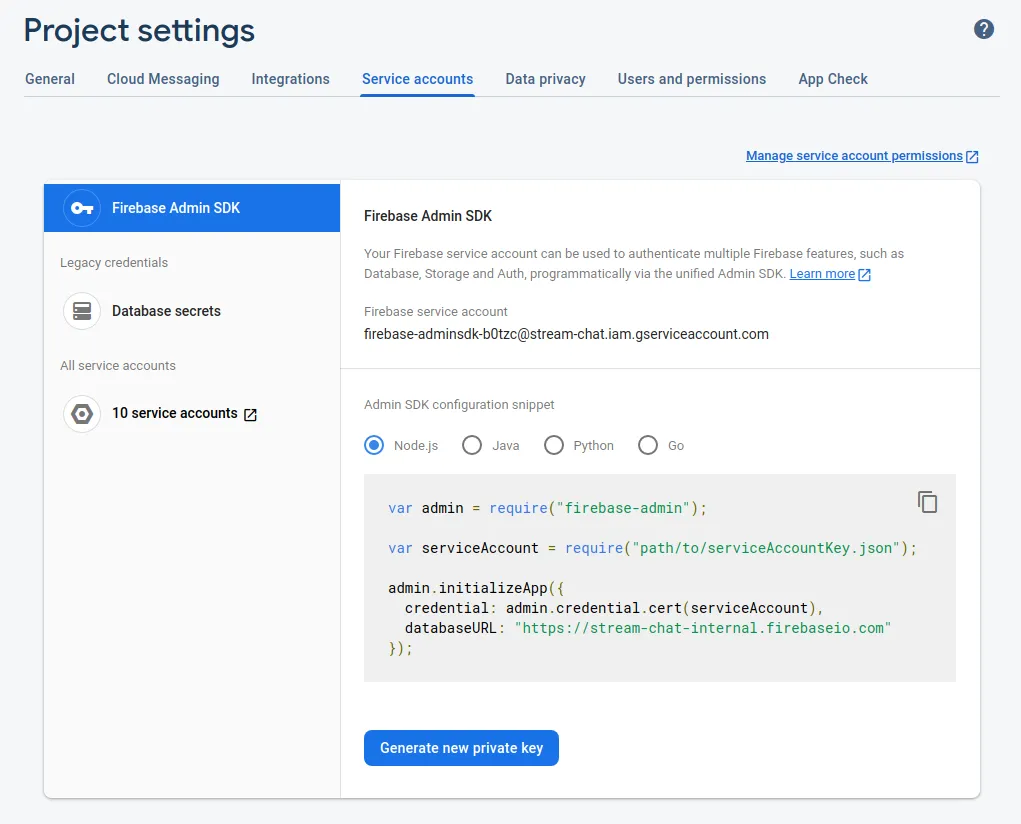
Click the gear icon next to Project Overview and navigate to Project settings:

- Navigate to the Service Accounts tab. Under Firebase Admin SDK, click Generate new private key to download the credentials JSON file.
Upload the credentials and create a push provider
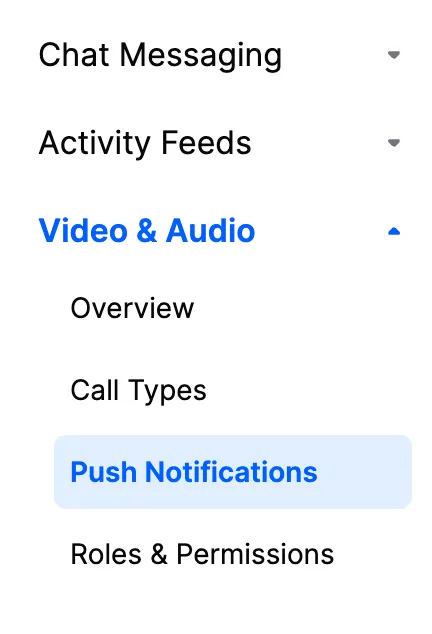
In the Stream Dashboard, select Push Notifications:
Click New Configuration and select the Firebase provider. Configure these fields:
| Field Name | Description |
|---|---|
Name | Provider identifier used in SDK/API calls |
Description | Optional description for identifying this configuration |
Credentials JSON | Firebase credentials for sending push notifications |
Configuration steps:
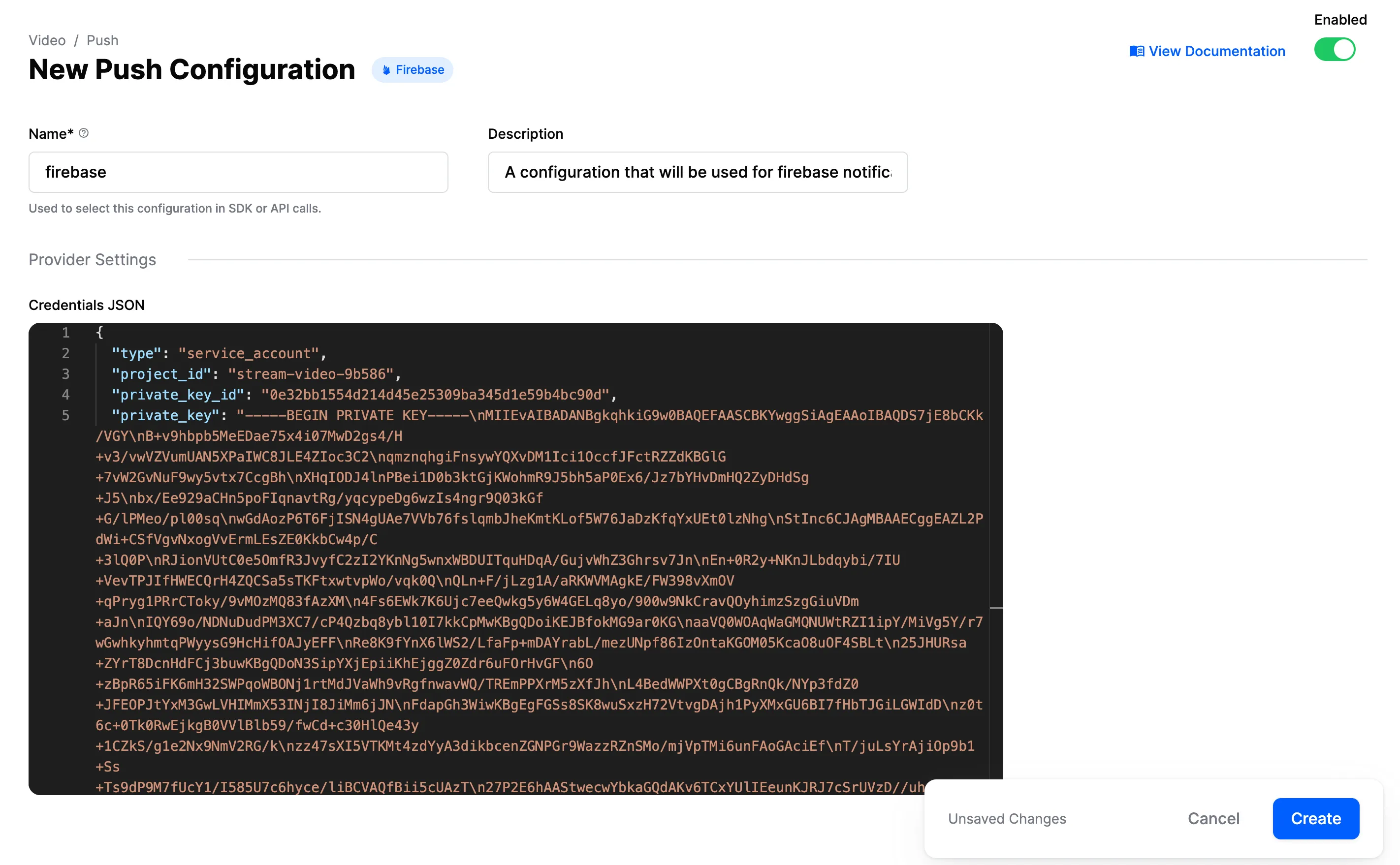
- Enter a name in the Name field (referenced in your code)
- Upload the Firebase credentials JSON file
- Enable the provider using the toggle
- Click Create
Example configuration using firebase as the name: