
 React
React iOS
iOS Android
 Flutter
 Angular
 JavaScript
 Unity
Unity Unreal
 Node
Node Python
 Ruby
Ruby PHP
PHP Java
Java .NET
.NET Go
Go REST
RESTfinal client = StreamChatClient(
'your-api-key',
logLevel: Level.INFO,
);This is beta documentation for Stream Chat Flutter SDK v10. For the latest stable version, see the latest version (v9).
Livestream Best Practices
This guide covers Flutter-specific practices for building high-traffic livestream and live event chat using the Stream Chat Flutter SDK. It supplements the general livestream best practices with guidance tailored to the Flutter rendering pipeline, Dart runtime, and the SDK's Flutter APIs.
For UI layout patterns (split-screen, overlay), see Adding Chat to Video Livestreams.
Disable Offline Storage
The Flutter SDK supports offline persistence via the stream_chat_persistence package, which uses Drift (SQLite) under the hood. For livestream use cases, offline storage should be disabled. It introduces write overhead on every incoming message, which becomes a bottleneck under high message volume.
How to Disable
Do not assign a chatPersistenceClient to your StreamChatClient. The default behavior (no persistence) is correct for livestreams:
If you are migrating from a standard chat implementation that uses persistence, remove the persistence setup:
// Remove this for livestream channels
final chatPersistentClient = StreamChatPersistenceClient(
  logLevel: Level.INFO,
  connectionMode: ConnectionMode.background,
);
client.chatPersistenceClient = chatPersistentClient;
Why This Matters
Every message.new event triggers a write to the local SQLite database when persistence is enabled. At 5-10+ messages per second (peak livestream traffic), this means:
- Continuous disk I/O on every incoming message, even with Drift's background isolate
- Memory pressure from maintaining a synchronized local cache that has no value in a livestream context (users don't scroll back through thousands of ephemeral messages offline)
- Additional CPU cycles for serialization/deserialization to and from the database
In a livestream, the message list is ephemeral and forward-only. Offline storage adds cost with no user benefit.
Testing Render Performance with Flutter DevTools
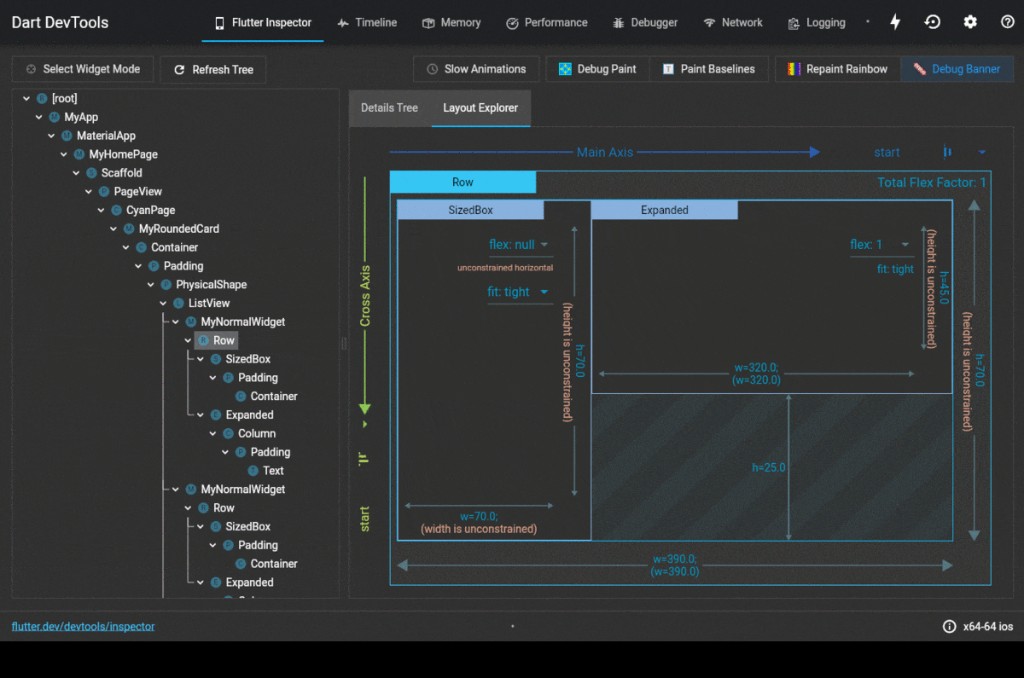
High message throughput exposes rendering issues that don't surface in normal development. The Flutter DevTools is a great tool to to identify and fix them.
Opening DevTools
flutter run --profile
# Then press 'v' to open DevTools in your browser
Always profile in profile mode (--profile), not debug mode. Debug mode disables optimizations and gives misleading performance data.
Frame Rendering (Performance Overlay)
Enable the performance overlay in DevTools or programmatically:
MaterialApp(
  showPerformanceOverlay: true,
);
Watch for:
- Jank frames (>16ms build/render): any frame that exceeds 16ms will cause visible stutter
- Consistent green bars: this is the target; sustained green means you're hitting 60fps
- Red/yellow spikes correlated with incoming messages: indicates expensive rebuilds triggered by new messages
Widget Rebuild Tracking
In the DevTools Widget Inspector, enable "Track Widget Rebuilds" to see which widgets rebuild on each incoming message. Common culprits in livestream chat:
- The entire message list rebuilding instead of just inserting a new item
- User avatar widgets re-fetching or re-decoding images on every rebuild
- Rich text/link preview widgets re-parsing content unnecessarily
Ensure Widgets Have Keys
In a high-velocity list, Flutter needs stable keys to efficiently diff the widget tree. Without keys, the framework may rebuild entire list sections instead of inserting a single new item.
ListView.builder(
  itemCount: messages.length,
  itemBuilder: (context, index) {
    final message = messages[index];
    return MessageWidget(
      key: ValueKey(message.id),
      message: message,
    );
  },
);
The Stream Flutter SDK's built-in StreamMessageListView already handles keys correctly. If you're building a custom message list, this is critical.
Memory Profiling
Open the Memory tab in DevTools while BenChat is sending traffic. Watch for:
- Steady memory growth: indicates a leak, commonly from event listeners not being disposed, or an unbounded message list that never trims old messages
- GC pressure (frequent garbage collection pauses): often caused by creating many short-lived objects per message (e.g., rebuilding
TextStyle,BoxDecorationobjects on every frame)
Cap your visible message list. Keeping 200-500 messages in memory is sufficient; trim older messages as new ones arrive.
Timeline View
The Timeline tab shows exactly what happens on the UI thread and raster thread per frame. Filter for frames that exceed the 16ms budget and look for:
- Long
build()calls: your widget tree is too expensive to construct - Expensive
paint()operations: shadows, clip paths, or complex custom painters - Layout thrashing: widgets that trigger repeated layout passes
Common Flutter Performance Traps
| Issue | Symptom | Fix |
|---|---|---|
| Missing keys on list items | Entire list rebuilds; scroll position jumps | Add ValueKey(message.id) to each item |
| Unbounded message list | Memory grows indefinitely | Cap list at 200-500 items, trim oldest |
| Avatar images re-fetched per rebuild | Network spikes, image flicker | Use CachedNetworkImage or precache |
Heavy build() in message widget | Jank spikes on every new message | Extract static parts into const widgets; use RepaintBoundary |
| Opacity/ClipRRect on every message | Raster thread spikes | Minimize per-item clip operations; use saveLayer sparingly |
| State management rebuilds too broadly | Entire screen rebuilds on message events | Scope state listeners to the message list widget only |
| Animations on every message insert | Compounding animation overhead at high frequency | Disable insert animations in livestream mode or throttle them |
Quick Checklist
Before going live with your Flutter livestream chat:
- Using the
livestreamchannel type (or a custom type with equivalent settings) - Read events, typing indicators, and connect events are disabled
- Offline storage is not attached to the
StreamChatClient - Slow mode is configured for expected traffic levels
- BenChat stress test has been run at 5-10 msg/sec
- Flutter DevTools profiling completed in profile mode with no jank
- Message list is capped (200-500 items) with oldest messages trimmed
- All list items have stable
ValueKeys - Avatar/image loading uses caching (
CachedNetworkImageor similar) - Auth and permission checks are enabled in production
- Moderation tools (block lists, automod, flagging) are configured
On this page: