















Migration Guide
Stream has migrated over customers with >100m users and TBs of data. The following steps enable you to move over from in-house or competing solutions quickly:
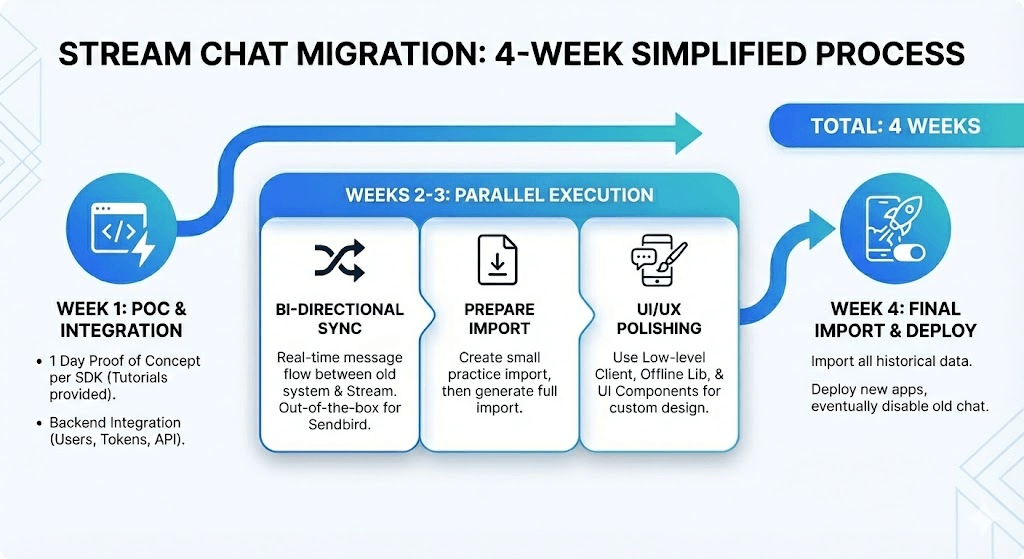
Step 1: SDK Proof of Concept. 1 day proof of concept on each SDK you need to support. Start with relevant tutorials. See the chat tutorials for: React, React Native, Flutter, iOS, Android, and Unity.
Step 2: Backend Integration. Configuring users and setting up tokens is done on the backend. After these 2 steps your team will have a good understanding of the API works. Next you want to do the following in parallel:
Step 3a: Bi-Directional Webhook Sync. When your old system receives a message send it to Stream, when Stream receives a message send it to your old API. We've had many Sendbird customers switch, so for Sendbird specifically we offer this functionality out of the box. Simply work with our support team to enable it.
Step 3b: Prepare Import File. The import section has the full details. First practice with a small import. This is a good best practice to find any issues before you generate a large export from your old chat. Data can be imported with the CLI or in the dashboard.
Step 3c: Polish UI and UX. Stream offers a low level client, offline support library and UI components. This means you can build any type of chat or messaging UI. Take a moment to customize or build UI components. And iterate on how the chat integrates with your app.
Step 4: Final Import. Next, Import all historical data. Note that imports can take several days to process. Keep that in mind for your release timeline.
Step 5: Deploy. Deploy your new apps with Stream as the chat experience. After all apps are updated eventually disable your old chat.
The whole process typically takes 4 weeks. Alternatively if you're in a hurry, some apps skip the webhook sync. This leads to an easier/faster switch but involves some disruption to chat.
For large-scale migrations, we recommend premium support for real-time engagement with our engineering team. Contact support to discuss your requirements.
Migration Approaches
Choose an approach based on your requirements for downtime, complexity, and user experience.
No Sync (Hard Switch)
Import your data and switch to Stream at a scheduled time. This is the simplest approach but requires a service interruption.
Process:
- Schedule a maintenance window
- Export chat data in Stream's import format
- Import data via the Stream Dashboard
- Validate the import
- Deploy your updated application
Characteristics:
- Simplest to implement
- Requires downtime
- Users must update their app
Uni-Directional Sync
Sync data from your current provider to Stream in real-time, then switch when ready. This is the most common approach.
Process:
- Set up a mechanism (webhook) to replicate data from your current provider to Stream
- Export and import historical chat data
- Once sync is operational and imports are complete, deploy your updated application
Characteristics:
- Zero downtime
- Momentary interruption only
- Not complex to implement
- Most common approach
Bi-Directional Sync
Sync data in both directions, allowing both services to work in tandem during transition. This is useful when you cannot control user upgrade timing (e.g., mobile apps).
Process:
- Set up forward sync from your current provider to Stream
- Set up reverse sync from Stream back to your current provider
- Export and import historical chat data
- Roll out app updates gradually—users on old and new versions can communicate
Characteristics:
- Zero downtime
- Zero service interruption
- No forced app updates required
- More complex to implement
Field Mapping
Map your existing data fields to Stream's data model. This is critical for both imports and real-time sync.
Users
| Stream Field | Your Field | Notes |
|---|---|---|
| id | id | Required, string |
| name | name / nickname | Display name |
| image | profile_image / profileUrl | Avatar URL |
| * | custom_data | Custom fields (up to 5KB) |
Channels
| Stream Field | Your Field | Notes |
|---|---|---|
| id | id | Required, string |
| type | channel_type / private | Map to Stream types (messaging, livestream, etc.) |
| created_by | created_by_id | User ID of creator |
| name | name | Channel name |
| members | member_user_ids | List of user IDs |
| * | custom_data | Custom fields |
Messages
| Stream Field | Your Field | Notes |
|---|---|---|
| id | id | Required, string |
| channel_type | - | Inherit from parent channel |
| channel_id | - | Inherit from parent channel |
| user | sender_id | User ID of sender |
| text | text / content | Message text |
| type | - | Usually "regular" |
| attachments | attachments / parts | File attachments |
| created_at | created_at / timestamp | RFC3339 format |
| * | custom_data | Custom fields |
Provide a sample data export for Stream to review before your migration. This helps identify mapping issues early.
Sendbird Migration
Stream has migrated enough Sendbird customers that we have developed specific tooling for syncing Sendbird data in real-time.
Watch the Sendbird sync tool in action to see how bi-directional sync works.
Real-Time Sync Setup
Real-time sync from Sendbird is available on Enterprise plans. Contact support to enable this feature.
Configuration:
- Provide Stream with your Sendbird app ID and token
- Configure your Sendbird webhook URL:
https://chat.stream-io-api.com/sendbird/webhook?api_key=<YOUR_STREAM_API_KEY>Stream processes each webhook payload in a persistent queue, enabling replay if failures occur and guaranteeing chronological processing.
Sendbird Field Mappings
| Sendbird | Stream |
|---|---|
User nickname |
User name |
User profileUrl |
User image |
ADMM message |
system message type |
| Other messages | regular message type |
| Channel ID | Same ID with sendbird_{group,open}_channel_ prefix stripped |
Channel type mapping:
- Uses
custom_typeif set on the Sendbird channel - Uses
publicif the Sendbird channel is open or public - Uses
messagingotherwise
Defaults:
- Admin user:
data-migration-admin - Default channel role:
channel_member
These can be customized by request.
Supported Sendbird Events
Open Channels:
open_channel:create,open_channel:removeopen_channel:enter,open_channel:exitopen_channel:message_send,open_channel:message_update,open_channel:message_delete
Group Channels:
group_channel:create,group_channel:changed,group_channel:removegroup_channel:invite,group_channel:join,group_channel:decline_invite,group_channel:leavegroup_channel:message_send,group_channel:message_read,group_channel:message_update,group_channel:message_deletegroup_channel:reaction_add,group_channel:reaction_delete
Stream can handle a subset of these events if needed.
Sendbird vs Stream Differences
| Sendbird | Stream |
|---|---|
| Open channels + Group channels | 6 built-in types + custom types |
getChannel + channel.enter |
Single channel.watch() call |
| UserMessage / FileMessage | Message with attachments list |
| Thumbnails specified up-front | Image sizes requested at read time |
| Private vs Public groups | Handled via permission system |
Next Steps
- Contact Stream support to discuss your migration
- Review the Importing Data guide
- Provide a sample data export for review
- Plan your migration timeline based on your chosen approach