
 React
React iOS
iOS Android
 Flutter
 Angular
 JavaScript
 Unity
Unity Unreal
 Node
Node Python
 Ruby
Ruby PHP
PHP Java
Java .NET
.NET Go
Go REST
RESTimport { Chat } from "stream-chat-react";
const isMessageAIGenerated = (message) => !!message.ai_generated;
const App = ({ children }) => (
<Chat client={client} isMessageAIGenerated={isMessageAIGenerated}>
{children}
</Chat>
);This is beta documentation for Stream Chat React SDK v14. For the latest stable version, see the latest version (v13)
.
SDK Integration
AI components work with the React Chat SDK out of the box.
Best Practices
- Use
isMessageAIGeneratedto keep AI rendering consistent across the app. - Show
AIStateIndicatoronly for active generation states. - Provide a stop button to let users cancel long responses.
- Keep streaming message UI compatible with the default message layout unless you need a full custom message component.
- Validate attachments and model inputs before submission.
StreamedMessageText
StreamedMessageText ships with the SDK. It renders instead of MessageText when the isMessageAIGenerated function marks a message as AI-generated.
It displays the message with a typewriter animation and handles streaming updates for you.
If you want to replace it, register a custom implementation with WithComponents.
Example usage
The example above renders StreamedMessageText for messages where ai_generated is true.
AIStateIndicator
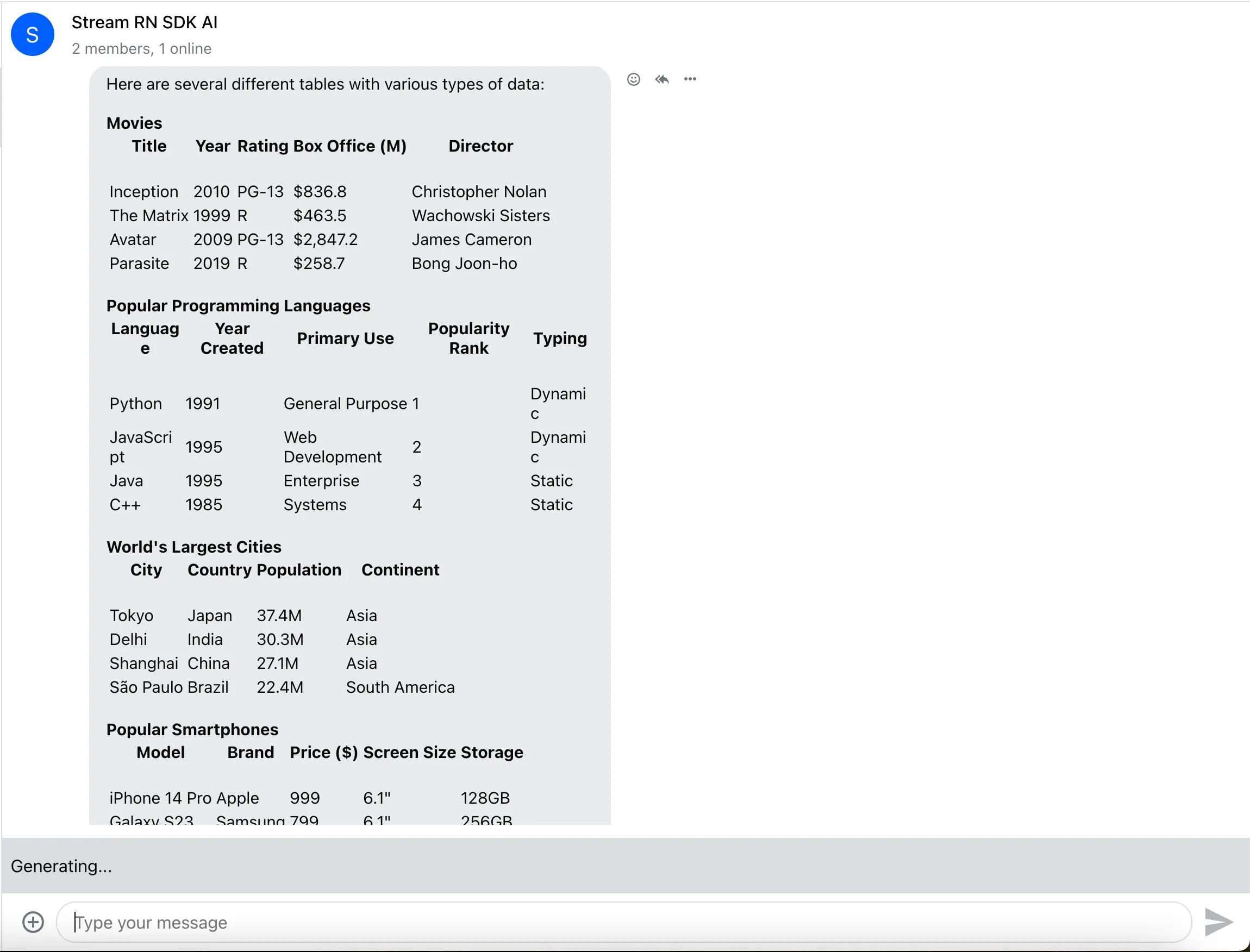
AIStateIndicator is not rendered by default. Render it as a child of Channel. It shows when the AI state is one of:
AI_STATE_GENERATINGAI_STATE_THINKING
Example usage
import {
  AIStateIndicator,
  Channel,
  Chat,
  MessageComposer,
  MessageList,
} from "stream-chat-react";

const isMessageAIGenerated = (message) => !!message.ai_generated;

const App = () => (
  <Chat client={client} isMessageAIGenerated={isMessageAIGenerated}>
    <Channel channel={channel}>
      <MessageList />
      <AIStateIndicator />
      <MessageComposer />
    </Channel>
  </Chat>
);
This shows the indicator above MessageComposer when the AI state matches one of the states above.
StopAIGenerationButton
StopAIGenerationButton lets users stop a response mid-stream. It renders instead of the send button when the AI state is:
AI_STATE_GENERATINGAI_STATE_THINKING
Register it through WithComponents.
If you want to prevent rendering of the component altogether, set StopAIGenerationButton to null.
import {
  Channel,
  ChannelHeader,
  MessageComposer,
  MessageList,
  Thread,
  Window,
  WithComponents,
} from "stream-chat-react";

const App = () => (
  <WithComponents overrides={{ StopAIGenerationButton: CustomStopButton }}>
    <Channel>
      <Window>
        <ChannelHeader />
        <MessageList />
        <MessageComposer />
      </Window>
      <Thread />
    </Channel>
  </WithComponents>
);
StreamingMessage
Integrating StreamingMessage is straightforward. The SDK uses isMessageAIGenerated to determine when to render its internal streaming message. If you consider a message AI-generated when message.ai_generated === true, your factory function could look like this:
import type { LocalMessage } from "stream-chat";

const isMessageAIGenerated = (message: LocalMessage) => !!message.ai_generated;
Then provide your custom streaming message through WithComponents:
import {
  Channel,
  ChannelHeader,
  MessageComposer,
  MessageList,
  Thread,
  Window,
  WithComponents,
  useMessageContext,
} from "stream-chat-react";
import { StreamingMessage } from "@stream-io/chat-react-ai";

const CustomStreamingMessage = () => {
  const { message } = useMessageContext();

  return <StreamingMessage text={message.text ?? ""} />;
};

const App = () => (
  <WithComponents overrides={{ StreamedMessageText: CustomStreamingMessage }}>
    <Channel>
      <Window>
        <ChannelHeader />
        <MessageList />
        <MessageComposer />
      </Window>
      <Thread />
    </Channel>
  </WithComponents>
);
Because this component still renders inside MessageSimple, you will also see the rest of the default message UI, such as reactions and read state. If that does not suit your needs, build a custom message component while keeping the default styles:
import clsx from "clsx";
import {
  Attachment,
  Channel,
  IconExclamationCircle1,
  MessageSimple,
  WithComponents,
  useMessageContext,
} from "stream-chat-react";
import { StreamingMessage } from "@stream-io/chat-react-ai";

const CustomMessage = () => {
  const { handleAction, isMyMessage, message } = useMessageContext();

  const attachments = message.attachments ?? [];
  const hasAttachments = attachments.length > 0;

  const rootClassName = clsx(
    "str-chat__message str-chat__message-simple",
    `str-chat__message--${message.type}`,
    `str-chat__message--${message.status}`,
    {
      "str-chat__message--me": isMyMessage(),
      "str-chat__message--other": !isMyMessage(),
      "str-chat__message--has-attachment": hasAttachments,
    },
  );

  if (!isMessageAIGenerated(message)) return <MessageSimple />;

  return (
    <div className={rootClassName}>
      <div className="str-chat__message-inner" data-testid="message-inner">
        <div className="str-chat__message-bubble">
          {hasAttachments && (
            <Attachment
              actionHandler={handleAction}
              attachments={attachments}
            />
          )}

          <StreamingMessage text={message.text ?? ""} />

          {message.status === "failed" && (
            <div className="str-chat__message-error-indicator">
              <IconExclamationCircle1 />
            </div>
          )}
        </div>
      </div>
    </div>
  );
};

const App = () => (
  <WithComponents overrides={{ Message: CustomMessage }}>
    <Channel>{/* ... */}</Channel>
  </WithComponents>
);
AIMessageComposer
To use AIMessageComposer, wire it to the existing MessageComposer:
import { AIMessageComposer } from "@stream-io/chat-react-ai";
import {
  MessageComposer,
  WithComponents,
  useAttachmentsForPreview,
  useChannelActionContext,
  useMessageComposerController,
} from "stream-chat-react";

const CustomMessageComposer = () => {
  const composer = useMessageComposerController();
  const { sendMessage } = useChannelActionContext();
  const { attachments } = useAttachmentsForPreview();

  return (
    <AIMessageComposer
      onChange={(event) => {
        const input = event.currentTarget.elements.namedItem(
          "attachments",
        ) as HTMLInputElement | null;
        const files = input?.files ?? null;

        if (files) composer.attachmentManager.uploadFiles(files);
      }}
      onSubmit={async (event) => {
        event.preventDefault();

        const target = event.currentTarget;
        const formData = new FormData(target);

        const message = formData.get("message");
        composer.textComposer.setText(message as string);

        const composedData = await composer.compose();

        if (!composedData) return;

        target.reset();
        composer.clear();

        await sendMessage(composedData);
      }}
    >
      <AIMessageComposer.AttachmentPreview>
        {attachments.map((attachment) => (
          <AIMessageComposer.AttachmentPreview.Item
            file={attachment.localMetadata.file}
            imagePreviewSource={attachment.localMetadata.previewUri as string}
            key={attachment.localMetadata.id}
            onDelete={() => {
              composer.attachmentManager.removeAttachments([
                attachment.localMetadata.id,
              ]);
            }}
            onRetry={() => {
              composer.attachmentManager.uploadAttachment(attachment);
            }}
            state={attachment.localMetadata.uploadState}
          />
        ))}
      </AIMessageComposer.AttachmentPreview>
      <AIMessageComposer.TextInput />
      <AIMessageComposer.FileInput />
      <AIMessageComposer.SpeechToTextButton />
      <AIMessageComposer.ModelSelect />
      <AIMessageComposer.SubmitButton />
    </AIMessageComposer>
  );
};

const App = () => (
  <WithComponents overrides={{ MessageComposerUI: CustomMessageComposer }}>
    <MessageComposer />
  </WithComponents>
);
You can pick and choose which input components to render and wrap them to customize layout. The inputs are intentionally minimal with helpful defaults. TextInput, FileInput, and SpeechToTextButton manage internal state, which you can access via useText or useAttachments.