















User Permissions
Stream Chat ships with a configurable permission system that allows high resolution control over what users are permitted to do.
Getting Started
There are multiple important terms to understand when it comes to permission management. Each permission check comes down to three things:
-
Subject- an actor which attempts to perform certain Action. It could be represented by a User or by a ChannelMember -
Resource- an item that Subject attempts to perform an Action against. It could be a Channel, Message, Attachment or another User -
Action- the exact action that is being performed. For exampleCreateChannel,DeleteMessage,AddLinks
The purpose of permission system is to answer a question: is Subject A allowed to perform Action B on Resource C ?
Stream Chat provides several concepts which help to control which actions are available to whom:
-
Permission- an object which represents actions a subject is allowed to perform -
Role- assigned to a User or Channel Member and is used to check their permissions -
Grants- the way permissions are assigned to roles, applicable across the entire application, or specific to a single channel type or channel.
Also important to know is permissions checking only happens on the client-side calls. Server-side allows everything so long as a valid API key and secret is provided.
Role Management
To make it easy to get started, all Stream applications come with several roles already built in with permissions to represent the most common use cases. These roles can be customized if needed, and new roles can be created specific for your application
This is the process of assigning a role to users so they can be granted permissions. This represents Subject A in the permissions question. Users will have one role which grants them permissions for the entire application and additionally users can have channel roles which grant permissions for a single channel or for all channels with the same channel type.
By default all users have builtin role user assigned. To change the role of the User, you can use UpdateUser API endpoint:
resp, err := client.UpdateUsersPartial(ctx, &getstream.UpdateUsersPartialRequest{
  Users: []getstream.UpdateUserPartialRequest{
    {
      ID: "james_bond",
      Set: map[string]any{
        "role": "special_agent",
      },
    },
  },
})
Once you add user to the channel, channel_member role will be assigned to user's membership:
channel := client.Chat().Channel("messaging", "channel-id")
_, err = channel.Update(ctx, &getstream.UpdateChannelRequest{
  AddMembers: getstream.PtrTo([]getstream.ChannelMemberRequest{
    {UserID: getstream.PtrTo("james_bond")},
  }),
})
In order to change channel-level role of the user, you can either add user to the channel with a different role (if the SDK supports it) or update it later by role assignment:
channel := client.Chat().Channel("messaging", "channel-id")
_, err = channel.Update(ctx, &getstream.UpdateChannelRequest{
  AssignRoles: getstream.PtrTo([]getstream.ChannelMemberRequest{
    {ChannelRole: getstream.PtrTo("channel_moderator"), UserID: getstream.PtrTo("james_bond")},
  }),
})changing channel member roles is not allowed client-side.
Subject
Subject can be represented by User or ChannelMember. ChannelMember subject is used only when user interacts with a channel that they are member of. Both User and ChannelMember have Role and permission system takes both roles into consideration when checking permissions.
Builtin roles
There are some builtin roles in Stream Chat that cover basic chat scenarios:
| Role | Level | Description |
|---|---|---|
| user | User | Default User role |
| guest | User | Used for guest users created by server-side endpoints. Guests are short-lived temporary users that could be created without a token |
| anonymous | User | Anonymous users are not allowed to perform any actions that write data. You should treat them as unathenticated clients |
| admin | User | Role for users that perform administrative tasks with elevated permissions |
| channel_member | Channel | Default role that gets assigned when user is added to the channel |
| channel_moderator | Channel | Role for channel members that perform administrative tasks with elevated permissions |
It's worth noting that you cannot use user-level roles as channel-level roles vice-versa. This restriction only applies to builtin roles
Ownership
Some Stream Chat entities have an owner and the fact of ownership can be considered when configuring access permissions. Ownership is supported in these entity types:
-
Channel - owned by its creator
-
Message - owned by its creator (sender)
-
Attachment - owned by user who uploaded a file
-
User - authenticated user owns itself
Using ownership concept, permissions could be set up in such a way that allows entity owners to perform certain actions. For example:
-
Update Own Message - allows message senders to edit their messages
-
Update Own User - allows users to change their own properties (except role and team)
-
Send Message in Own Channel - allows channel creators to send messages in the channels that they created even if they are not members
Custom Roles
In more sophisticated scenarios custom roles could be used. One Stream Chat application could have up to 25 custom roles. Roles are simple, and require only a name to be created. They do nothing until permissions are assigned to the role. To create new custom role you can use CreateRole API endpoint:
client.CreateRole(ctx, &getstream.CreateRoleRequest{Name: "special_agent"})To delete previously created role you can use DeleteRole API endpoint:
client.DeleteRole(ctx, "agent_006", &getstream.DeleteRoleRequest{})In order to delete a role, you have to remove all permission grants that this role has and make sure that you don't have non-deleted users with this role assigned. Channel-level roles could be deleted without reassigning them, although, some users could lose access to channels where this role is used.
Once you have a role created you can start granting permissions to it. You can also grant or remove permissions for built in roles.
Granting permissions
User access in Chat application is split across multiple scopes.
-
Application Permissions : You can grant these using the .app scope. These permissions apply to operations that occur outside of channel-types including accessing and modifying other users, or using moderation features.
-
Channel-Type Permissions : These apply permissions to all channels of a particular type.
-
Channel Permissions : These apply permissions to a single channel and override channel-type permissions.
To list all available permissions you can you ListPermissions API endpoint:
resp, err := client.ListPermissions(ctx, &getstream.ListPermissionsRequest{})You can also find all available permissions on Permissions Reference page
Each permission object contains these fields:
| Type | Description | Description | Example |
|---|---|---|---|
| id | string | Unique permission ID | create-message-owner |
| name | string | Human-readable permission name | Create Message in Owned Channel |
| description | string | Human-readable permission description | Grants action CreateMessage which allows to send a new message, user should own a channel |
| action | string | Action which this permission grants | CreateMessage |
| owner | boolean | If true, Subject should be an owner of the Resource | true |
| same_team | boolean | If true, Subject should be a part of the team that Resource is a part of | true |
To manipulate granted permissions for certain channel type, you can use UpdateChannelType API endpoint:
// observe current grants of the channel type
resp, err := client.Chat().GetChannelType(ctx, "messaging", &getstream.GetChannelTypeRequest{})
fmt.Print(resp.Data.Grants)

// update "channel_member" role grants in "messaging" scope
_, err = client.Chat().UpdateChannelType(ctx, "messaging", &getstream.UpdateChannelTypeRequest{
	Grants: getstream.PtrTo(map[string][]string{
		"channel_member": {
			"read-channel",         // allow access to the channel
			"create-message",       // create messages in the channel
			"update-message-owner", // update own user messages
			"delete-message-owner", // delete own user messages
		},
	}),
})
This call will only change grants of roles that were mentioned in the request. You can remove all role grants with providing empty array ( [] ) as list of granted permissions:
_, err = client.Chat().UpdateChannelType(ctx, "messaging", &getstream.UpdateChannelTypeRequest{
	Grants: getstream.PtrTo(map[string][]string{
		"anonymous": {}, // removes all grants of "anonymous" role
		"guest":     {}, // removes all grants of "guest" role
	}),
})
If you want to reset the whole scope to default settings, you can explicitly provide null to grants field:
_, err = client.Chat().UpdateChannelType(ctx, "messaging", &getstream.UpdateChannelTypeRequest{
	Grants: nil,
})
You can manipulate .app scope grants using UpdateApp API endpoint in exactly the same way:
_, err := client.UpdateApp(ctx, &getstream.UpdateAppRequest{
  Grants: getstream.PtrTo(map[string][]string{
    "anonymous": {},
    "guest":     {},
    "user":      {"search-user", "mute-user"},
    "admin":     {"search-user", "mute-user", "ban-user"},
  }),
})
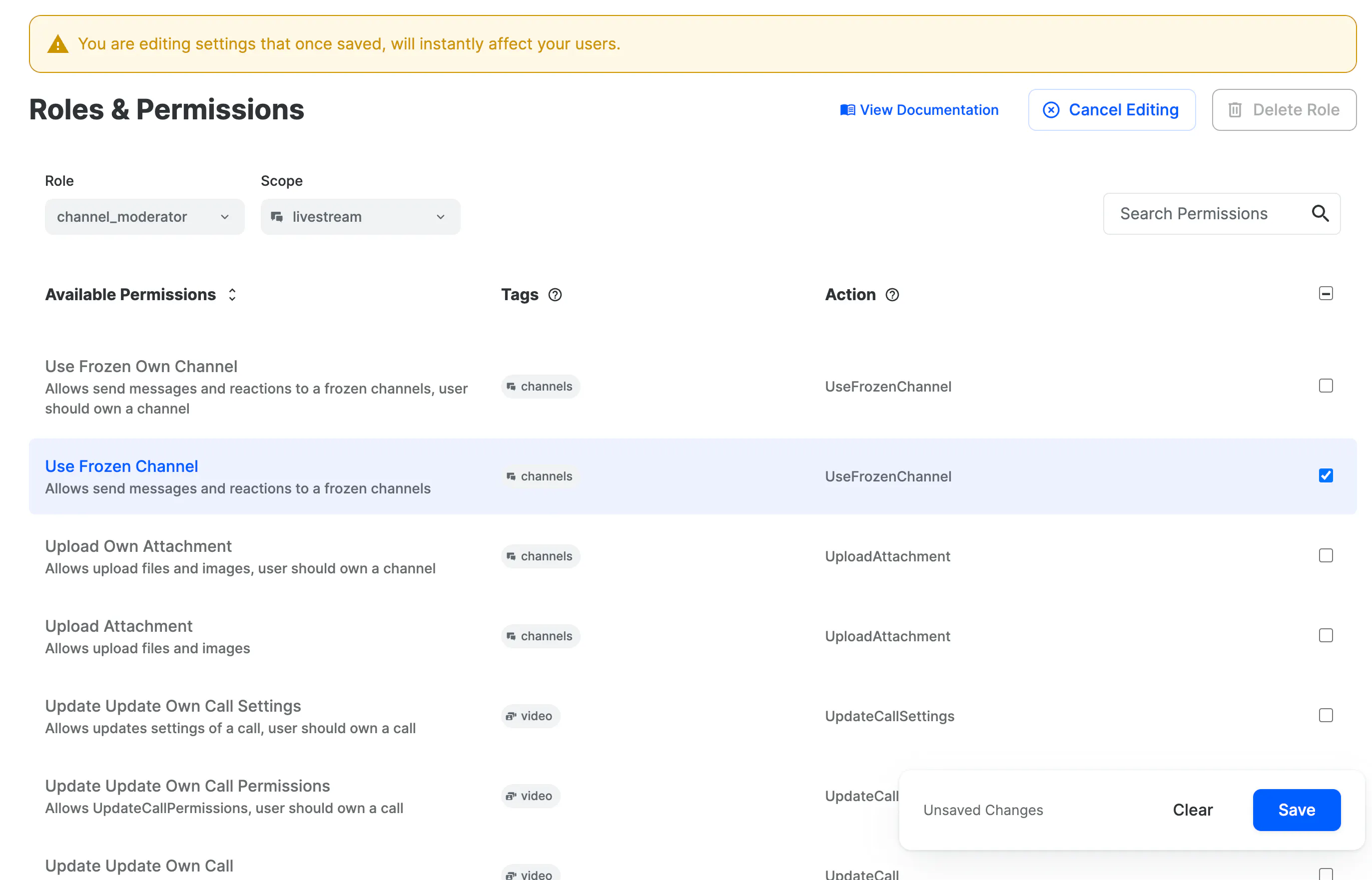
UI for configuring permissions
Stream Dashboard provides a user interface to edit permission grants. This UI is available on Chat > Roles & Permissions page which is available after switching to version 2 of permissions.
Channel-level permissions
In some cases it makes sense to slightly modify granted permissions for the channel without changing channel-type grants configuration. For this, you can use Grants Modifiers that you can set for each channel individually. Grants Modifiers look almost exactly the same as regular Grants object except it allows to revoke permissions as well as grant new ones. For example, if we want to disallow sending links for users with role "user" in channel "livestream:example" and allow creating reactions, we can do this:
channel := client.Chat().Channel("livestream", "example")
_, err = channel.UpdateChannelPartial(ctx, &getstream.UpdateChannelPartialRequest{
  Set: getstream.PtrTo(map[string]any{
    "config_overrides": map[string]any{
      "grants": map[string]any{
        "user": []string{"!add-links", "create-reaction"},
      },
    },
  }),
})
Exclamation mark ( ! ) here means "revoke" and you can combine any number of "revoke" and "grant" modifiers
After modifying the granted channel-level permissions, the API will enrich the channel response with the grants field under data.config.grants
The field config_overrides can only be updated using server-side auth
Broadcast and Reply-only Channels
A common example of changing the permission model of a channel type is to create a Telegram-style broadcast channel where privileged channel members can send messages and other members may have permissions restricted to reading, reactions, or replying.
The three Permission grants to modify these under the scope of the channel type are
- Read Channel
- Create Reaction
- Create Reply
Multi-Tenancy
For grouping users into teams (or tenants) to keep their data strictly segregated, see Multi-Tenancy.