
 React
React iOS
iOS Android
 Flutter
 JavaScript
 Unity
Unity ESP32
ESP32 Platform
 Vision Agents
// Start composite recording
// Triggers webhook event: call.recording_started
await call.startRecording("composite");
// Stop composite recording
// Triggers webhook event: call.recording_stopped
// When processing completes: call.recording_ready (contains recording URL)
await call.stopRecording("composite");
// List all recordings for this call
const response = await call.listRecordings();
// Download using the URL from response.recordings or the call.recording_ready webhook payload
// response.recordings[0].urlComposite / Web
Composite recording (also known as web recording or headless browser recording) combines all participants into a single video file with a customizable layout. This is the easiest way to get started with call recording—you get a ready-to-share file with no post-processing required.
Quickstart
How it works
When you start a composite recording, a hidden participant joins the call running a headless browser. This browser renders the video layout in real-time (grid, spotlight, or single participant) and the display output is captured and encoded into a single MP4 file. The recording is processed server-side and stored on AWS S3 (Stream-managed by default, or your own bucket).
When to use composite recording
Advantages:
- Easy to get started—single file output ready for immediate playback
- Customizable layouts and branding (logos, colors, participant labels)
- No post-processing infrastructure needed
- Audio-only option available for lighter storage
Limitations:
- Higher cost compared to raw or individual recording (due to real-time rendering)
- Layout is fixed at recording time—you cannot reframe or re-layout after the fact
- Resolution and orientation are determined when recording starts and do not adapt during the call (e.g., if a participant switches from landscape to portrait, the recording won't adjust)
For use cases requiring post-production flexibility or per-participant tracks, consider individual recording or raw recording.
Events
These events are sent to users connected to the call and your webhook/SQS, each event contains a new recording_type field that refers to the type of recording (composite in this case):
call.recording_startedwhen the call recording has startedcall.recording_stoppedwhen the call recording has stoppedcall.recording_readywhen the recording is available for downloadcall.recording_failedwhen recording fails for any reason
User Permissions
The following permissions are checked when users interact with the call recording API.
StartRecordingrequired to start the recordingStopRecordingrequired to stop the recording
For listing and deleting recordings, see Recording Management.
Enabling / Disabling call recording
Recording can be configured from the Dashboard (see call type screen) or directly via the API. It is also possible to change the recording settings for a call and override the default settings coming from the its call type.
// Disable on call level
call.update({
  settings_override: {
    recording: {
      mode: "disabled",
    },
  },
});

// Disable on call type level
client.video.updateCallType({
  name: "<call type name>",
  settings: {
    recording: {
      mode: "disabled",
    },
  },
});

// Automatically record calls
client.video.updateCallType({
  name: "<call type name>",
  settings: {
    recording: {
      mode: "auto-on",
      quality: "720p",
    },
  },
});

// Enable
call.update({
  settings_override: {
    recording: {
      mode: "available",
    },
  },
});

// Other settings
call.update({
  settings_override: {
    recording: {
      mode: "available",
      audio_only: false,
      quality: "1080p",
    },
  },
});Audio only recording
You can configure your calls to only record the audio tracks and exclude the video. This produces a single MP3 file with all participants mixed together. You can enable this from the dashboard (Call Types section) or set it for individual calls.
// Enable
call.update({
  settings_override: {
    recording: {
      mode: "available",
      audio_only: true,
    },
  },
});Recording layouts
Recording can be customized in several ways:
- You can pick one of the built-in layouts and pass some options to it
- You can further customize the style of the call by providing your own CSS file
- You can use your own recording application
There are three available layouts you can use for your calls: "single-participant", "grid" and "spotlight"
Single Participant
This layout shows only one participant video at a time, other video tracks are hidden.
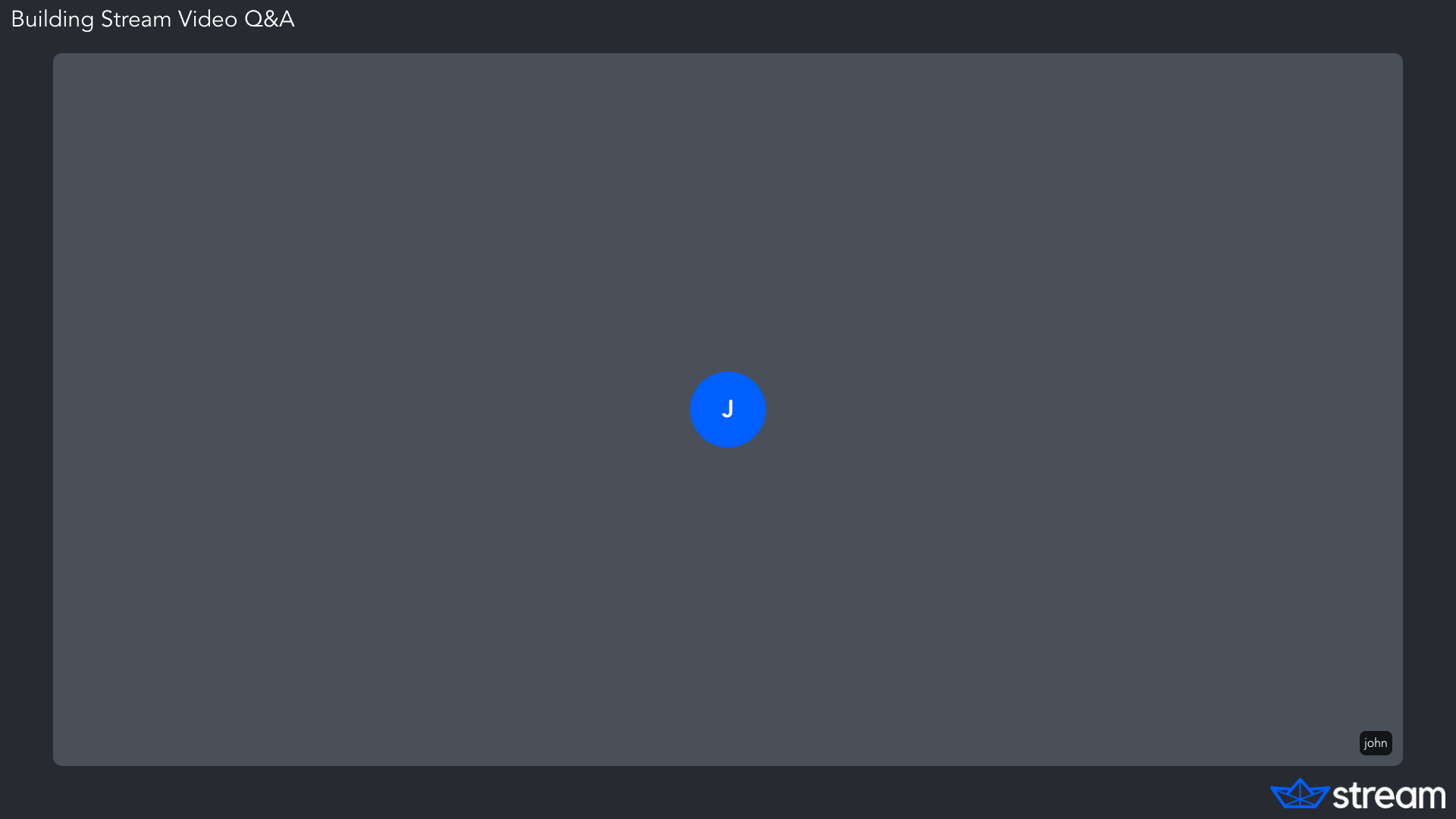
The visible video is selected based on this priority:
- Participant is pinned
- Participant is screen-sharing
- Participant is the dominant speaker
- Participant has a video track
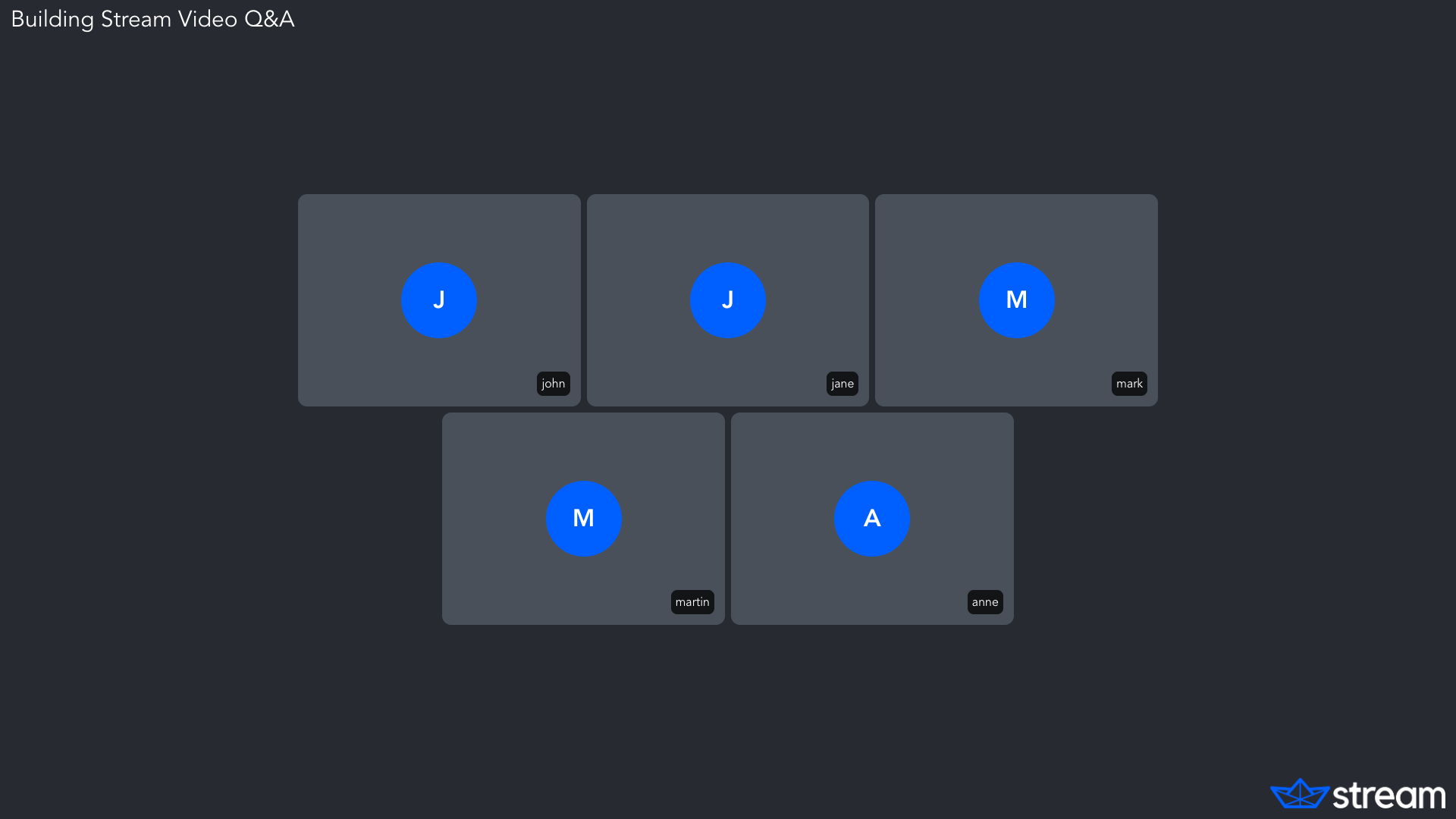
Grid
This layout shows a configurable number of tracks in an equally sized grid.
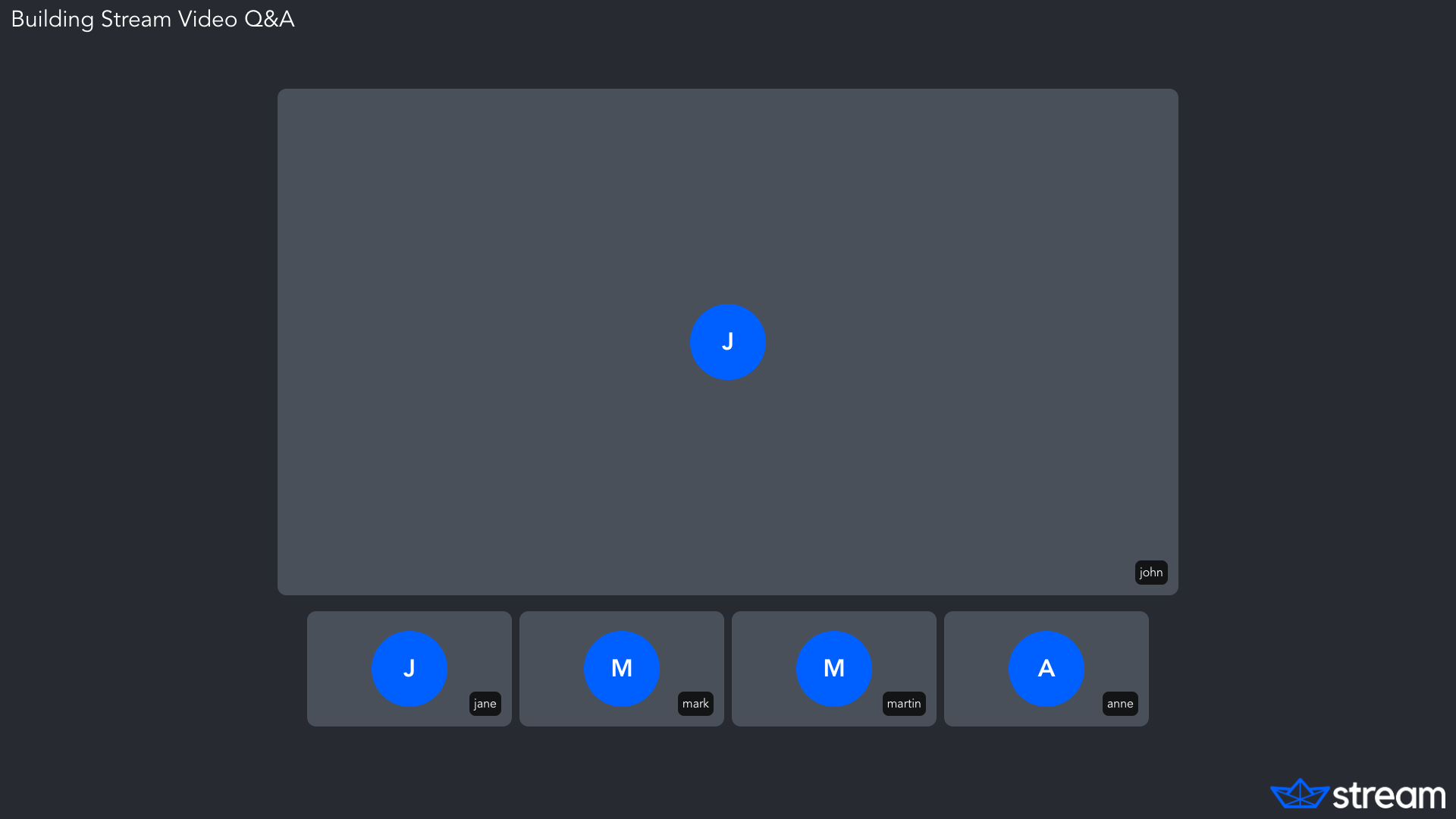
Spotlight
This layout shows a video in a spotlight and the rest of the participants in a separate list or grid.
Layout options
Each layout has a number of options that you can configure. Here is an example:
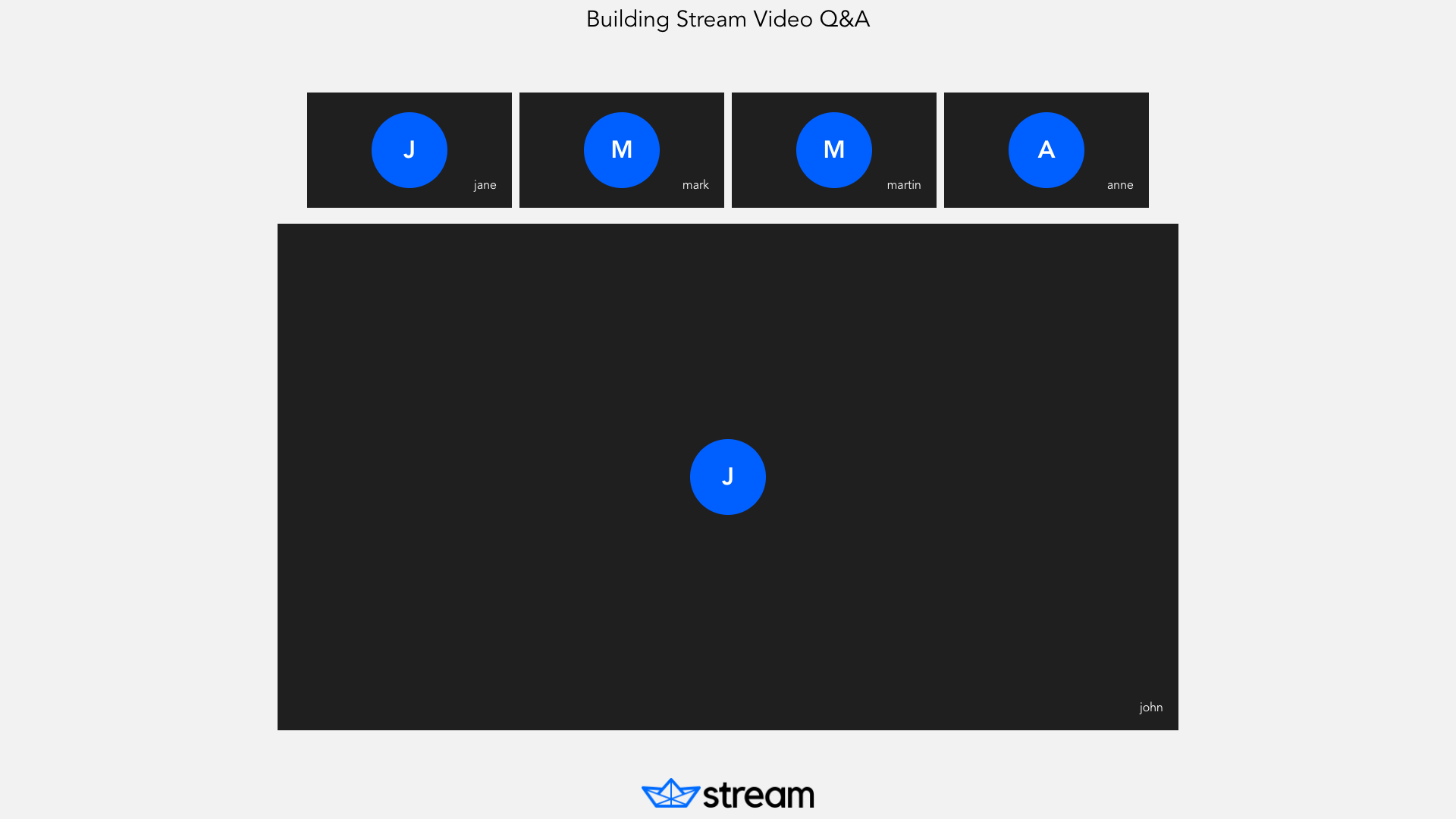
const layoutOptions = {
  "logo.image_url":
    "https://theme.zdassets.com/theme_assets/9442057/efc3820e436f9150bc8cf34267fff4df052a1f9c.png",
  "logo.horizontal_position": "center",
  "title.text": "Building Stream Video Q&A",
  "title.horizontal_position": "center",
  "title.color": "black",
  "participant_label.border_radius": "0px",
  "participant.border_radius": "0px",
  "layout.spotlight.participants_bar_position": "top",
  "layout.background_color": "#f2f2f2",
  "participant.placeholder_background_color": "#1f1f1f",
  "layout.single-participant.padding_inline": "20%",
  "participant_label.background_color": "transparent",
};

client.video.updateCallType({
  name: callTypeName,
  settings: {
    recording: {
      mode: "available",
      audio_only: false,
      quality: "1080p",
      layout: {
        name: "spotlight",
        options: layoutOptions,
      },
    },
  },
});Options are passed as a flat key/value map under layout.options. The tables below list every option the default layout app supports.
Common options (all layouts)
These options apply to the single-participant, grid, and spotlight layouts.
| Option | Type | Default | Allowed Values | Description |
|---|---|---|---|---|
video.background_color | color | Background color of the video element | ||
video.scale_mode | string | browser default | fit, fill | How camera video fills its box when the aspect ratio differs. fill crops to cover, fit letterboxes to contain |
video.screenshare_scale_mode | string | fit | fit, fill | Same as video.scale_mode but for screen share tracks |
logo.image_url | string | URL of a logo image to overlay on the layout | ||
logo.width | string | initial | CSS size | Logo width |
logo.height | string | 40px | CSS size | Logo height |
logo.horizontal_position | string | right | center, left, right | Horizontal position of the logo |
logo.vertical_position | string | bottom | center, top, bottom | Vertical position of the logo |
logo.margin_inline | string | .875rem | CSS size | Horizontal margin around the logo |
logo.margin_block | string | .875rem | CSS size | Vertical margin around the logo |
title.text | string | Title text to overlay on the layout | ||
title.font_size | string | 30px | CSS size | Title font size |
title.color | color | white | Title text color | |
title.horizontal_position | string | left | center, left, right | Horizontal position of the title |
title.vertical_position | string | top | center, top, bottom | Vertical position of the title |
title.margin_inline | string/number | .875rem | CSS size | Horizontal margin around the title |
title.margin_block | string/number | .875rem | CSS size | Vertical margin around the title |
participant.aspect_ratio | string | e.g. "16 / 9", "4 / 3", "1 / 1", "9 / 16" | Aspect ratio of each participant tile (ignored while screen sharing) | |
participant.border_radius | string/number | CSS size | Corner radius of the participant tile | |
participant.outline_color | color | #005fff | Outline color applied to the currently speaking participant | |
participant.outline_width | string | 2px | CSS size | Outline width applied to the currently speaking participant |
participant.placeholder_background_color | color | Background color of the placeholder shown when a participant has no video | ||
participant.filter | object | See Filtering participants | Optional filter to determine which participants are displayed | |
participant_label.display | boolean | true | Show the participant label | |
participant_label.text_color | color | Text color of the participant label | ||
participant_label.background_color | color | Background color of the participant label | ||
participant_label.border_width | string | 0 | CSS size | Border width of the participant label |
participant_label.border_color | color | rgba(0,0,0,0) | Border color of the participant label | |
participant_label.border_radius | string/number | CSS size | Corner radius of the participant label | |
participant_label.horizontal_position | string | left | center, left, right | Horizontal position of the participant label |
participant_label.vertical_position | string | bottom | center, top, bottom | Vertical position of the participant label |
participant_label.margin_inline | string | 0 | CSS size | Horizontal margin around the participant label |
participant_label.margin_block | string | 0 | CSS size | Vertical margin around the participant label |
layout.background_color | color | Background color of the layout | ||
layout.background_image | string | CSS background-image | Background image of the layout, e.g. url(https://...) | |
layout.background_size | string | CSS background-size | Background image sizing, e.g. cover | |
layout.background_position | string | CSS background-position | Background image position | |
layout.background_repeat | string | CSS background-repeat | Background image repeat behavior | |
layout.forceMirrorParticipants | boolean | true, false | Forces participant camera videos to be mirrored or unmirrored. When omitted, the default mirroring behavior applies | |
custom_actions | array | See Custom actions | Optional array of custom actions executed when a defined condition is met | |
debug.show_timestamp | boolean | false | true, false | Renders a high-precision timestamp overlay over the video, useful for debugging frame timing |
Single Participant
In addition to the common options, the single-participant layout supports:
| Option | Type | Default | Allowed Values | Description |
|---|---|---|---|---|
layout.single-participant.mode | string | default | default, shuffle | When set to shuffle, periodically rotates which participant is shown |
layout.single-participant.shuffle_delay | number | Delay (in seconds) between shuffles when mode is shuffle | ||
layout.single-participant.padding_inline | string | 0px | CSS size | Horizontal padding around the spotlighted participant |
layout.single-participant.padding_block | string/number | 0px | CSS size | Vertical padding around the spotlighted participant |
layout.single-participant.presenter_visible | boolean | true | true, false | Show the presenter's camera video during screen sharing |
Spotlight
In addition to the common options, the spotlight layout supports:
| Option | Type | Default | Allowed Values | Description |
|---|---|---|---|---|
layout.spotlight.participants_bar_position | string | bottom | top, bottom, left, right | Position of the participants bar relative to the spotlight |
layout.spotlight.participants_bar_limit | number/string | dynamic | dynamic or a number | Max number of participants in the bar. dynamic fits as many as the available space |
Grid
In addition to the common options, the grid layout supports:
| Option | Type | Default | Allowed Values | Description |
|---|---|---|---|---|
layout.grid.page_size | number | 20 | Maximum number of participant tiles shown per page | |
layout.grid.expand_tiles | boolean | false | true, false | When enabled, participant tiles expand to fill the available space while maintaining a 16:9 aspect ratio |
Screen share layout is configured separately from layout.options (via the call type's screen share layout setting). The supported screen share layouts are single-participant, spotlight, and dominant-speaker.
Recording resolution and portrait mode
Calls can be recorded in different resolutions and modes (landscape and portrait). On the dashboard, you can configure the default settings for all calls of a specific call type.
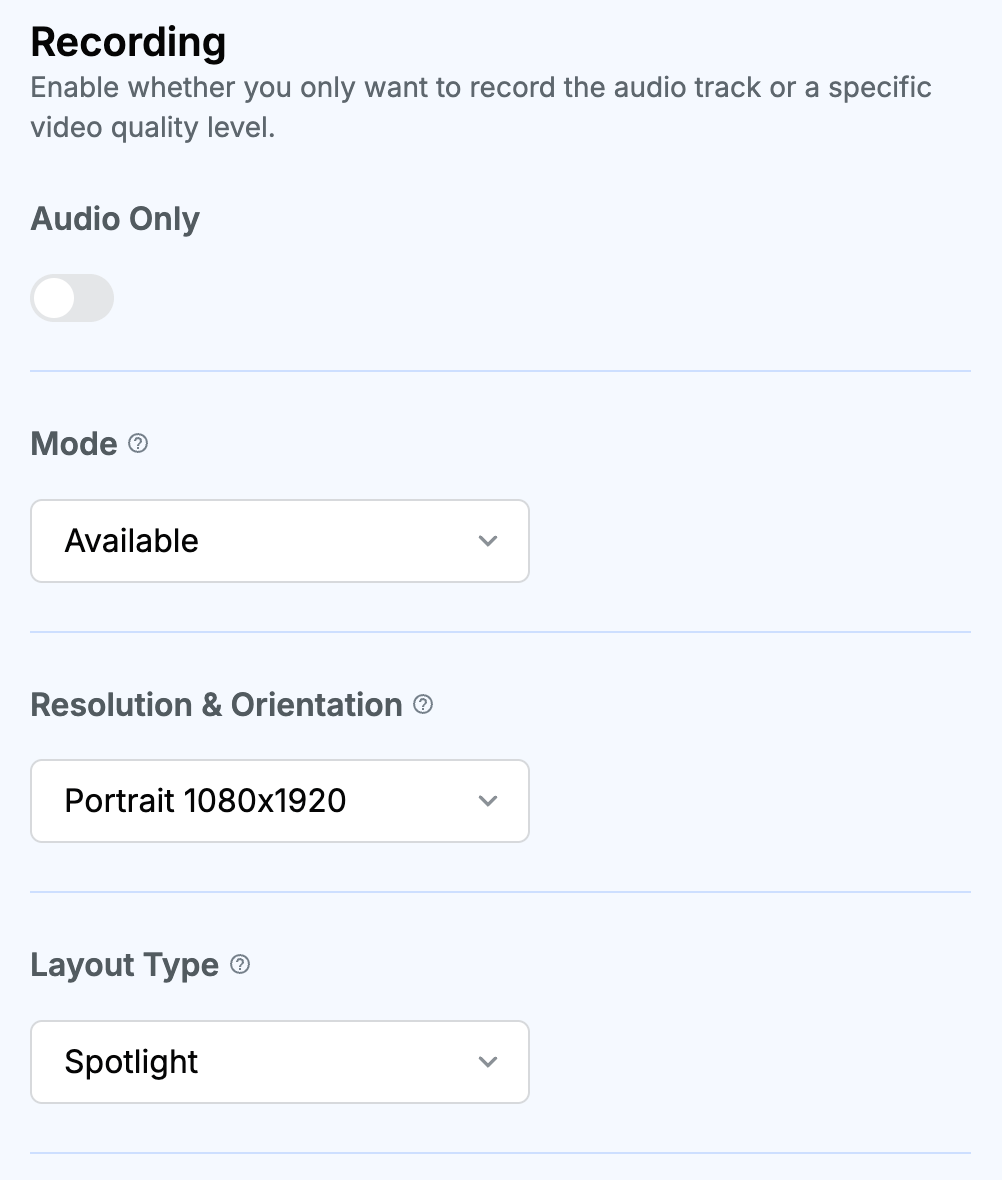
While this can be configured from the dashboard, you can also set it for individual calls:
client.video.updateCallType({
  name: callTypeName,
  settings: {
    recording: {
      mode: "available",
      quality: "portrait-1080x1920",
    },
  },
});Filtering participants
The participant.filter option allows you to choose which participants are visible in the recording.
Its value is a special filter object.
The following properties are allowed to be used in the filter object:
| Property | Type | Description |
|---|---|---|
userId | string | Participant's user id |
isSpeaking | boolean | Indicates wheather the participant is currently speaking |
isDominantSpeaker | boolean | Indicates wheather the participant is a dominant speaker (only one participant can be a dominant speaker at the time) |
name | string | Participant's user name |
roles | string[] | List of participant's roles in the current call |
isPinned | boolean | Indicates wheather the participant is pinned |
hasVideo | boolean | Indicates whether the participant has video |
hasAudio | boolean | Indicates whether the participant has audio |
hasScreenShare | boolean | Indicates whether the participant has screen share video |
For example, to include only pinned participants in the recording, you can provide the following filter:
{
  "participant.filter": {
    "isPinned": true
  }
}
If you want to filter participants based on their role, keep in mind that a participant can have more than one role within a call.
Because the roles property is an array, you must use the $contains operator to build your filter. For example, this filter
will only match participants with the role "admin":
{
  "participant.filter": {
    "roles": { "$contains": "admin" }
  }
}
When recording livestreams, including only participants with video is an easy way to exclude viewers from the recording:
{
  "participant.filter": {
    "hasVideo": true
  }
}
Other operators you can use are $neq ("not equal to") and $in ("equal to one of the listed values"). For example, this filter
will only match participants with one of the three names:
{
  "participant.filter": {
    "name": { "$in": ["Moe", "Larry", "Curly"] }
  }
}
You can also use the $eq ("equals") operator, but its effect is the same as not using any operator at all, as in the first example.
You can combine multiple conditions using the $and, $or, and $not operators:
// Hide participants with the role "guest", unless they have been pinned:
{
  "participant.filter": {
    "$or": [
      { "$not": { "roles": { "$contains": "guest" } } },
      { "isPinned": true }
    ]
  }
}

// Show participants that either have video or screen share
{
  "participant.filter": {
    "$or": [
      { "hasVideo": true },
      { "hasScreenShare": true }
    ]
  }
}
Custom actions
Custom actions let you dynamically adjust the recording setup during the runtime based on the conditions you define under options.custom_actions configuration option. The function that evaluates the conditions is the same as in Filtering participants (participant.filter option) and allows using the same operators.
Available actions
layout_override
Override the current layout when a condition matches. The first matching layout_override action wins (checked top-to-bottom).
| Property | Type | Allowed Values | Description |
|---|---|---|---|
| action_type | layout_override | ||
| layout | string | [grid spotlight single-participant dominant-speaker] | One of the supported layouts |
| ignore_screenshare | boolean | When true, keeps the override even during screen sharing; otherwise screenshare_layout takes precedence | |
| condition | object |
options_override
Override any supported options.* values when a condition matches. All matching options_override actions are merged in order; later actions overwrite earlier ones for the same option keys.
| Property | Type | Allowed Values | Description |
|---|---|---|---|
| action_type | options_override | ||
| options | object | Refer to Single Participant, Spotlight and Grid | A partial of the supported options keys (anything you normally set under options.*), custom_actions are omitted |
| condition | object |
Target values & supported operators
You can target these values in conditions:
| Property | Type | Description |
|---|---|---|
participant_count | number | Number of participants in the call |
pinned_participant_count | number | Number of pinned participants in the call (evaluated client-side) |
Logical operators:
$and,$or,$not
Scalar operators:
$eq,$neq,$in,$gt,$gte,$lt,$lte
The number of target values is currently limited but if you need other properties available feel free to reach out to our support.
Examples
Switch to a dominant-spearker layout when pinned_participant_count is greater or equal to one:
{
  // other options
  "custom_actions": [
    {
      "action_type": "layout_override",
      "condition": {
        "pinned_participant_count": { "$gte": 1 }
      },
      "layout": "dominant-speaker"
    }
  ]
}
Apply different background color to the recording setup when second participant joins the call:
{
  // other options
  "custom_actions": [
    {
      "action_type": "options_override",
      "condition": {
        "participant_count": { "$gt": 1 }
      },
      "options": {
        "layout.background_color": "hotpink"
      }
    }
  ]
}
Custom recording styling using external CSS
You can customize how recorded calls look by providing an external CSS file. The CSS file needs to be publicly available and ideally hosted on a CDN to ensure the best performance. The best way to find the right CSS setup is by running the layout app directly. The application is publicly available on Github here and contains instructions on how to be used.
client.video.updateCallType({
  name: callTypeName,
  settings: {
    recording: {
      mode: "available",
      audio_only: false,
      quality: "1080p",
      layout: {
        name: "spotlight",
        external_css_url: "https://path/to/custom.css",
      },
    },
  },
});Advanced - record calls using a custom web application
If needed, you can use your own custom application to record a call. This is the most flexible and complex approach to record calls, make sure to reach out to our customer support before going with this approach.
The layout app used to record calls is available on GitHub and is a good starting point. The repository also includes information on how to build your own.
client.video.updateCallType({
  name: callTypeName,
  settings: {
    recording: {
      mode: "available",
      audio_only: false,
      quality: "1080p",
      layout: {
        name: "custom",
        external_app_url: "https://path/to/layout/app",
      },
    },
  },
});Client-side recording
Unfortunately, there is no direct support for client-side recording at the moment. Call recording at the moment is done by Stream server-side. If client-side recording is important for you please make sure to follow the conversation here.
On this page:
- Quickstart
- How it works
- When to use composite recording
- Events
- User Permissions
- Enabling / Disabling call recording
- Audio only recording
- Recording layouts
- Layout options
- Recording resolution and portrait mode
- Filtering participants
- Custom actions
- Custom recording styling using external CSS
- Advanced - record calls using a custom web application
- Client-side recording