
 React
React iOS
iOS Android
 Flutter
 Angular
 JavaScript
 Unity
Unity Unreal
 Node
Node Python
 Ruby
Ruby PHP
PHP Java
Java .NET
.NET Go
Go REST
RESTyarn add @react-native-community/geolocation
yarn add react-native-mapsThis is beta documentation for Stream Chat React Native SDK v9. For the latest stable version, see the latest version (v8)
.
Location Sharing
This cookbook shows how to add static and live location sharing to a React Native chat app using Stream Chat.
There are two types of location sharing:
- Static Location: A one-time snapshot of the user's current position.
- Live Location: A real-time share that updates the user's position for a chosen duration.
Best Practices
- Request location permissions just-in-time and explain why you need them.
- Provide clear UI to stop live sharing and surface remaining time.
- Avoid high-frequency updates; use reasonable intervals to save battery.
- Handle permission denial gracefully by falling back to static sharing.
- Store location metadata on the message to render without extra lookups.
Prerequisites
The SDK handles location messages and updates, but your app must handle device location tracking. You need a working chatClient and a Channel screen with MessageList and MessageComposer in place.
Use the Sample App or Expo Messaging app as a full reference implementation.
Setup
Installing Dependencies
@react-native-community/geolocationwatches the user's current location and provides coordinates to send in a message.react-native-mapsrenders location data on native Apple Maps (iOS) and Google Maps (Android).
yarn add expo-location
yarn add react-native-mapsexpo-locationwatches the user's current location and provides coordinates to send in a message.react-native-mapsrenders location data on native Apple Maps (iOS) and Google Maps (Android).
Configuring Location Permissions
iOS
Include NSLocationWhenInUseUsageDescription and NSLocationAlwaysAndWhenInUseUsageDescription in Info.plist to enable geolocation when using the app.
Android
Add the following permissions to AndroidManifest.xml:
<uses-permission android:name="android.permission.ACCESS_FINE_LOCATION" />
<uses-permission android:name="android.permission.ACCESS_COARSE_LOCATION" />
Android: Google Maps API Key
On Android, Google Maps is required, which needs an API key for the Android SDK. iOS uses the native Apple Maps implementation and does not need an API key.
Add your API key to android/app/src/main/AndroidManifest.xml:
<application>
   <meta-data
     android:name="com.google.android.geo.API_KEY"
     android:value="Your Google maps API Key Here"/>
</application>
Configure location permissions in your app.json or app.config.js:
{
  "expo": {
    "plugins": [
      [
        "expo-location",
        {
          "locationAlwaysAndWhenInUsePermission": "Allow $(PRODUCT_NAME) to use your location."
        }
      ]
    ]
  }
}
Alternatively, follow the Expo Location guide.
Android: Google Maps API Key
Add the Google Maps API key to your app.json or app.config.js:
{
  "expo": {
    "android": {
      "config": {
        "googleMaps": {
          "apiKey": "Your Google maps API Key Here"
        }
      }
    }
  }
}
Alternatively, follow the Expo MapView deploy guide.
Sending a Location Message
To send a location message, set data on messageComposer.locationComposer and call sendLocation. The difference between static and live is whether you include a durationMs.
Static Location
A static location sends the user's current coordinates as a one-time share:
const sendStaticLocation = async () => {
  const { latitude, longitude } = await getCurrentLocation();
  await messageComposer.locationComposer.setData({
    latitude,
    longitude,
  });
  await messageComposer.sendLocation();
};
Live Location
A live location includes a duration. The SDK watches for location changes and updates the message automatically:
const sendLiveLocation = async () => {
  const { latitude, longitude } = await getCurrentLocation();
  await messageComposer.locationComposer.setData({
    durationMs: 600000, // 10 minutes
    latitude,
    longitude,
  });
  await messageComposer.sendLocation();
};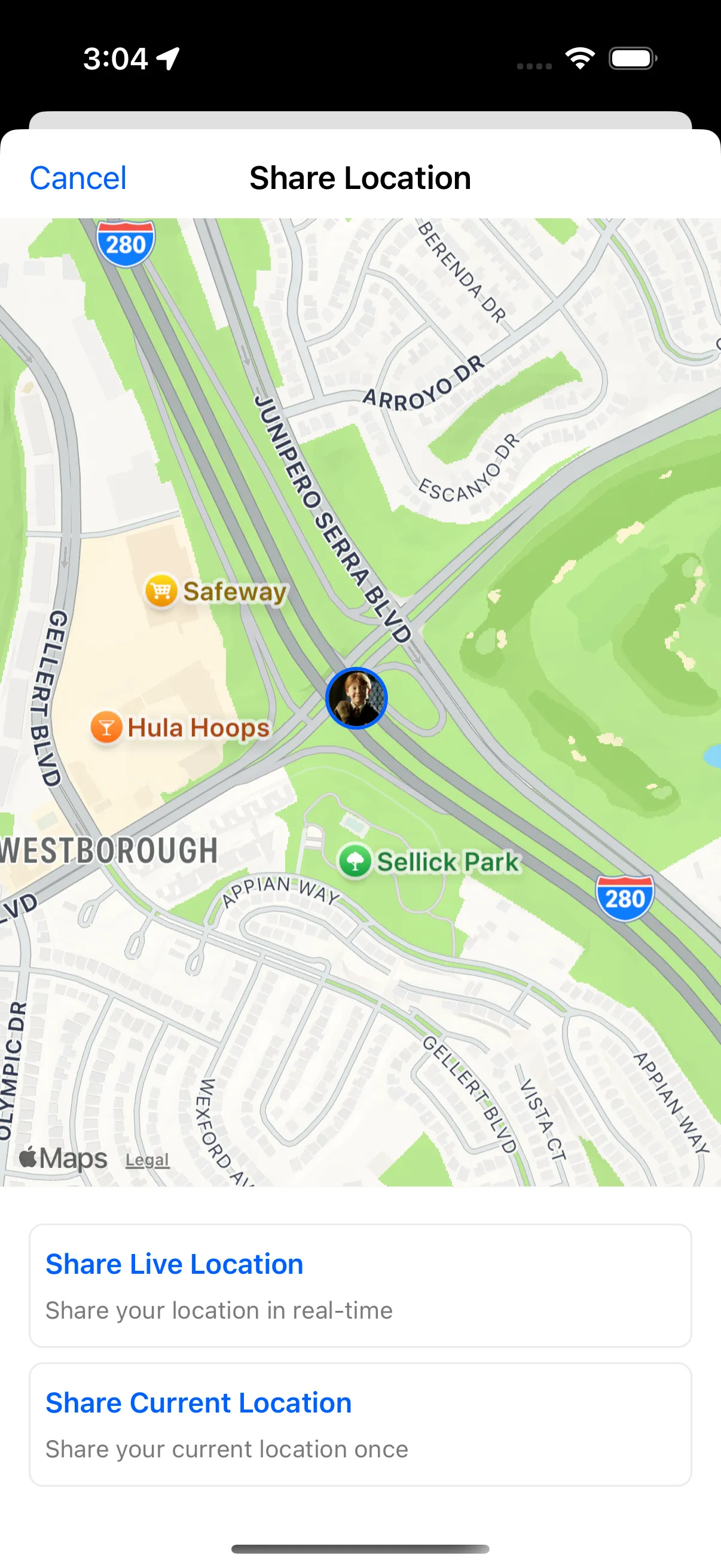
Full example implementations of the create-location modal:
Adding a Location Button to the Input
Customize the InputButtons component on Channel to add a button that opens the location-sharing modal:
import React, { useState } from "react";
import { Pressable, StyleSheet } from "react-native";
import { Channel, InputButtons as DefaultInputButtons } from "stream-chat-expo";
import { ShareLocationIcon } from "../icons/ShareLocationIcon";
import { LiveLocationCreateModal } from "./LocationSharing/CreateLocationModal";

const InputButtons: NonNullable<
  React.ComponentProps<typeof Channel>["InputButtons"]
> = (props) => {
  const [modalVisible, setModalVisible] = useState(false);

  const onRequestClose = () => {
    setModalVisible(false);
  };

  const onOpenModal = () => {
    setModalVisible(true);
  };

  return (
    <>
      <DefaultInputButtons {...props} hasCommands={false} />
      <Pressable style={styles.liveLocationButton} onPress={onOpenModal}>
        <ShareLocationIcon />
      </Pressable>
      <LiveLocationCreateModal
        visible={modalVisible}
        onRequestClose={onRequestClose}
      />
    </>
  );
};

const styles = StyleSheet.create({
  liveLocationButton: {
    paddingLeft: 5,
  },
});

export default InputButtons;
Rendering the Location in a Message
When a message includes location data, the shared_location field contains latitude, longitude, and other details. The SDK does not ship a default map UI, so you need to build a custom component and pass it via the MessageLocation prop on Channel.
Use react-native-maps to render the map with the shared coordinates:
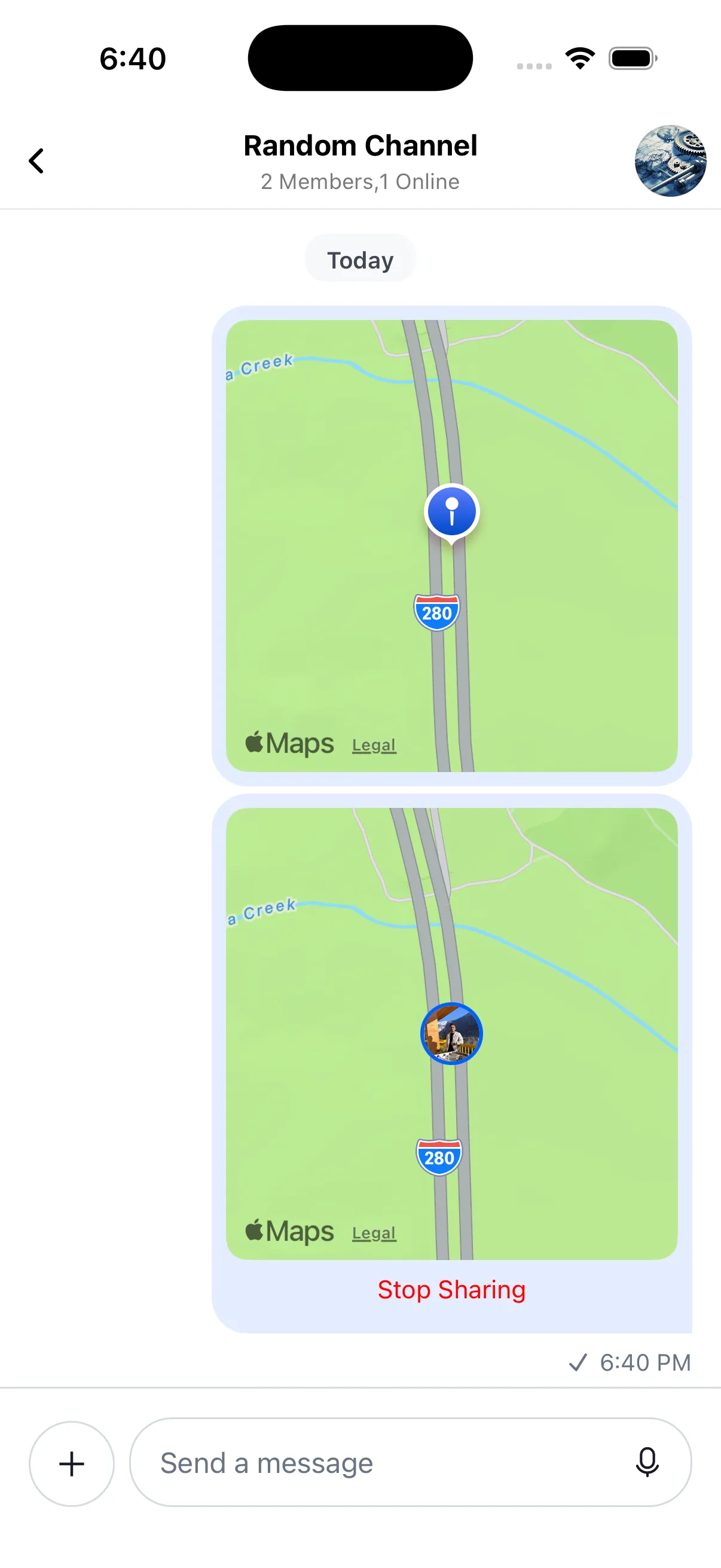
Example MessageLocation implementations:
Managing Live Location Updates
An app can have multiple active live locations across channels. Use client.getSharedLocations() to fetch all active live locations for the current user.
The LiveLocationManager class from stream-chat coordinates live location updates across your app. The SDK exposes a LiveLocationManagerProvider that supplies an instance and handles event registration/deregistration automatically.
Wrap your app with LiveLocationManagerProvider and pass a watchLocation function that watches device location:
import Geolocation from "@react-native-community/geolocation";

type LocationHandler = (value: { latitude: number; longitude: number }) => void;

export const watchLocation = (handler: LocationHandler) => {
  let watchId: number | null = null;
  watchId = Geolocation.watchPosition(
    (position) => {
      const { latitude, longitude } = position.coords;
      handler({ latitude, longitude });
    },
    (error) => {
      console.warn("Error watching location:", error);
    },
    {
      enableHighAccuracy: true,
      timeout: 20000,
      maximumAge: 1000,
      interval: 2000, // android only
    },
  );

  return () => {
    if (watchId) {
      Geolocation.clearWatch(watchId);
    }
  };
};
import * as Location from "expo-location";
export type LocationHandler = (value: {
latitude: number;
longitude: number;
}) => void;
export const watchLocation = (handler: LocationHandler) => {
let subscription: Location.LocationSubscription | null = null;
Location.watchPositionAsync(
{
accuracy: Location.Accuracy.High,
distanceInterval: 0,
// Android only: these option are ignored on iOS
timeInterval: 2000,
},
(location) => {
const { latitude, longitude } = location.coords;
handler({ latitude, longitude });
},
(error) => {
console.warn("Error watching location:", error);
},
).then((sub) => {
subscription = sub;
});
return () => {
subscription?.remove();
};
};Then wrap your app:
import { LiveLocationManagerProvider } from "stream-chat-react-native";

const App = () => {
  return (
    <LiveLocationManagerProvider watchLocation={watchLocation}>
      {/* Your app components */}
    </LiveLocationManagerProvider>
  );
};
You can optionally pass `getDeviceId` (a function that returns a string) to identify the device sharing the location.
Navigating to a Full-Screen Map
When the user taps a location message, navigate to a detail screen that shows a full-screen map. Use the onPressMessage prop on Channel:
const App = () => {
  const onPressMessage: NonNullable<
    React.ComponentProps<typeof Channel>["onPressMessage"]
  > = (payload) => {
    const { message, defaultHandler, emitter } = payload;
    const { shared_location } = message ?? {};
    if (emitter === "messageContent" && shared_location) {
      navigation.navigate("MapScreen", shared_location);
    }
    defaultHandler?.();
  };

  return <Channel onPressMessage={onPressMessage}></Channel>;
};
const App = () => {
const onPressMessage: NonNullable<
React.ComponentProps<typeof Channel>["onPressMessage"]
> = (payload) => {
const { message, defaultHandler, emitter } = payload;
const { shared_location } = message;
if (emitter === "messageContent" && shared_location) {
const params = Object.entries(shared_location)
.map(([key, value]) => `${key}=${value}`)
.join("&");
router.push(`/map/${message.id}?${params}`);
}
defaultHandler?.();
};
return <Channel onPressMessage={onPressMessage}></Channel>;
};Building the Map Detail Screen
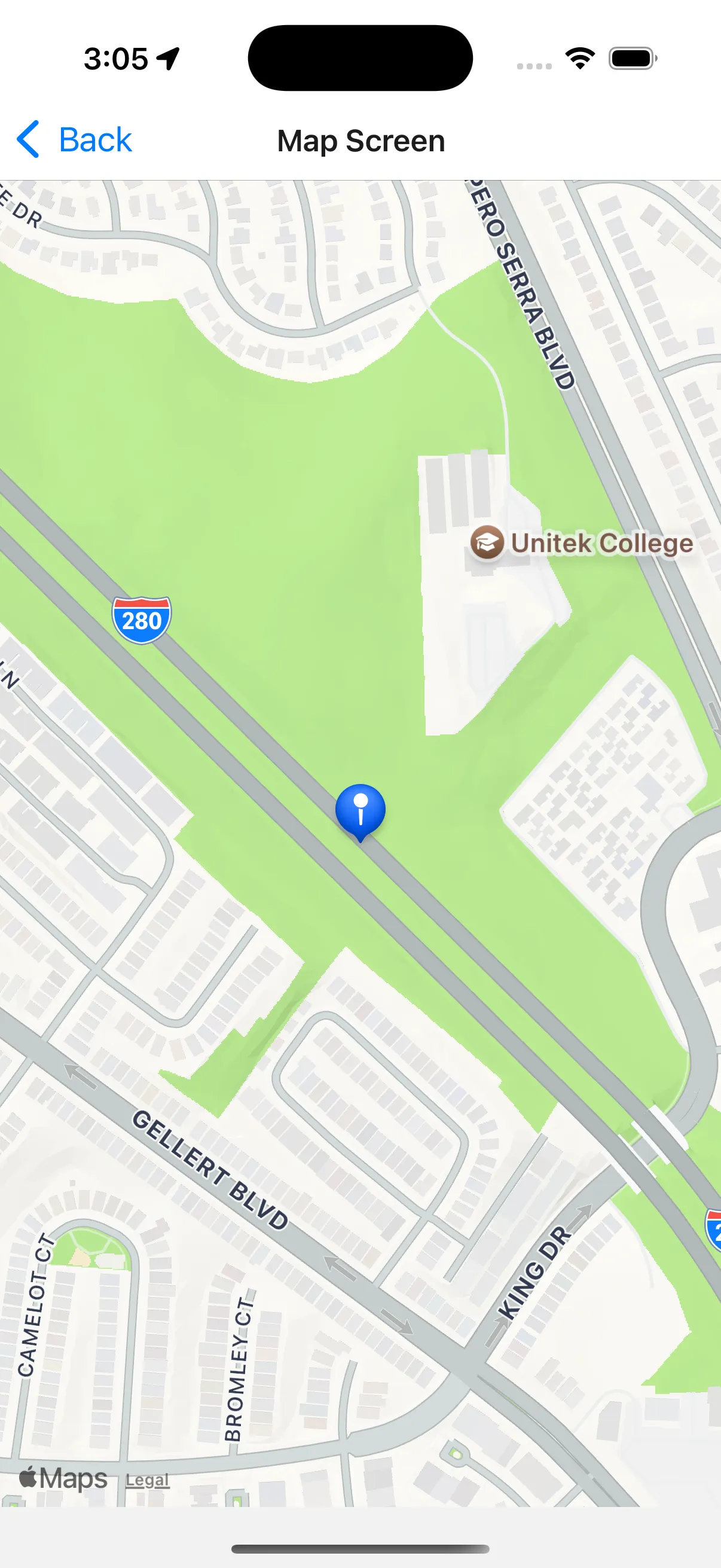
This screen displays the shared location on a full-screen map. For live locations, it shows a stop-sharing button and the remaining time. For ended live locations, it shows the final position.
| Current Location | Live Location | Live Location Ended |
|---|---|---|
 | 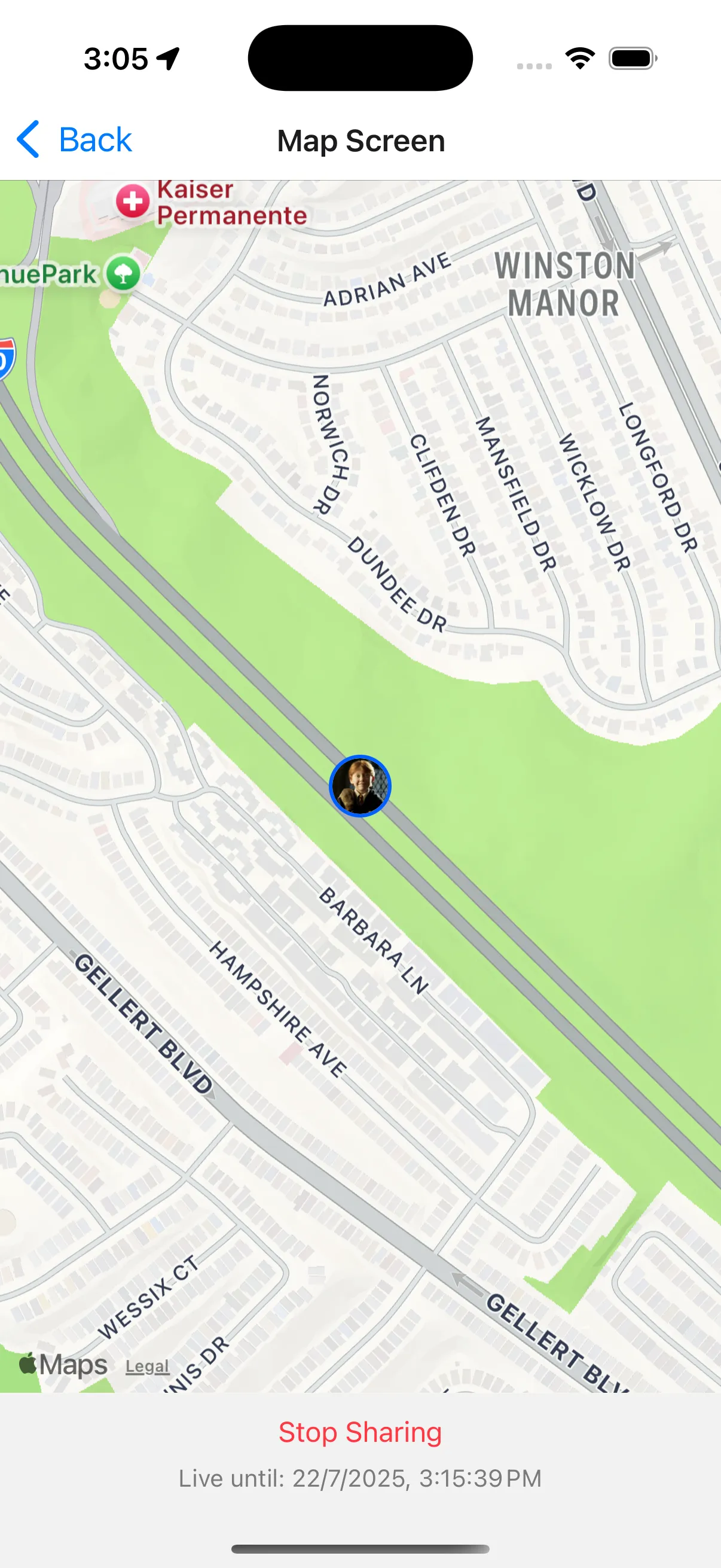 | 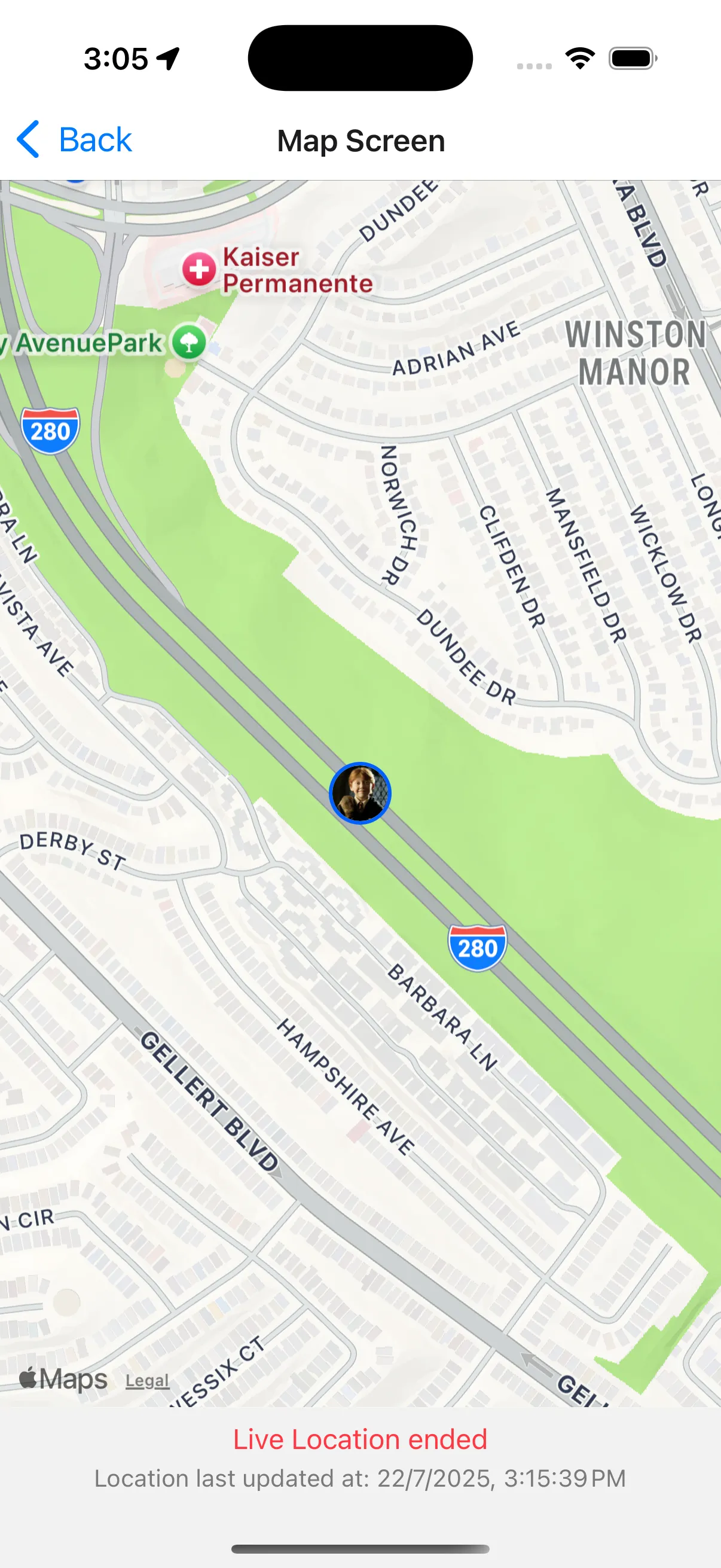 |
To keep the map marker up to date while a live location is active, listen for backend events. The key event is:
message.updated— Fired when the message'sshared_locationchanges.
Use the useHandleLiveLocationEvents hook with messageId, channel, and an onLocationUpdate callback. The callback fires on every message.updated event and can update the map marker position.
Example MapScreen implementations:
Stopping Live Location Sharing
To stop an active live location share, call stopLiveLocationSharing on the channel with the current location response:
const stopSharingLiveLocation = async () => {
  if (!locationResponse) {
    return;
  }
  await channel?.stopLiveLocationSharing(locationResponse);
};
The message updates automatically once sharing stops, and the map detail screen reflects the final position.
Sample Code
Complete implementations are available in the sample apps:
On this page: