
 React
React iOS
iOS Android
 Flutter
 Angular
 JavaScript
 Unity
Unity Unreal
 Node
Node Python
 Ruby
Ruby PHP
PHP Java
Java .NET
.NET Go
Go REST
RESTcontext.startActivity(ChannelActivity.createIntent(context, cid = "messaging:123"))This is beta documentation for Stream Chat Android SDK v7. For the latest stable version, see the latest version (v6)
.
Channel
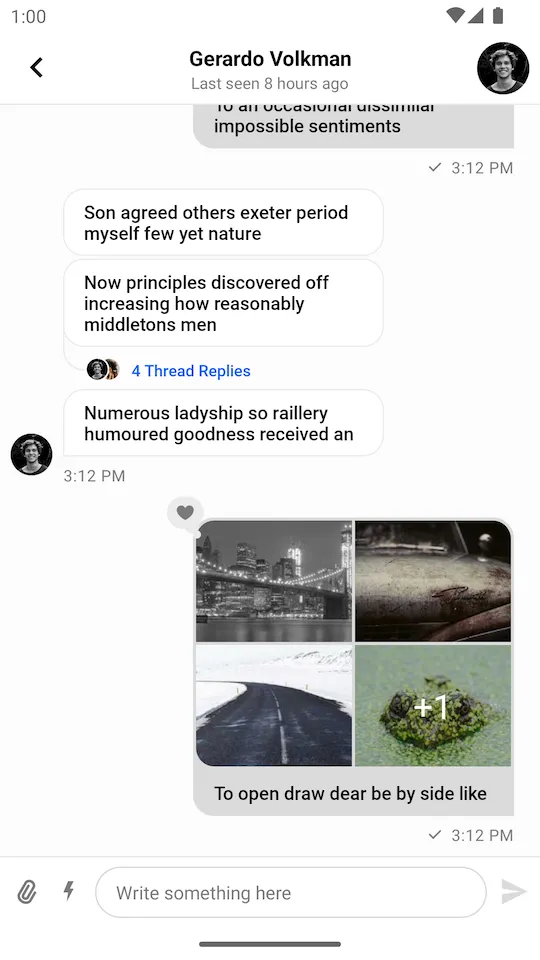
You can set up a self-contained chat screen that displays a list of messages and gives users the ability to send messages by using one of the following components:
ChannelFragment: A Fragment that represents a self-contained chat screen.ChannelActivity: An Activity that is just a thin wrapper aroundChannelFragment.
The ChannelFragment contains these three inner components:
ChannelHeaderView: Displays a navigation icon, the name of the channel or thread and the channel avatar.MessageListView: Shows a list of paginated messages, with threads, replies, reactions and deleted messages.MessageComposerView: Allows users to participate in the chat by sending messages and attachments.
Fragments and Activities representing self-contained screens are easy to use. They allow you to explore the features of our SDK quickly; however, they offer limited customization.
Usage
To use the message list screen, you can simply start ChannelActivity from the SDK:
context.startActivity(ChannelActivity.createIntent(context, "messaging:123"));This single line of code will produce a fully working solution, as shown in the image below.
 |
|---|
Alternatively, you can achieve the same result by adding ChannelFragment from the SDK to your Fragment or Activity:
<?xml version="1.0" encoding="utf-8"?>
<FrameLayout xmlns:android="http://schemas.android.com/apk/res/android"
    android:id="@+id/container"
    android:layout_width="match_parent"
android:layout_height="match_parent" />class MyChannelActivity : AppCompatActivity(R.layout.fragment_container) {
override fun onCreate(savedInstanceState: Bundle?) {
super.onCreate(savedInstanceState)
if (savedInstanceState == null) {
val fragment = ChannelFragment.newInstance(cid = "messaging:123") {
showHeader(true)
}
supportFragmentManager.beginTransaction()
.replace(R.id.container, fragment)
.commit()
}
}
}public final class MyChannelActivity extends AppCompatActivity {
public MyChannelActivity() {
super(R.layout.fragment_container);
}
@Override
protected void onCreate(@Nullable Bundle savedInstanceState) {
super.onCreate(savedInstanceState);
if (savedInstanceState == null) {
ChannelFragment fragment = ChannelFragment.newInstance("messaging:123", builder -> {
builder.showHeader(true);
return Unit.INSTANCE;
});
getSupportFragmentManager().beginTransaction()
.replace(R.id.container, fragment)
.commit();
}
}
}Next, let's see how to handle actions on the screen.
Handling Actions
To handle actions supported by ChannelFragment, you need to implement corresponding click listeners in the parent Fragment or Activity:
class MyChannelActivity : AppCompatActivity(R.layout.fragment_container), ChannelFragment.BackPressListener {

    override fun onCreate(savedInstanceState: Bundle?) {
        super.onCreate(savedInstanceState)
        // Add ChannelFragment to the layout
    }

    override fun onBackPress() {
        // Handle back press
    }
}
public final class MyChannelActivity extends AppCompatActivity implements ChannelFragment.BackPressListener {
public MyChannelActivity() {
super(R.layout.fragment_container);
}
@Override
protected void onCreate(@Nullable Bundle savedInstanceState) {
super.onCreate(savedInstanceState);
// Add ChannelFragment to the layout
}
@Override
public void onBackPress() {
// Handle back press
}
}Currently, there is only a single click listener you can use with the ChannelFragment:
BackPressListener: Click listener for the navigation button in the header. Finishes Activity by default.
Customization
The message list screen component offers limited customization. The ChannelFragment exposes a builder with the following methods:
setFragment: Sets custom message list Fragment. The Fragment must be a subclass ofChannelFragment.customTheme: Custom theme for the screen.showHeader: Whether the header is shown or hidden.messageId: The ID of the message to highlight.
Additionally, you can use inheritance for further customization as shown in the example below:
class CustomChannelFragment : ChannelFragment() {

    override fun setupChannelHeader(channelHeaderView: ChannelHeaderView) {
        super.setupChannelHeader(channelHeaderView)
        // Customize channel header view

        // For example, set a custom listener for the back button
        channelHeaderView.setBackButtonClickListener {
            // Handle back press
        }
    }

    override fun setupMessageList(messageListView: MessageListView) {
        super.setupMessageList(messageListView)
        // Customize message list view
    }

    override fun setupMessageComposer(messageComposerView: MessageComposerView) {
        super.setupMessageComposer(messageComposerView)
        // Customize message composer view
    }
}

class CustomChannelActivity : ChannelActivity() {

    override fun createChannelFragment(cid: String, messageId: String?): ChannelFragment {
        return ChannelFragment.newInstance(cid) {
            setFragment(CustomChannelFragment())
            customTheme(R.style.StreamUiTheme)
            showHeader(true)
            messageId(messageId)
        }
    }
}
public final class CustomChannelFragment extends ChannelFragment {
@Override
protected void setupChannelHeader(@NonNull ChannelHeaderView channelHeaderView) {
super.setupChannelHeader(channelHeaderView);
// Customize channel header view
// For example, set a custom listener for the back button
channelHeaderView.setBackButtonClickListener(() -> {
// Handle back press
});
}
@Override
protected void setupMessageList(@NonNull MessageListView messageListView) {
super.setupMessageList(messageListView);
// Customize message list view
}
@Override
protected void setupMessageComposer(@NonNull MessageComposerView messageComposerView) {
super.setupMessageComposer(messageComposerView);
// Customize message composer view
}
}
public final class CustomChannelActivity extends ChannelActivity {
@NonNull
@Override
protected ChannelFragment createChannelFragment(@NonNull String cid, @Nullable String messageId) {
return ChannelFragment.newInstance(cid, builder -> {
builder.setFragment(new CustomChannelFragment());
builder.customTheme(R.style.StreamUiTheme);
builder.showHeader(true);
builder.messageId(messageId);
return Unit.INSTANCE;
});
}
}Then you need to add CustomChannelActivity to your AndroidManifest.xml, create an Intent for it using the ChannelActivity.createIntent() method, and finally start the Activity:
context.startActivity(
    ChannelActivity.createIntent(
        context = context,
        cid = "messaging:123",
        activityClass = CustomChannelActivity::class.java
    )
)context.startActivity(ChannelActivity.createIntent(context, "messaging:123", null, CustomChannelActivity.class));Fragments and Activities representing self-contained screens can be styled using the options described in the theming guide.