
 React
React iOS
iOS Android
 Flutter
 Angular
 JavaScript
 Unity
Unity Unreal
 Node
Node Python
 Ruby
Ruby PHP
PHP Java
Java .NET
.NET Go
Go REST
RESTdependencies {
// Stream Chat SDK
implementation("io.getstream:stream-chat-android-compose:$stream_version")
// Google Play Services for location
implementation("com.google.android.gms:play-services-location:$play_services_version")
}This is beta documentation for Stream Chat Android SDK v7. For the latest stable version, see the latest version (v6)
.
Location Sharing
Introduction
Stream's Chat SDK allows users to share their location with other members of a channel.
This guide demonstrates how to implement a location-sharing feature where users can send their location to a chat channel and display it using a custom attachment component with maps.
| Location Picker | Static Location | Live Location |
|---|---|---|
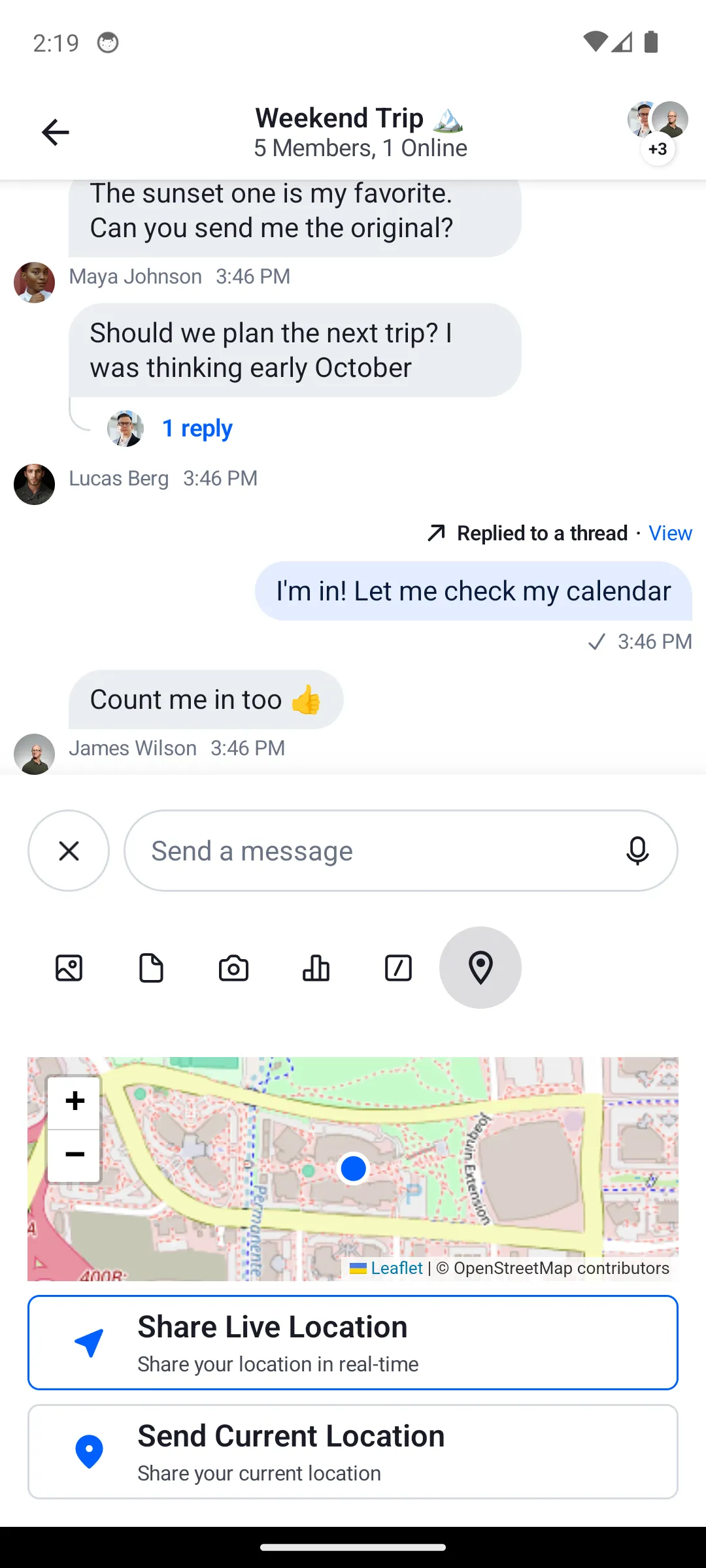 | 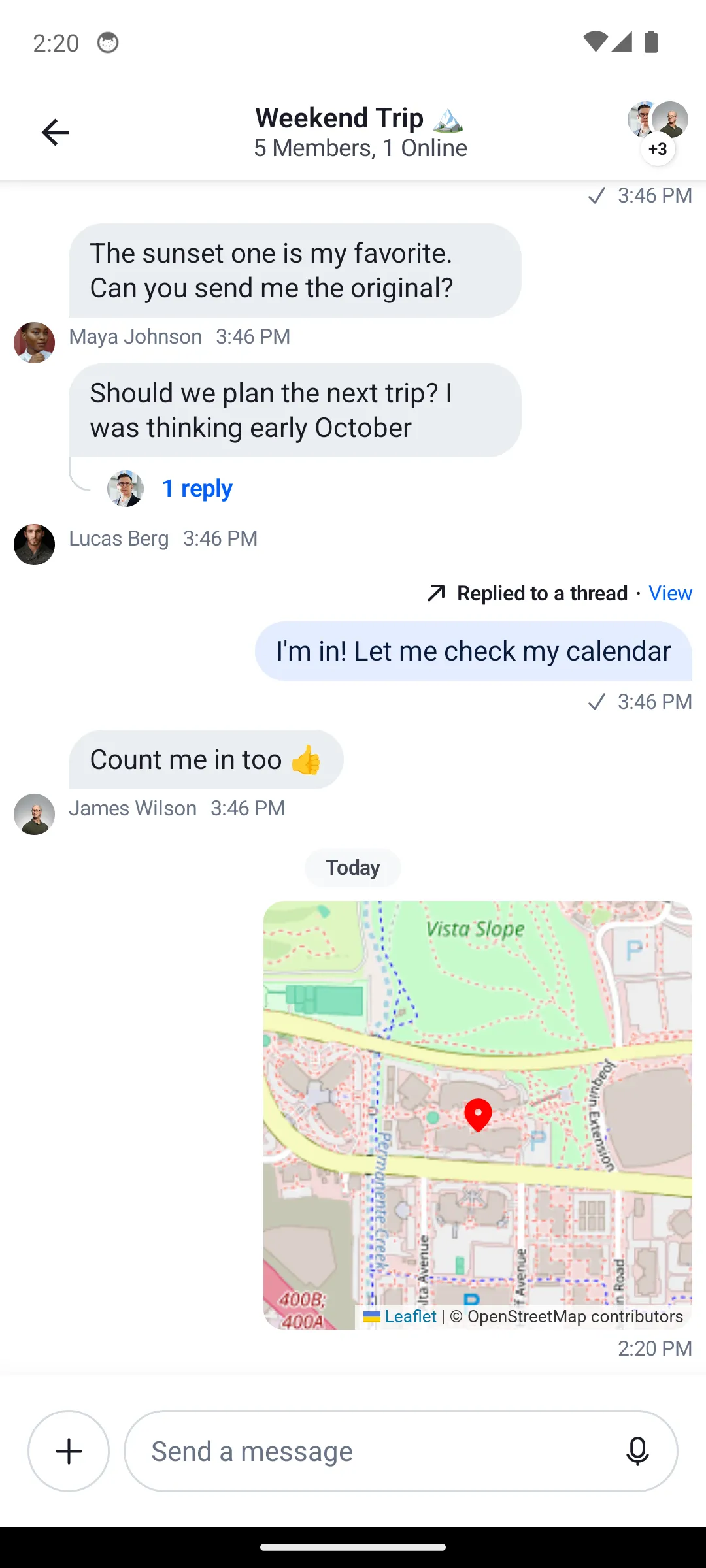 | 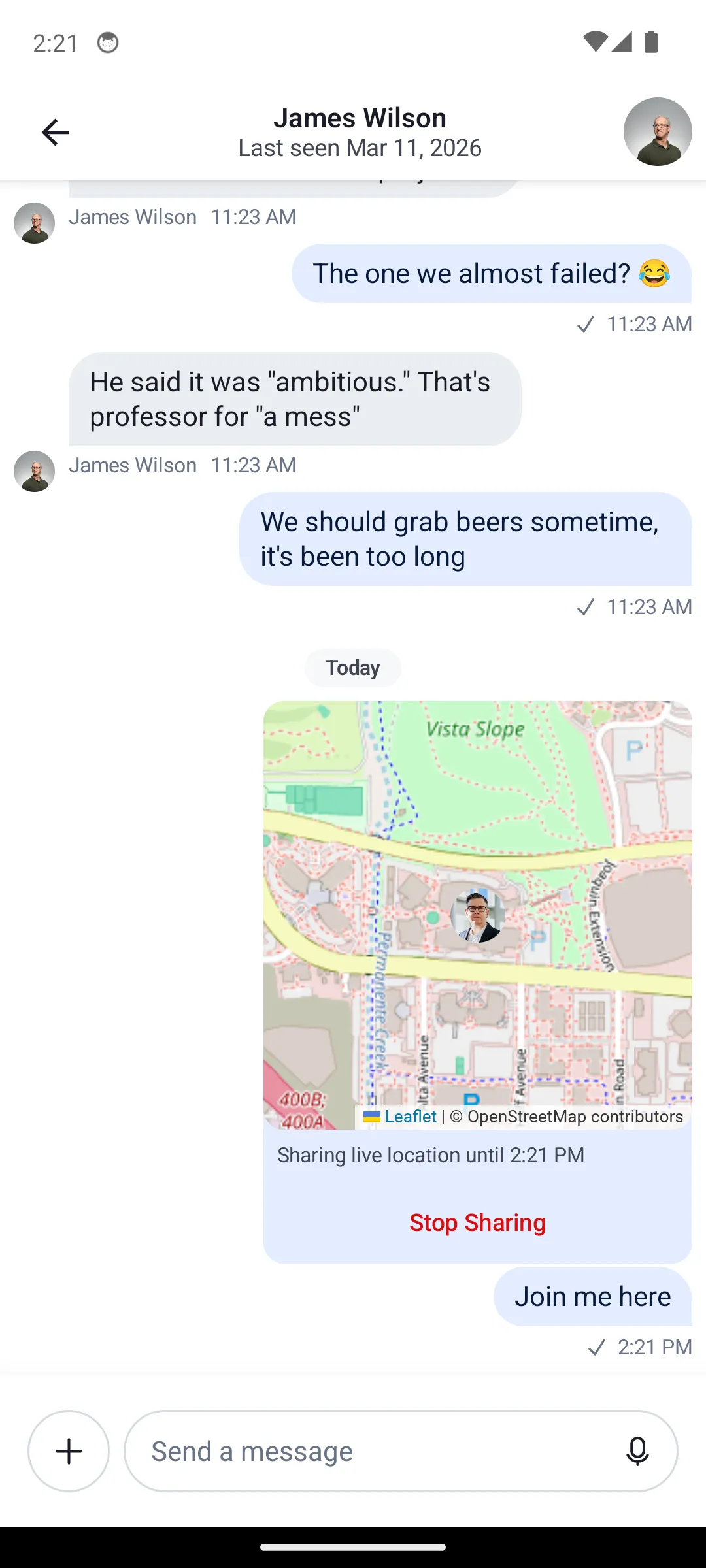 |
The implementation uses Jetpack Compose for the UI and the Stream Chat Android SDK for chat functionality.
Prerequisites
- Stream Chat SDK: Ensure you have integrated the Stream Chat Compose SDK into your project. Follow the Compose In-App Messaging Tutorial for setup instructions.
- Permissions: Add location permissions to your app.
- Dependencies: Include the necessary dependencies for location services.
1: Set Up Dependencies
Add the following dependencies to your app/build.gradle file to enable Stream Chat and location services:
Replace $stream_version with the latest version from the Stream Chat Android GitHub releases.
Sync your project to ensure dependencies are resolved.
2: Request Location Permissions
To access the user’s location, add the following permissions to your AndroidManifest.xml:
<uses-permission android:name="android.permission.ACCESS_FINE_LOCATION"/>
<uses-permission android:name="android.permission.ACCESS_COARSE_LOCATION"/>
Ensure permissions are requested before accessing location services. Check out more about location permissions in the Android documentation.
3: Send Device Location Updates
To send device location updates, create a simple class that handles location updates and sends them to the chat channel.
This class will use the FusedLocationProviderClient to get location updates and the ChatClient.updateLiveLocation to update a started live location message.
/**
 * Consider using a foreground service for continuous location updates while the app is in the background.
 */
class SharedLocationService(private val context: Context) : LocationCallback() {

    private val locationClient = LocationServices.getFusedLocationProviderClient(context)

    private val scope = CoroutineScope(Dispatchers.IO + SupervisorJob())

    private val chatClient by lazy { ChatClient.instance() }

    @Volatile
    private var activeLiveLocations: List<Location> = emptyList()

    // Track whether we are currently receiving updates
    @Volatile
    private var isReceivingUpdates = false

    var currentDeviceId: String = UnknownDeviceId
        private set

    // Call this when the user connects to the client
    fun start() {
        scope.launch { currentDeviceId = /* Get current device ID logic */ }

        // Fetch user's active live locations
        chatClient.queryActiveLocations().enqueue()

        // Listen for changes in current user's active live locations
        chatClient.globalStateFlow
            .flatMapLatest { it.currentUserActiveLiveLocations }
            .onEach { userActiveLiveLocations ->

                activeLiveLocations = userActiveLiveLocations.toList()

                if (userActiveLiveLocations.isEmpty()) {
                    // No active locations, stop receiving updates
                    locationClient.removeLocationUpdates(this)
                    isReceivingUpdates = false
                } else {
                    if (!isReceivingUpdates) {
                        // If we are not already receiving updates, request location updates
                        val hasPermission = ContextCompat.checkSelfPermission(
                            context,
                            Manifest.permission.ACCESS_FINE_LOCATION,
                        ) == PackageManager.PERMISSION_GRANTED
                        if (hasPermission) {
                            val request = LocationRequest.Builder(
                                Priority.PRIORITY_HIGH_ACCURACY,
                                5000L, // Location updates interval in millis
                            ).build()
                            locationClient.requestLocationUpdates(request, this, Looper.getMainLooper())
                            isReceivingUpdates = true
                        } else {
                            // Log or handle the case where location permission is not granted
                        }
                    } else {
                        // Already receiving updates, no need to request again
                    }
                }
            }
            .launchIn(scope)
    }

    override fun onLocationResult(result: LocationResult) {

        val locationsToUpdate = activeLiveLocations

        // Check if we have any active live locations to update
        for (deviceLocation in result.locations) {
            locationsToUpdate
                .filterNot { it.endAt?.before(Date()) ?: false } // Filter out expired locations
                .forEach { activeLiveLocation ->
                    chatClient.updateLiveLocation(
                        messageId = activeLiveLocation.messageId,
                        latitude = deviceLocation.latitude,
                        longitude = deviceLocation.longitude,
                        deviceId = currentDeviceId,
                    ).enqueue { /* Handle success or error */ }
                }
        }
    }

    // Call this when the user disconnects from the client
    fun stop() {
        // Stop receiving location updates
        locationClient.removeLocationUpdates(this)
        scope.cancel()
    }
}
Check out SharedLocationService for a complete implementation.
4: Add Location Picker
To allow users to select a location, you can create a location picker dialog or screen.
This example uses a custom attachment picker mode with a ChatComponentFactory override.
First, define a custom AttachmentPickerMode:
data object LocationPickerMode : AttachmentPickerModeThen, create a ChatComponentFactory that adds the location tab icon and renders the location picker content when the mode is selected:
class LocationComponentFactory(
    private val locationViewModelFactory: SharedLocationViewModelFactory?,
) : ChatComponentFactory {

    @Composable
    override fun AttachmentTypePicker(params: AttachmentTypePickerParams) {
        // Render the default tabs first, then add the location tab
        super.AttachmentTypePicker(
            params.copy(trailingContent = {
                val isSelected = params.selectedMode is LocationPickerMode
                FilledIconToggleButton(
                    modifier = Modifier.size(48.dp),
                    checked = isSelected,
                    onCheckedChange = { params.onModeSelected(LocationPickerMode) },
                ) {
                    Icon(
                        imageVector = Icons.Outlined.LocationOn,
                        contentDescription = "Share Location",
                    )
                }
            })
        )
    }

    @Composable
    override fun AttachmentPickerContent(params: AttachmentPickerContentParams) {
        if (params.pickerMode == LocationPickerMode && locationViewModelFactory != null) {
            LocationPicker(
                viewModelFactory = locationViewModelFactory,
                onDismiss = params.actions.onDismiss,
            )
        } else {
            super.AttachmentPickerContent(params)
        }
    }
}
Then set up the LocationComponentFactory in the ChatTheme:
ChatTheme(
    componentFactory = LocationComponentFactory(
        locationViewModelFactory = SharedLocationViewModelFactory(cid),
    ),
)
LocationPicker uses SharedLocationViewModel to handle the following:
- Send a static location through the
ChatClient.sendStaticLocationfunction when the user clicks the "Send Current Location" button. - Start a live location through the
ChatClient.startLiveLocationSharingfunction when the user clicks the "Share Live Location" button.
LocationPicker renders a map using Leaflet.js through a WebView.
Check out LocationComponentFactory, LocationPicker, and SharedLocationViewModel for a complete implementation.
5: Display Shared Locations
To display shared locations in the chat, you can override the MessageContent method in your ChatComponentFactory to create a custom component that renders the location on a map.
class LocationComponentFactory : ChatComponentFactory {

    @Composable
    override fun MessageContent(params: MessageContentParams) {
        val message = params.messageItem.message
        // Check if the message has a shared location and is not deleted
        if (message.hasSharedLocation() && !message.isDeleted()) {
            val location = requireNotNull(message.sharedLocation)
            SharedLocationItem(
                modifier = Modifier.widthIn(max = 250.dp),
                message = message,
                location = location,
                onMapClick = { url -> params.onLinkClick?.invoke(message, url) },
                onMapLongClick = { params.onLongItemClick(message) },
            )
        } else {
            // Fallback to the default implementation
            super.MessageContent(params)
        }
    }
}
When the shared location has an endAt date, it is considered a live location sharing.
In this guide, stopping a live location sharing is handled in the SharedLocationViewModel by calling the ChatClient.stopLiveLocationSharing function.
In practice, you should combine both the attachment picker overrides (from step 4) and the message content override into a single ChatComponentFactory implementation, as shown in the LocationComponentFactory sample.
Then set up your component factory in the ChatTheme:
ChatTheme(
    componentFactory = LocationComponentFactory(
        locationViewModelFactory = SharedLocationViewModelFactory(cid),
    ),
)
Learn more about Component Factory.
Check out SharedLocationItem for a complete implementation.
Summary
In this guide, you learned how to implement a location-sharing feature in your Stream Chat application using Jetpack Compose. You set up dependencies, requested location permissions, sent device location updates, added a location picker, and displayed shared locations in the chat.