


Your SIP trunk
Place agent calls from a number that you already have at your own carrier. Stream sends these calls through your carrier's SIP trunk. Stream does not sell or hold the number.
A number on your SIP trunk is for outbound calls only. To answer calls, buy a Telnyx or Twilio Stream number.
When to use your SIP trunk
Use your own SIP trunk and not a Stream number when:
- You need a number in a country that Stream does not sell. See Countries.
- Your carrier must carry the calls under your own contract.
- You need a number type that Stream does not sell, or you must keep a number that your customers already know.
- You plan a large number of outbound calls, for example campaigns.
What you need from your carrier
Get these values from your carrier:
- The host and the port of the trunk
- The transport that the trunk accepts
- A username and a password for digest authentication
- The codecs that the trunk accepts
- Whether the trunk accepts an INVITE without SDP
- A number that your carrier lets you use as caller ID
The table below gives the format and the default of each value. Type the values when you add the trunk.
Values in Stream
The API field is the name in the CLI and API requests.
| Dashboard field | API field | Value |
|---|---|---|
| Name | name |
A name that you choose, for example main-carrier. |
| Host | host |
The hostname only, for example sip.example.com. An IP address must be public. |
| Port | port |
A number from 1 to 65535. The default is 5060. |
| Transport | transport |
UDP, TCP or TLS. The default is TCP. |
| Username | username |
The username for digest authentication. |
| Password | password |
The password for digest authentication. |
| Codecs | codecs |
One or more of PCMU, PCMA and G722, in order of preference. |
| Ring without an SDP offer | late_offer |
On only if the trunk accepts an INVITE without SDP. See Late offer. |
| Number | e164 |
The caller ID, in E.164 format with + and the country code, for example +15125550142. |
| Country | country |
The two-letter code of the country of the number, for example US. |
Codecs
Stream offers the codecs in the order that you type them.
The trunk selects one of them.
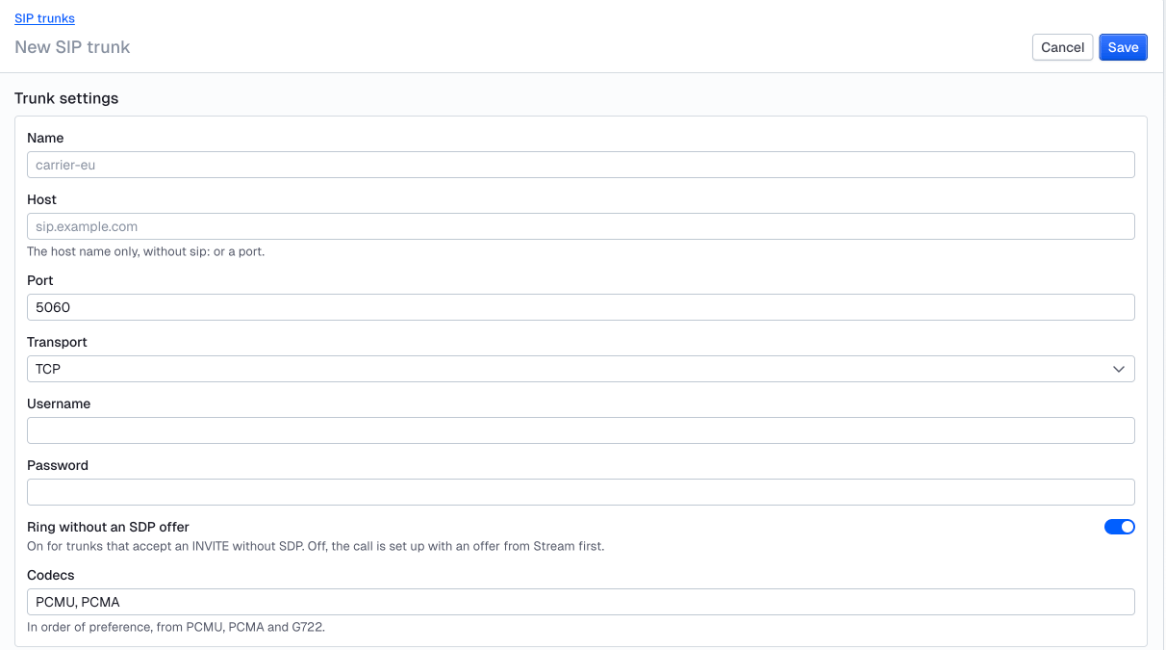
In the API, if you do not send codecs, Stream uses PCMU, then PCMA. In the dashboard, the Codecs field starts with PCMU, PCMA.
Use G722 only if your carrier accepts it.
Late offer
With late offer off, Stream sends its SDP offer in the INVITE. With late offer on, Stream sends the INVITE without SDP, and the trunk sends the offer in its answer. Set late offer on only if your carrier accepts an INVITE without SDP.
In the API, late_offer is false if you do not send it.
In the dashboard, Ring without an SDP offer is on for a new trunk. Set it off if your carrier does not accept late offer.
Authentication
Stream sends the INVITE without credentials first.
Your trunk must challenge the INVITE with 401 Unauthorized or 407 Proxy Authentication Required.
Stream then sends the INVITE again with your username and password.
If your trunk does not challenge the INVITE, BYE and other requests from the trunk do not reach Stream. A trunk that accepts calls by IP address only does not send a challenge.
Caller ID
Stream sends the number in E.164 format, with the +.
Stream does not buy the number and does not check it with your carrier.
Your carrier decides if you can call from the number. Most carriers accept a number on your account, or a number that they verified for you.
Set up in the dashboard
Add the trunk
Go to Agents > Telephony > SIP trunks and click Create SIP trunk. Type the settings of the trunk: Name, Host, Port, Transport, Username, Password, Ring without an SDP offer and Codecs. Then click Save.
Add a number
On the trunk's page, click Add number. Type the Number and the Country, then click Add number.
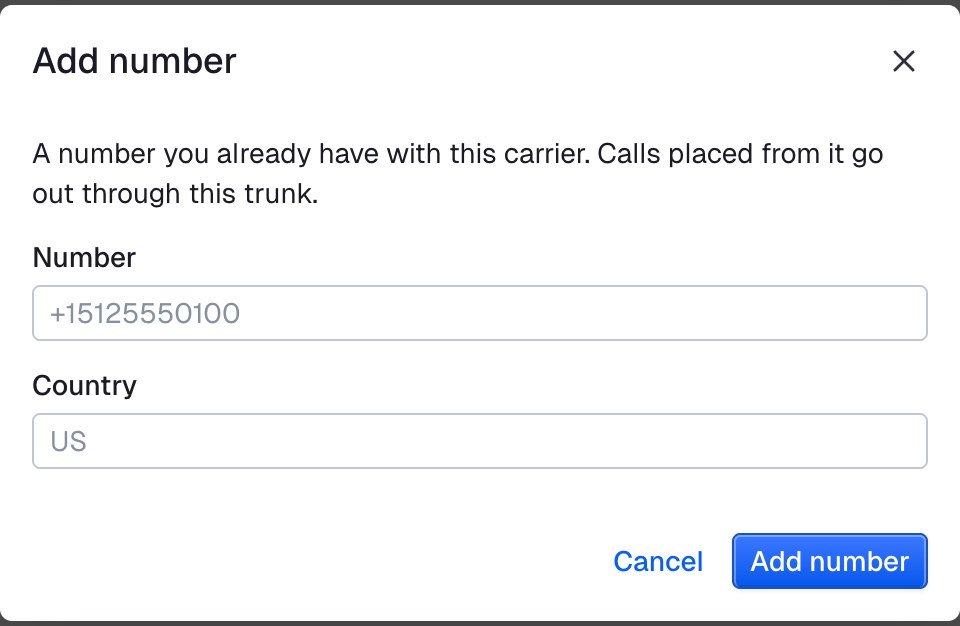
The number appears under Numbers on the trunk's page.

Make a test call
Click Test call. See Make a test call.
The dashboard does not show the stored password. To keep the password, leave the Password field empty when you click Save.
To release a number, click Remove next to the number, then click Remove in the dialog. The number stays with your carrier, and you can add it again.
To delete the trunk, open the actions menu next to Save and click Delete. Delete is not available while the trunk has numbers.
Twilio
Set up a Twilio Elastic SIP trunk for termination, then enter its values in Stream.
Set up at Twilio
- In the Twilio Console, open Elastic SIP Trunking and create a trunk.
- On the Termination page of the trunk, type a name for the termination URI, for example
example. Twilio makes the URIexample.pstn.twilio.com. - Twilio also shows a localized URI for each edge, for example
example.pstn.frankfurt.twilio.com. You can use the main URI or the localized URI of any edge. - On the same Termination page, under Authentication, create a credential list with a username and a password. Stream uses these values for digest authentication.
- On the General page of the trunk, leave Secure Trunking off. With Secure Trunking on, Twilio refuses calls without encrypted audio. Stream does not encrypt the audio with SRTP.
- Open Communications > Voice > Settings > Geo permissions and allow each country that you call.
- Make sure that you have a caller ID: a Twilio number on your account, or a number in Verified Caller IDs.
You do not have to put the number on the trunk for outbound calls. If you put a number on the trunk, Twilio sends the inbound calls of that number to the trunk. Then the number does not receive calls in other places, for example on a webhook or in a different app.
Values for Twilio
Add the trunk with these values:
| Field | Value |
|---|---|
| Name | A name that you choose, for example twilio |
| Host | The termination URI without sip:, for example example.pstn.twilio.com or example.pstn.frankfurt.twilio.com |
| Port | 5060 for TCP. 5061 for TLS. |
| Transport | TCP |
| Username | The username in the credential list. Do not use the friendly name of the list. |
| Password | The password in the credential list |
| Codecs | PCMU, PCMA. Twilio does not accept G722. |
| Ring without an SDP offer | On |
| Number | A Twilio number on your account or a verified caller ID, for example +15125550142 |
| Country | The two-letter code of the country of the number, for example US |
Then add the number and make a test call, as in Set up in the dashboard. If the phone does not ring, find the response in the call logs of the Twilio Console, and the error code in the Twilio Debugger. Then use the table below.
Twilio errors
| Response or error | Cause | Fix |
|---|---|---|
403 after the 407 challenge |
The username or the password is wrong. | Type the username of the credential list, not its friendly name. Type the password again. |
403 No International Authorization, error 32205 in the Twilio Debugger |
The geo permissions do not allow the country that you call. | Allow the country in Communications > Voice > Settings > Geo permissions. |
403 Invalid Caller ID |
The From number is not a Twilio number on your account or a verified caller ID. | Use a Twilio number, or add the number to Verified Caller IDs. |
400 |
A number is not in E.164 format. | Type the number with + and the country code. |
503 Trunk concurrent call limit exceeded or 503 Trunk CPS limit exceeded |
The account is above its limits. | Make fewer calls at the same time. |
For other responses, see SIP responses.
Telnyx
Set up a Telnyx Credentials SIP Connection and an Outbound Voice Profile, then enter the values in Stream.
Set up at Telnyx
- In the Telnyx Portal, open Real-time Communications > Voice > SIP Trunking.
- Create a SIP connection of the type Credentials. Set a username and a password, or let Telnyx make them.
- Open Outbound Voice Profiles and click Add New Profile. Select the destinations that you call.
- Add the connection to the profile. You can also select the profile on the Outbound tab of the connection.
- If your number is not a US number, set the Localization on the Outbound tab of the connection. Without it, Telnyx checks the caller ID as a US number.
- Make sure that you have a caller ID: a Telnyx number on your account, or a Verified Number.
Calls outside the US need a Level 2 account. Many other destinations also need Level 2.
Values for Telnyx
Add the trunk with these values:
| Field | Value |
|---|---|
| Name | A name that you choose, for example the name of the connection |
| Host | sip.telnyx.com. For the EU, use sip.telnyx.eu. Other regions: sip.telnyx.com.au, sip.telnyx.ca, sip.telnyx.me, sip.telnyx.asia (beta) |
| Port | 5060 for UDP and TCP. 5061 for TLS. |
| Transport | TCP. Telnyx also accepts UDP, and TLS 1.2 or higher. |
| Username | The username of the connection |
| Password | The password of the connection |
| Codecs | PCMU, PCMA, G722, in the order that you prefer |
| Ring without an SDP offer | Off or on. Telnyx accepts an INVITE without SDP. |
| Number | A Telnyx number on your account or a Verified Number, for example +15125550142 |
| Country | The two-letter code of the country of the number, for example US |
Then add the number and make a test call, as in Set up in the dashboard.
If the phone does not ring, find the response in the call logs of the Telnyx Portal. Telnyx puts a code in the reason text, for example D38.
Telnyx errors
| Response or error | Cause | Fix |
|---|---|---|
403 with D38, D7 |
The connection has no Outbound Voice Profile. | Add the connection to an Outbound Voice Profile. |
403 with D51 |
The caller ID is not a Telnyx number, and it is not a Verified Number. | Use a Telnyx number, or add the number to your Verified Numbers at Telnyx. |
403 with D35 |
The format of the caller ID is wrong. | Type the number with + and the country code. Set the Localization for a non-US number. |
403 with D1 |
The account is above its limit of calls at the same time. | Make fewer calls at the same time. A Level 2 account can have 10 calls at the same time. |
For other responses, see SIP responses.
Limits
- A number on your trunk cannot receive calls. You cannot attach it to a Stream call.
- A call from a number on your trunk cannot send custom SIP
headers. Stream refuses the call. - If the host, password or caller ID is wrong, the API does not tell you. See The response does not wait for the call.
- If the Stream server that holds a call through your trunk restarts, Stream ends the call.
SIP responses
The API does not show the SIP response of your carrier. Find the response in the call logs of your carrier.
These are the usual meanings. Your carrier can use a code in a different way, so also read the reason text.
| Response | Usual cause | Fix |
|---|---|---|
| No response | The host, port or transport is wrong, or a firewall stops SIP. | Check the Host, Port and Transport with your carrier. |
400 Bad Request |
The carrier does not accept the request, often the number format. | Make sure that the carrier accepts numbers in E.164 format with +. |
401 Unauthorized or 407 Proxy Authentication Required, again after the credentials |
The username or the password is wrong. | Type the username and the password again. Use the username, not another name of the credentials. |
403 Forbidden |
The carrier refuses the call: the credentials, the caller ID or the destination. | Check the credentials, then the Number, then the countries that your account can call. |
404 Not Found |
The carrier does not know the number that you call. | Check the To number. |
408 Request Timeout |
The carrier did not receive an answer in time. | Check the Host and the Transport. Call again. |
480 Temporarily Unavailable or 486 Busy Here |
The person that you call is not available. | Call again later. |
488 Not Acceptable Here |
The carrier does not accept the codecs or the SDP. | Change the Codecs. Try PCMU, PCMA. |
503 Service Unavailable |
The carrier has a problem, or you are above a call limit. | Check the limits of your account: calls at the same time and calls per second. |
For the steps to test a call, see Test and troubleshoot.
Set up with the CLI or the API
To place a call from a number on your trunk, see Making calls.
Create a trunk
With the Stream CLI:
curl -fsSL https://getstream.io/cli/beta/install.sh | bash # the agents commands are in the beta CLI
getstream agents api CreateSipTrunk --request '{
  "name": "main-carrier",
  "host": "sip.example.com",
  "port": 5060,
  "transport": "tls",
  "username": "stream-agent",
  "password": "'"$SIP_TRUNK_PASSWORD"'",
  "codecs": ["PCMU", "PCMA"],
  "late_offer": false
}'const trunk = await agent.client.post("/v1/phone/trunks", {
body: {
name: "main-carrier",
host: "sip.example.com",
port: 5060,
transport: "tls",
username: "stream-agent",
password: process.env.SIP_TRUNK_PASSWORD!,
codecs: ["PCMU", "PCMA"],
late_offer: false,
},
});
console.log("created", trunk.id); // 5d2f7e0a-8c1b-4f3e-9a6d-2b7c1e4f8a90import os
import httpx
from vision_agents.plugins import stream
backend = stream.Client().backend
async with httpx.AsyncClient(base_url=backend.url, headers=backend.headers) as http:
trunk = (
await http.post(
"/v1/phone/trunks",
json={
"name": "main-carrier",
"host": "sip.example.com",
"port": 5060,
"transport": "tls",
"username": "stream-agent",
"password": os.environ["SIP_TRUNK_PASSWORD"],
"codecs": ["PCMU", "PCMA"],
"late_offer": False,
},
)
).raise_for_status().json()
print("created", trunk["id"]) # 5d2f7e0a-8c1b-4f3e-9a6d-2b7c1e4f8a90trunk = agent.client.post("/v1/phone/trunks", body: {
name: "main-carrier", host: "sip.example.com", port: 5060, transport: "tls",
username: "stream-agent", password: ENV.fetch("SIP_TRUNK_PASSWORD"),
codecs: %w[PCMU PCMA], late_offer: false
})
puts "created #{trunk["id"]}" # 5d2f7e0a-8c1b-4f3e-9a6d-2b7c1e4f8a90$trunk = $agent->client->post('/v1/phone/trunks', body: [
'name' => 'main-carrier',
'host' => 'sip.example.com',
'port' => 5060,
'transport' => 'tls',
'username' => 'stream-agent',
'password' => getenv('SIP_TRUNK_PASSWORD'),
'codecs' => ['PCMU', 'PCMA'],
'late_offer' => false,
]);
echo 'created ', $trunk['id'], "\n"; // 5d2f7e0a-8c1b-4f3e-9a6d-2b7c1e4f8a90client, err := agent.Client()
if err != nil {
return err
}
name, host, transport, username := "main-carrier", "sip.example.com", "tls", "stream-agent"
password := os.Getenv("SIP_TRUNK_PASSWORD")
port, lateOffer := int64(5060), false
codecs := []string{"PCMU", "PCMA"}
created, err := client.CreateSipTrunkWithResponse(ctx, acceleration.CreateSipTrunkRequest{
Name: &name, Host: &host, Port: &port, Transport: &transport,
Username: &username, Password: &password, Codecs: &codecs, LateOffer: &lateOffer,
})
if err != nil {
return err
}
if created.JSON201 == nil {
return fmt.Errorf("creating the trunk: %s", created.Status())
}
trunk := created.JSON201
fmt.Println("created", trunk.Id) // 5d2f7e0a-8c1b-4f3e-9a6d-2b7c1e4f8a90using System.Text.Json;
var trunk = await agent.Client.PostAsync<JsonElement>("/v1/phone/trunks", new
{
name = "main-carrier",
host = "sip.example.com",
port = 5060,
transport = "tls",
username = "stream-agent",
password = Environment.GetEnvironmentVariable("SIP_TRUNK_PASSWORD"),
codecs = new[] { "PCMU", "PCMA" },
late_offer = false,
});
var trunkId = trunk.GetProperty("id").GetString();
Console.WriteLine($"created {trunkId}"); // 5d2f7e0a-8c1b-4f3e-9a6d-2b7c1e4f8a90use reqwest::Method;
use serde_json::{json, Value};
let client = agent.router()?;
let trunk: Value = client
.send(
Method::POST,
"/v1/phone/trunks",
None::<&()>,
Some(&json!({
"name": "main-carrier",
"host": "sip.example.com",
"port": 5060,
"transport": "tls",
"username": "stream-agent",
"password": std::env::var("SIP_TRUNK_PASSWORD")?,
"codecs": ["PCMU", "PCMA"],
"late_offer": false,
})),
"createSipTrunk",
)
.await?;
println!("created {}", trunk["id"]); // "5d2f7e0a-8c1b-4f3e-9a6d-2b7c1e4f8a90"Do not write the password in your code. The examples read it from the SIP_TRUNK_PASSWORD environment variable.
The Rust example needs the reqwest and serde_json crates in your project.
If you do not send a field, the trunk uses the default value. See Values in Stream.
Add a number
With the Stream CLI:
getstream agents api AddTrunkNumber --id 5d2f7e0a-8c1b-4f3e-9a6d-2b7c1e4f8a90 --request '{"e164": "+15125550142", "country": "US"}'const number = await agent.client.post("/v1/phone/trunks/{id}/numbers", {
path: { id: trunk.id },
body: { e164: "+15125550142", country: "US" },
});
console.log(number.vendor, number.sip_trunk_id); // sip_trunk 5d2f7e0a-8c1b-4f3e-9a6d-2b7c1e4f8a90async with httpx.AsyncClient(base_url=backend.url, headers=backend.headers) as http:
number = (
await http.post(
f"/v1/phone/trunks/{trunk['id']}/numbers",
json={"e164": "+15125550142", "country": "US"},
)
).raise_for_status().json()
print(number["vendor"], number["sip_trunk_id"]) # sip_trunk 5d2f7e0a-8c1b-4f3e-9a6d-2b7c1e4f8a90number = agent.client.post("/v1/phone/trunks/{id}/numbers", path: { id: trunk["id"] },
body: { e164: "+15125550142", country: "US" })
puts "#{number["vendor"]} #{number["sip_trunk_id"]}" # sip_trunk 5d2f7e0a-8c1b-4f3e-9a6d-2b7c1e4f8a90$number = $agent->client->post('/v1/phone/trunks/{id}/numbers', ['id' => $trunk['id']], body: [
'e164' => '+15125550142',
'country' => 'US',
]);
echo $number['vendor'], ' ', $number['sip_trunk_id'], "\n"; // sip_trunk 5d2f7e0a-8c1b-4f3e-9a6d-2b7c1e4f8a90e164, country := "+15125550142", "US"
added, err := client.AddTrunkNumberWithResponse(ctx, trunk.Id, acceleration.AddTrunkNumberRequest{
E164: &e164, Country: &country,
})
if err != nil {
return err
}
if added.JSON201 == nil {
return fmt.Errorf("adding the number: %s", added.Status())
}
number := added.JSON201
fmt.Println(number.Vendor, *number.SipTrunkId) // sip_trunk 5d2f7e0a-8c1b-4f3e-9a6d-2b7c1e4f8a90var number = await agent.Client.PostAsync<JsonElement>($"/v1/phone/trunks/{trunkId}/numbers", new
{
e164 = "+15125550142",
country = "US",
});
Console.WriteLine($"{number.GetProperty("vendor")} {number.GetProperty("sip_trunk_id")}"); // sip_trunk 5d2f7e0a-8c1b-4f3e-9a6d-2b7c1e4f8a90let id = trunk["id"].as_str().ok_or("the trunk has no id")?;
let number: Value = client
.send(
Method::POST,
&format!("/v1/phone/trunks/{id}/numbers"),
None::<&()>,
Some(&json!({ "e164": "+15125550142", "country": "US" })),
"addTrunkNumber",
)
.await?;
println!("{} {}", number["vendor"], number["sip_trunk_id"]); // "sip_trunk" "5d2f7e0a-8c1b-4f3e-9a6d-2b7c1e4f8a90"If you already have the number, Stream refuses it. Your carrier decides if you can call from the number. See Caller ID. To list and release numbers on your trunk, see Manage your numbers.
Change a trunk
With the Stream CLI:
getstream agents api UpdateSipTrunk --id 5d2f7e0a-8c1b-4f3e-9a6d-2b7c1e4f8a90 --request '{"transport": "tcp", "codecs": ["PCMA", "PCMU"]}'// No password in the body: the stored password stays.
const changed = await agent.client.patch("/v1/phone/trunks/{id}", {
path: { id: "5d2f7e0a-8c1b-4f3e-9a6d-2b7c1e4f8a90" },
body: { transport: "tcp", codecs: ["PCMA", "PCMU"] },
});
console.log(changed.has_password); // trueasync with httpx.AsyncClient(base_url=backend.url, headers=backend.headers) as http:
# No password in the body: the stored password stays.
changed = (
await http.patch(
"/v1/phone/trunks/5d2f7e0a-8c1b-4f3e-9a6d-2b7c1e4f8a90",
json={"transport": "tcp", "codecs": ["PCMA", "PCMU"]},
)
).raise_for_status().json()
print(changed["has_password"]) # True# No password in the body: the stored password stays.
changed = agent.client.patch("/v1/phone/trunks/{id}", path: { id: "5d2f7e0a-8c1b-4f3e-9a6d-2b7c1e4f8a90" },
body: { transport: "tcp", codecs: %w[PCMA PCMU] })
puts changed["has_password"] # true// No password in the body: the stored password stays.
$changed = $agent->client->patch('/v1/phone/trunks/{id}', ['id' => '5d2f7e0a-8c1b-4f3e-9a6d-2b7c1e4f8a90'], body: [
'transport' => 'tcp',
'codecs' => ['PCMA', 'PCMU'],
]);
var_dump($changed['has_password']); // bool(true)// No password in the body: the stored password stays.
newTransport, newCodecs := "tcp", []string{"PCMA", "PCMU"}
changed, err := client.UpdateSipTrunkWithResponse(ctx, "5d2f7e0a-8c1b-4f3e-9a6d-2b7c1e4f8a90", acceleration.UpdateSipTrunkRequest{
Transport: &newTransport, Codecs: &newCodecs,
})
if err != nil {
return err
}
if changed.JSON200 == nil {
return fmt.Errorf("changing the trunk: %s", changed.Status())
}
fmt.Println(changed.JSON200.HasPassword) // true// No password in the body: the stored password stays.
var changed = await agent.Client.PatchAsync<JsonElement>("/v1/phone/trunks/5d2f7e0a-8c1b-4f3e-9a6d-2b7c1e4f8a90", new
{
transport = "tcp",
codecs = new[] { "PCMA", "PCMU" },
});
Console.WriteLine(changed.GetProperty("has_password").GetBoolean()); // True// No password in the body: the stored password stays.
let changed: Value = client
.send(
Method::PATCH,
"/v1/phone/trunks/5d2f7e0a-8c1b-4f3e-9a6d-2b7c1e4f8a90",
None::<&()>,
Some(&json!({ "transport": "tcp", "codecs": ["PCMA", "PCMU"] })),
"updateSipTrunk",
)
.await?;
println!("{}", changed["has_password"]); // trueFields that you do not send keep their values.
If you do not send password, the trunk keeps the stored password.
If has_password is false, set a password before you place calls.