# Unity Introduction
The Unity SDK helps you build chat or messaging experiences for platforms the Unity Engine supports.
The SDK is a C# library for Unity, which includes:
- A stateful client to access the Stream Chat service API.
- A sample project demonstrating a simple chat application created using Unity's UGUI UI.
Before reading the docs, consider trying our [Unity Introduction Tutorial](https://getstream.io/chat/unity/tutorial/) which covers the most basic features of the SDK.
## Key features
- Automatic State Synchronization with the Stream Chat Server
- Easy interaction with the Stream Chat API
- Android, IOS, WebGL, Windows, and macOS support as well as all other Unity's supported platforms
- IL2CPP Support
- Open-source, all C# source code is available in our [GitHub repository](https://github.com/GetStream/stream-chat-unity)
- Actively developed
## Before you start
When you connect your application to the Stream Chat service, you connect as a specific user for which you'll require: `api key` , `user id` , and the `user token` . This tutorial will focus on a regular authenticated user ([guests and anonymous users](/chat/docs/unity/authless_users/) are also possible). Follow these steps to acquire authentication credentials:
1. Register your account [here](https://getstream.io/try-for-free/) and enter the [dashboard](https://dashboard.getstream.io/)to read the `api key` of your application.
2. In your [dashboard](https://dashboard.getstream.io/), click the application name to enter the application panel and go to the Explorer tab, from which you can create a new user and get the `user id` .
3. Once you have the `user id` , you can use our [online token generator](/chat/docs/unity/tokens_and_authentication/) to generate a `user token` .
## Getting started
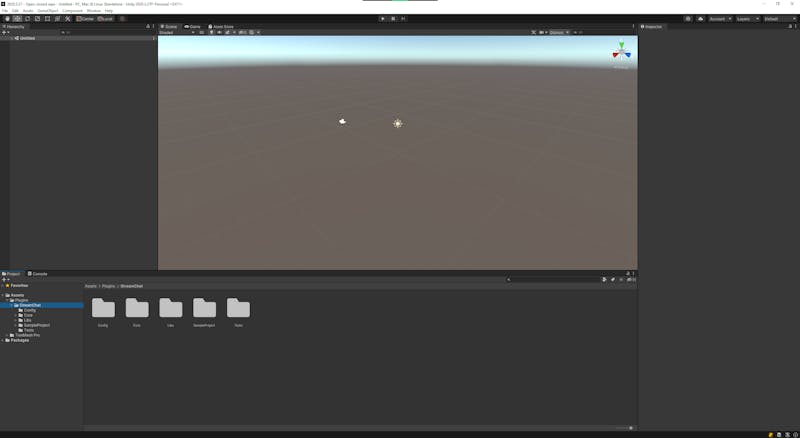
This guide will quickly help you get up to speed on [Stream’s Chat API](https://getstream.io/chat/). First, download the latest Stream Chat SDK from the [Releases page of the GitHub repository](https://github.com/GetStream/stream-chat-unity/releases/latest) and add it to your project.
### Newtonsoft.Json Conflict
Stream Unity SDK uses Unity's Newtonsoft Json package for the API requests serialization. Since Json is one of the most commonly used libraries chances are that you already have it in your project and will encounter a library duplication error as follows:

In this case, you can simply delete the `com.unity.nuget.newtonsoft-json@3.0.2` folder located in the `StreamChat/Libs/Serialization` path or delete the Json library already present in your project and use Unity's Json package contained within the Stream SDK. It's worth noting that Unity's Json package is adapted to work with Unity Engine and fully supports IL2CPP.
## Chat client
The primary way to interact with the Stream Chat API is through an instance of `IStreamChatClient`. You can create it using the `StreamChatClient.CreateDefaultClient()` factory method.
```csharp
using StreamChat.Core;
using UnityEngine;
public class ChatManager : MonoBehaviour
{
private IStreamChatClient _chatClient;
private void Start()
{
_chatClient = StreamChatClient.CreateDefaultClient();
}
}
```
This will create and configure the Stream Chat Client. Next, you need to connect a user to the server.
## Connect a User
To connect a user, call the `client.ConnectUserAsync` method passing the `apiKey`, `UserId`, and the `userToken`.
```csharp
public async Task ConnectAsync()
{
var localUserData = await _chatClient.ConnectUserAsync("api-key", "user-id", "userToken");
Debug.Log($"User {localUserData.UserId} is connected!");
}
```
## User Authorization Token
The user token is usually provided by your backend when you log in or register in the app. If authentication is disabled for your app (you can do it in [Stream Dashboard](https://dashboard.getstream.io/)), you can use the `StreamChatClient.CreateDeveloperAuthToken()` method to generate an insecure token for development. You should never launch into production with authentication disabled.
public async Task ConnectAsync()
```csharp
{
// Developer token works only if enabled in Stream Dashboard
var userAuthToken = StreamChatClient.CreateDeveloperAuthToken("user-id");
var localUserData = await _chatClient.ConnectUserAsync("api-key", "user-id", userAuthToken);
Debug.Log($"User {localUserData.UserId} is connected!");
}
```
Read the [token provider documentation](/chat/docs/unity/tokens_and_authentication/#token-expiration/) section to learn handling token generation in production.
## Disconnect User
To disconnect a user call `Client.DisconnectUserAsync()`
```csharp
public async Task DisconnectAsync()
{
await _chatClient.DisconnectUserAsync();
Debug.Log($"User disconnected");
}
```
## Creating a Channel
Once a user is connected you can create new channels.
There are multiple ways to create a channel in a Stream chat:
1. Stream Dasboard's Explorer - suitable if you just want a few predefined chat channels
2. Unity SDK - suitable if want to allow users to create their own public or private channels (send private messages, create groups, create clans, clubs, etc.)
3. Backend SDK - if you need a greater control over what channels can be created by users
In Unity SDK there are 2 ways to create a channel:
1. Create channel with ID - suitable for general purpose chat channels, clubs, clans, any public or private groups that users can join and leave.
2. Create channel for a unique group of users - suitable for private messages. This way you get the chat history for this combination of users regardless of the users order.
### Channel with ID
```csharp
var channel = await _chatClient.GetOrCreateChannelWithIdAsync(ChannelType.Messaging, "my-channel-id");
```
### Channel for a group of users
```csharp
var filters = new IFieldFilterRule[]
{
UserFilter.Id.In("friend-user-id-1", "friend-user-id-2")
};
var friends = await _chatClient.QueryUsersAsync(filters);
var groupToChat = new List();
groupToChat.AddRange(friends); // Add friends
groupToChat.Add(_chatClient.LocalUserData.User); // Add local user
// Create unique channel
var channel = await _chatClient.GetOrCreateChannelWithMembersAsync(ChannelType.Messaging, groupToChat);
```
## Channel Type
When creating a channel you need to provide a channel type. Channel type affects the default permissions settings. You can use our predefined types: `ChannelType.Messaging`, `ChannelType.Livestream`, `ChannelType.Team`, `ChannelType.Commerce`, `ChannelType.Gaming`, or create your custom type in the Dashboard. You can also change the permission settings for the predefined channel type.
You can read in detail about how channel types impact default permissions [here](/chat/docs/unity/channel_features/), but a `ChannelType.Messaging` is a good place to start. It configures your channels for a classical message application use-case.
## Query Channels
Once the channels are created you can query them by providing a search criteria.
A common pattern is to show channels to which the local user belongs as a member.
```csharp
public async Task QueryChannelsAsync()
{
var filters = new Dictionary
{
{
"members", new Dictionary
{
{ "$in", new string[] { "user-id-to-search" } }
}
}
};
var channels = await _chatClient.QueryChannelsAsync(filters);
foreach (var channel in channels)
{
Debug.Log(channel.Id);
Debug.Log(channel.Name);
Debug.Log(channel.Messages.Count); // Messages
Debug.Log(channel.Members.Count); // Members
}
}
```
## Send message
Once you've got a reference to an `IStreamChannel` instance, you can start sending messages. Channel instance exposes 2 overloads to send messages.
### Simple
A simple one to send text messages only.
```csharp
var message = await channel.SendNewMessageAsync("Hello");
```
### Complex
And a complex one that accepts `StreamSendMessageRequest` that allows you use advanced features like: threads, quoating messages, mentioning users, pinning a message with optional expiry, adding custom data, and more.
```csharp
var message = await channel.SendNewMessageAsync(new StreamSendMessageRequest
{
MentionedUsers = new List { someUser }, // Mention a user
ParentId = message2.Id, // Write in thread
PinExpires = new DateTimeOffset(DateTime.Now).AddDays(7), // Pin for 7 days
Pinned = true,
QuotedMessage = message3,
ShowInChannel = true,
Text = "Hello",
CustomData = new StreamCustomDataRequest
{
{ "my_lucky_numbers", new List { 7, 13, 81 } }
}
});
```
## Read messages
Each message is represented by the `IStreamMessage` object. You can access messages through the `IStreamChannel.Messages` property.
```csharp
var channel = await _chatClient.GetOrCreateChannelWithIdAsync(ChannelType.Messaging, "my-channel-id");
foreach (var message in channel.Messages)
{
Debug.Log(message.Text); // Message text
Debug.Log(message.User); // Message author
Debug.Log(message.ReactionCounts); // Message reactions
Debug.Log(message.Attachments); // Message attachments
}
```
## Send reaction
`IStreamMessage` also exposes many methods that allow you easily interact with Stream Chat API. One of which is `SendReactionAsync`. The are multiple optional parameters that allow to use it exactly as you need.
```csharp
// Send simple reaction with a score of 1
await message.SendReactionAsync("like");
// Send reaction with a custom score value
await message.SendReactionAsync("clap", 10);
// Send reaction with a custom score value
await message.SendReactionAsync("clap", 10);
// Send reaction and replace all previous reactions (if any) from this user
await message.SendReactionAsync("love", enforceUnique: true);
```
## Summary
In this article, we've covered how to setup Stream Chat Unity SDK in your project and use some of the most common features. But in terms of features that the Stream Chat API offers we've barely scratched the surface. We encourage you to skim through or docs and read in details about the features you're most interested in.
---
This page was last updated at 2025-09-04T13:12:29.487Z.
For the most recent version of this documentation, visit [https://getstream.io/chat/docs/unity/](https://getstream.io/chat/docs/unity/).