# Voice recordings and audio playback
> **Info:** This is release candidate documentation for **Stream Chat React SDK v15**. For the latest stable version, see the [latest version (v14)](https://getstream.io/chat/docs/sdk/react/).
A voice recording is a message the user records in the composer. This page covers recording, how a recording is encoded and sent, and how the SDK plays voice recordings and audio files.
## What users get
The user's composer is empty, so a microphone button sits where the send button would be. They click it, and the browser asks for the microphone. While they speak, the composer turns into a recorder with a timer and a live waveform. They can pause, listen to what they have so far, and resume, or cancel to throw the recording away. When they complete it, the recording uploads and goes out as a message.
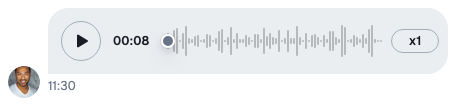
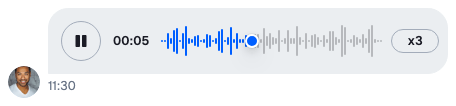
In the message list, the recording plays in a player with a play button, the waveform, the time left and a speed button (x1, x1.5, x2). Clicking or dragging on the waveform seeks. A reply that quotes it shows "Voice message" and its length, when the quoted message has no text.
Only one recording or audio file plays at a time: starting another pauses the first. Switching to another channel stops what was playing in the one the user left.
## How it works across the layers
- **State.** A voice recording is an attachment of type `voiceRecording`. The composer uploads and sends it like any other attachment, so the upload settings and a custom upload function apply to it. See [Attachments and uploads](https://getstream.io/chat/docs/sdk/react/v15/features/rich-content/attachments-and-uploads/).
- **UI.** `MessageComposer` records through the browser's `MediaRecorder` and turns the recording into an attachment. `VoiceRecording` renders it in the message list. Playback runs through audio players that `Chat`, `Channel` and `Thread` provide.
- **Layout.** Not involved, except that a channel and a thread each scope their own playback.
### The attachment
A voice recording carries these fields. The metadata is under `custom`, like every attachment's own data:
| Field | Holds |
| ---------------------- | --------------------------------------------------------------------------------- |
| `type` | always `"voiceRecording"` |
| `asset_url` | the uploaded file |
| `title` | the file name. The default player doesn't display it. |
| `custom.duration` | the length in seconds. When it's missing, the player shows the file size instead. |
| `custom.file_size` | the size in bytes |
| `custom.mime_type` | the file type, such as `audio/wav` |
| `custom.waveform_data` | amplitudes between 0 and 1, drawn as the waveform. Without it, no waveform shows. |
### Recording
1. With `audioRecordingEnabled`, `MessageComposer` creates a recorder. The composer shows the record button, `StartRecordingAudioButton`, when it's empty, nothing is being edited, no command is active, and the browser can record.
2. Clicking it starts recording, and the browser asks for the microphone the first time. When access was denied, a callout next to the button renders `RecordingPermissionDeniedNotification`.
3. While a recording is running, `AudioRecorder` takes the composer's place. Its controls pause and resume, cancel, and complete the recording. When it's paused, the user can play back what was recorded so far.
4. The browser records WebM, or MP4 in Safari. A WebM recording is encoded as WAV at 16 kHz by default, or as MP3 with the MP3 encoder (see below). An MP4 recording is kept as it is.
5. Completing the recording turns it into a `voiceRecording` attachment and uploads it with the composer's attachment manager. Then the composer sends it at once. With `asyncMessagesMultiSendEnabled` on `MessageComposer`, it stays in the composer instead, shown above the input by `VoiceRecordingPreviewSlot`, and goes out with the text and files when the user sends.
`recordingController` in `useMessageComposerContext()` exposes the recorder to your own components: the `recorder` itself, `recordingState`, `permissionState`, the finished `recording`, and `completeRecording()`.
### Playback
All audio in the SDK, voice recordings and audio file attachments alike, plays through one audio element that `Chat` keeps. A player that starts takes the element over and pauses the one that held it. That's why only one plays at a time, across channels and threads, and why playback works on iOS, which lets an element play from code only after a user gesture has started it.
`Channel` and `Thread` each provide a pool of players, `WithAudioPlayback`, scoped to their channel or thread. When the channel or thread changes, or the component unmounts, the pool stops and discards its players. A thread opened beside its channel has a pool of its own, and closing the thread stops its audio.
A component asks its pool for a player with `useAudioPlayer({ src, requester, ... })`. The same `src` and `requester` give back the same player, so a message scrolled out of a virtualized list and back keeps its progress. The player's state is a store, `audioPlayer.state`, and its methods control playback: `AudioPlayer.play()`, `AudioPlayer.pause()`, `AudioPlayer.stop()`, `AudioPlayer.togglePlay()`, `AudioPlayer.seek()` and `AudioPlayer.increasePlaybackRate()`. The state holds `isPlaying`, `secondsElapsed`, `progressPercent`, `durationSeconds`, `currentPlaybackRate`, `playbackRates`, `canPlayRecord` and `playbackError`. `AudioPlayer.seek()` takes the pointer's `clientX` and the progress bar element, the way a click handler gets them. `useActiveAudioPlayer()` returns the player that started playing most recently, and keeps returning it while it's paused.
## Turning it on or off
Recording is off by default. Turn it on for each composer you render:
```tsx
import { MessageComposer } from "stream-chat-react";
export const ComposerWithRecording = () => (
);
```
A thread's composer needs the prop too. Recordings are uploaded, so uploads must be allowed in the channel: see [Turning it on or off](https://getstream.io/chat/docs/sdk/react/v15/features/rich-content/attachments-and-uploads/#turning-it-on-or-off) on Attachments and uploads. The record button also needs `navigator.mediaDevices`, which browsers offer only on HTTPS and `localhost`.
Playback needs nothing: `Channel` and `Thread` provide it.
### Encoding recordings as MP3
WAV files are large. The `stream-chat-react/mp3-encoder` entry point encodes recordings as MP3 at 128 kbps instead. It runs on [`@breezystack/lamejs`](https://www.npmjs.com/package/@breezystack/lamejs), an optional peer dependency of `stream-chat-react`, so install it first:
```bash
npm install @breezystack/lamejs
```
Then pass the encoder to `MessageComposer` through `audioRecordingConfig`:
```tsx
import type { CustomAudioRecordingConfig } from "stream-chat-react";
import { MessageComposer } from "stream-chat-react";
import { encodeToMp3 } from "stream-chat-react/mp3-encoder";
// Declared once: a new object on every render would create a new recorder each time.
const audioRecordingConfig: CustomAudioRecordingConfig = {
transcoderConfig: { encoder: encodeToMp3 },
};
export const ComposerWithMp3Recording = () => (
);
```
`encodeToMp3` loads `@breezystack/lamejs` with a dynamic import the first time it encodes, so bundlers can keep it out of your main bundle. It applies to WebM recordings; Safari's MP4 recordings are sent as they are.
An encoder is any function `(file: File, sampleRate: number) => Promise`, so you can pass one of your own. `transcoderConfig.sampleRate` sets the rate it receives, 16000 by default.
## Customizing
### Playback speeds
`VoiceRecordingPlayer` takes the speeds its button cycles through. Pass them from a `VoiceRecording` of your own, and give that to `Attachment`:
```tsx
import type { Channel as StreamChannel } from "stream-chat";
import type { AttachmentProps, VoiceRecordingProps } from "stream-chat-react";
import {
Attachment,
Channel,
MessageComposer,
MessageList,
QuotedVoiceRecording,
VoiceRecordingPlayer,
WithComponents,
} from "stream-chat-react";
const playbackRates = [1, 1.5, 2, 3];
const CustomVoiceRecording = ({ attachment, isQuoted }: VoiceRecordingProps) =>
isQuoted ? (
) : (
);
const CustomAttachment = (props: AttachmentProps) => (
);
const overrides = { Attachment: CustomAttachment };
export const ChannelWithFastPlayback = ({
channel,
}: {
channel: StreamChannel;
}) => (
);
```
To change the "Voice message" fallback title, translate the key `common.voiceMessage.label`. See [Localization](https://getstream.io/chat/docs/sdk/react/v15/ui/customizing/localization/).
### The recorder
Three override keys replace the recording UI: `StartRecordingAudioButton`, `AudioRecorder` and `RecordingPermissionDeniedNotification`. A recorder of your own reads `recordingController`:
```tsx
import {
MediaRecordingState,
MessageComposer,
useMessageComposerContext,
WithComponents,
} from "stream-chat-react";
const SimpleAudioRecorder = () => {
const { recordingController } = useMessageComposerContext();
const { completeRecording, recorder, recordingState } = recordingController;
if (!recorder) return null;
const paused = recordingState === MediaRecordingState.PAUSED;
return (
);
};
const overrides = { AudioRecorder: SimpleAudioRecorder };
export const ComposerWithSimpleRecorder = () => (
);
```
`RecordingPermissionDeniedNotification` receives `permissionName`. The callout around it closes on its own; the component gets no close callback. [Message composer UI](https://getstream.io/chat/docs/sdk/react/v15/ui/components/message-composer-ui/#replacing-parts) lists the composer's other override keys.
### A player of your own
`useAudioPlayer` works in any component under `Channel`, `Thread` or `WithAudioPlayback`. This voice recording renders as a single button that plays and shows the seconds played:
```tsx
import type { Attachment as StreamAttachment } from "stream-chat";
import { isVoiceRecordingAttachment } from "stream-chat";
import type {
AttachmentProps,
AudioPlayer,
AudioPlayerState,
VoiceRecordingProps,
} from "stream-chat-react";
import {
Attachment,
useAudioPlayer,
useMessageContext,
useStateStore,
} from "stream-chat-react";
const playerSelector = ({ isPlaying, secondsElapsed }: AudioPlayerState) => ({
isPlaying,
secondsElapsed,
});
const PlayerButton = ({ audioPlayer }: { audioPlayer: AudioPlayer }) => {
const { isPlaying, secondsElapsed } = useStateStore(
audioPlayer.state,
playerSelector,
);
return (
);
};
const getDuration = (attachment: StreamAttachment) =>
isVoiceRecordingAttachment(attachment)
? attachment.custom.duration
: undefined;
const CompactVoiceRecording = ({ attachment }: VoiceRecordingProps) => {
const { message } = useMessageContext();
const audioPlayer = useAudioPlayer({
durationSeconds: getDuration(attachment),
requester: message.id,
src: attachment.asset_url,
title: attachment.title,
});
return audioPlayer ? : null;
};
export const CompactAttachment = (props: AttachmentProps) => (
);
```
Register `CompactAttachment` as the `Attachment` override, as in the playback speeds example. `PlayButton`, `WaveProgressBar`, `PlaybackRateButton` and `DurationDisplay` are the SDK's own parts, if you want to build from them.
Outside `Channel` and `Thread`, wrap your audio UI in `WithAudioPlayback`. Inside a `Chat`, it shares the one audio element, so it still plays one sound at a time. Pass `playbackScope` to stop its players when that value changes.
### A player that stays visible
`useActiveAudioPlayer()` returns the player that started playing most recently, so a bar at the top of the channel can keep control after the user scrolls away from the message. Call it inside `Channel`, `Thread` or `WithAudioPlayback`; outside them it returns `undefined`. Under one `Chat`, every pool reports the same player, so a bar in the channel also controls a recording playing in the thread.
```tsx
import type { AudioPlayerState } from "stream-chat-react";
import { useActiveAudioPlayer, useStateStore } from "stream-chat-react";
const nowPlayingSelector = ({ isPlaying }: AudioPlayerState) => ({ isPlaying });
const NowPlayingControls = ({
audioPlayer,
}: {
audioPlayer: NonNullable>;
}) => {
const { isPlaying } = useStateStore(audioPlayer.state, nowPlayingSelector);
return (
{audioPlayer.title}
);
};
export const NowPlaying = () => {
const audioPlayer = useActiveAudioPlayer();
return audioPlayer ? : null;
};
```
Render `NowPlaying` inside `Channel`, for example above the `MessageList`.
## Reference
- [Voice Recording Attachment](https://getstream.io/chat/docs/sdk/react/v15/component-reference/voice-recording/voice-recording-attachment/): `VoiceRecording`, `VoiceRecordingPlayer` and `QuotedVoiceRecording`.
- [Audio Recorder](https://getstream.io/chat/docs/sdk/react/v15/component-reference/voice-recording/audio-recorder/): the recorder's components and `recordingController`.
- [MessageComposer](https://getstream.io/chat/docs/sdk/react/v15/component-reference/message-composer/messagecomposer/): `audioRecordingEnabled`, `audioRecordingConfig` and `asyncMessagesMultiSendEnabled`.
- [Attachments](https://getstream.io/chat/docs/sdk/react/v15/component-reference/message/attachments/): the `Attachment` props.
- [Entry points and CSS files](https://getstream.io/chat/docs/sdk/react/v15/reference/entry-points-and-css-files/): the `mp3-encoder` entry point.
---
For the most recent version of this documentation, visit [https://getstream.io/chat/docs/sdk/react/v15/features/rich-content/voice-recordings-and-audio-playback/](https://getstream.io/chat/docs/sdk/react/v15/features/rich-content/voice-recordings-and-audio-playback/).