# Commands and Giphy
> **Info:** This is release candidate documentation for **Stream Chat React SDK v15**. For the latest stable version, see the [latest version (v14)](https://getstream.io/chat/docs/sdk/react/).
Commands are messages that start with a slash, such as `/giphy cats` or `/mute @bob`, which the server runs instead of posting as text. This page covers how users pick a command in the composer, what has to be installed for a picked command to be sent, and the Giphy preview.
## What users get
The user types `/` at the start of the input. A list shows the commands of the channel's type, each with its arguments, such as `/giphy [text]` and `/ban [@username] [text]`. The attachment menu has the same list under Commands. When they pick `giphy`, the composer shows a `giphy` chip before the input and empties itself. If they remove the chip with its ✕, the files and other content they had added come back; the text they typed to find the command doesn't. Had they picked it from the Commands menu, their text would come back too. While the chip shows, the attachment menu and the emoji button are hidden, and the send button shows a checkmark.
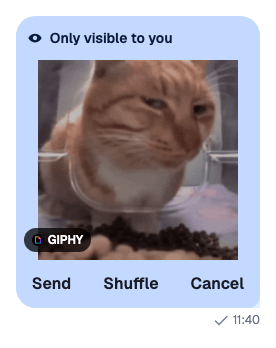
They type `cats` and send. A Giphy preview appears in the list, marked "Only visible to you", with three buttons: Send posts the GIF to the channel, Shuffle shows another one, and Cancel removes the preview.
Some commands need more before they can be sent: `/ban`, `/mute`, `/unmute` and `/unban` need a mentioned user, and `/ban` a reason too. Sending one too early shows a warning, and nothing is sent. No command can be used while a message is being edited, and moderation commands can't be used in a reply that quotes a message.
## How it works across the layers
- **State.** The channel type's commands are in `channel.config.availableCommands`. The text composer's commands middleware suggests them after `/` and keeps the picked one in `textComposer.command`. The server runs a command when a message's text starts with it.
- **UI.** The suggestion list, the Commands menu in `AttachmentSelector`, and `CommandChip` in the composer. In the message list, `Attachment` renders the Giphy preview with its buttons.
- **Layout.** Not involved.
### Picking a command
1. The user types `/gi`. The commands middleware matches `gi` against `availableCommands`, locally and without a request, and opens the suggestions.
2. They pick `giphy`, from the list or from the Commands menu. `textComposer.command` is set, and the `command.activate` effect saves what the composer held and empties it, keeping only the command.
3. They type `cats`. While a command is active, mentions still work, so `/mute @bob` can be completed.
4. On send, the composer validates the command (see [Suggestions](https://getstream.io/chat/docs/sdk/react/v15/state/writing-messages/suggestions/#commands)) and sends the message. Removing the chip instead calls `TextComposer.clearCommand()`, which brings back what was saved.
For step 4 to send `/giphy cats` rather than `cats`, the command name has to go back in front of the text. Four command middlewares do that, and `stream-chat-react` doesn't install them. See [Turning it on or off](#turning-it-on-or-off).
### The Giphy preview
1. The server answers `/giphy cats` with an ephemeral message: `type: "ephemeral"`, `command: "giphy"`, and an attachment of type `giphy` with three actions. Only the user receives it, and it takes the place of their sent message in the list.
2. `Attachment` renders the GIF with `Giphy`, and the buttons with `AttachmentActions`. Send has the focus, and after Send or Cancel the focus goes back where it was, usually the composer.
3. Each button calls `Channel.sendAction(message.id, { [action.name]: action.value })`, with the action's value: `send`, `shuffle` or `cancel`.
4. When the response carries a message, it replaces the preview: another GIF after Shuffle, the posted message after Send. After Cancel it carries none, and the preview is removed from the list.
`Channel.sendAction()` changes no local state itself; the message list's action handler applies the response. In `VirtualizedMessageList` with `separateGiphyPreview`, the preview renders below the list as `GiphyPreviewMessage` instead of among the messages.
## Turning it on or off
### Which commands exist
The server decides. Each channel type has a list of commands, set in the [Stream Dashboard](https://getstream.io/signin/?product=chat) or through the server API. The client can't add to it: `channel.config.availableCommands` is the server's list as it is. With an empty list, no suggestions open and the attachment menu has no Commands entry.
### Install the command middlewares
A default React app sends a picked command without its name. This is what it sends, with and without the four command middlewares:
| The user enters | Without the middlewares | With them |
| --------------------------------------------------------------------- | --------------------------------------------------- | ----------------------------------------------------- |
| `/giphy cats`, typed in full | `/giphy cats`. The chip shows beside the full text. | `/giphy cats`. The text shows `cats` beside the chip. |
| `giphy` picked from the suggestions or the Commands menu, then `cats` | `cats`, as a plain message. No GIF. | `/giphy cats` |
A draft saved while a command is active loses the command the same way. Install the four middlewares in the composer setup function. `stream-chat` exports them:
```ts
import type { TextComposerMiddleware } from "stream-chat";
import {
createActiveCommandGuardMiddleware,
createCommandInjectionMiddleware,
createCommandStringExtractionMiddleware,
createDraftCommandInjectionMiddleware,
} from "stream-chat";
client.config.setSetupFunction("messageComposer", ({ composer }) => {
// Puts "/giphy " back in front of the text when the message is sent.
composer.compositionMiddlewareExecutor.insert({
middleware: [createCommandInjectionMiddleware(composer)],
position: { after: "stream-io/message-composer-middleware/attachments" },
unique: true,
});
// Does the same when a draft is saved.
composer.draftCompositionMiddlewareExecutor.insert({
middleware: [createDraftCommandInjectionMiddleware(composer)],
position: {
after: "stream-io/message-composer-middleware/draft-attachments",
},
unique: true,
});
// Stops command suggestions while a command is active.
composer.textComposer.middlewareExecutor.insert({
middleware: [
createActiveCommandGuardMiddleware() as TextComposerMiddleware,
],
position: { before: "stream-io/text-composer/commands-middleware" },
unique: true,
});
// Takes a typed "/giphy " out of the text, so the chip shows it instead.
composer.textComposer.middlewareExecutor.insert({
middleware: [
createCommandStringExtractionMiddleware() as TextComposerMiddleware,
],
position: { after: "stream-io/text-composer/commands-middleware" },
unique: true,
});
return () => {
composer.compositionMiddlewareExecutor.remove(
"stream-io/message-composer-middleware/command-string-injection",
);
composer.draftCompositionMiddlewareExecutor.remove(
"stream-io/message-composer-middleware/draft-command-string-injection",
);
composer.textComposer.middlewareExecutor.remove([
"stream-io/text-composer/active-command-guard",
"stream-io/text-composer/command-string-extraction",
]);
};
});
```
Register it once, for example right after the client is created; it applies to the composers that exist and to every one created later. There's one setup function per kind of object, so if your app already has a composer setup function, such as the one for [emoji autocomplete](https://getstream.io/chat/docs/sdk/react/v15/features/rich-content/emoji/#turning-it-on-or-off), add these calls to it. [Composer middleware](https://getstream.io/chat/docs/sdk/react/v15/state/writing-messages/composer-middleware/#command-middlewares) explains each middleware and where it sits in its chain.
### Hide commands in the UI
To stop offering commands in the composer, remove the commands middleware in your composer setup function, and the Commands entry from the attachment menu:
```tsx
import {
AttachmentSelector,
defaultAttachmentSelectorActionSet,
} from "stream-chat-react";
client.config.setSetupFunction("messageComposer", ({ composer }) => {
composer.textComposer.middlewareExecutor.remove(
"stream-io/text-composer/commands-middleware",
);
});
const actionSetWithoutCommands = defaultAttachmentSelectorActionSet.filter(
(action) => action.type !== "selectCommand",
);
export const AttachmentSelectorWithoutCommands = () => (
);
```
Register `AttachmentSelectorWithoutCommands` as the `AttachmentSelector` override. The server still runs a command a user types in full, so to turn a command off for good, remove it from the channel type.
## Customizing
### When a command can be sent
`messageComposer.commands.sendValidator` decides whether the active command is ready, for example to require a search term after `/giphy`. [Suggestions](https://getstream.io/chat/docs/sdk/react/v15/state/writing-messages/suggestions/#commands) has the example.
### The command chip
`CommandChip` receives the active command. A chip of your own clears it with `TextComposer.setCommand(null)`:
```tsx
import type { CommandChipProps } from "stream-chat-react";
import {
MessageComposer,
useMessageComposerController,
WithComponents,
} from "stream-chat-react";
const SlashCommandChip = ({ command }: CommandChipProps) => {
const { textComposer } = useMessageComposerController();
if (!command) return null;
return (
);
};
const overrides = { CommandChip: SlashCommandChip };
export const ComposerWithSlashChip = () => (
);
```
### Command suggestions
`AutocompleteSuggestionList` and `AutocompleteSuggestionItem` replace the suggestion list and its items; the [Custom suggestions recipe](https://getstream.io/chat/docs/sdk/react/v15/recipes/composer/custom-suggestions/) shows both. The descriptions and arguments of the built-in commands are translation keys, such as `command.giphy.description` and `command.giphy.args`. A custom command's own description and arguments are used as keys too. See [Localization](https://getstream.io/chat/docs/sdk/react/v15/ui/customizing/localization/).
### The Giphy preview
`Attachment` takes `giphyVersion`, the rendition of the GIF to show (`fixed_height` by default), and `attachmentActionsDefaultFocus`, which action gets the focus when the preview appears. This setup shows the original GIF, keeps the focus in the composer, and shows the preview below a virtualized list:
```tsx
import type { AttachmentProps } from "stream-chat-react";
import {
Attachment,
Channel,
MessageComposer,
VirtualizedMessageList,
WithComponents,
} from "stream-chat-react";
const noDefaultFocus = {};
const AttachmentWithOriginalGiphy = (props: AttachmentProps) => (
);
const overrides = { Attachment: AttachmentWithOriginalGiphy };
export const ChannelWithGiphyAboveComposer = () => (
);
```
To change the separate preview itself, register a `GiphyPreviewMessage`, which receives the preview `message`. To change the buttons, pass `AttachmentActions` to `Attachment`; it receives the attachment's `actions` and the `actionHandler` that sends them.
## Reference
- [Attachments](https://getstream.io/chat/docs/sdk/react/v15/component-reference/message/attachments/): the `Attachment` props, including `Giphy`, `AttachmentActions`, `giphyVersion` and `attachmentActionsDefaultFocus`.
- [Composer UI components](https://getstream.io/chat/docs/sdk/react/v15/component-reference/message-composer/composer-ui-components/): `CommandChip` and the composer's state while a command is active.
- [Attachment Selector](https://getstream.io/chat/docs/sdk/react/v15/component-reference/message-composer/attachment-selector/): the Commands entry of the attachment menu.
- [VirtualizedMessageList](https://getstream.io/chat/docs/sdk/react/v15/component-reference/message-list/virtualizedmessagelist/): `separateGiphyPreview`.
- [Composer middleware](https://getstream.io/chat/docs/sdk/react/v15/state/writing-messages/composer-middleware/) and [Suggestions](https://getstream.io/chat/docs/sdk/react/v15/state/writing-messages/suggestions/): the text middleware behind commands.
---
For the most recent version of this documentation, visit [https://getstream.io/chat/docs/sdk/react/v15/features/rich-content/commands-and-giphy/](https://getstream.io/chat/docs/sdk/react/v15/features/rich-content/commands-and-giphy/).