# SDK integration
> **Info:** This is release candidate documentation for **Stream Chat React SDK v15**. For the latest stable version, see the [latest version (v14)](https://getstream.io/chat/docs/sdk/react/).
The main `stream-chat-react` entry point has three parts for AI replies: `StreamedMessageText` types out a reply as it streams, `AIStateIndicator` shows what the LLM is doing, and the default composer's `StopAIGenerationButton` lets the user stop it. This page shows how to turn each on, and how to use the components from `stream-chat-react/ai-components` in their place. The [AI integrations overview](https://getstream.io/chat/docs/sdk/react/v15/features/ai/ai-integrations-overview/) covers those components, and how the backend drives all of this.
For example, the user asks the support bot a question:
1. The bot posts an empty reply, marked `ai_generated`, and sends `ai_indicator.update` with `AI_STATE_THINKING`.
2. The client sets the channel's AI state to thinking. `AIStateIndicator` shows "Thinking...", and the composer's send button becomes the stop button.
3. The bot writes the answer into the reply, a few words at a time. `StreamedMessageText` types each new part out.
4. The bot stores the final text and sends `ai_indicator.clear`. The indicator goes away, and the send button comes back.
## Best Practices
- Mark AI replies on the backend, and tell `Chat` how to recognise them with `isMessageAIGenerated`, so every message list renders them the same way.
- Show an indicator only while the LLM is busy: thinking, checking sources or generating.
- Keep a way to stop a long reply. The default composer has one; a composer of your own needs its own button.
- Keep the default message layout around streamed text unless you need a message component of your own.
- Validate attachments and model choices on the backend, not only in the composer.
## StreamedMessageText
`MessageUI` renders `StreamedMessageText` in place of `MessageText` for every message that `isMessageAIGenerated` returns `true` for. It shows the text the message has when it mounts, then types out whatever the text grows by. A reply already stored doesn't replay the animation when the user scrolls back to it.
Pass `isMessageAIGenerated` to `Chat`. AI replies carry the custom field `ai_generated`, which the client puts under `message.custom`:
```tsx
import type { PropsWithChildren } from "react";
import type { LocalMessage } from "stream-chat";
import { Chat } from "stream-chat-react";
// Declared outside the component, so Chat gets the same function on every render.
const isMessageAIGenerated = (message: LocalMessage) =>
!!message.custom?.ai_generated;
export const App = ({ children }: PropsWithChildren) => (
{children}
);
```
For TypeScript, declare the field, optional, in `CustomMessageData`:
```ts title="stream-custom-data.d.ts"
import "stream-chat";
declare module "stream-chat" {
interface CustomMessageData {
ai_generated?: boolean;
generating?: boolean;
}
}
```
[Mark assistant messages with `ai_generated`](https://getstream.io/chat/docs/sdk/react/v15/features/ai/ai-integrations-overview/#mark-assistant-messages-with-ai_generated) explains both fields and how the backend sets them. `MessageUI` also hides the "Edited" label on these messages, since every streamed update edits them.
When an `ai_indicator.stop` event reaches the channel, `StreamedMessageText` shows the rest of the text at once instead of typing it out.
### Using StreamingMessage instead
Replace `StreamedMessageText` through `WithComponents`. This one renders the text with `StreamingMessage` from `stream-chat-react/ai-components`, which adds markdown, code highlighting, tables and charts:
```tsx
import type { PropsWithChildren } from "react";
import { useMessageContext, WithComponents } from "stream-chat-react";
import { StreamingMessage } from "stream-chat-react/ai-components";
const MarkdownStreamedText = () => {
const { message } = useMessageContext();
return ;
};
const overrides = { StreamedMessageText: MarkdownStreamedText };
export const WithMarkdownReplies = ({ children }: PropsWithChildren) => (
{children}
);
```
Load `stream-chat-react/dist/css/ai-components.css` next to the SDK's stylesheet, as [Usage](https://getstream.io/chat/docs/sdk/react/v15/features/ai/ai-integrations-overview/#usage) shows. `StreamingMessage` doesn't listen for `ai_indicator.stop`: call `skipAnimation()` on its `ref` when the event arrives, if it should show the rest at once.
### A message component of your own
The override above still renders inside `MessageUI`, with its avatar, reactions and status. To render AI replies differently, replace `MessageUI`, and keep the default for every other message:
```tsx
import type { PropsWithChildren } from "react";
import {
Attachment,
MessageUI,
useMessageContext,
WithComponents,
} from "stream-chat-react";
import { StreamingMessage } from "stream-chat-react/ai-components";
const AIAwareMessage = () => {
const { handleAction, isMessageAIGenerated, message } = useMessageContext();
if (!isMessageAIGenerated?.(message)) return ;
const attachments = message.attachments ?? [];
return (
{attachments.length > 0 && (
)}
);
};
const overrides = { MessageUI: AIAwareMessage };
export const WithAIMessages = ({ children }: PropsWithChildren) => (
{children}
);
```
A custom `MessageUI` receives no props: it reads the message from `useMessageContext()`. [Overriding components](https://getstream.io/chat/docs/sdk/react/v15/ui/customizing/overriding-components/) explains the override keys.
## AIStateIndicator
`AIStateIndicator` shows "Thinking..." while the channel's AI state is `AI_STATE_THINKING`, and "Generating..." while it's `AI_STATE_GENERATING`. In every other state it renders nothing.
No SDK component renders it, so render it yourself, inside `Channel`. Between the message list and the composer, it sits just above where the user types:
```tsx
import type { Channel as StreamChannel } from "stream-chat";
import {
AIStateIndicator,
Channel,
MessageComposer,
MessageList,
} from "stream-chat-react";
export const AssistantChannel = ({ channel }: { channel: StreamChannel }) => (
);
```
With `ChatView`, put it in the same place among the children of `ChannelSlot`:
```tsx
import {
AIStateIndicator,
ChannelHeader,
MessageComposer,
MessageList,
} from "stream-chat-react";
import { ChannelSlot } from "stream-chat-react/slot-layout";
export const AssistantChannelSlot = () => (
);
```
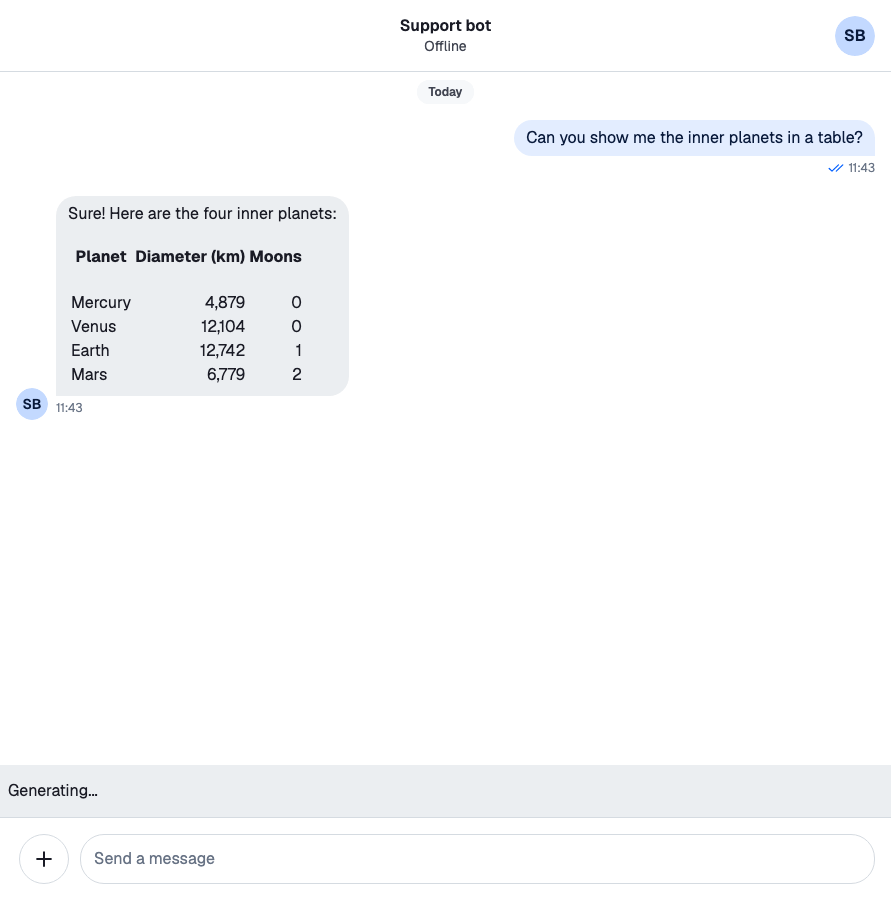
It reads the channel from context. Its `channel` prop shows another channel's state instead, but it still has to render inside a `Channel` or a `Thread`. To show other states, such as `AI_STATE_EXTERNAL_SOURCES`, read the state with `useAIState(channel)`, as [Drive the AI indicator from events](https://getstream.io/chat/docs/sdk/react/v15/features/ai/ai-integrations-overview/#drive-the-ai-indicator-from-events) shows.
## StopAIGenerationButton
While the channel's AI state is `AI_STATE_THINKING` or `AI_STATE_GENERATING`, the composer shows `StopAIGenerationButton` in place of the send button. Clicking it calls `Channel.stopAIResponse()`, which sends `ai_indicator.stop` to the channel. The backend stops the reply when it gets the event.
The default button isn't exported. Replace it through `WithComponents`; your component receives the `onClick` that stops the reply:
```tsx
import type { ComponentProps, PropsWithChildren } from "react";
import { WithComponents } from "stream-chat-react";
// Receives the props of a button, including the onClick that stops the reply.
const StopButton = ({ onClick }: ComponentProps<"button">) => (
);
const overrides = { StopAIGenerationButton: StopButton };
export const WithStopButton = ({ children }: PropsWithChildren) => (
{children}
);
```
>
> **Note:** Set `StopAIGenerationButton` to `null` in the overrides to never show a stop button. The send button then stays while the LLM replies.
>
[Let users stop the response](https://getstream.io/chat/docs/sdk/react/v15/features/ai/ai-integrations-overview/#let-users-stop-the-response) lists when the default button doesn't show, and what the backend does with the event.
### With AIMessageComposer
To use `AIMessageComposer` as the composer, render it from a `MessageComposerUI` of your own. It writes into the channel's or the thread's message composer, so sending and uploads work as with the default composer. The text reaches the message composer only on submit, so a draft doesn't keep it. `AIMessageComposer` has no stop button, so this one adds it:
```tsx
import type { ChangeEvent, FormEvent } from "react";
import { AIStates } from "stream-chat";
import {
MessageComposer,
useAIState,
useAttachmentsForPreview,
useChannel,
useMessageComposerController,
WithComponents,
} from "stream-chat-react";
import { AIMessageComposer } from "stream-chat-react/ai-components";
const AIComposerUI = () => {
const channel = useChannel();
const { aiState } = useAIState(channel);
const composer = useMessageComposerController();
const { attachments } = useAttachmentsForPreview();
const isReplying =
aiState === AIStates.Thinking || aiState === AIStates.Generating;
const onChange = (event: ChangeEvent) => {
const input = event.currentTarget.elements.namedItem("attachments");
if (input instanceof HTMLInputElement && input.files?.length) {
void composer.attachmentManager.uploadFiles(input.files);
}
};
const onSubmit = async (event: FormEvent) => {
event.preventDefault();
const form = event.currentTarget;
const text = new FormData(form).get("message");
composer.textComposer.setText(typeof text === "string" ? text : "");
// Keeps what the user wrote when there was nothing to send.
const result = await composer.send();
if (result !== "nothing-to-send") form.reset();
};
return (
{attachments.map((attachment) => {
const { file, id, previewUri, uploadState } =
attachment.localMetadata;
if (!(file instanceof File)) return null;
return (
composer.attachmentManager.removeAttachments([id])
}
state={uploadState}
/>
);
})}
{isReplying ? (
) : (
)}
);
};
const overrides = { MessageComposerUI: AIComposerUI };
// Render inside Channel or Thread, in place of MessageComposer.
export const AIComposer = () => (
);
```
How it fits together:
- **Text.** `AIMessageComposer` keeps the text in its own state. On submit, the component copies it into the message composer with `TextComposer.setText()`, then calls `MessageComposer.send()`.
- **Attachments.** The file input's `onChange` uploads the files through the message composer's `attachmentManager`, and the previews read them back with `useAttachmentsForPreview()`. `FileInput` has no default `name`, and the handler looks the input up by name, so keep `name="attachments"`.
- **The result.** `MessageComposer.send()` resolves `'sent'`, `'failed'` or `'nothing-to-send'`. After the first two, the message composer is already empty, so the component resets the form. After `'nothing-to-send'`, nothing was sent, so it keeps what the user wrote.
- **Stopping.** The stop button replaces the submit button while the LLM replies, as the default composer does.
Load `stream-chat-react/dist/css/ai-components.css` next to the SDK's stylesheet. See [Usage](https://getstream.io/chat/docs/sdk/react/v15/features/ai/ai-integrations-overview/#usage).
---
For the most recent version of this documentation, visit [https://getstream.io/chat/docs/sdk/react/v15/features/ai/sdk-integration/](https://getstream.io/chat/docs/sdk/react/v15/features/ai/sdk-integration/).