# System notification banner
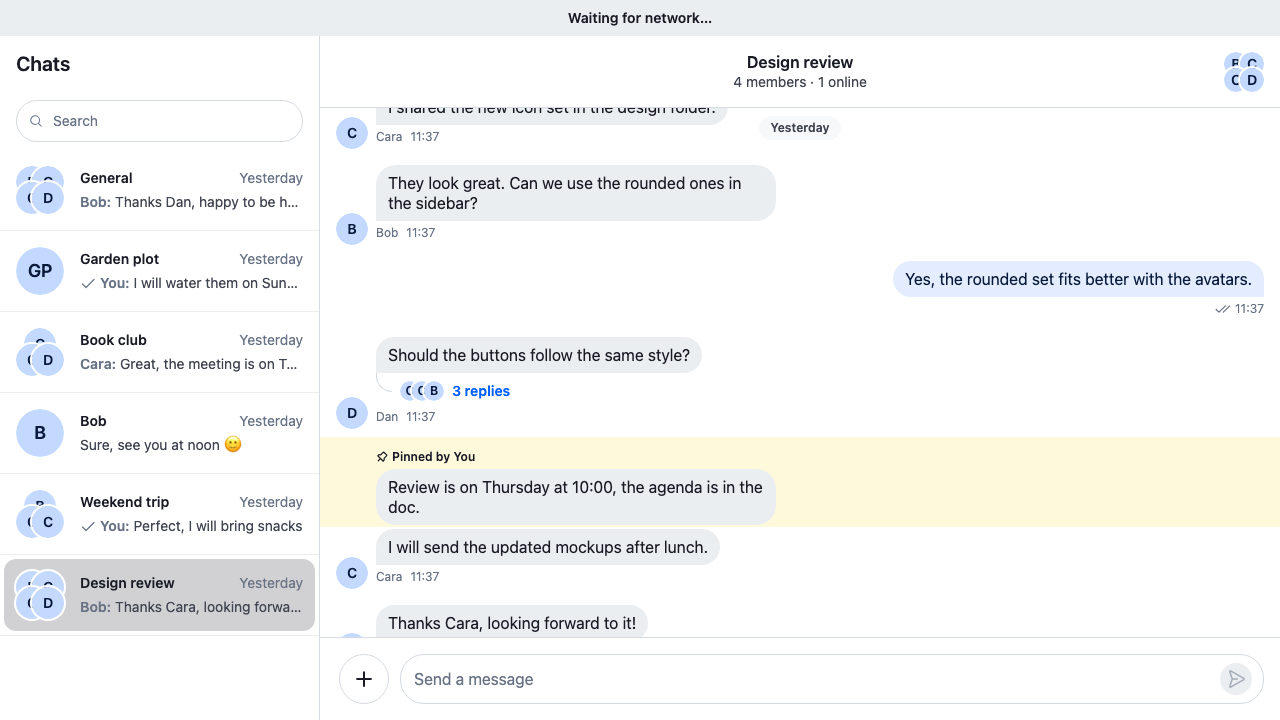
A system notification is about the whole app, not one panel: "Waiting for network…" or "Reconnecting…". `Chat` publishes one while the client can't reach Stream, but renders nothing for it, and no `NotificationList` shows it. System notifications and the hook that reads them are explained in [Notifications UI](https://getstream.io/chat/docs/sdk/react/ui/components/notifications-ui/#system-notifications).
>
> **Note:** **What you'll build**
>
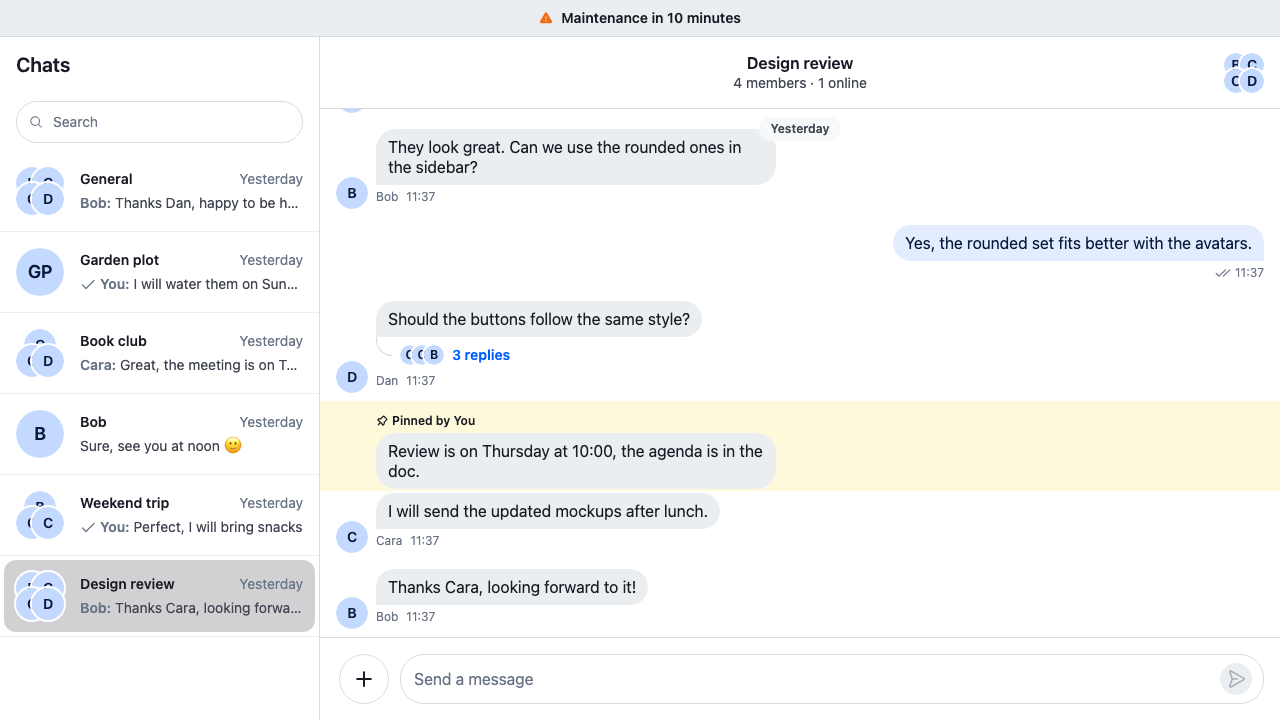
> - A bar across the top of the app for system notifications
> - A connection banner while the client can't reach Stream
> - Notifications with an action the user can click
> - Your own app-wide notices, such as upcoming maintenance
>
---
**Preview**
---
**Approach:** Compose. [Choosing where to start](https://getstream.io/chat/docs/sdk/react/ui-cookbooks/overview/#choosing-where-to-start) explains the approaches.
**Starts from:** [the base app](https://getstream.io/chat/docs/sdk/react/ui-cookbooks/overview/#the-base-app). The page shows only what the recipe adds.
## When to use this pattern
- You want a connection banner without writing your own connection handling. `Chat` already reads both connection facts, the device's network and the socket to Stream, and holds a short socket drop back so the banner doesn't flicker. [Connection status](https://getstream.io/chat/docs/sdk/react/features/app-experience/connection-status/) explains them.
- You publish app-wide messages, such as an upcoming maintenance, and want them in the same bar.
## Connection status banner
For a connection banner only, keep the lost-connection notification and render its message. Its type is `system:network:connection:lost`, for both messages: "Waiting for network…" when the device reports no network, and "Reconnecting…" when the network is up and only the socket is down. The message is already translated and says which one it is.
Declare the filter at module scope. `useSystemNotifications` builds its subscription from it, so an inline filter resubscribes on every render, as [Selector identity](https://getstream.io/chat/docs/sdk/react/ui/reading-state-in-components/#selector-identity) explains:
```tsx label="React" title="src/ConnectionStatusBanner.tsx"
import type { Notification } from "stream-chat";
import { useSystemNotifications } from "stream-chat-react";
import "./ConnectionStatusBanner.css";
const isConnectionLost = (notification: Notification) =>
notification.type === "system:network:connection:lost";
export const ConnectionStatusBanner = () => {
const [notification] = useSystemNotifications({ filter: isConnectionLost });
// in already reads the message to screen readers.
if (!notification) return null;
return (
{notification.message}
);
};
```
```css label="CSS" title="src/ConnectionStatusBanner.css"
@layer stream-overrides {
.cookbook-connection-status {
padding: var(--str-chat__spacing-xs) var(--str-chat__spacing-md);
background: var(--str-chat__background-core-surface-default);
color: var(--str-chat__text-primary);
font: var(--str-chat__font-caption-emphasis);
text-align: center;
}
}
```
---
**While the device is offline**
---
## Implementation
The full banner shows every system notification, one at a time.
### 1. Banner component and styles
`useSystemNotifications()` returns the system notifications in the order `client.notifications` keeps them, oldest first by default. The banner shows the first. When it's removed, the banner keeps it on screen until the slide-out animation ends; with reduced motion on, there's no animation, so it goes at once. A notification with an action makes the whole bar a button, until it starts to slide out. The banner has no `role="status"`: ``, which `` renders, already reads system notifications to screen readers, so a status region would announce each message twice:
The SDK has no styles for this bar, so the stylesheet sits beside the component. Its rules make the banner an in-flow bar that slides in and out, color the icon by severity, and spin it while the severity is `loading`. With reduced motion on, they turn the animations off:
```tsx label="React" title="src/SystemNotificationBanner.tsx"
import type { ComponentType } from "react";
import { useEffect, useState } from "react";
import type { Notification } from "stream-chat";
import {
IconCheckmark,
IconExclamationCircleFill,
IconExclamationTriangleFill,
IconInfo,
IconLoading,
useSystemNotifications,
} from "stream-chat-react";
import "./SystemNotificationBanner.css";
const iconsBySeverity: Record = {
error: IconExclamationCircleFill,
info: IconInfo,
loading: IconLoading,
success: IconCheckmark,
warning: IconExclamationTriangleFill,
};
export const SystemNotificationBanner = () => {
const [notification] = useSystemNotifications();
// Without animations there is no slide-out to wait for, so the bar goes at once.
const reduceMotion = window.matchMedia(
"(prefers-reduced-motion: reduce)",
).matches;
// The last notification shown, kept while the bar slides out.
const [retained, setRetained] = useState(
notification,
);
useEffect(() => {
if (notification) setRetained(notification);
else if (reduceMotion) setRetained(undefined);
}, [notification, reduceMotion]);
const shown = notification ?? (reduceMotion ? undefined : retained);
const isExiting = !notification;
// A bar on its way out no longer acts on a click.
const action = isExiting ? undefined : shown?.actions?.[0];
const Icon = shown && iconsBySeverity[shown.severity ?? "error"];
const className = [
"cookbook-system-banner",
shown?.severity && `cookbook-system-banner--${shown.severity}`,
isExiting && "cookbook-system-banner--exiting",
action && "cookbook-system-banner--interactive",
]
.filter(Boolean)
.join(" ");
// in already reads each message to screen readers.
if (!shown) return null;
return (
);
};
```
```css label="CSS" title="src/SystemNotificationBanner.css"
@layer stream-overrides {
.cookbook-system-banner {
display: flex;
flex-shrink: 0;
align-items: center;
justify-content: center;
gap: var(--str-chat__spacing-xs);
overflow: hidden;
padding: var(--str-chat__spacing-xs) var(--str-chat__spacing-md);
border-bottom: 1px solid var(--str-chat__border-core-default);
background: var(--str-chat__background-core-surface-default);
color: var(--str-chat__text-primary);
font: var(--str-chat__font-caption-emphasis);
animation: cookbook-system-banner-slide-in 300ms ease-out both;
}
.cookbook-system-banner--exiting {
animation: cookbook-system-banner-slide-out 300ms ease-in both;
}
.cookbook-system-banner--interactive {
cursor: pointer;
}
.cookbook-system-banner__icon {
display: inline-flex;
color: var(--str-chat__accent-primary);
}
.cookbook-system-banner--error .cookbook-system-banner__icon {
color: var(--str-chat__accent-error);
}
.cookbook-system-banner--success .cookbook-system-banner__icon {
color: var(--str-chat__accent-success);
}
.cookbook-system-banner--warning .cookbook-system-banner__icon {
color: var(--str-chat__accent-warning);
}
.cookbook-system-banner--loading .cookbook-system-banner__icon {
animation: cookbook-system-banner-spin 1.5s linear infinite;
}
.cookbook-system-banner__message {
overflow: hidden;
text-overflow: ellipsis;
white-space: nowrap;
}
/* Without animations, the bar shows and goes at once, and the icon stays still. */
@media (prefers-reduced-motion: reduce) {
.cookbook-system-banner,
.cookbook-system-banner--exiting,
.cookbook-system-banner--loading .cookbook-system-banner__icon {
animation: none;
}
}
@keyframes cookbook-system-banner-slide-in {
from {
max-height: 0;
opacity: 0;
padding-block: 0;
}
to {
max-height: 64px;
opacity: 1;
}
}
@keyframes cookbook-system-banner-slide-out {
from {
max-height: 64px;
opacity: 1;
}
to {
max-height: 0;
opacity: 0;
padding-block: 0;
}
}
@keyframes cookbook-system-banner-spin {
to {
transform: rotate(360deg);
}
}
}
```
To show only some system notifications, pass a module-scope `filter`, as in the connection banner. To show several at once, map over the array.
The rules sit in the `stream-overrides` layer, so they win over the SDK's own rules once the SDK's stylesheet is in an earlier layer, as [Theming → CSS layers](https://getstream.io/chat/docs/sdk/react/features/app-experience/theming/#css-layers) sets up. Their colors, spacing and type come from the SDK's tokens, which resolve only inside an element with the `str-chat` class. The banner sits outside `ChatView`, so the layout below gives its own root that class.
### 2. Mount inside `Chat`
`useSystemNotifications` reads `client.notifications` through `Chat`, so the banner must render inside it. `AppLayout` puts it above the rest of the app, in a column. It reads the theme from `useChatContext()`, so the banner follows the theme passed to `Chat`:
```tsx label="React" title="src/AppLayout.tsx"
import type { PropsWithChildren, ReactNode } from "react";
import { useChatContext } from "stream-chat-react";
import "./AppLayout.css";
// A column: the banner on top, then the rest of the app. It carries `str-chat` and the theme, so
// the SDK's tokens resolve in the banner, outside ChatView.
export const AppLayout = ({
banner,
children,
}: PropsWithChildren<{ banner: ReactNode }>) => {
const { theme } = useChatContext();
return (
{banner}
{children}
);
};
```
```css label="CSS" title="src/AppLayout.css"
@layer stream-overrides {
.cookbook-app-layout {
display: flex;
flex-direction: column;
height: 100%;
}
.cookbook-app-layout__body {
flex: 1;
min-height: 0;
}
}
```
Pass it the banner, and render the rest of the app, with `ChatView`, as its children:
```tsx title="src/App.tsx"
import type { PropsWithChildren } from "react";
import { Chat } from "stream-chat-react";
import { AppLayout } from "./AppLayout";
import { SystemNotificationBanner } from "./SystemNotificationBanner";
export const App = ({ children }: PropsWithChildren) => (
}>{children}
);
```
The banner takes the height it needs, and the body, with `ChatView` in it, takes the rest. `AppLayout` needs the full height of the page, which the base app's `chat.css` gives `html`, `body` and `#root`. The connection banner mounts the same way: `}>`.
### Publishing your own system notifications
`addSystemNotification` from `useNotificationApi()` publishes one. It adds the `system` tag and no panel tags, so the banner shows it and no `NotificationList` does. It takes the same fields as `addNotification`, except `targetPanels`, and returns the notification's id:
```tsx title="src/MaintenanceNotice.tsx"
import { useRef } from "react";
import { Button, useNotificationApi } from "stream-chat-react";
export const MaintenanceNotice = () => {
const { addSystemNotification, removeNotification } = useNotificationApi();
const notificationId = useRef(null);
const show = () => {
notificationId.current = addSystemNotification({
// No duration, so it stays until removed.
duration: 0,
emitter: "MaintenanceNotice",
message: "Maintenance in 10 minutes",
severity: "warning",
type: "app:maintenance:upcoming",
});
};
const hide = () => {
if (notificationId.current) removeNotification(notificationId.current);
notificationId.current = null;
};
return (
<>
);
};
```
`tags` you pass are added to the `system` tag. `message` is shown as it is, so translate it before you publish it. [Notifications UI](https://getstream.io/chat/docs/sdk/react/ui/components/notifications-ui/) covers the notification panels, the display filter and translating notifications.
## How it works
>
> **Info:** **Example**
>
> The user's laptop loses its Wi-Fi, with `SystemNotificationBanner` mounted in `AppLayout`:
>
> 1. `Chat` sees that the device has no network and publishes a system notification, `system:network:connection:lost`, with the message "Waiting for network…".
> 2. `useSystemNotifications()` returns it. `SystemNotificationBanner` renders the bar with the icon for its severity, and the bar slides in. `` reads the message to screen readers.
> 3. The Wi-Fi comes back, but the socket to Stream isn't up yet. The bar reads "Reconnecting…".
> 4. The client reconnects, and `Chat` removes the notification. The banner keeps it on screen until the slide-out animation ends, then renders nothing. With reduced motion on, it goes at once.
>
A notification published with `addSystemNotification`, such as the maintenance notice, shows in the same bar until it's removed.
## Related
- [Notifications UI](https://getstream.io/chat/docs/sdk/react/ui/components/notifications-ui/#system-notifications): system notifications and the hook that reads them.
- [Connection status](https://getstream.io/chat/docs/sdk/react/features/app-experience/connection-status/): the network and socket facts `Chat` reads.
- [Connection](https://getstream.io/chat/docs/sdk/react/state/connection/): the client's connection state.
- [Publishing notifications](https://getstream.io/chat/docs/sdk/react/state/publishing-notifications/): `client.notifications` and the notification fields.
- [Notification hooks](https://getstream.io/chat/docs/sdk/react/reference/hooks/notification-hooks/): `useSystemNotifications` and `useNotificationApi`.
- [Selector identity](https://getstream.io/chat/docs/sdk/react/ui/reading-state-in-components/#selector-identity): why the filter is declared at module scope.
---
For the most recent version of this documentation, visit [https://getstream.io/chat/docs/sdk/react/ui-cookbooks/notifications/system-notification-banner/](https://getstream.io/chat/docs/sdk/react/ui-cookbooks/notifications/system-notification-banner/).