# Giphy preview
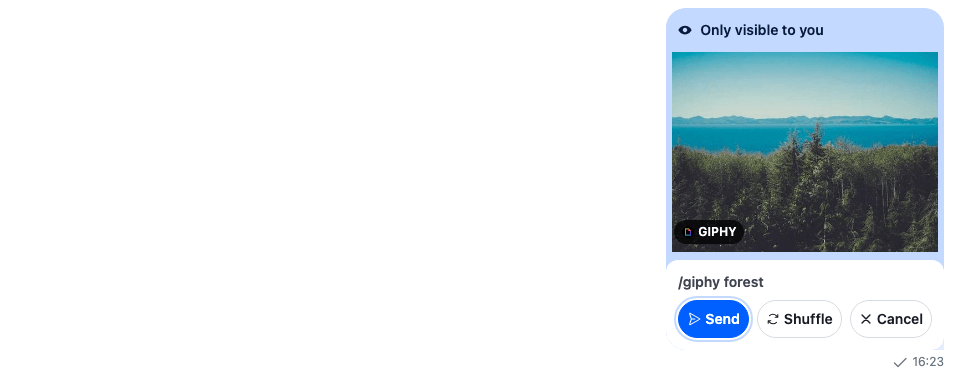
A `/giphy` command answers with a preview that only the user sees, with Send, Shuffle and Cancel buttons. This recipe replaces those buttons.
>
> **Note:** **What you'll build**
>
> - The search term above the buttons
> - Rounded Send, Shuffle and Cancel buttons with icons
>
---
**Preview**
---
**Approach:** Replace one part. [Choosing where to start](https://getstream.io/chat/docs/sdk/react/ui-cookbooks/overview/#choosing-where-to-start) explains the approaches.
**Starts from:** [the base app](https://getstream.io/chat/docs/sdk/react/ui-cookbooks/overview/#the-base-app). The page shows only what the recipe adds.
## Best practices
- Replace the buttons through `Attachment`'s `AttachmentActions` prop, and register the result as the `Attachment` key. The rest of the attachments render as before.
- Keep the actions of other attachments on the default `AttachmentActions`. Only a Giphy preview has Send, Shuffle and Cancel.
- Call the `actionHandler` the buttons receive. It sends the action and applies the server's answer to the message list.
- Give the focus to the button `attachmentActionsDefaultFocus` names when the preview appears, and back to where it was after Send or Cancel, as the default buttons do.
- Keep what the default buttons tell a screen reader: the "only visible to you" description on the focused button, and the announcements after Shuffle, Send and Cancel from `useInteractionAnnouncements()`. Label the buttons with `useTranslationContext().t` and the SDK's keys, so a translation registered for the default buttons applies to these too.
## Register the buttons
`Attachment` takes a prop for each part it renders. Pass the buttons to it, and register the result:
```tsx title="src/WithGiphyPreview.tsx"
import type { PropsWithChildren } from "react";
import type { AttachmentProps } from "stream-chat-react";
import { Attachment, WithComponents } from "stream-chat-react";
import { GiphyPreviewActions } from "./GiphyPreviewActions";
// A Giphy preview's buttons render `AttachmentActions` from this prop.
const AttachmentWithGiphyPreview = (props: AttachmentProps) => (
);
// Declared once, so WithComponents gets the same object on every render.
const overrides = { Attachment: AttachmentWithGiphyPreview };
export const WithGiphyPreview = ({ children }: PropsWithChildren) => (
{children}
);
```
Render your `Channel` inside `WithGiphyPreview`. The base app passes it as the recipe's wrapper, around the whole chat view.
## The preview buttons
`GiphyPreviewActions` receives the attachment's `actions`, its `type` and its `title`, the search term. For a Giphy preview, it renders the term and a button with an icon for each action; for any other attachment, it renders the default `AttachmentActions`:
```tsx label="React" title="src/GiphyPreviewActions.tsx"
import { useEffect, useId, useRef } from "react";
import type { AttachmentActionsProps } from "stream-chat-react";
import {
AttachmentActions,
useComponentContextIcons,
useFocusReturn,
useInteractionAnnouncements,
useTranslationContext,
VisuallyHidden,
} from "stream-chat-react";
import "./GiphyPreviewActions.css";
/** A Giphy title that is a media URL is no use to a screen reader, so it counts as no title. */
const readableTitle = (title?: string) =>
title && !/^(https?:|\/\/)/i.test(title) ? title : undefined;
/**
* The buttons under a Giphy preview: the search term, then Send, Shuffle and Cancel with icons.
* Actions of other attachments keep the default UI.
*/
export const GiphyPreviewActions = (props: AttachmentActionsProps) => {
const { IconRefresh, IconSend, IconXmark } = useComponentContextIcons();
const { t } = useTranslationContext();
const { announceInteraction } = useInteractionAnnouncements();
const { reserve, restore } = useFocusReturn();
const focusedButton = useRef(null);
const descriptionId = useId();
const isGiphy = props.type === "giphy";
// The button `Attachment.attachmentActionsDefaultFocus` names (Send by default) takes the focus
// when the preview appears; Send and Cancel give it back to where it was. A button that already
// has the focus is left alone, so an effect that runs twice doesn't remember the button itself.
useEffect(() => {
if (!isGiphy) return;
const button = focusedButton.current;
if (button && document.activeElement !== button) {
reserve();
button.focus();
}
}, [isGiphy, reserve]);
// Shuffle swaps the GIF in place while the focus stays on Shuffle, so the new GIF is announced.
// Its URL tells one GIF from the next. The first GIF isn't announced: the focused button's
// description already says what the preview is.
const imageUrl = isGiphy
? (props.giphy?.original?.url ?? props.thumb_url ?? props.image_url)
: undefined;
const previousImageUrl = useRef(imageUrl);
const title = readableTitle(props.title);
useEffect(() => {
if (!isGiphy || imageUrl === previousImageUrl.current) return;
previousImageUrl.current = imageUrl;
announceInteraction("giphy.shuffled", { title });
}, [announceInteraction, imageUrl, isGiphy, title]);
if (!isGiphy) return ;
const { actionHandler, actions, defaultFocusedActionValue } = props;
const icons: Record = {
cancel: IconXmark,
send: IconSend,
shuffle: IconRefresh,
};
// The same translation keys as the default AttachmentActions.
const labels: Record = {
cancel: t("common.cancel.label", "Cancel"),
send: t("common.send.label", "Send"),
shuffle: t("attachment.actions.shuffle.label", "Shuffle"),
};
return (
{t(
"attachment.actions.giphyPreviewOnlyVisible.ariaLabel",
"Giphy preview, only visible to you. Use the Send, Shuffle, or Cancel actions.",
)}
);
};
```
```css label="CSS" title="src/GiphyPreviewActions.css"
@layer stream-overrides {
.cookbook-giphy-actions {
display: flex;
flex-direction: column;
gap: var(--str-chat__spacing-xs);
margin-top: var(--str-chat__spacing-xs);
padding: var(--str-chat__spacing-sm);
border-radius: var(--str-chat__radius-lg);
background: var(--str-chat__background-core-elevation-0);
}
.cookbook-giphy-actions__query {
color: var(--str-chat__text-secondary);
font: var(--str-chat__font-caption-emphasis);
}
.cookbook-giphy-actions__buttons {
display: flex;
gap: var(--str-chat__spacing-xs);
}
.cookbook-giphy-actions__button {
display: inline-flex;
flex: 1;
align-items: center;
justify-content: center;
gap: var(--str-chat__spacing-xxs);
padding: var(--str-chat__spacing-xs);
border: 1px solid var(--str-chat__border-core-default);
border-radius: var(--str-chat__radius-full);
background: var(--str-chat__background-core-elevation-0);
color: var(--str-chat__text-primary);
font: var(--str-chat__font-caption-emphasis);
white-space: nowrap;
cursor: pointer;
}
.cookbook-giphy-actions__button:hover {
background: var(--str-chat__background-utility-hover);
}
.cookbook-giphy-actions__button--send {
border-color: var(--str-chat__accent-primary);
background: var(--str-chat__accent-primary);
color: var(--str-chat__text-on-accent);
}
.cookbook-giphy-actions__button--send:hover {
background: var(--str-chat__accent-primary);
opacity: 0.9;
}
}
```
The screenshot at the top of this page shows the result. It was taken in a read-only demo app, which can't send `/giphy`. A screenshot helper added the preview to the channel's message paginator with `MessagePaginator.ingestItem()`, as the server's answer would, and the GIF is a still image.
## How it works
>
> **Info:** **Example**
>
> The user sends `/giphy forest` in the Weekend trip channel. A preview with the search term and Send, Shuffle and Cancel appears at the end of the list, with the focus on Send. Shuffle shows another GIF, and Send posts it to the channel.
>
1. `MessageUI` renders the `Attachment` key for a message with attachments. A Giphy attachment goes to `Giphy`, followed by `Attachment`'s `AttachmentActions` prop when the attachment has actions.
2. Each button calls `actionHandler(action.name, action.value, event)`. It sends the action with `Channel.sendAction()` and applies the answer to the message paginator: another GIF after Shuffle, the posted message after Send, and nothing left after Cancel. [Commands and Giphy](https://getstream.io/chat/docs/sdk/react/features/rich-content/commands-and-giphy/#the-giphy-preview) explains the steps.
3. `useFocusReturn()` remembers where the focus was, usually the composer, when the preview takes it, and Send and Cancel give it back.
4. The focused button's `aria-describedby` points at a visually hidden description, so a screen reader says the preview is only visible to the user when the focus lands. `announceInteraction()` from `useInteractionAnnouncements()` announces the new GIF after Shuffle, and "Giphy sent" or "Giphy canceled" a frame after the focus goes back, so the focus change doesn't cut it off.
The preview renders among the messages in `MessageList`. In `VirtualizedMessageList` with `separateGiphyPreview`, it renders below the list as the `GiphyPreviewMessage` key instead, and that component receives the preview `message` with the props the list passes to every message.
## Related
- [Commands and Giphy](https://getstream.io/chat/docs/sdk/react/features/rich-content/commands-and-giphy/) explains how the user sends `/giphy` and what each button does.
- [Attachments](https://getstream.io/chat/docs/sdk/react/component-reference/message/attachments/) lists the `Attachment` props, including `AttachmentActions` and `attachmentActionsDefaultFocus`.
- [Overriding components](https://getstream.io/chat/docs/sdk/react/ui/components/overriding-components/) explains how `WithComponents` keys apply.
- [GIF picker](https://getstream.io/chat/docs/sdk/react/ui-cookbooks/composer/gif-picker/) adds a GIF button and picker to the composer, so a GIF goes out without a `/giphy` preview.
- [Image gallery](https://getstream.io/chat/docs/sdk/react/ui-cookbooks/message-list/image-gallery/) replaces the image grid and the lightbox.
- [Custom message](https://getstream.io/chat/docs/sdk/react/ui-cookbooks/message-list/custom-message/) replaces the message UI that renders `Attachment`.
---
For the most recent version of this documentation, visit [https://getstream.io/chat/docs/sdk/react/ui-cookbooks/message-list/giphy-preview/](https://getstream.io/chat/docs/sdk/react/ui-cookbooks/message-list/giphy-preview/).