# Single-pane mobile with back button
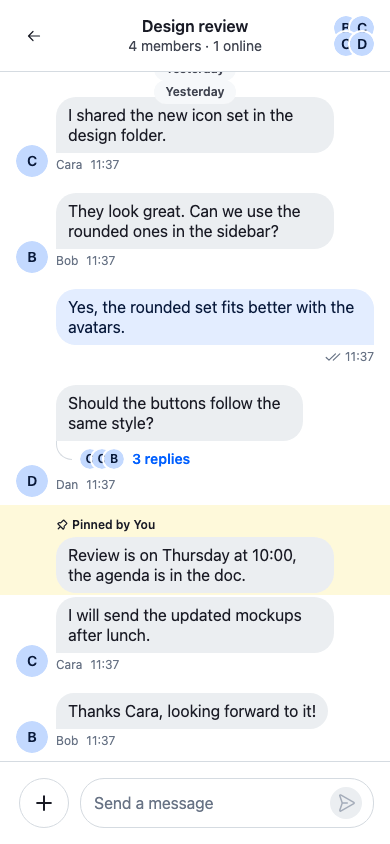
On a phone there's room for one thing at a time. This recipe shows one panel at a time, at full width.
>
> **Note:** **What you'll build**
>
> - The channel list, a channel and a thread, one at a time
> - A back button in the channel and thread headers
> - Going back with the browser's back button or gesture
> - The threads view working the same way
>
---
**Preview**
---
**Approach:** Compose. [Choosing where to start](https://getstream.io/chat/docs/sdk/react/ui-cookbooks/overview/#choosing-where-to-start) explains the approaches.
**Starts from:** [the base app](https://getstream.io/chat/docs/sdk/react/ui-cookbooks/overview/#the-base-app). The page shows the whole app, because the layout replaces the base app's views.
The threads view works the same way: the thread list, then the thread the user picks.
## One slot
```tsx label="React" title="src/App.tsx"
import { useEffect } from "react";
import type { ReactNode } from "react";
import { ChannelPaginator } from "stream-chat";
import type {
ChannelFilters,
SortParamRequest,
Thread as StreamThread,
} from "stream-chat";
import {
Button,
Channel,
ChannelHeader,
ChannelNavigation,
Chat,
MessageComposer,
MessageList,
Thread,
ThreadHeader,
ThreadList,
useChannelInstanceContext,
useComponentContextIcons,
useCreateChatClient,
useThreadContext,
useWorkspaceNavigation,
useWorkspacePanel,
WorkspaceNavigationBackButton,
} from "stream-chat-react";
import {
ChatView,
Slot,
useActiveThread,
useLayoutViewState,
} from "stream-chat-react/slot-layout";
import type {
ChatViewSlotRenderers,
DeriveWorkspaceNavigation,
LayoutDescriptor,
} from "stream-chat-react/slot-layout";
import { BrowserBack } from "./BrowserBack";
import "./layout.css";
const apiKey = "YOUR_API_KEY";
const userId = "YOUR_USER_ID";
const userToken = "YOUR_USER_TOKEN";
const filters: ChannelFilters = {
members: { $in: [userId] },
type: "messaging",
};
const sort: SortParamRequest[] = [{ direction: -1, field: "last_message_at" }];
// Each view has a single slot. A channel or a thread opens there, at full width.
const layouts: LayoutDescriptor[] = [
{ id: "channels", slots: ["main"] },
{ id: "threads", slots: ["main"] },
];
// In the channels view, a thread opens on top of its channel, so back returns
// to the channel. In the threads view, it replaces the thread before it.
const deriveWorkspaceNavigation: DeriveWorkspaceNavigation = (base) => ({
openThread: (target, options) =>
base.openThread(target, {
...options,
layer: options?.layer ?? !base.isThreadsView,
}),
});
// Goes back one step. Over a channel, the SDK's back button removes the thread
// on top. Anywhere else, back closes the panel, and the list shows again.
const BackButton = () => {
const { IconArrowLeft } = useComponentContextIcons();
const { canGoBack, closeChannel, closeThread } = useWorkspaceNavigation();
const panel = useWorkspacePanel();
const thread = useThreadContext();
const { channel } = useChannelInstanceContext();
if (canGoBack(thread ? thread.id : channel?.cid, panel)) {
return ;
}
return (
);
};
// Takes the place of the thread header's close button, which would do what back does.
const NoButton = () => null;
const ThreadContent = ({ thread }: { thread: StreamThread }) => {
// Marks the thread as on screen while the window is visible and focused.
useActiveThread({ activeThread: thread });
return (
);
};
const slotRenderers: ChatViewSlotRenderers = {
channel: ({ source }) => (
),
thread: ({ source }) => ,
};
// Shows the view's list until something opens in its slot, then only the slot.
const SinglePane = ({ list }: { list: ReactNode }) => {
const { slotBindings } = useLayoutViewState();
if (slotBindings.main) return ;
return (
<>
{list}
);
};
const App = () => {
const client = useCreateChatClient({
apiKey,
tokenOrProvider: userToken,
userData: { id: userId },
});
useEffect(() => {
if (!client) return;
const paginator = new ChannelPaginator({
client,
filters,
id: "my-channels",
sort,
});
client.channelManager.insertPaginator({ paginator });
return () => {
client.channelManager.removePaginator(paginator);
};
}, [client]);
if (!client) return
Connecting...
;
return (
} />,
threads: } />,
}}
>
);
};
export default App;
```
```css label="CSS" title="src/layout.css"
/* The SDK's stylesheet in a layer, so the overrides below win over it. */
@layer stream, stream-overrides;
@import "stream-chat-react/dist/css/index.css" layer(stream);
html,
body,
#root {
height: 100%;
}
body {
margin: 0;
}
@layer stream-overrides {
/* The list is the only thing beside the view selector, and the SDK has no
variable that lets it take the rest of the width. */
.str-chat__chat-view .str-chat__channel-list,
.str-chat__chat-view .str-chat__thread-list-container {
flex: 1 1 auto;
}
/* Below 768px, the SDK's stylesheet hides the lists. Here the list is the only
thing on screen until something opens, so it stays visible. */
@media (max-width: 767px) {
/* The SDK lays the hidden list over the channel; this puts it back in
the flow, where it's the only panel. */
.str-chat__chat-view .str-chat__channel-list,
.str-chat__chat-view .str-chat__thread-list-container {
inset: auto;
pointer-events: auto;
position: relative;
transform: none;
visibility: visible;
}
}
}
```
`BrowserBack` is in [The browser's back button](#the-browsers-back-button) below.
`layout.css` loads the SDK's stylesheet into the `stream` layer, and the recipe's rules go in `stream-overrides`, after it, as [Theming → CSS layers](https://getstream.io/chat/docs/sdk/react/features/app-experience/theming/#css-layers) explains.
Each view has one slot, `main`. `SinglePane` decides what's on screen:
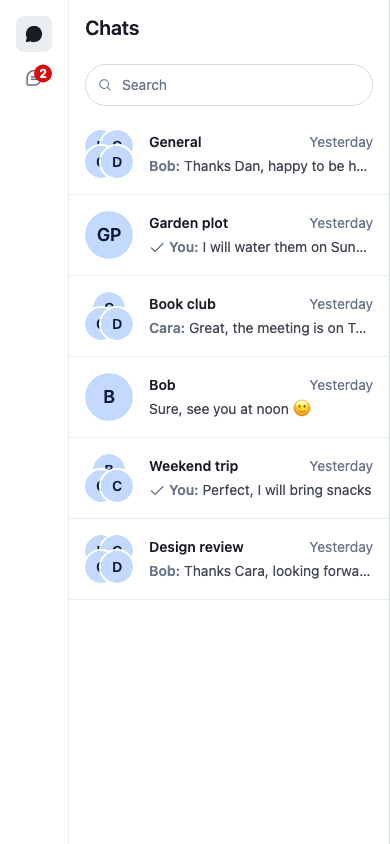
- **While `main` is empty,** it shows the view selector and the view's list: `ChannelNavigation` in the channels view, `ThreadList` in the threads view.
- **Once something opens in `main`,** it shows only the slot. A click on a channel in the list opens it there, because it's the only slot. A click on a thread in the thread list does the same in the threads view.
---
**The list before a channel opens**
---
In the channels view, a thread opens on top of its channel. `deriveWorkspaceNavigation` adds `layer: true` to `openThread` while the channels view is shown (`base.isThreadsView` is `false`). Without it, the thread would replace the channel in the one slot, and back couldn't return to it. In the threads view, a thread replaces the one before.
The slot is rendered with `Slot` and `slotRenderers`, because only `Slot` shows what's on top of a slot. `ChannelSlot` and `ThreadSlot` would show the channel and never the thread over it. See [Rendering a slot](https://getstream.io/chat/docs/sdk/react/ui/layout/workspace-with-chatview/#rendering-a-slot).
Below 768px, the SDK's stylesheet hides the channel list and the thread list, and leaves showing them to the app. Here the list is all there is on screen until something opens, so the media query shows it again.
This layout is single-pane at every width. To use it only on phones, choose it once when the app loads, for example with `window.matchMedia("(max-width: 767px)").matches`. `ChatView` starts its layout again when `layouts` changes, which closes everything that's open, so don't switch layouts on resize.
## Back navigation
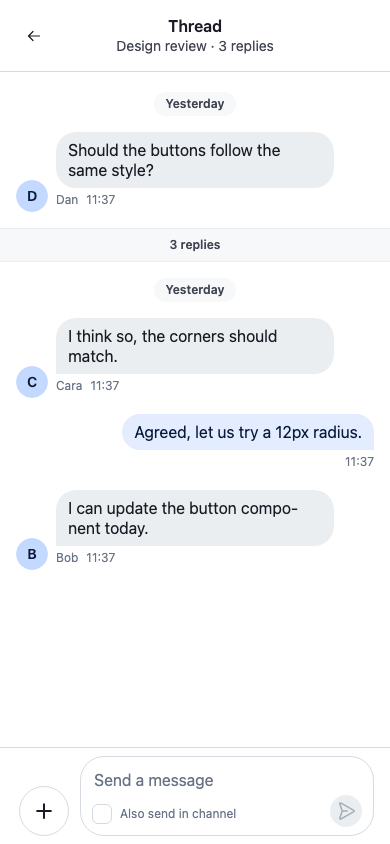
Each view is a stack: the list at the bottom, then a channel, then a thread on top of it. Back goes one step down:
1. **From a thread on top of its channel,** back removes the thread, and the channel shows again. Its messages and the message being written are still there: the channel's state keeps them.
2. **From a channel,** or from a thread in the threads view, back closes the panel. The slot is empty again, so `SinglePane` shows the list.
---
**A thread on top of its channel**
---
Opening the channel from its thread also closes the thread. For example, **View** next to "Also sent in channel" jumps from the thread to the reply in the channel. The channel replaces itself in the slot, and that closes the thread on top of it. See [Reply also sent in channel](https://getstream.io/chat/docs/sdk/react/ui/layout/moving-between-channels-threads-and-messages/#reply-also-sent-in-channel).
### The browser's back button
On a phone, users go back with the system's back button or gesture, which goes back in the browser's history. `BrowserBack` adds a history entry for each step opened, and takes a step back when the browser goes back:
```tsx title="src/BrowserBack.tsx"
import { useEffect } from "react";
import {
getLayoutViewState,
useChatViewContext,
useLayoutViewState,
} from "stream-chat-react/slot-layout";
import type { ChatViewLayoutViewState } from "stream-chat-react/slot-layout";
// How many steps are open in the "main" slot: what it holds, and what's on top.
const stepsOpen = ({ slotBindings, slotLayers }: ChatViewLayoutViewState) =>
(slotBindings.main ? 1 : 0) + (slotLayers?.main?.length ?? 0);
// The steps the current history entry was added for.
const stepsInHistory = () =>
(window.history.state as { steps?: number } | null)?.steps ?? 0;
export const BrowserBack = () => {
const { layoutController } = useChatViewContext();
const steps = stepsOpen(useLayoutViewState());
// A step opened: add an entry. Steps closed from the header: drop their entries.
useEffect(() => {
const inHistory = stepsInHistory();
if (steps > inHistory) window.history.pushState({ steps }, "");
else if (steps < inHistory) window.history.go(steps - inHistory);
}, [steps]);
// The browser went back: close the top step.
useEffect(() => {
const onPopState = () => {
const view = getLayoutViewState(layoutController.state.getLatestValue());
if (stepsOpen(view) <= stepsInHistory()) return;
if (view.slotLayers?.main?.length) layoutController.popLayer("main");
else layoutController.release("main");
};
window.addEventListener("popstate", onPopState);
return () => window.removeEventListener("popstate", onPopState);
}, [layoutController]);
return null;
};
```
[How it works](#how-it-works) follows the history entries as the user moves through the app.
`BrowserBack` sits in `ChatView`'s children, which render in every view. It counts the steps of the view that's shown. It calls the layout controller, not `useChatViewNavigation()`: the navigation's functions change with every layout change, while the controller is the same object. `popLayer` removes what's on top of the slot, and `release` empties it. See [Hiding vs closing](https://getstream.io/chat/docs/sdk/react/ui/layout/customizing-chatview/#hiding-vs-closing).
`BrowserBack` keeps its count in `history.state`. With a router, which keeps its own data there, add the entries through the router instead.
## The header back button
`ChannelHeader` and `ThreadHeader` start with `WorkspaceNavigationBackButton` by default. It shows only when the panel has something beneath what it shows, which `canGoBack` from `useWorkspaceNavigation()` answers. Pressing it calls `goBack`, which removes the top and shows what's beneath. In this layout, that's a thread on top of its channel.
A channel, and a thread in the threads view, have nothing beneath them, so the SDK's button renders nothing there. `BackButton`, passed to both headers as `StartContent`, covers both cases:
- When `canGoBack` is `true`, it renders `WorkspaceNavigationBackButton`.
- Otherwise it renders its own button, which closes the panel: `closeChannel` for a channel, `closeThread` for a thread. `panel`, from `useWorkspacePanel()`, says which panel to close.
The button is the SDK's `Button`, with the arrow icon from `useComponentContextIcons()`, so it looks like the SDK's back button and follows your icon overrides.
`ThreadHeader` also ends with a close button. Over a channel, it would do what back does, so `EndContent={NoButton}` leaves it out. The channel's close button shows only on a channel opened beside another one, so it never shows here.
[Back and close](https://getstream.io/chat/docs/sdk/react/ui/layout/moving-between-channels-threads-and-messages/#back-and-close) lists what the SDK's header buttons do in every layout.
## How it works
>
> **Info:** **Example**
>
> The user is on a phone, with the channel list on screen:
>
> 1. The user taps Weekend trip. It opens in `main`, the only slot, so `SinglePane` shows only the slot and the channel fills the screen. `BrowserBack` adds a history entry, which records 1 step open.
> 2. The user opens a thread from a message. `openThread` gets `layer: true`, so the thread opens on top of the channel. `BrowserBack` adds an entry for 2 steps.
> 3. The user goes back with the system gesture. The browser goes to the entry for 1 step and fires `popstate`. Two steps are open, more than the entry records, so `BrowserBack` removes the top one, the thread, and the channel shows again.
> 4. The user taps back in the channel's header. `BackButton` closes the channel, so 0 steps are open, fewer than the entry records. `BrowserBack` goes back in history by the difference, so the next system back leaves the page rather than doing nothing.
> 5. The `main` slot is empty again, so `SinglePane` shows the view selector and the channel list.
>
## Related
- [Rendering a slot](https://getstream.io/chat/docs/sdk/react/ui/layout/workspace-with-chatview/#rendering-a-slot): why `Slot` shows what's on top of a slot.
- [Hiding vs closing](https://getstream.io/chat/docs/sdk/react/ui/layout/customizing-chatview/#hiding-vs-closing): `popLayer` and `release` on the layout controller.
- [Back and close](https://getstream.io/chat/docs/sdk/react/ui/layout/moving-between-channels-threads-and-messages/#back-and-close): what the SDK's header buttons do in every layout.
- [Navigation](https://getstream.io/chat/docs/sdk/react/ui/layout/navigation/): `useWorkspaceNavigation()`, `canGoBack` and `goBack`.
- [Responsive layouts](https://getstream.io/chat/docs/sdk/react/ui/layout/responsive-layouts/): the thread laid over the channel instead.
- [Channel and thread side by side](https://getstream.io/chat/docs/sdk/react/ui-cookbooks/layout/channel-and-thread-side-by-side/): the wide-screen layout with two slots.
- [Saving and restoring the layout](https://getstream.io/chat/docs/sdk/react/ui-cookbooks/layout/saving-and-restoring-the-layout/): keeping the open channel across reloads and in the URL.
---
For the most recent version of this documentation, visit [https://getstream.io/chat/docs/sdk/react/ui-cookbooks/layout/single-pane-mobile-with-back-button/](https://getstream.io/chat/docs/sdk/react/ui-cookbooks/layout/single-pane-mobile-with-back-button/).