# Reactions
## What users get
Users react to a message with an emoji, and see who reacted with what. A reaction shows on the message at once, for everyone viewing it.
- **Adding a reaction.** The smiley button next to a message, or **Add reaction** in its menu, opens the reaction selector with the quick reactions. When extended reactions are configured, a **+** button opens the full list. Picking a reaction the user already gave removes it.
- **Reactions on the message.** The reactions sit at the edge of the message bubble with their counts. By default they're clustered into one pill; the segmented style shows one chip per reaction type.
- **Who reacted.** Clicking the reactions opens a dialog that lists the users who reacted, filtered by reaction type or showing all of them. The dialog has its own button to add a reaction.
| Clustered | Segmented |
| ---------------------------------------------------------------------------------- | ---------------------------------------------------------------------------------- |
| 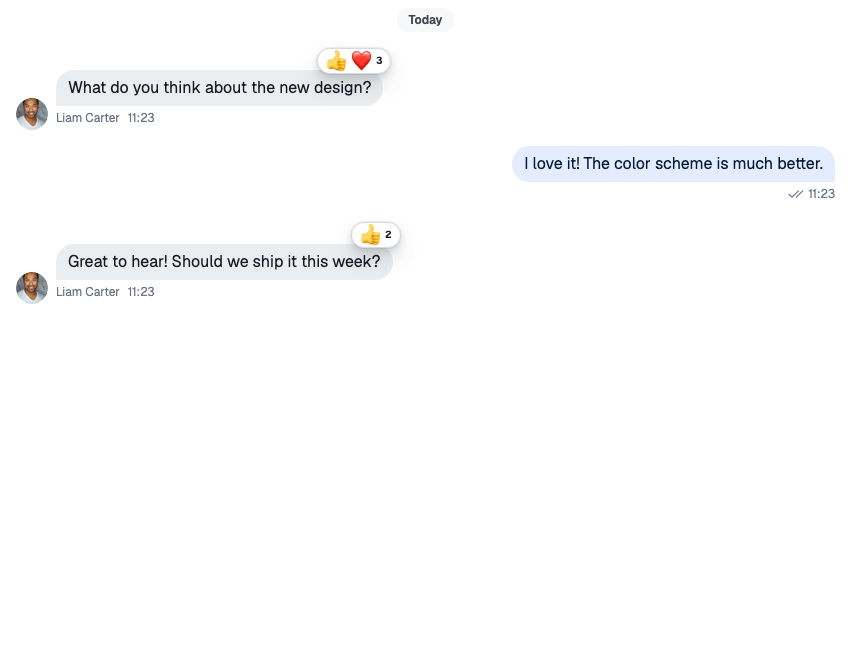 | 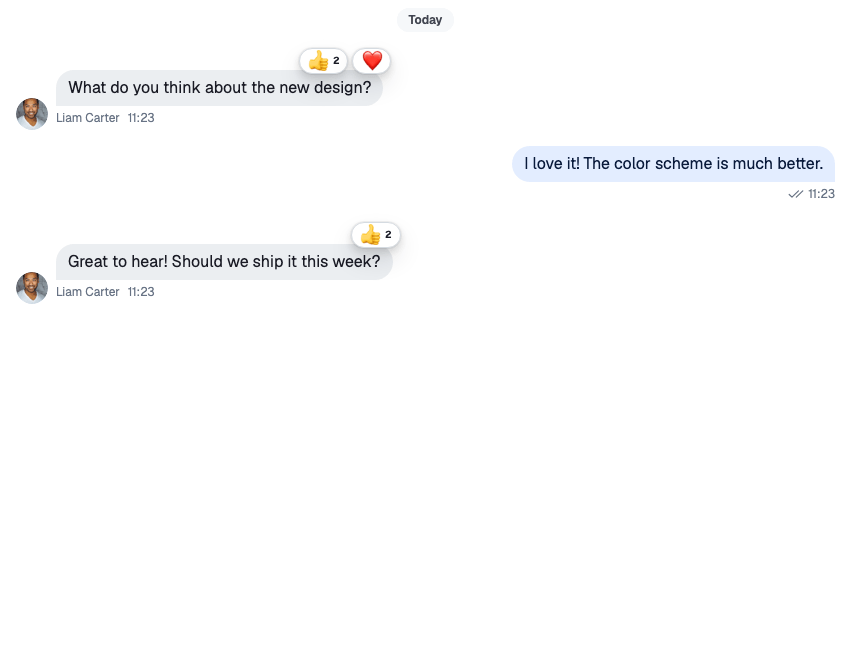 |
## How it works across the layers
### State
A message carries its reactions in three fields:
- `reaction_groups`: one summary per reaction type, with the count and when it was first and last used;
- `latest_reactions`: the most recent reactions, with their users;
- `own_reactions`: the current user's reactions.
The state layer applies `reaction.new`, `reaction.updated` and `reaction.deleted` events to the message, wherever it's shown: the channel's list, a thread, or a thread's parent message.
`MessageOperations.addReaction()` and `MessageOperations.deleteReaction()`, on a channel or a thread, change the message before the request goes out, as [Optimistic updates](https://getstream.io/chat/docs/sdk/react/state/writing-messages/message-operations/#optimistic-updates) explains. A failed request is undone, unless it was queued to be sent later. With `options: { enforce_unique: true }`, `MessageOperations.addReaction()` replaces the user's other reactions on the message.
### UI
The user picks 👍 on Ben's message:
1. `ReactionSelector` calls `handleReaction("like")` from the message context.
2. The handler checks `own_reactions`. The user hasn't reacted with `like` yet, so it adds the reaction; had they, it would remove it.
3. The message updates in the list at once, and the handler sends the request with the reaction's emoji as `emoji_code`, so push notifications can show it. The handler goes through `thread.messageOperations` in a thread and `channel.messageOperations` elsewhere, so it behaves as [described for the state layer](#state). A failure shows no error. Repeated clicks on one reaction are throttled to one request a second.
4. `MessageReactions` re-renders from the message's `reaction_groups` and `own_reactions`, and marks the user's reaction as theirs.
| Part | Component |
| ----------------------------------------------- | ------------------------------------------ |
| The quick reactions | `ReactionSelector` |
| The full list behind **+** | `ReactionSelectorExtendedList` |
| The reactions on a message | `MessageReactions` |
| The dialog that lists who reacted | `MessageReactionsDetail` |
| The reactions that are offered, and their emoji | `reactionOptions` in the component context |
The dialog loads the users with `client.queryReactions()`, 25 at a time, up to 1000 reactions. For a message with more than 1000 reactions, the default `MessageReactions` doesn't open the dialog.
## Turning it on or off
Reactions are always available. The `send-reaction` capability decides who can add them: without it, the message actions leave out the smiley button and **Add reaction**. The server derives the capability from the user's role and the channel type's settings, which include `reactions`.
To hide reactions in your UI, remove the `react` actions from the message action set (see [Actions](https://getstream.io/chat/docs/sdk/react/ui/components/actions/#message-actions)), and replace `MessageReactions` with a component that renders nothing.
## Customizing
### The reactions on offer
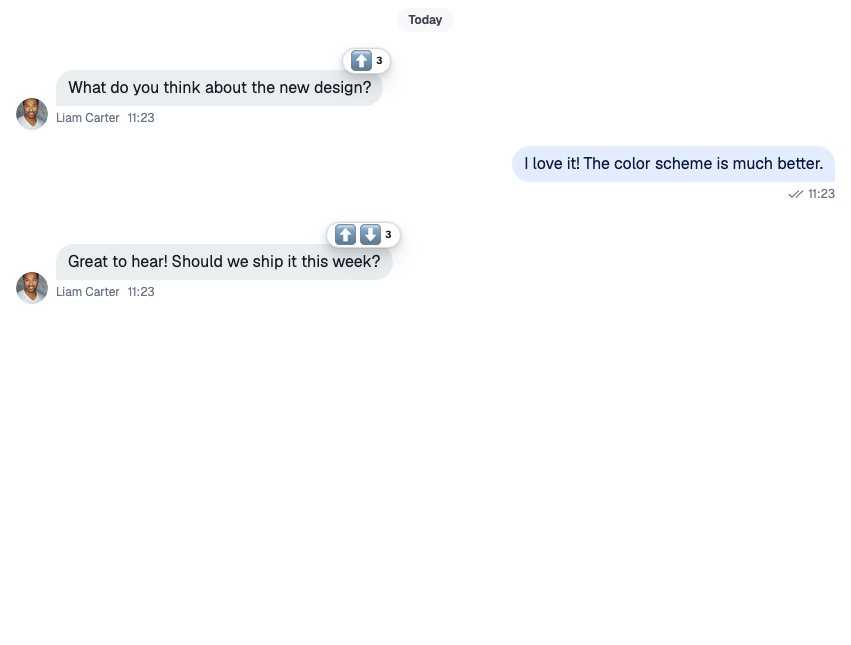
`reactionOptions` in the component context lists the reactions. When it isn't set, the components use `defaultReactionOptions`: six quick reactions and no extended list, so the selector shows no **+** button:
| `type` | Emoji | Name |
| ------ | ----- | ---------- |
| `haha` | 😂 | Joy |
| `like` | 👍 | Thumbs up |
| `love` | ❤️ | Heart |
| `sad` | 😔 | Sad |
| `wow` | 😮 | Astonished |
| `fire` | 🔥 | Fire |
To offer other reactions, set `reactionOptions` with ``, so the selector, the reactions on a message and the dialog all use the same set. `quick` is the row in the selector; `extended` is the full list behind **+**:
```tsx
import type { ReactionOptions } from "stream-chat-react";
import { emojiToUnicode, WithComponents } from "stream-chat-react";
const reactionOptions: ReactionOptions = {
quick: {
arrow_up: {
Component: () => <>⬆️,
name: "Up vote",
unicode: emojiToUnicode("⬆️"),
},
arrow_down: {
Component: () => <>⬇️,
name: "Down vote",
unicode: emojiToUnicode("⬇️"),
},
},
extended: {
fire: {
Component: () => <>🔥,
name: "Fire",
unicode: emojiToUnicode("🔥"),
},
rocket: {
Component: () => <>🚀,
name: "Rocket",
unicode: emojiToUnicode("🚀"),
},
},
};
export const App = () => (
{/* the rest of the app */}
);
```
Each key is the reaction `type` stored on the server. The handler turns `unicode` back into the emoji and sends it as `emoji_code`; leave it out and push notifications have no emoji to show. To offer the whole emoji set as extended reactions, `mapEmojiMartData(data)` turns the `@emoji-mart/data` set into an `extended` map.
### Style and position
`MessageReactions` takes `visualStyle` (`"clustered"` or `"segmented"`) and `verticalPosition` (`"top"` or `"bottom"`). Replace it with a version that sets them:
```tsx
import type { MessageReactionsProps } from "stream-chat-react";
import { MessageReactions, WithComponents } from "stream-chat-react";
const SegmentedReactions = (props: MessageReactionsProps) => (
);
export const App = () => (
{/* the rest of the app */}
);
```
Segmented reactions at the top show at most four chips and a counter for the rest. At the bottom, every reaction type shows.
### Order
By default, reaction types are in the order they were first used on the message. Pass `sortReactions` to `MessageList` or `VirtualizedMessageList` to change it:
```tsx
import type { MessageListProps } from "stream-chat-react";
import { MessageList } from "stream-chat-react";
const byCount: MessageListProps["sortReactions"] = (a, b) =>
b.reactionCount - a.reactionCount;
export const SortedMessageList = () => ;
```
`reactionDetailsSort` on the same lists sets the order of users in the dialog. It's sent to the server with the query, and defaults to the newest first.
### Changing what a reaction does
`ReactionSelector` takes a `handleReaction` prop that replaces the message's handler. This selector allows one reaction per user, through the state layer's `messageOperations`. A plain function component fits the `ReactionSelector` override key:
```tsx
import type { ReactionSelectorProps } from "stream-chat-react";
import {
ReactionSelector,
useChannel,
useMessageContext,
useThreadContext,
WithComponents,
} from "stream-chat-react";
// One reaction per user: a new reaction replaces the previous one.
const SingleReactionSelector = (props: ReactionSelectorProps) => {
const { message } = useMessageContext();
const channel = useChannel();
const thread = useThreadContext();
const { messageOperations } = thread ?? channel;
const handleReaction = async (type: string) => {
const alreadyReacted = message.own_reactions?.some(
(reaction) => reaction.type === type,
);
if (alreadyReacted) {
await messageOperations.deleteReaction({ messageId: message.id, type });
return;
}
await messageOperations.addReaction({
messageId: message.id,
options: { enforce_unique: true },
reaction: { type },
});
};
return ;
};
export const App = () => (
{/* the rest of the app */}
);
```
The handler covers the selector and its extended list. The add step in the reactions dialog still uses the message's handler, unless you also replace `MessageReactionsDetail`.
### The reactions dialog
`MessageReactionsDetail` is an override key. If you rebuild it, keep the default behaviour:
- `selectedReactionType={null}` means "show all reactions". Clicking the selected type again goes back to it. With no type selected, each user's row also shows the emoji they picked.
- The clustered `MessageReactions` opens the dialog showing all reactions; a segmented chip opens it filtered to its type.
- The add button switches the dialog to `ReactionSelectorExtendedList`.
- `MessageReactionsDetailLoadingIndicator` is the default loading skeleton, ready to reuse.
`ReactionSelector`, `ReactionSelectorExtendedList` and `MessageReactions` are override keys too. See [Overriding components](https://getstream.io/chat/docs/sdk/react/ui/components/overriding-components/).
## Reference
- State: [Message operations](https://getstream.io/chat/docs/sdk/react/state/writing-messages/message-operations/), and its [Optimistic updates](https://getstream.io/chat/docs/sdk/react/state/writing-messages/message-operations/#optimistic-updates).
- UI: [Message UI](https://getstream.io/chat/docs/sdk/react/ui/components/message-ui/) and [Overriding components](https://getstream.io/chat/docs/sdk/react/ui/components/overriding-components/).
- Props: [Reaction components](https://getstream.io/chat/docs/sdk/react/component-reference/message/reaction-components/), [MessageContext](https://getstream.io/chat/docs/sdk/react/component-reference/message/messagecontext/) and [MessageList](https://getstream.io/chat/docs/sdk/react/component-reference/message-list/messagelist/).
- Hooks: [Message hooks](https://getstream.io/chat/docs/sdk/react/reference/hooks/message-hooks/).
---
For the most recent version of this documentation, visit [https://getstream.io/chat/docs/sdk/react/features/messaging/reactions/](https://getstream.io/chat/docs/sdk/react/features/messaging/reactions/).