# Custom message

> **Info:** This is release candidate documentation for **Stream Chat React Native SDK v10**. For the latest stable version, see the [latest version (v9)](https://getstream.io/chat/docs/sdk/react-native/).

Every message in a message list is rendered by `Message`, which creates the message's handlers and renders the `MessageItemView` key. The default `MessageItemView` changes a lot through the [theme](https://getstream.io/chat/docs/sdk/react-native/v10/ui/customizing/theming/), and each of its parts has its own override key. When that isn't enough, you replace `MessageItemView` itself. This UI cookbook first decorates the default view, then builds a view of its own step by step, reusing the SDK's parts where they help, and ends with two ways to wrap the default view in a gesture. How overrides apply is explained in [Overriding components](https://getstream.io/chat/docs/sdk/react-native/v10/ui/customizing/overriding-components/#a-custom-messageitemview).

## Best practices

- Restyle the default view, or replace one of its parts, before replacing the whole view. A replacement has to handle every kind of message your app shows.
- Read the message and its handlers with `useMessageContext()`. The SDK passes `MessageItemView` no props.
- Render the message's content with `MessageContent`, or its text with `MessageTextContainer`, so Markdown, links and mentions keep working.
- Attach `contextMenuAnchorRef` to the bubble, and make sure a long press reaches `onLongPress`, or the message menu doesn't open where it should.
- Declare the override object and the components in it at module scope. A message view renders once per row, so keep it shallow and subscribe it only to what it shows.
- Test the result with deleted, failed and edited messages, messages with attachments, quoted replies and polls, and messages in a thread.

## Decorating the default view

Four keys render around a message's content, inside its bubble: `MessageContentTopView`, `MessageContentBottomView`, `MessageContentLeadingView` and `MessageContentTrailingView`. A fifth, `MessageSpacer`, renders last in the message row, beside the content and outside the bubble. They have no default, so the SDK renders nothing for them until you set one. They receive no props and read the message from `MessageContext`.

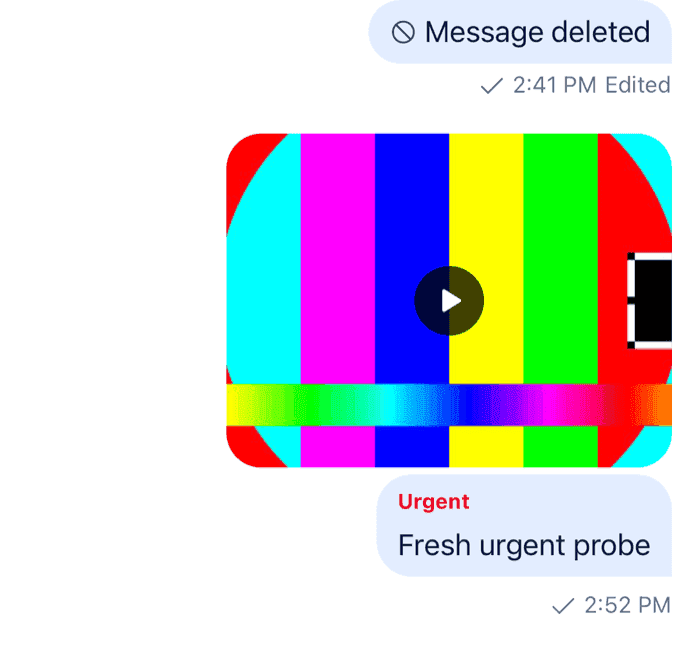
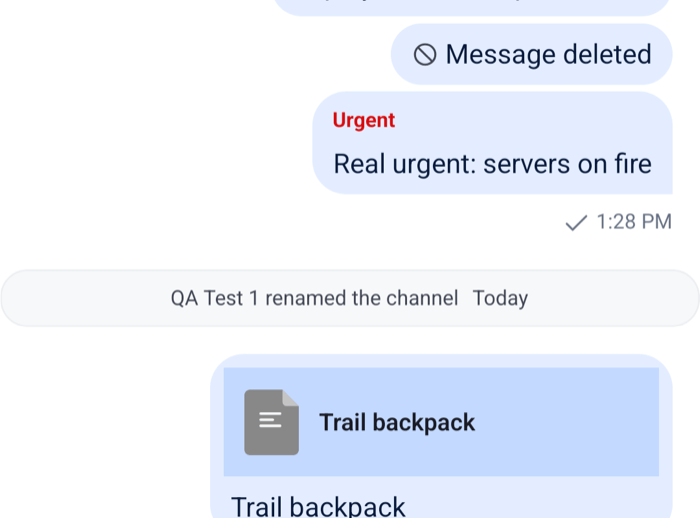
This one puts an "Urgent" label above the content of messages that carry a custom `priority` field:

```tsx title="src/UrgentLabel.tsx"
import { StyleSheet, Text } from "react-native";
import { useMessageContext, useTheme } from "stream-chat-react-native";
import type { ComponentOverrides } from "stream-chat-react-native";

declare module "stream-chat" {
  interface CustomMessageData {
    priority?: "high" | "normal";
  }
}

const UrgentLabel = () => {
  const { message } = useMessageContext();
  const {
    theme: { semantics },
  } = useTheme();

  if (message.custom?.priority !== "high") return null;

  return (
    <Text style={[styles.label, { color: semantics.accentError }]}>Urgent</Text>
  );
};

export const urgentOverrides: ComponentOverrides = {
  MessageContentTopView: UrgentLabel,
};

const styles = StyleSheet.create({
  label: {
    fontSize: 12,
    fontWeight: "700",
    paddingHorizontal: 12,
    paddingTop: 8,
  },
});
```

<table>
  <tr>
  <td align='center' width='50%'>

![An outgoing message with a red Urgent label above its text inside the bubble on iOS](https://getstream.io/docs-assets/images/0cbd5f5b7ad3.png)

  </td>
  <td align='center' width='50%'>

![An outgoing message with a red Urgent label above its text inside the bubble on Android](https://getstream.io/docs-assets/images/2e677e5b9314.png)

  </td>
  </tr>
</table>

Pass `urgentOverrides` to a `WithComponents` around your channel screen. The label renders inside the bubble, so it takes the bubble's background and shape. `MessageContentLeadingView` and `MessageContentTrailingView` add a row around the content only while one of them is set. Where custom fields come from, and the `declare module` block that types them, is explained in [Data conventions](https://getstream.io/chat/docs/sdk/react-native/v10/state/state-and-entities/data-conventions/#custom-data-types).

The other parts of the default view, such as `MessageHeader`, `MessageFooter`, `MessageAuthor` and `MessageStatus`, are override keys too. The table on [Message list UI](https://getstream.io/chat/docs/sdk/react-native/v10/ui/components/message-list-ui/#a-message) lists them.

## Building a message view

The rest of this UI cookbook builds `ChatMessage`, a view with the sender's name above the bubble and the time, the status and the reactions below it. Each step adds one part.

### Text and the message menu

Start with the text, and the long press that opens the message menu:

```tsx title="src/ChatMessage.tsx"
import { Pressable, StyleSheet, View } from "react-native";
import {
  MessageTextContainer,
  useMessageContext,
} from "stream-chat-react-native";
import type { ComponentOverrides } from "stream-chat-react-native";

const ChatMessage = () => {
  const { alignment, contextMenuAnchorRef, onLongPress } = useMessageContext();

  return (
    <View style={[styles.row, alignment === "right" && styles.rowRight]}>
      <Pressable
        onLongPress={(event) => onLongPress({ emitter: "message", event })}
      >
        <View ref={contextMenuAnchorRef} style={styles.bubble}>
          <MessageTextContainer />
        </View>
      </Pressable>
    </View>
  );
};

export const messageOverrides: ComponentOverrides = {
  MessageItemView: ChatMessage,
};

const styles = StyleSheet.create({
  bubble: { borderRadius: 16, maxWidth: 280, padding: 8 },
  row: { flexDirection: "row", paddingHorizontal: 8, paddingVertical: 2 },
  rowRight: { justifyContent: "flex-end" },
});
```

Pass `messageOverrides` to a `WithComponents` around `Channel` and `Thread`, or around the whole app:

1. `Message` puts the message, its alignment and its handlers into [`MessageContext`](https://getstream.io/chat/docs/sdk/react-native/v10/component-reference/message/messagecontext/), then renders `ChatMessage`.
2. `alignment` is `"right"` for the current user's messages and `"left"` for everyone else's, unless `forceAlignMessages` on `Channel` puts them all on one side.
3. `MessageTextContainer` renders the text with the SDK's Markdown rules, mentions and links.
4. A long press calls `onLongPress`, which opens the message menu: the reactions above the message and the actions below it. The menu lines up with the view in `contextMenuAnchorRef`.

>
> **Note:** Every component inside a message reads `MessageContext` with `useMessageContext()`: the message, its alignment and group, its attachments sorted by kind, and the handlers for its actions. Read only what the component shows.
>

### Avatar and name

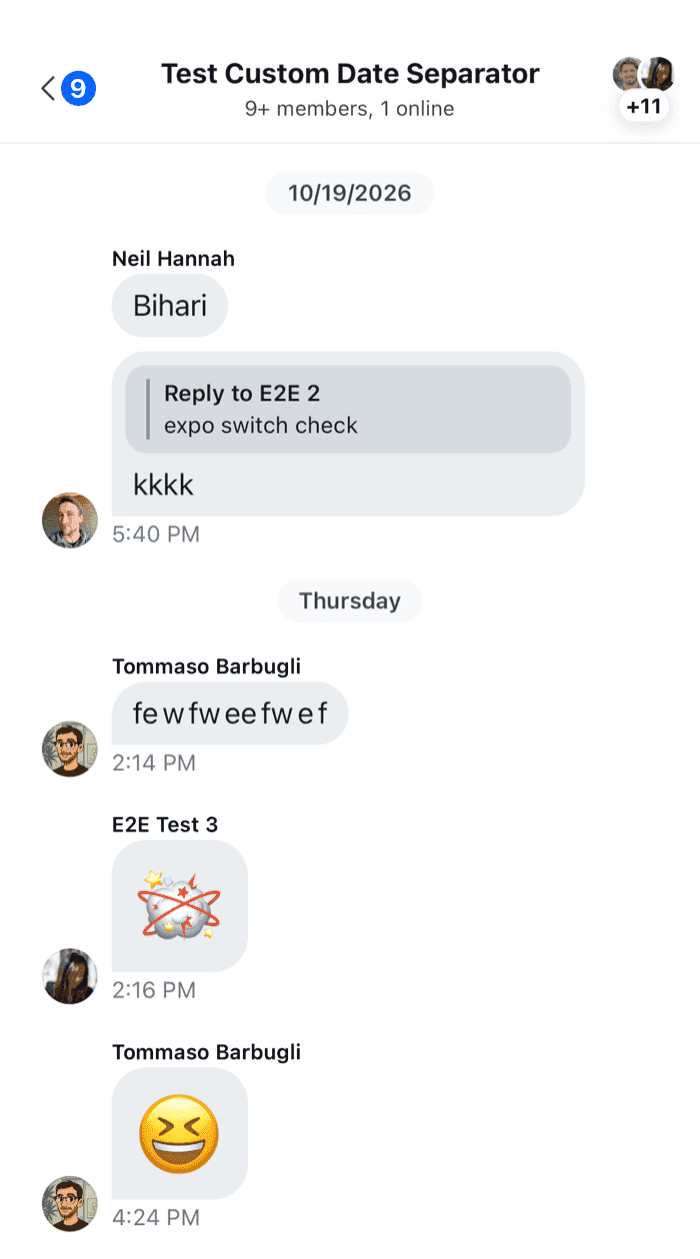
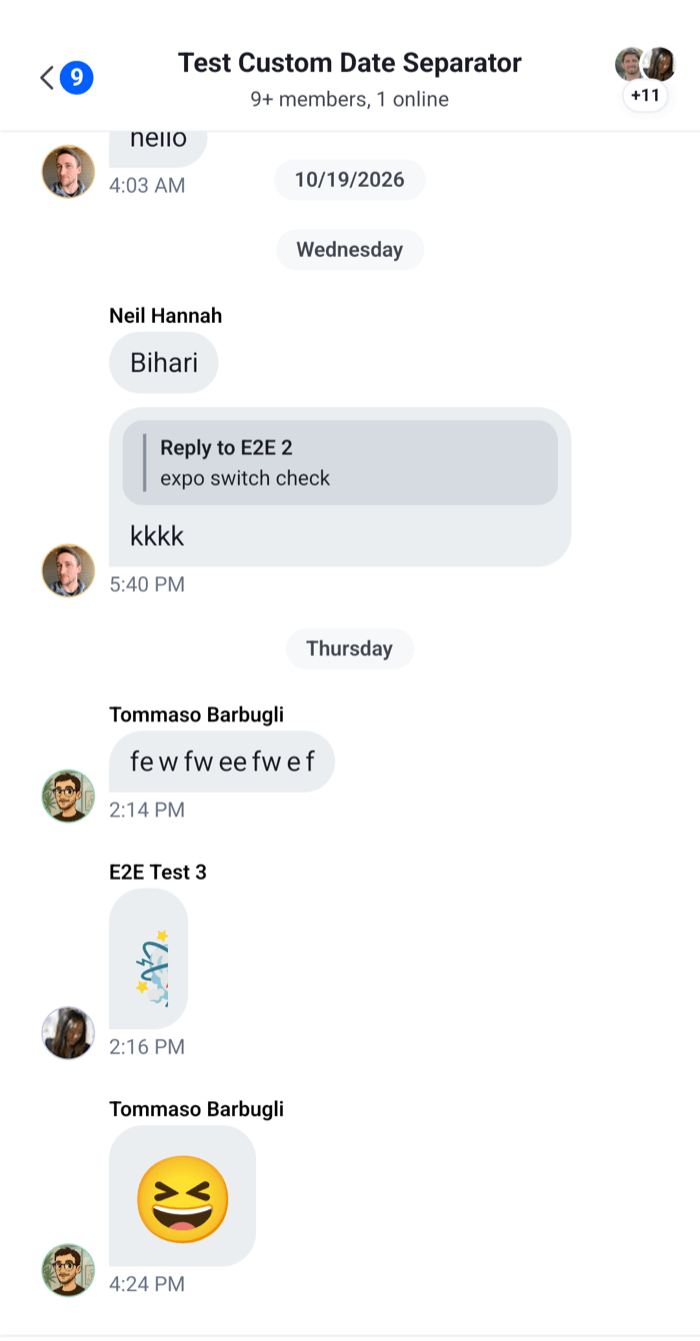
Messages from the same user, sent one after another, form a group. `groupStyles[0]` says where a message sits in its group: `"top"`, `"middle"`, `"bottom"` or `"single"`. The name goes on the first message of a group, and `MessageAuthor` renders the avatar on the last one, and an empty space of the same width on the others, so the bubbles of a group line up:

```tsx
const ChatMessage = () => {
  const { alignment, contextMenuAnchorRef, groupStyles, message, onLongPress } =
    useMessageContext();
  const isLeft = alignment === "left";
  const firstInGroup = groupStyles[0] === "top" || groupStyles[0] === "single";

  return (
    <View style={[styles.row, !isLeft && styles.rowRight]}>
      {isLeft ? <MessageAuthor /> : null}
      <View style={[styles.column, !isLeft && styles.columnRight]}>
        {isLeft && firstInGroup ? (
          <Text style={styles.name}>
            {message.user?.name ?? message.user?.id}
          </Text>
        ) : null}
        <Pressable
          onLongPress={(event) => onLongPress({ emitter: "message", event })}
        >
          <View ref={contextMenuAnchorRef} style={styles.bubble}>
            <MessageTextContainer />
          </View>
        </Pressable>
      </View>
    </View>
  );
};
```

The default view shows the sender's name in the footer of other users' messages, except in channels with exactly two members. Read `channel.state` through `useStateStore` if your view needs the member count, with a selector declared at module scope, as [Reading state in components](https://getstream.io/chat/docs/sdk/react-native/v10/ui/reading-state-in-components/) explains.

### Time, status and edits

The footer shows when the message was sent, whether it was edited, and, on the user's own messages, its status. Server timestamps are nanosecond numbers, and `convertTimestampToDate` from `stream-chat` turns one into a `Date`:

```tsx
const ChatMessageFooter = () => {
  const { lastGroupMessage, message, showMessageStatus } = useMessageContext();
  const { t } = useTranslationContext();
  const createdAt = useMemo(
    () => convertTimestampToDate(message.created_at),
    [message.created_at],
  );

  // Like the default footer, only the last message of a group shows it, unless it's on its way.
  if (!lastGroupMessage && message.status === "received") return null;

  return (
    <View style={styles.footer}>
      {showMessageStatus ? <MessageStatus /> : null}
      <MessageTimestamp timestamp={createdAt} />
      {isEditedMessage(message) ? (
        <Text style={styles.footerText}>
          {t("message.edited.text", "Edited")}
        </Text>
      ) : null}
    </View>
  );
};
```

Render `<ChatMessageFooter />` under the bubble.

- `MessageTimestamp` formats the date with the `timestamp.MessageTimestamp` translation key, so it follows the user's language and your [date formats](https://getstream.io/chat/docs/sdk/react-native/v10/ui/customizing/localization/#date-and-time-formatting).
- `showMessageStatus` is `true` on the user's own messages. `MessageStatus` shows a clock while the message is sending, then one check, two checks once another member received it, and two checks in the accent color once someone read it. The [Status indicators](https://getstream.io/chat/docs/sdk/react-native/v10/ui-cookbook/message/status-indicators/) UI cookbook changes it.
- `isEditedMessage(message)` is `true` once the text was edited.

### Replies and reactions

In a channel, a message that started a thread shows a button with its reply count, which opens the thread. Inside a `Thread`, `useThreadContext().thread` is set, and the button doesn't belong there:

```tsx
const { thread } = useThreadContext();

// under the bubble
<ReactionListBottom />;
{
  !thread && message.reply_count ? <MessageReplies /> : null;
}
```

`ReactionListBottom` renders nothing when the message has no reactions. Without a `type` prop it renders the clustered list, whatever `reactionListType` on `Channel` says, and tapping it opens the list of who reacted. `MessageReplies` calls `onOpenThread` from the context, which calls the `onThreadSelect` you passed to the message list with the message's `Thread`. Both read the message from context, so they need no props.

### Attachments, quoted replies and polls

`MessageTextContainer` renders only the text. Replace it with `MessageContent`, which renders everything a message can hold, in the order of `messageContentOrder` on `Channel`: the quoted message, the gallery, files, a poll, other attachments, a shared location (through the `MessageLocation` key, which has no default) and the text. It handles taps on each part, and calls `onLongPress` itself on a long press, so the `Pressable` can go:

```tsx
const {
  theme: { semantics },
} = useTheme();

<View ref={contextMenuAnchorRef}>
  <MessageContent
    backgroundColor={
      isMyMessage ? semantics.chatBgOutgoing : semantics.chatBgIncoming
    }
  />
</View>;
```

`MessageContent` draws the bubble with the `backgroundColor` you pass, and leaves it transparent without one. The theme's `chatBgOutgoing` and `chatBgIncoming` are the colors the default view uses. The four content slots from [Decorating the default view](#decorating-the-default-view) render inside `MessageContent`, so they keep working.

### Deleted and failed messages

A deleted message has `type: "deleted"` and keeps its place in the list. A message that failed to send has `status: "failed"`, and one the server rejected has `type: "error"`. Tapping one opens the message menu, with retry, edit and delete, and a message that moderation bounced opens a dialog with its options instead. `MessageError` is the badge the default view puts on its bubble:

```tsx
if (message.type === "deleted") {
  return (
    <View style={[styles.row, !isLeft && styles.rowRight]}>
      <Text style={styles.deleted}>
        {t("message.deleted.text", "Message deleted")}
      </Text>
    </View>
  );
}

const failed = message.type === "error" || message.status === "failed";

// next to MessageContent
{
  failed ? <MessageError /> : null;
}
```

System messages, such as "Cleo joined the channel", never reach `MessageItemView`. The list renders them with `MessageSystem`. Blocked messages go to `MessageBlocked`.

### Complete example

```tsx title="src/ChatMessage.tsx"
import { useMemo } from "react";
import { StyleSheet, Text, View } from "react-native";
import { convertTimestampToDate } from "stream-chat";
import {
  isEditedMessage,
  MessageAuthor,
  MessageContent,
  MessageError,
  MessageReplies,
  MessageStatus,
  MessageTimestamp,
  ReactionListBottom,
  useMessageContext,
  useTheme,
  useThreadContext,
  useTranslationContext,
} from "stream-chat-react-native";
import type { ComponentOverrides } from "stream-chat-react-native";

const ChatMessageFooter = () => {
  const { lastGroupMessage, message, showMessageStatus } = useMessageContext();
  const { t } = useTranslationContext();
  const createdAt = useMemo(
    () => convertTimestampToDate(message.created_at),
    [message.created_at],
  );

  // Like the default footer, only the last message of a group shows it, unless it's on its way.
  if (!lastGroupMessage && message.status === "received") return null;

  return (
    <View style={styles.footer}>
      {showMessageStatus ? <MessageStatus /> : null}
      <MessageTimestamp timestamp={createdAt} />
      {isEditedMessage(message) ? (
        <Text style={styles.footerText}>
          {t("message.edited.text", "Edited")}
        </Text>
      ) : null}
    </View>
  );
};

const ChatMessage = () => {
  const { alignment, contextMenuAnchorRef, groupStyles, isMyMessage, message } =
    useMessageContext();
  const { thread } = useThreadContext();
  const { t } = useTranslationContext();
  const {
    theme: { semantics },
  } = useTheme();

  const isLeft = alignment === "left";
  const firstInGroup = groupStyles[0] === "top" || groupStyles[0] === "single";
  const failed = message.type === "error" || message.status === "failed";

  if (message.type === "deleted") {
    return (
      <View style={[styles.row, !isLeft && styles.rowRight]}>
        <Text style={styles.deleted}>
          {t("message.deleted.text", "Message deleted")}
        </Text>
      </View>
    );
  }

  return (
    <View style={[styles.row, !isLeft && styles.rowRight]}>
      {isLeft ? <MessageAuthor /> : null}
      <View style={[styles.column, !isLeft && styles.columnRight]}>
        {isLeft && firstInGroup ? (
          <Text style={styles.name}>
            {message.user?.name ?? message.user?.id}
          </Text>
        ) : null}
        <View ref={contextMenuAnchorRef} style={styles.bubble}>
          <MessageContent
            backgroundColor={
              isMyMessage ? semantics.chatBgOutgoing : semantics.chatBgIncoming
            }
          />
          {failed ? <MessageError /> : null}
        </View>
        <ReactionListBottom />
        {!thread && message.reply_count ? <MessageReplies /> : null}
        <ChatMessageFooter />
      </View>
    </View>
  );
};

// Declared once, at module scope.
export const messageOverrides: ComponentOverrides = {
  MessageItemView: ChatMessage,
};

const styles = StyleSheet.create({
  bubble: { alignItems: "flex-start", flexDirection: "row", gap: 4 },
  column: { alignItems: "flex-start", flexShrink: 1, gap: 2, maxWidth: "80%" },
  columnRight: { alignItems: "flex-end" },
  deleted: { fontStyle: "italic", opacity: 0.6, padding: 8 },
  footer: { alignItems: "center", flexDirection: "row", gap: 4 },
  footerText: { fontSize: 12, opacity: 0.6 },
  name: { fontSize: 12, fontWeight: "600" },
  row: {
    alignItems: "flex-end",
    flexDirection: "row",
    gap: 8,
    paddingHorizontal: 8,
    paddingVertical: 2,
  },
  rowRight: { justifyContent: "flex-end" },
});
```

<table>
  <tr>
  <td align='center' width='50%'>

![Messages rendered by the custom view, with the sender name above a group and the avatar beside its last message on iOS](https://getstream.io/docs-assets/images/8915a55a0137.png)

  </td>
  <td align='center' width='50%'>

![Messages rendered by the custom view, with the sender name above a group and the avatar beside its last message on Android](https://getstream.io/docs-assets/images/ae6e179ac685.png)

  </td>
  </tr>
</table>

Register it on a `WithComponents` around your channel and thread screens, or around the whole app:

```tsx
<WithComponents overrides={messageOverrides}>
  <Channel channel={channel}>
    <MessageList />
    <MessageComposer />
  </Channel>
</WithComponents>
```

`ChatMessage` doesn't render `MessageHeader`, so the marks the default view shows above a message are gone: "Pinned by", the reminder and "Saved For Later" labels, and "Also sent in channel". Render `<MessageHeader />` above the name to keep them. The default view also quotes a message when the user swipes it to the right, or to the left in a right-to-left layout. A view of your own doesn't, unless it adds the gesture itself.

## Wrapping the default view

Some changes need the default view as it is, with something around it. The SDK's `MessageItemView` is exported, so a replacement can render it inside a gesture or a container of its own.

### Double tap to react

A double tap on a message adds a love reaction, or removes it if the user already gave one. `handleReaction` from `MessageContext` is the handler the reaction picker uses: it calls the `handleReaction` prop of `Channel` first, toggles the reaction through the channel or the thread, and is `undefined` on failed messages:

```tsx title="src/DoubleTapMessage.tsx"
import { useMemo } from "react";
import { Gesture, GestureDetector } from "react-native-gesture-handler";
import {
  MessageItemView,
  useMessageContext,
  useOwnCapabilitiesContext,
} from "stream-chat-react-native";
import type { ComponentOverrides } from "stream-chat-react-native";

const DoubleTapMessage = () => {
  const { handleReaction } = useMessageContext();
  const { sendReaction } = useOwnCapabilitiesContext();

  const doubleTap = useMemo(
    () =>
      Gesture.Tap()
        .numberOfTaps(2)
        .maxDistance(8)
        .runOnJS(true)
        .enabled(!!handleReaction && sendReaction)
        .onEnd((_event, success) => {
          if (success) void handleReaction?.("love");
        }),
    [handleReaction, sendReaction],
  );

  return (
    <GestureDetector gesture={doubleTap}>
      <MessageItemView />
    </GestureDetector>
  );
};

export const doubleTapOverrides: ComponentOverrides = {
  MessageItemView: DoubleTapMessage,
};
```

`runOnJS(true)` runs the callbacks on the JavaScript thread, where the handler lives. The gesture is off for users without the `send-reaction` capability. `love` is one of the default reaction types; with your own [`supportedReactions`](https://getstream.io/chat/docs/sdk/react-native/v10/ui-cookbook/message/custom-reactions/), use a type from your list, or the reaction is saved but no message shows it.

### Swipe to delete

The default view quotes a message when the user swipes it. This one instead reveals a Delete button when the user swipes a message they can delete to the left. It uses `ReanimatedSwipeable` from `react-native-gesture-handler`, and `handleDeleteMessage` from `useMessageActionHandlers()`, which asks for confirmation and then deletes the message:

```tsx title="src/SwipeToDeleteMessage.tsx"
import { useCallback } from "react";
import { Pressable, StyleSheet, Text } from "react-native";
import ReanimatedSwipeable from "react-native-gesture-handler/ReanimatedSwipeable";
import type { SwipeableMethods } from "react-native-gesture-handler/ReanimatedSwipeable";
import {
  MessageItemView,
  useMessageActionHandlers,
  useMessageContext,
  useOwnCapabilitiesContext,
  useTheme,
} from "stream-chat-react-native";
import type { ComponentOverrides } from "stream-chat-react-native";

const SwipeToDeleteMessage = () => {
  const { isMyMessage, message } = useMessageContext();
  const { deleteAnyMessage, deleteOwnMessage } = useOwnCapabilitiesContext();
  const { handleDeleteMessage } = useMessageActionHandlers();
  const {
    theme: { semantics },
  } = useTheme();

  const canDelete =
    message.type !== "deleted" &&
    ((isMyMessage && deleteOwnMessage) || (!isMyMessage && deleteAnyMessage));

  const renderRightActions = useCallback(
    (
      _progress: unknown,
      _translation: unknown,
      swipeable: SwipeableMethods,
    ) => (
      <Pressable
        accessibilityRole="button"
        onPress={() => {
          swipeable.close();
          handleDeleteMessage();
        }}
        style={[styles.action, { backgroundColor: semantics.accentError }]}
      >
        <Text style={styles.actionText}>Delete</Text>
      </Pressable>
    ),
    [handleDeleteMessage, semantics.accentError],
  );

  if (!canDelete) return <MessageItemView />;

  return (
    <ReanimatedSwipeable
      friction={2}
      overshootRight={false}
      renderRightActions={renderRightActions}
    >
      <MessageItemView />
    </ReanimatedSwipeable>
  );
};

export const swipeOverrides: ComponentOverrides = {
  MessageItemView: SwipeToDeleteMessage,
};

const styles = StyleSheet.create({
  action: { justifyContent: "center", paddingHorizontal: 20 },
  actionText: { color: "white", fontWeight: "600" },
});
```

Pass `enableSwipeToReply={false}` to `Channel` and `Thread` with this override, so the default view's own swipe doesn't compete with the new one. `useMessageActionHandlers()` returns the handlers `Message` built for this message, so calling it in every row costs nothing; the other handlers it returns are listed in [Actions](https://getstream.io/chat/docs/sdk/react-native/v10/ui/customizing/actions/#message-actions-in-your-own-components). The check mirrors the one the SDK uses for its own delete action.

## Read more

- [Overriding components](https://getstream.io/chat/docs/sdk/react-native/v10/ui/customizing/overriding-components/): how `WithComponents` merges overrides, and why they're read once.
- [Message list UI](https://getstream.io/chat/docs/sdk/react-native/v10/ui/components/message-list-ui/): what the list renders around each message.
- [Message UI components](https://getstream.io/chat/docs/sdk/react-native/v10/component-reference/message/message-ui-components/): every part of the default view and its props.
- [Incoming and outgoing styles](https://getstream.io/chat/docs/sdk/react-native/v10/ui-cookbook/message/incoming-and-outgoing-styles/): restyling the user's own messages without replacing the view.
- [Pin indicator](https://getstream.io/chat/docs/sdk/react-native/v10/ui-cookbook/message/pin-indicator/): restyling or replacing the "Pinned by" line above a pinned message.
- [System message](https://getstream.io/chat/docs/sdk/react-native/v10/ui-cookbook/message/system-message/): restyling or replacing `MessageSystem`, which renders system messages in place of the message view.

---

For the most recent version of this documentation, visit [https://getstream.io/chat/docs/sdk/react-native/v10/ui-cookbook/message/custom-message/](https://getstream.io/chat/docs/sdk/react-native/v10/ui-cookbook/message/custom-message/).