# Custom member roles
> **Info:** This is release candidate documentation for **Stream Chat React Native SDK v10**. For the latest stable version, see the [latest version (v9)](https://getstream.io/chat/docs/sdk/react-native/).
Each member row in channel details can show role badges after the member's name. By default, the creator of the channel is **Owner**, a user whose role is `admin` is **Admin**, and a member whose channel role is `channel_moderator` is **Moderator**. This UI cookbook adds a **VIP** badge from a custom user field, replaces the rules with roles of your own, and styles one badge differently from the others. How the members section and the member list work is explained in [Channel details and members](https://getstream.io/chat/docs/sdk/react-native/v10/features/channels/channel-details-and-members/).
## Best practices
- Start from `defaultRoleLabels` and add to it, so members keep their default roles.
- Return an empty list to show no badges for a member.
- Pass `getMemberRoles` through an override of `ChannelMemberItem`. The lists render the row without it, and one override covers every place that renders the row.
- Translate the labels with `t`. The default labels are translation keys of the SDK, and your own roles take keys of your own with `asDynamicKey`.
- Style a badge through the `RoleItem` override and its `role.key`. The theme only tells the Owner badge apart from the others.
## Add a VIP badge
`getMemberRoles` receives the `channel`, the `member`, `t` and `defaultRoleLabels`, the roles the SDK computed for the member, and returns the roles to show. Each role is a `RoleLabel`: a `key` that identifies it and the `label` the badge shows. This one adds VIP for users the app marks with a custom `vip` field:
```tsx title="src/MemberItem.tsx"
import { asDynamicKey, ChannelMemberItem } from "stream-chat-react-native";
import type {
ChannelMemberItemProps,
GetMemberRoles,
} from "stream-chat-react-native";
declare module "stream-chat" {
interface CustomUserData {
vip?: boolean;
}
}
const getMemberRoles: GetMemberRoles = ({ defaultRoleLabels, member, t }) =>
member.user?.custom?.vip
? [
...defaultRoleLabels,
{
key: "vip",
label: t(asDynamicKey("myApp.memberRoles.vip.label"), "VIP"),
},
]
: defaultRoleLabels;
export const MemberItem = (props: ChannelMemberItemProps) => (
);
```
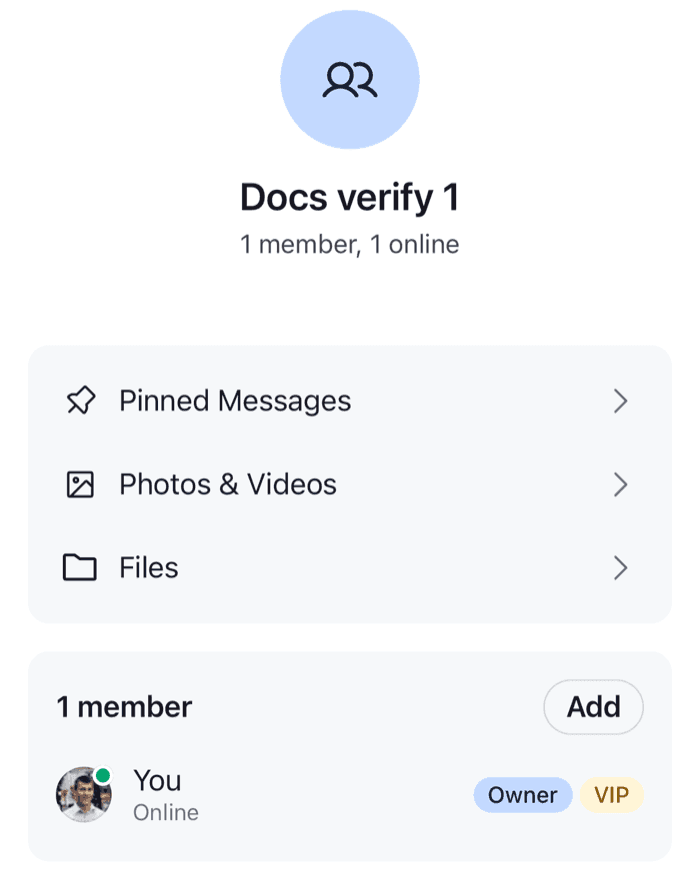
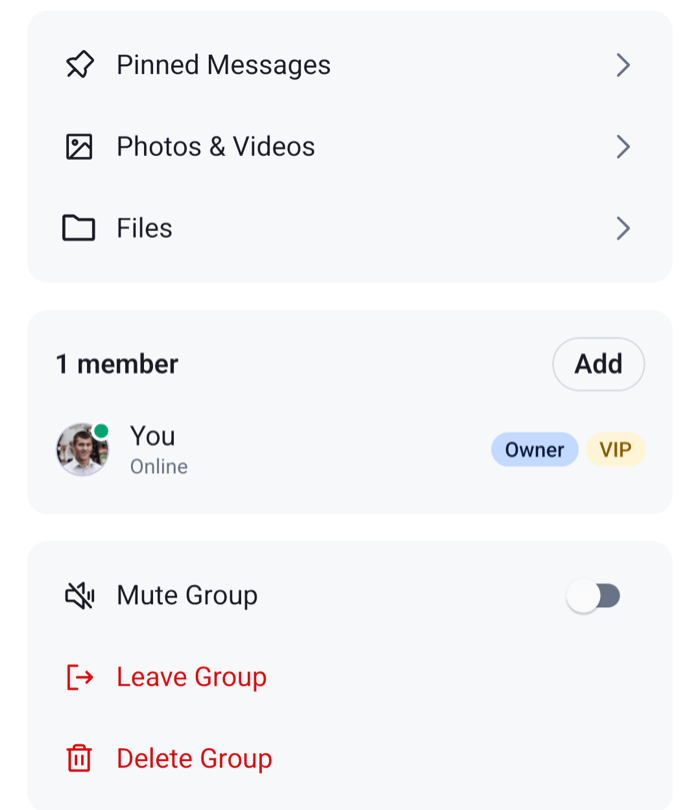
A user's custom fields live under `user.custom`, and the `declare module` block types the field; see [Custom data types](https://getstream.io/chat/docs/sdk/react-native/v10/state/state-and-entities/data-conventions/#custom-data-types). The badges render in the order the function returns them, after the mute icon of a muted member.
## Register it
`ChannelMemberItem` renders each row in the members section, in the full member list, and at the top of the member sheet. Register the override with `WithComponents` inside `ChannelDetailsContextProvider`, and declare the overrides once:
```tsx title="src/ChannelDetailsScreen.tsx"
import type { Channel as StreamChannel } from "stream-chat";
import {
ChannelDetails,
ChannelDetailsContextProvider,
WithComponents,
} from "stream-chat-react-native";
import type { ComponentOverrides } from "stream-chat-react-native";
import { MemberItem } from "./MemberItem";
const overrides: ComponentOverrides = { ChannelMemberItem: MemberItem };
export const ChannelDetailsScreen = ({
channel,
onBack,
}: {
channel: StreamChannel;
onBack: () => void;
}) => (
);
```
The override forwards the props the lists pass, `onPress` among them, so tapping a member still opens the member sheet.
## Replace the rules
To decide the roles yourself, ignore `defaultRoleLabels`. This function shows a single Admin badge for users with the app's own `team_admin` role, and no badges for anyone else, the channel's creator included:
```ts title="src/memberRoles.ts"
import type { GetMemberRoles, RoleLabel } from "stream-chat-react-native";
export const getMemberRoles: GetMemberRoles = ({ member, t }) => {
const roles: RoleLabel[] = [];
if (member.user?.role === "team_admin") {
roles.push({
key: "admin",
label: t("channelDetails.memberRoles.admin.label", "Admin"),
});
}
return roles;
};
```
The label reuses the SDK's key for Admin, so it follows your translations of that key. Pass the function to `ChannelMemberItem` in the override, as above.
## Style a badge
`RoleItem` renders each badge, and receives `role`, the `RoleLabel`, with optional `viewStyle` and `textStyle`, which apply over the badge's default and theme styles. This override gives the VIP badge its own colors and keeps the default for the others:
```tsx title="src/VipRoleItem.tsx"
import { StyleSheet } from "react-native";
import { RoleItem } from "stream-chat-react-native";
import type {
ComponentOverrides,
RoleItemProps,
} from "stream-chat-react-native";
const VipRoleItem = (props: RoleItemProps) => (
);
export const roleOverrides: ComponentOverrides = { RoleItem: VipRoleItem };
const styles = StyleSheet.create({
vipBadge: { backgroundColor: "#FFF4D6" },
vipText: { color: "#8A5A00" },
});
```
Add `RoleItem: VipRoleItem` to the `overrides` of `ChannelDetailsScreen`, next to `ChannelMemberItem`. `RoleList` renders `RoleItem` from the override key, once for each role.
To restyle every badge instead, use the theme's `channelDetails.roleItem`: `container` and `text` for all badges, `ownerBackgroundColor` and `ownerColor` for Owner, and `roleBackgroundColor` and `roleColor` for every other role. See the [Theme object](https://getstream.io/chat/docs/sdk/react-native/v10/reference/theme/theme-object/).
---
For the most recent version of this documentation, visit [https://getstream.io/chat/docs/sdk/react-native/v10/ui-cookbook/channel-details/custom-member-roles/](https://getstream.io/chat/docs/sdk/react-native/v10/ui-cookbook/channel-details/custom-member-roles/).