# Custom channel actions

> **Info:** This is release candidate documentation for **Stream Chat React Native SDK v10**. For the latest stable version, see the [latest version (v9)](https://getstream.io/chat/docs/sdk/react-native/).

The actions section at the bottom of channel details lists what the user can do with the channel: mute it, leave it, delete it, and in a direct message channel mute or block the other person. This UI cookbook changes that list. It adds Pin and Archive actions, hides an action, replaces the list with one of its own, and leaves the screen once the channel is gone. Every channel action, with its id and when it shows, is listed in [Actions](https://getstream.io/chat/docs/sdk/react-native/v10/ui/customizing/actions/#channel-actions).

## Best practices

- Start from `defaultItems` and add, filter or replace items, rather than building the list from scratch. Items you leave alone keep their behavior.
- Run the handlers on `context.actions`, such as `pin` and `archive`, instead of calling the channel yourself. They publish a success or error notification and never throw.
- Take icons from `context.icons`, so icon overrides apply to your items too.
- Keep the ids of the default items you replace. Channel details renders `mute` and `muteUser` as switches, and calls `onChannelDismiss` for `leave`, `deleteChannel` and `block`.
- Pass `getChannelActionItems` through an override of `ChannelDetailsActionsSection`. `ChannelDetails` renders the section without props.
- Declare `getChannelActionItems` at module scope, or wrap it in `useCallback`. The section builds its items again when the function changes.

## Add Pin and Archive

Channel details has no pin or archive action by default. The channel list's options sheet has Pin, and neither has Archive. The handlers exist on `context.actions` for both, so this function adds them after the default items:

```ts title="src/channelActionItems.ts"
import { asDynamicKey } from "stream-chat-react-native";
import type {
  ChannelActionItem,
  GetChannelActionItems,
} from "stream-chat-react-native";

export const getChannelActionItems: GetChannelActionItems = ({
  context,
  defaultItems,
}) => {
  const { actions, icons, isArchived, isDirectChat, isPinned, t } = context;

  const pin: ChannelActionItem = {
    action: isPinned ? actions.unpin : actions.pin,
    Icon: isPinned ? icons.Unpin : icons.Pin,
    id: "pin",
    label: isPinned
      ? isDirectChat
        ? t("channel.unpinChat.label", "Unpin Chat")
        : t("channel.unpinGroup.label", "Unpin Group")
      : isDirectChat
        ? t("channel.pinChat.label", "Pin Chat")
        : t("channel.pinGroup.label", "Pin Group"),
    placement: "sheet",
    type: "standard",
  };

  const archive: ChannelActionItem = {
    action: isArchived ? actions.unarchive : actions.archive,
    Icon: icons.Folder,
    id: "archive",
    label: isArchived
      ? t(asDynamicKey("myApp.channel.unarchive.label"), "Unarchive")
      : t(asDynamicKey("myApp.channel.archive.label"), "Archive"),
    placement: "sheet",
    type: "standard",
  };

  return [...defaultItems, pin, archive];
};
```

<table>
  <tr>
  <td align='center' width='50%'>

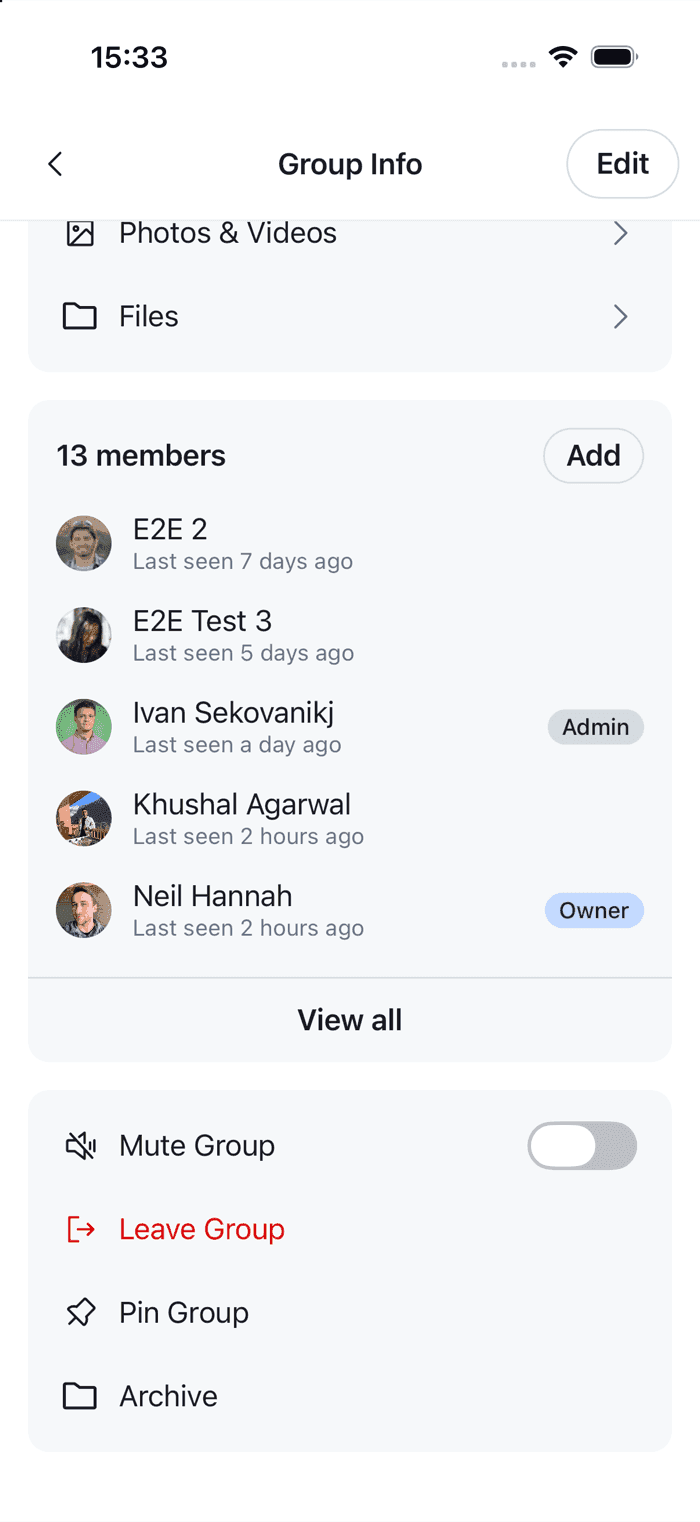
![The channel details actions with Pin Group and Archive after Mute and Leave on iOS](https://getstream.io/docs-assets/images/64cd32995043.png)

  </td>
  <td align='center' width='50%'>

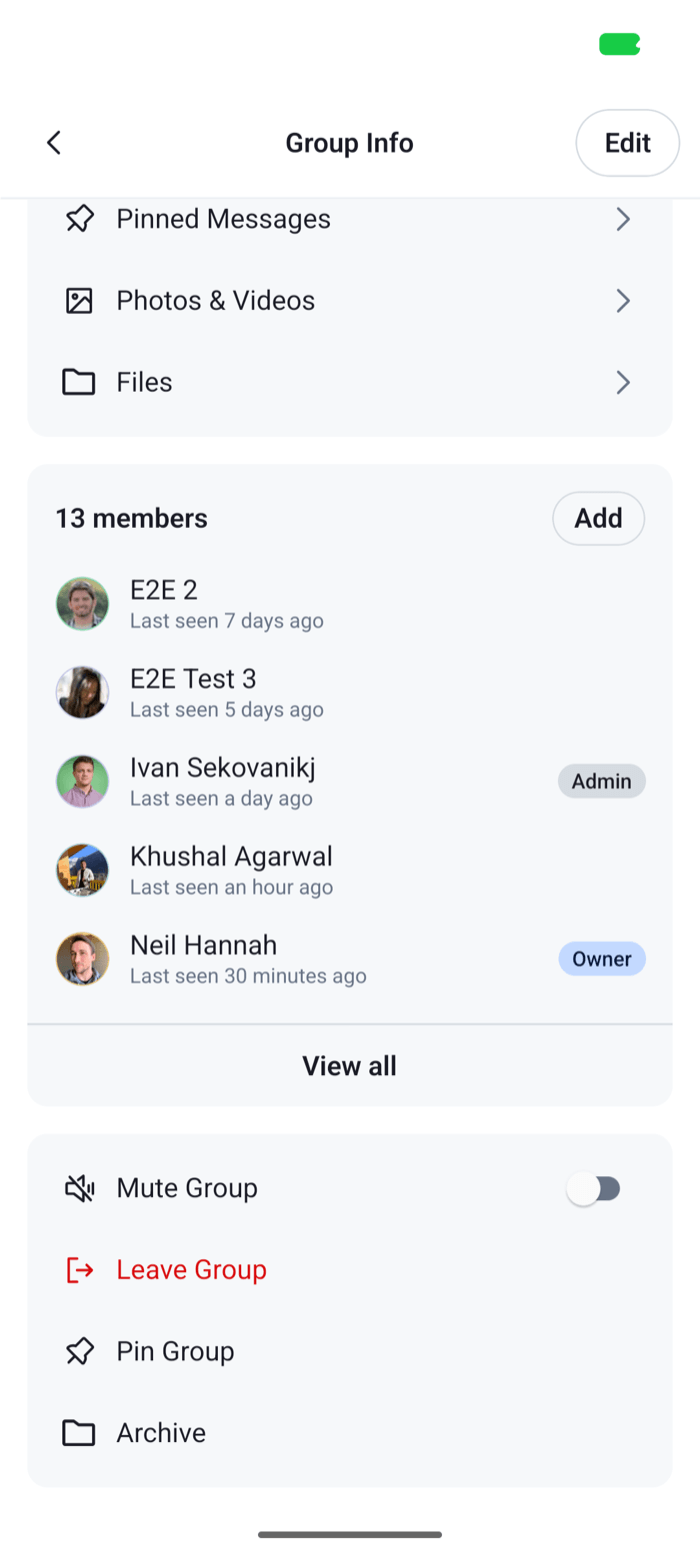
![The channel details actions with Pin Group and Archive after Mute and Leave on Android](https://getstream.io/docs-assets/images/e65510395ede.png)

  </td>
  </tr>
</table>

The `context` holds what the defaults were built from. `isPinned` and `isArchived` are the channel's state for the current user, and the section builds its items again when they change, so each item shows the right label after the user taps it. The SDK's catalog has the pin labels, so the item reuses their keys. It has no archive label, so the item uses keys of your own with `asDynamicKey` and English copy. The other fields of `context` are listed in [Actions](https://getstream.io/chat/docs/sdk/react-native/v10/ui/customizing/actions/#changing-the-items).

An item has an `action`, an `Icon`, an `id`, a `label`, a `type`, `standard` or `destructive`, and a `placement`. Channel details ignores `placement`, which only places items in the channel list. Pinning and archiving apply to the current user only. They update the user's membership of the channel, and don't change the channel for anyone else.

## Register it and leave the screen

`ChannelDetailsActionsSection` takes the function, and `onChannelDismiss`, which it calls after `leave`, `deleteChannel` or `block` succeeds. After those, the channel is gone for the user, so close its screens:

```tsx title="src/ChannelDetailsScreen.tsx"
import type { NativeStackScreenProps } from "@react-navigation/native-stack";
import { useNavigation } from "@react-navigation/native";
import type { NativeStackNavigationProp } from "@react-navigation/native-stack";
import {
  ChannelDetails,
  ChannelDetailsActionsSection,
  ChannelDetailsContextProvider,
  useChatContext,
  WithComponents,
} from "stream-chat-react-native";
import type {
  ChannelDetailsActionsSectionProps,
  ComponentOverrides,
} from "stream-chat-react-native";
import { getChannelActionItems } from "./channelActionItems";

type RootStackParamList = {
  ChannelList: undefined;
  ChannelDetails: { cid: string };
};

const ActionsSection = (props: ChannelDetailsActionsSectionProps) => {
  const navigation =
    useNavigation<NativeStackNavigationProp<RootStackParamList>>();

  return (
    <ChannelDetailsActionsSection
      {...props}
      getChannelActionItems={getChannelActionItems}
      onChannelDismiss={() => navigation.popTo("ChannelList")}
    />
  );
};

const overrides: ComponentOverrides = {
  ChannelDetailsActionsSection: ActionsSection,
};

export const ChannelDetailsScreen = ({
  navigation,
  route,
}: NativeStackScreenProps<RootStackParamList, "ChannelDetails">) => {
  const { client } = useChatContext();
  const channel = client.channelManager.get(route.params.cid);

  if (!channel) return null;

  return (
    <ChannelDetailsContextProvider channel={channel}>
      <WithComponents overrides={overrides}>
        <ChannelDetails onBack={() => navigation.goBack()} />
      </WithComponents>
    </ChannelDetailsContextProvider>
  );
};
```

`popTo("ChannelList")` goes back to the channel list and closes the channel screen and the details screen above it. The section wraps the `action` of the items with the ids `leave`, `deleteChannel` and `block` to call `onChannelDismiss` when they succeed, after your function returns the items. Leaving, deleting and blocking ask the user to confirm first, so the screen closes only after the user confirms and the request succeeds. In a direct message channel whose other member is blocked, the `block` item unblocks them instead, and the section calls `onChannelDismiss` after a successful unblock too, because it matches the item by its `id`.

The same function works for the channel list's swipe actions and options sheet, as `getChannelActionItems` on `ChannelList`. Check `context.surface`, `'list'` or `'details'`, to return different items in each place. In the list, the `placement` of each item decides where it shows.

## Hide an action

Filter `defaultItems` by `id`. The ids are `mute`, `pin` (in the channel list only), `muteUser`, `block`, `leave` and `deleteChannel`. This one leaves out the switch that mutes the channel:

```ts title="src/channelActionItems.ts"
import type { GetChannelActionItems } from "stream-chat-react-native";

export const getChannelActionItems: GetChannelActionItems = ({
  defaultItems,
}) => defaultItems.filter((item) => item.id !== "mute");
```

The default items don't check the user's capabilities. A user without the `leave-channel` capability sees Leave, and the request fails with an error notification. Filter by the user's capabilities where your app's permissions need it. They're in `channel.data.own_capabilities`, which `context.channel` gives you.

## Replace the list

To decide the whole list yourself, return items of your own instead of `defaultItems`. This list has Pin and Delete only:

```ts title="src/channelActionItems.ts"
import type {
  ChannelActionItem,
  GetChannelActionItems,
} from "stream-chat-react-native";

export const getChannelActionItems: GetChannelActionItems = ({
  context,
  defaultItems,
}) => {
  const { actions, icons, isPinned, t } = context;
  const pin: ChannelActionItem = {
    action: isPinned ? actions.unpin : actions.pin,
    Icon: isPinned ? icons.Unpin : icons.Pin,
    id: "pin",
    label: isPinned
      ? t("channel.unpinGroup.label", "Unpin Group")
      : t("channel.pinGroup.label", "Pin Group"),
    placement: "sheet",
    type: "standard",
  };
  const deleteChannel = defaultItems.find(({ id }) => id === "deleteChannel");

  return deleteChannel ? [pin, deleteChannel] : [pin];
};
```

Delete comes from `defaultItems`, so it keeps what the default item does: it shows only to the user who created the channel, and asks the user to confirm before it deletes. The handlers on `context.actions` don't ask, so an item of your own that calls `actions.deleteChannel`, `actions.leave` or `actions.blockUser` acts at once. An item with the `deleteChannel`, `leave` or `block` id still makes the section call `onChannelDismiss` after it succeeds.

Use the handlers on `context.actions` for items of your own, so they publish their success and error notifications. To run the same actions from a button outside channel details, use `useChannelActions(channel)`, as [Running channel and user actions](https://getstream.io/chat/docs/sdk/react-native/v10/ui/customizing/actions/#running-channel-and-user-actions) shows.

---

For the most recent version of this documentation, visit [https://getstream.io/chat/docs/sdk/react-native/v10/ui-cookbook/channel-details/custom-channel-actions/](https://getstream.io/chat/docs/sdk/react-native/v10/ui-cookbook/channel-details/custom-channel-actions/).