# Channel details and members

> **Info:** This is release candidate documentation for **Stream Chat React Native SDK v10**. For the latest stable version, see the [latest version (v9)](https://getstream.io/chat/docs/sdk/react-native/).

Channel details is a screen with everything about one channel: its profile and settings, its members, its pinned messages, and the photos, videos and files shared in it. `ChannelDetails` renders it for the channel of the `ChannelDetailsContextProvider` around it. This page covers what users can do there and what each part calls in the state layer. Where the screen goes in your navigator is on [Channel UI](https://getstream.io/chat/docs/sdk/react-native/v10/ui/components/channel-ui/#channel-details).

## What users get

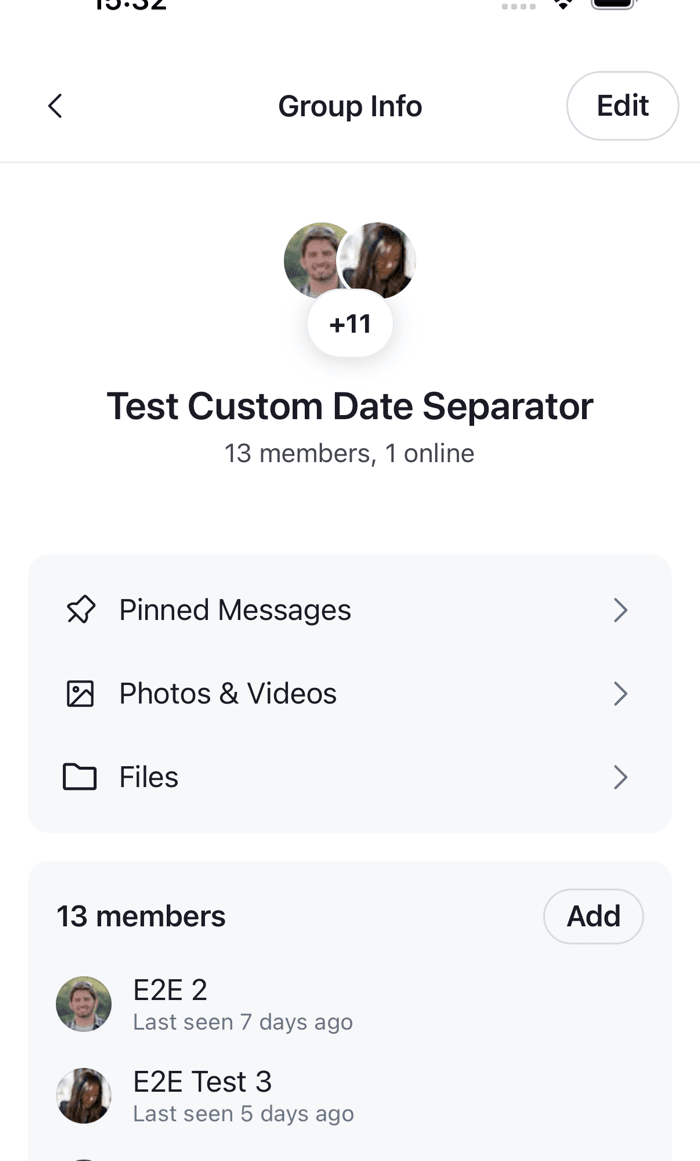
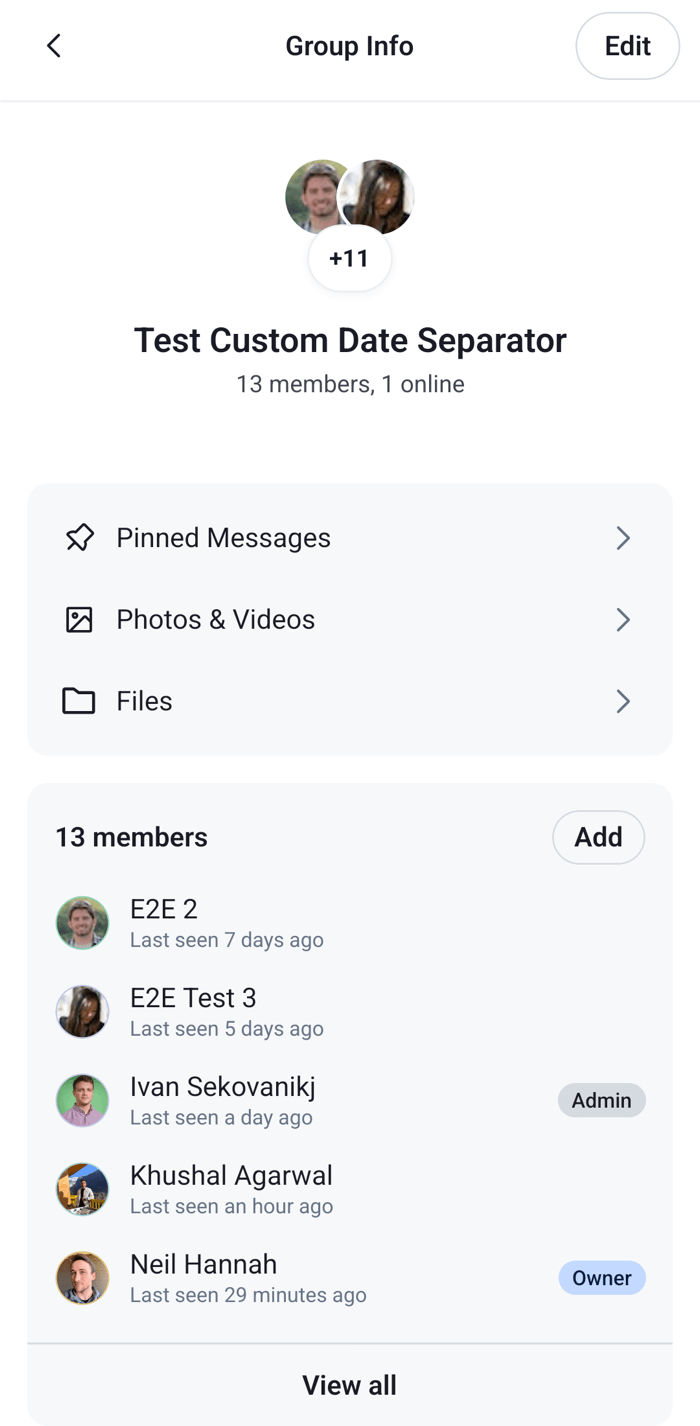
The user taps the avatar in the header of the "Design" channel, and the app opens its details screen. The header reads "Group Info", with a back button and an **Edit** button. Below it are:

- **The profile**: the channel's avatar and name, and how many members it has and how many are online. A mute icon follows the name while the channel is muted.
- **Pinned Messages**, **Photos & Videos** and **Files**, three rows that each open a full-screen list. Pinned Messages has a search field once the channel has pinned messages. Photos & Videos is a grid, and tapping a photo or video opens it in the image gallery. Files lists the files and audio shared in the channel, under a header per month, and tapping one opens it.
- **The members**: "8 members", with an **Add** button and the first five members. Each shows the member's role (Owner, Admin or Moderator) and whether they're online or when they were last seen. **View all** opens the full list, with a search field. Tapping a member opens a sheet with **Mute User**, **Block User** and **Remove User**.
- **The actions**: a **Mute Group** switch, **Leave Group**, and **Delete Group** when the user created the channel.

**Edit** opens a form that changes the channel's name and image. **Add** opens a search for users, where the user selects the users to add. Users who are already members show "Already a member" and can't be selected.

A direct message channel is different. The header reads "Contact Info" and has no Edit button. The profile shows "Online" while the other person is online, and the screen has no members section. The actions are a **Mute Chat** switch, a **Mute User** switch, **Block User**, **Leave Chat**, and **Delete Chat** when the user created the channel.

Leaving, deleting, blocking and removing a member ask the user to confirm first. Each action confirms its result with a notification, such as "1 member removed" or "Channel name updated".

<table>
  <tr>
  <td align='center' width='50%'>

![The Group Info screen with the channel profile, the three navigation rows and the members section on iOS](https://getstream.io/docs-assets/images/3e1be05f8781.png)

  </td>
  <td align='center' width='50%'>

![The Group Info screen with the channel profile, the three navigation rows and the members section on Android](https://getstream.io/docs-assets/images/a0713dbe5b27.png)

  </td>
  </tr>
</table>

## How it works across the layers

### State: what each part calls

Every part works on the channel from `ChannelDetailsContextProvider`, through the state layer:

| Part            | What it reads                                                                                    | What it calls                                                                                                                                                                                                             |
| --------------- | ------------------------------------------------------------------------------------------------ | ------------------------------------------------------------------------------------------------------------------------------------------------------------------------------------------------------------------------- |
| Profile         | `channel.state`: the channel data, members, member count and mute status                         |                                                                                                                                                                                                                           |
| Edit            | A snapshot of the channel's name and image, taken when the form opens                            | `Channel.updatePartial()` to set or unset `name` and `image`. A new image is uploaded first with `client.uploadImage()`                                                                                                   |
| Members section | `channel.state.members`, the members loaded with the channel, and the member count               |                                                                                                                                                                                                                           |
| Member list     | A `ChannelMemberSearchSource`, which queries the channel's members by name                       |                                                                                                                                                                                                                           |
| Add             | A `UserSearchSource`, which queries users by name                                                | `Channel.addMembers({ members: userIds })`                                                                                                                                                                                |
| Member sheet    | The member, and the user's mute and block lists                                                  | `client.moderation.mute({ target_ids })` and `client.moderation.unmute({ target_ids })`, `client.blockUser()` and `client.unblockUser()`, `Channel.removeMembers({ members: [userId] })`                                  |
| Actions         | `channel.state`: the mute status and members, and `client.blockedUsers`                          | `Channel.mute()` and `Channel.unmute()`, `Channel.removeMembers({ members: [client.userId] })` to leave, `Channel.delete()`, and in a direct message channel the member sheet's mute and block calls for the other member |
| Pinned Messages | A `MessageSearchSource` limited to this channel and `pinned: true`, searched by text             |                                                                                                                                                                                                                           |
| Photos & Videos | A `MessageSearchSource` limited to this channel and to image and video attachments, newest first |                                                                                                                                                                                                                           |
| Files           | A `MessageSearchSource` limited to this channel and to file and audio attachments, newest first  |                                                                                                                                                                                                                           |

The saved name and image come back in the channel's data as `custom.name` and `custom.image`. An empty name unsets it, so the channel falls back to its members' names.

The lists behind View all, Add, Pinned Messages, Photos & Videos and Files come from search sources. Each list creates its source when it opens, queries the first 25 items, and loads the next page as the user scrolls. The sources are a snapshot: they don't change as events arrive, so a message pinned while the list is open shows the next time it opens. The member list is the exception. When the channel's member count changes while no search text is entered, it queries its first page again. [Search sources](https://getstream.io/chat/docs/sdk/react-native/v10/state/loading-data/search-sources/) explains how they load.

The state doesn't change before the server answers. The channel's data, its members and the user's mute and block lists change when the response or the server's event arrives. The mute switches are the one place the UI runs ahead: a switch flips at once, and flips back if the request fails. [What channels and threads hold](https://getstream.io/chat/docs/sdk/react-native/v10/state/channels-and-threads/what-channels-and-threads-hold/#data-and-members) lists the fields and the events that change them.

The actions and the member sheet are action items, the same kind as the channel list's row actions. [Actions](https://getstream.io/chat/docs/sdk/react-native/v10/ui/customizing/actions/) lists them with their ids.

### UI: the screen

`ChannelDetails` renders, from top to bottom, `ChannelDetailsNavHeader`, `ChannelDetailsProfile`, `ChannelDetailsNavigationSection`, `ChannelDetailsMemberSection` and `ChannelDetailsActionsSection`, in a `ScrollView`. Each is an override key. It reads the channel with `useChannelDetailsContext()`, so render it inside a `ChannelDetailsContextProvider`. It doesn't need a `Channel` around it.

The screen doesn't navigate on its own. Its back button calls `onBack`. Edit, Add, View all and the three navigation rows open their forms and lists in a React Native `Modal` on top of the screen. The three rows open full screen, and the others open as a page sheet on iOS. `closeModals()` from `useChannelDetailsContext()` closes them all. The member sheet, and the sheet that picks a new image in the Edit form, open as bottom sheets. Picking an image uses the image picker and camera handlers of `stream-chat-react-native` or `stream-chat-expo`.

Three things leave the screen, and each needs your app:

- **Leave, delete and block** call `onChannelDismiss` on `ChannelDetailsActionsSection` once they succeed, so your app can close the channel's screens.
- **Pinned messages** aren't pressable. To jump to one, replace the `PinnedMessageItem` key with a row that navigates, as [Pinned messages](https://getstream.io/chat/docs/sdk/react-native/v10/ui/layout/moving-between-channels-threads-and-messages/#pinned-messages) shows.
- **A member** has no Send Direct Message action. [Member actions](https://getstream.io/chat/docs/sdk/react-native/v10/ui/customizing/actions/#member-actions) adds one.

`ChannelDetails` publishes the notifications of its actions to a notification list of its own, and each modal has its own too. See [Displaying notifications](https://getstream.io/chat/docs/sdk/react-native/v10/ui/customizing/displaying-notifications/).

## Turning it on or off

Channel details is off until your app opens it: the SDK has no button that navigates to it. Give it a screen of your own, wrap `ChannelDetails` in `ChannelDetailsContextProvider` with the channel, and navigate to the screen from your channel header. [Channel UI](https://getstream.io/chat/docs/sdk/react-native/v10/ui/components/channel-ui/#channel-details) has the screen for React Navigation.

Who sees which action depends on the channel and on the user's capabilities in it, which the server derives from their roles and the channel type's permissions:

| Action                                          | Shown when                                   |
| ----------------------------------------------- | -------------------------------------------- |
| Edit                                            | A group channel, and `update-channel`        |
| Add, in the members section and the member list | `update-channel-members`                     |
| Mute Chat or Mute Group switch                  | Always                                       |
| Mute User switch and Block User, in the actions | A direct message channel                     |
| Leave                                           | Always                                       |
| Delete                                          | The user created the channel                 |
| Mute User and Block User, in the member sheet   | Another member                               |
| Remove User, in the member sheet                | Another member, and `update-channel-members` |

A direct message channel here is one with exactly one member besides the current user. Leave and Delete check no capability, so a user without `leave-channel` or `delete-channel` sees them and gets an error notification. Change capabilities on the server; see [Permissions reference](https://getstream.io/chat/docs/javascript/permissions-reference/).

## Customizing

### Choosing the rows

`ChannelDetailsNavigationSection` takes `getNavigationItems`, which receives the default rows, with the sections `pinned-messages`, `photos-and-videos` and `files`, and returns the rows to show. `ChannelDetails` renders the section without props, so pass the function through an override. This screen has no Files row:

```tsx title="src/ChannelDetailsScreen.tsx"
import type { Channel as StreamChannel } from "stream-chat";
import {
  ChannelDetails,
  ChannelDetailsContextProvider,
  ChannelDetailsNavigationSection,
  WithComponents,
} from "stream-chat-react-native";
import type {
  ChannelDetailsNavigationSectionProps,
  ComponentOverrides,
  GetChannelDetailsNavigationItems,
} from "stream-chat-react-native";

const getNavigationItems: GetChannelDetailsNavigationItems = ({
  defaultItems,
}) => defaultItems.filter(({ section }) => section !== "files");

const NavigationSection = (props: ChannelDetailsNavigationSectionProps) => (
  <ChannelDetailsNavigationSection
    {...props}
    getNavigationItems={getNavigationItems}
  />
);

// Declared outside the component, so WithComponents gets the same object on every render.
const overrides: ComponentOverrides = {
  ChannelDetailsNavigationSection: NavigationSection,
};

export const ChannelDetailsScreen = ({
  channel,
  onBack,
}: {
  channel: StreamChannel;
  onBack: () => void;
}) => (
  <ChannelDetailsContextProvider channel={channel}>
    <WithComponents overrides={overrides}>
      <ChannelDetails onBack={onBack} />
    </WithComponents>
  </ChannelDetailsContextProvider>
);
```

A row with an `onPress` calls it instead of opening its modal, which is how a row opens a screen of your own. The [Custom navigation items](https://getstream.io/chat/docs/sdk/react-native/v10/ui-cookbook/channel-details/custom-navigation-items/) UI cookbook adds rows.

### Screens instead of modals

Each modal can be swapped for a screen in your navigator:

- `ChannelDetailsEditButton` and `ChannelAddMembersButton` take `onPress`, which replaces opening the edit or add form.
- `ChannelDetailsMemberSection` takes `onViewAllMembersPress`, which replaces opening the member list.
- `getNavigationItems` sets `onPress` on a row, as above.

The forms and lists are exported, so your screens render them: `ChannelEditDetailsForm`, `ChannelAddMembersForm`, `ChannelMemberList`, `PinnedMessageList`, `MediaList` and `FileAttachmentList`. Wrap each screen in `ChannelDetailsContextProvider` with the same channel. The [Custom navigation](https://getstream.io/chat/docs/sdk/react-native/v10/ui-cookbook/channel-details/custom-navigation/) UI cookbook does this for every modal.

### Uploading the channel image to your own storage

By default, Edit uploads a new channel image with `client.uploadImage()`, to Stream's CDN. `ChannelEditDetailsForm` takes `doFileUploadRequest`: a function that gets the picked file and returns `{ file }`, the URL to save. `ChannelDetailsEditButton` renders the form from the `ChannelEditDetailsForm` key, so set it there:

```tsx title="src/editFormOverrides.tsx"
import { ChannelEditDetailsForm } from "stream-chat-react-native";
import type {
  ChannelEditDetailsFormProps,
  ComponentOverrides,
  GlobalFileUploadRequest,
} from "stream-chat-react-native";

const uploadToOwnStorage: GlobalFileUploadRequest = async (file) => {
  const body = new FormData();
  // React Native's FormData sends a local file given as { uri, name, type }.
  body.append("file", {
    name: file.name ?? "channel-image.jpg",
    type: file.type,
    uri: file.uri,
  });
  const response = await fetch("https://example.com/api/uploads", {
    body,
    method: "POST",
  });
  const { url } = (await response.json()) as { url: string };
  return { file: url };
};

const EditForm = (props: ChannelEditDetailsFormProps) => (
  <ChannelEditDetailsForm {...props} doFileUploadRequest={uploadToOwnStorage} />
);

// Pass these to WithComponents around ChannelDetails.
export const editFormOverrides: ComponentOverrides = {
  ChannelEditDetailsForm: EditForm,
};
```

`compressImageQuality`, from 0 to 1, compresses the picked image before it's uploaded.

### Changing the actions

The actions section and the member sheet take functions that receive the default items and return the items to show. [Channel actions](https://getstream.io/chat/docs/sdk/react-native/v10/ui/customizing/actions/#in-channel-details) shows how to pass one to channel details, and [Member actions](https://getstream.io/chat/docs/sdk/react-native/v10/ui/customizing/actions/#member-actions) does the same for the member sheet. The UI cookbooks [Custom channel actions](https://getstream.io/chat/docs/sdk/react-native/v10/ui-cookbook/channel-details/custom-channel-actions/) and [Custom member actions](https://getstream.io/chat/docs/sdk/react-native/v10/ui-cookbook/channel-details/custom-member-actions/) build complete examples.

### Member roles

`ChannelMemberItem` takes `getMemberRoles`, which receives the default roles and returns the roles to show. By default, the creator of the channel is Owner, a user whose role is `admin` is Admin, and a member whose channel role is `channel_moderator` is Moderator. The [Custom member roles](https://getstream.io/chat/docs/sdk/react-native/v10/ui-cookbook/channel-details/custom-member-roles/) UI cookbook shows other roles.

### Adding members with history hidden

The Add form adds the selected users with `Channel.addMembers({ members: userIds })`, so they see the channel's whole history. To hide it, replace the form's header so that it adds them with the history options; see [History visibility for new members](https://getstream.io/chat/docs/sdk/react-native/v10/features/channels/history-visibility-for-new-members/#hiding-history-in-the-add-form).

## Reference

- [ChannelDetails](https://getstream.io/chat/docs/sdk/react-native/v10/component-reference/channel-details/channel-details/): the `ChannelDetails` props and its sections.
- [Channel details lists](https://getstream.io/chat/docs/sdk/react-native/v10/component-reference/channel-details/channel-details-lists/): the member list, the add form, and the pinned messages, media and files lists.
- [Channel details contexts](https://getstream.io/chat/docs/sdk/react-native/v10/component-reference/channel-details/channel-details-contexts/): `ChannelDetailsContextProvider` and the contexts of the forms and lists.
- [Channel details hooks](https://getstream.io/chat/docs/sdk/react-native/v10/reference/hooks/channel-details-hooks/): the hooks the sections use, such as `useMemberRoles` and `useCanAddMembersToChannel`.
- [Channel and channel state](https://getstream.io/chat/docs/sdk/react-native/v10/reference/state/channel-and-channel-state/): `addMembers`, `removeMembers`, `updatePartial` and the other channel methods.

---

For the most recent version of this documentation, visit [https://getstream.io/chat/docs/sdk/react-native/v10/features/channels/channel-details-and-members/](https://getstream.io/chat/docs/sdk/react-native/v10/features/channels/channel-details-and-members/).